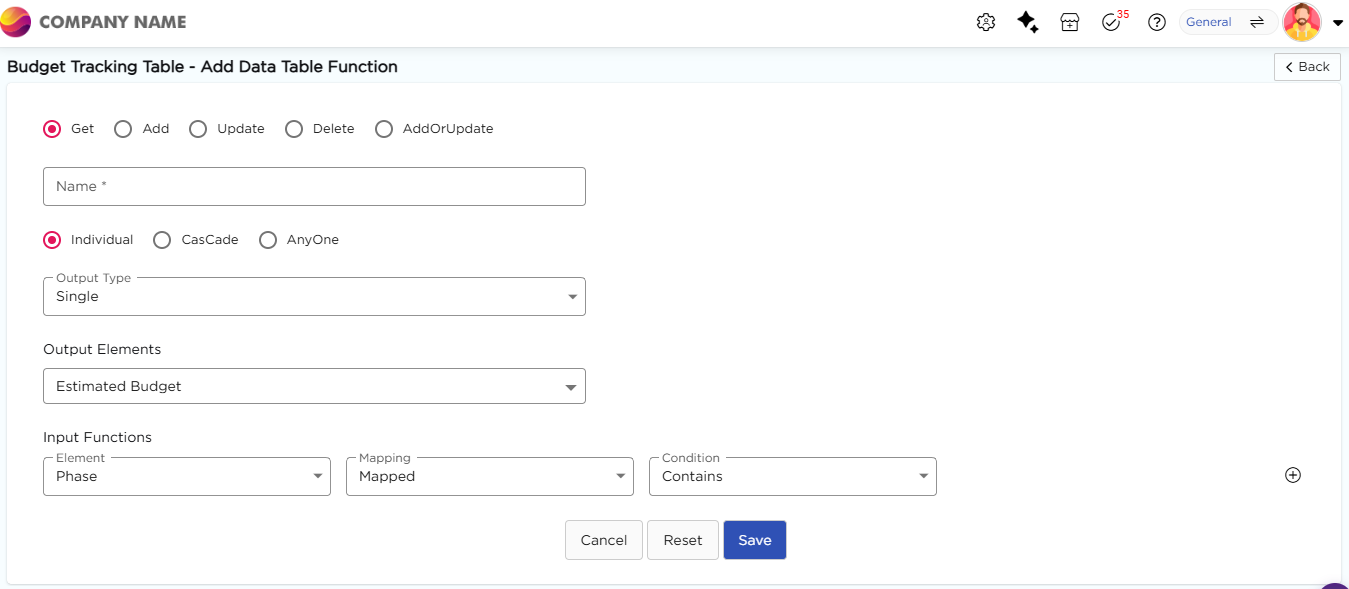
Get function allows a data table to share its data with an application. It fetches existing records from the data table into the app and helps avoid repeated manual entry. This functionality simplifies the user experience when working with repetitive data in an application.
Example
Consider a data table that stores customer information such as names, addresses, and contact details. An application needs to use this information for tasks like processing orders and generating reports. Instead of entering customer details manually each time, the Get function retrieves the required data directly from the data table and displays it in the application.
¶ 1. Steps to create a Get Function?
- Go to Admin Menu → Database → Data Tables. You will land on the Data Tables List page.
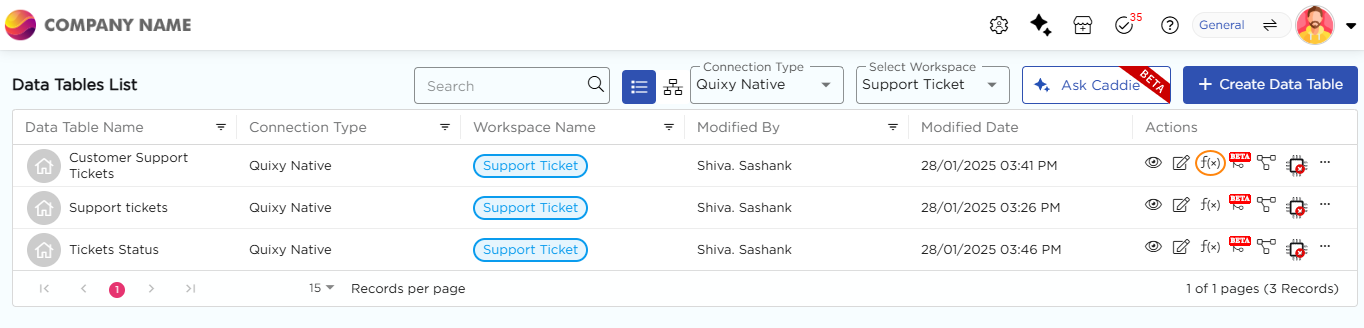
- Select the required data table and click the f(x) icon under the Actions column. You will land on the Data Table Function page.
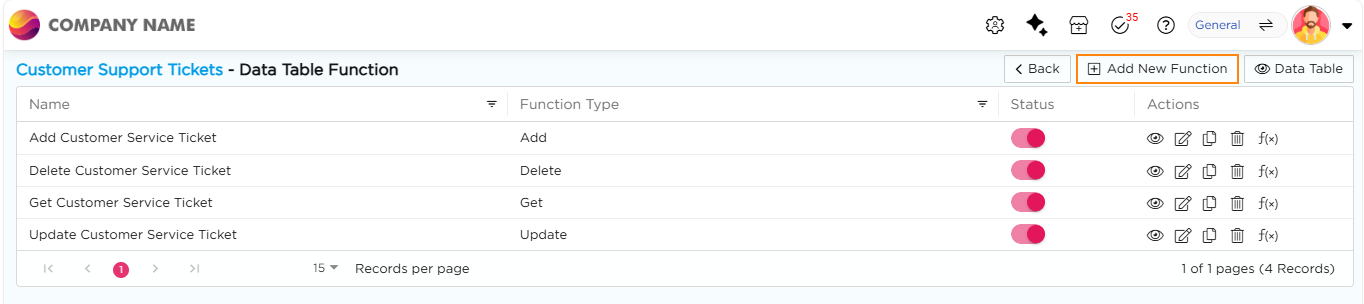
3. Click + Add New Function. You will land on the Add Data Table Function page.
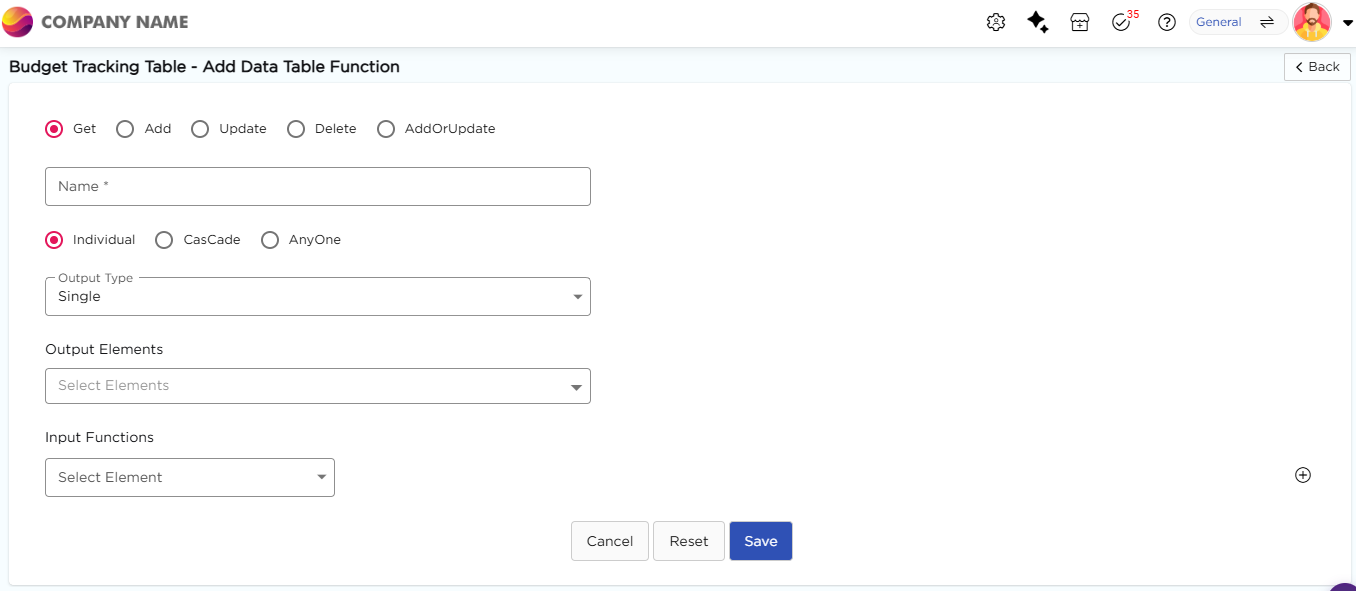
4. Select Get as the function type and enter a name for the function.
5. Select between Individual, Cascade, and Anyone to define the behavior of input fields in application.
6. Select the Output Type to define the structure of the output data.
7. Select the required data fields from Output Elements that you want as output.
8. Under Input Functions, select the element that should act as the reference to fetch matching records.
Important
If you select Employee ID as input value, data (i.e., employee name, phone number, etc.) related to that employee id will be fetched as output.
9. Once an input element is selected, Mapping and Condition fields appear.
10.Set the Mapping value for the selected element.
11. Click the + icon to add more input conditions if required.
12. Set the Condition value for the selected element.
13. Click Save to store the Get function.