This section explains how to create an Add-on using an existing data source.
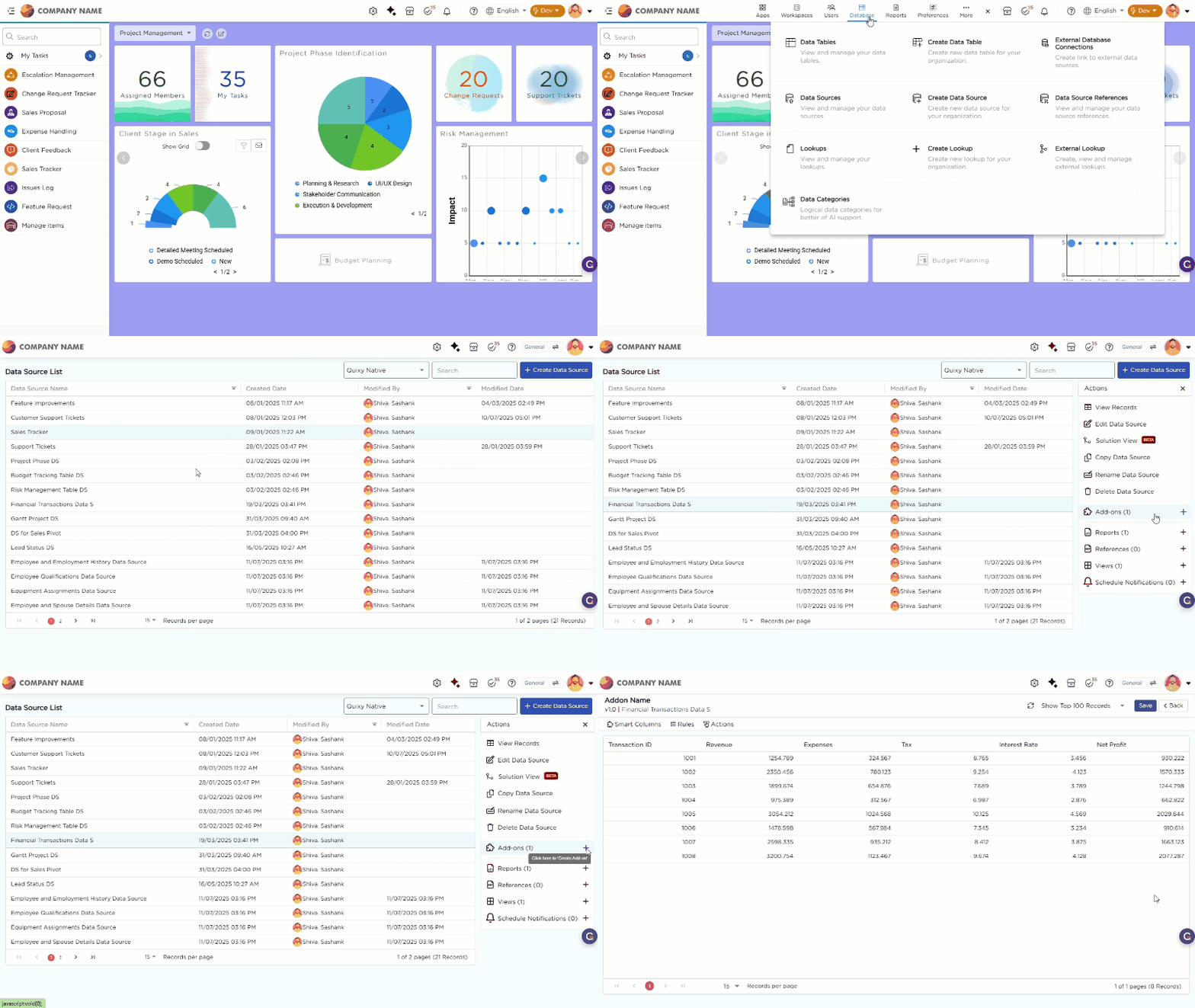
- Go to the Admin Menu → Database → Data Sources.
- Select the desired data source where you want to create an Add-On and click on it.
- On the right-hand side, locate the Actions Panel and find the Add-Ons section.
- Click the "+" icon next to "Add-Ons."
- You will be redirected to the Add-On creation page where you can start configuring the Add-On.
¶ 1. Add-On Landing Page
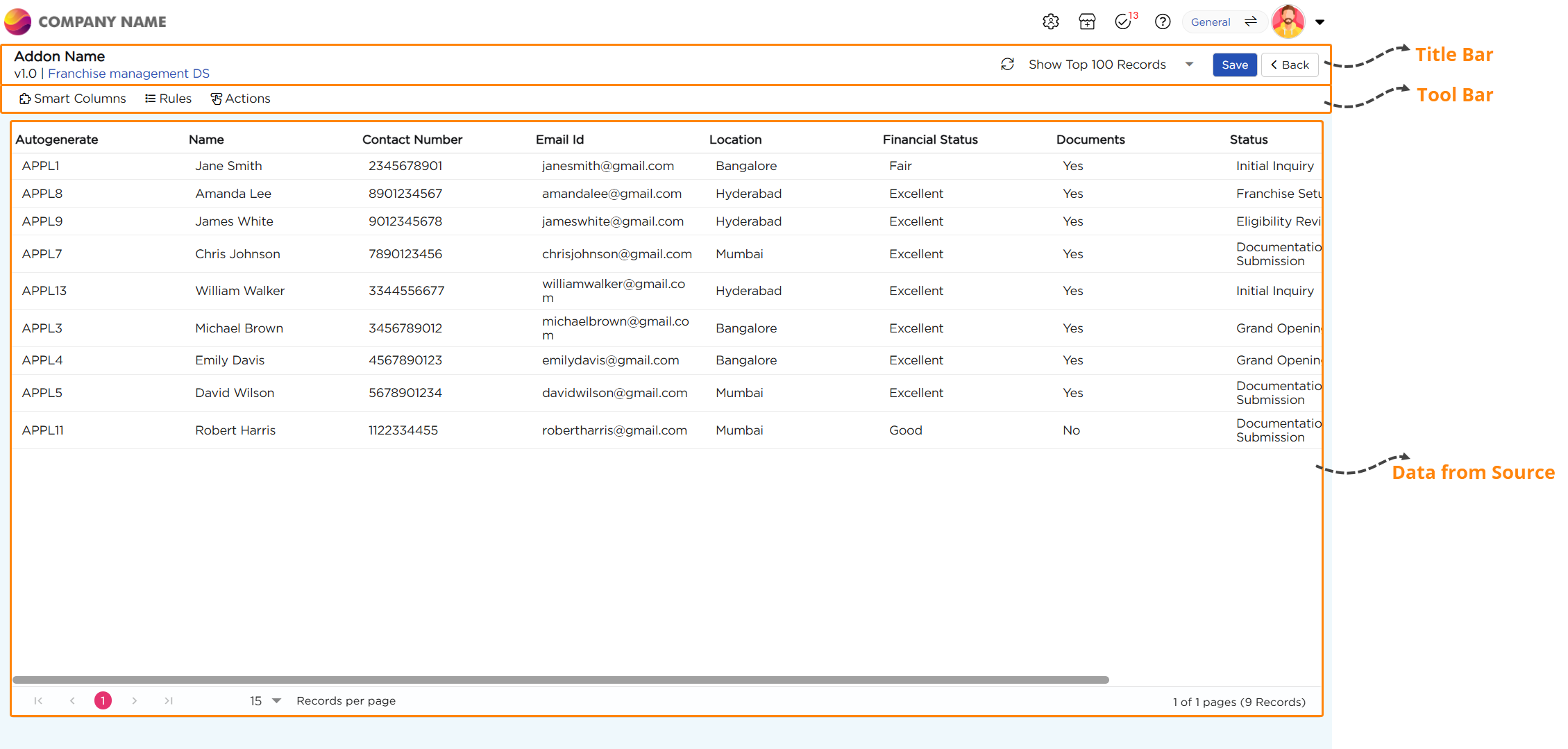
The Add-On configuration page is the main screen where you view and manage an Add-On created for a data source. It is divided into three sections: Title Bar, Tool Bar, and Data Area.
| Sections | Descriptions |
|---|---|
| Title Bar | This section displays the Add-On name and version. It helps you identify the data source linked to the Add-On. It also provides options to save changes or go back. |
| Tool Bar | This section contains configuration tabs used to enhance the Add-On behavior. You can switch between Smart Columns, Rules, and Actions to define logic and interactions for the data. |
| Data Area | This section displays records from the linked data source. Any Smart Columns, rule-driven values, or data actions configured in the Add-On are reflected here. This section helps you validate how the Add-On impacts the data in real time. |
¶ 2. Add-On Components
When setting up an Add-On, you have three key configuration options:
¶ 2.1. Smart columns
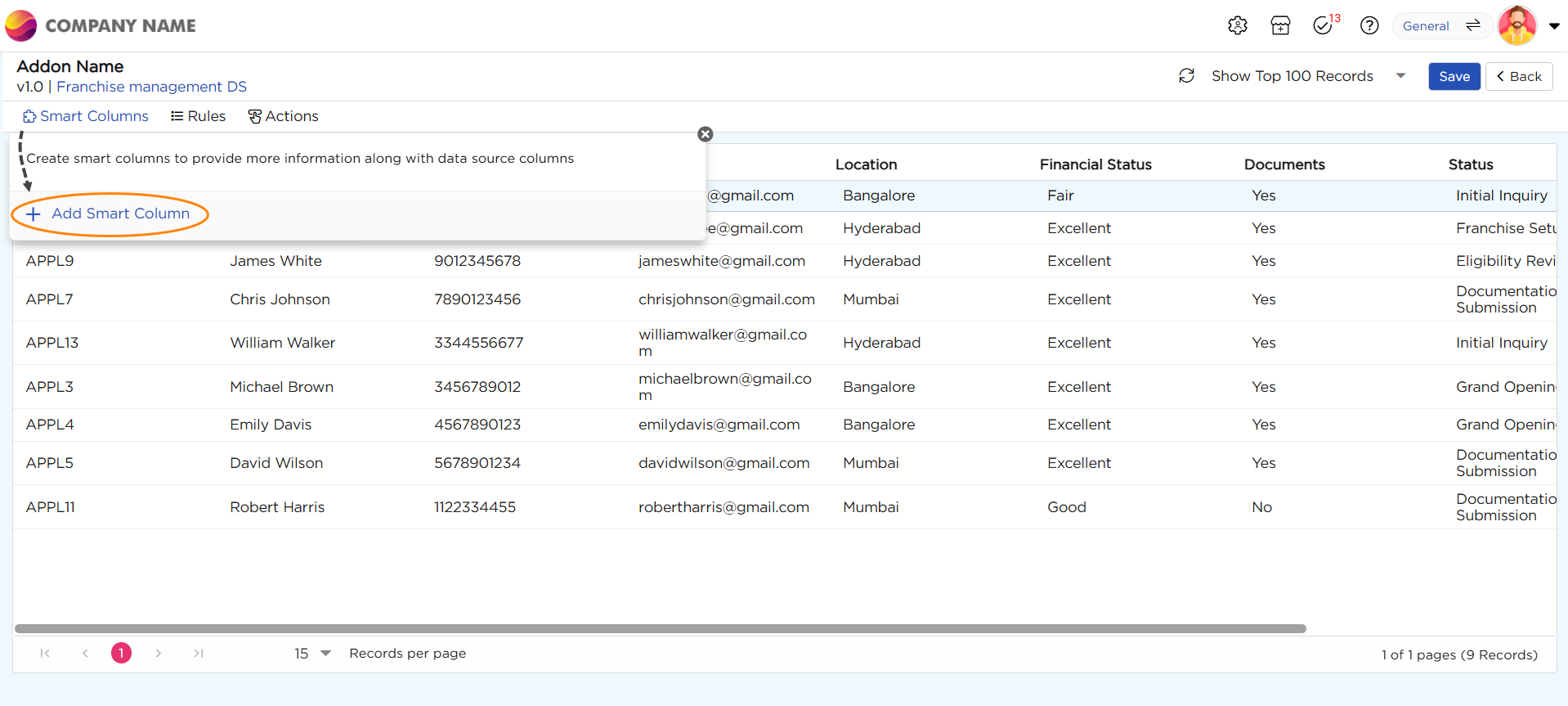
Smart Columns acts as additional fields/columns which carry static value data across the data source. These columns enhance the functionality of artifacts by providing consistent information without altering the original data source.
¶ 2.2. Rules
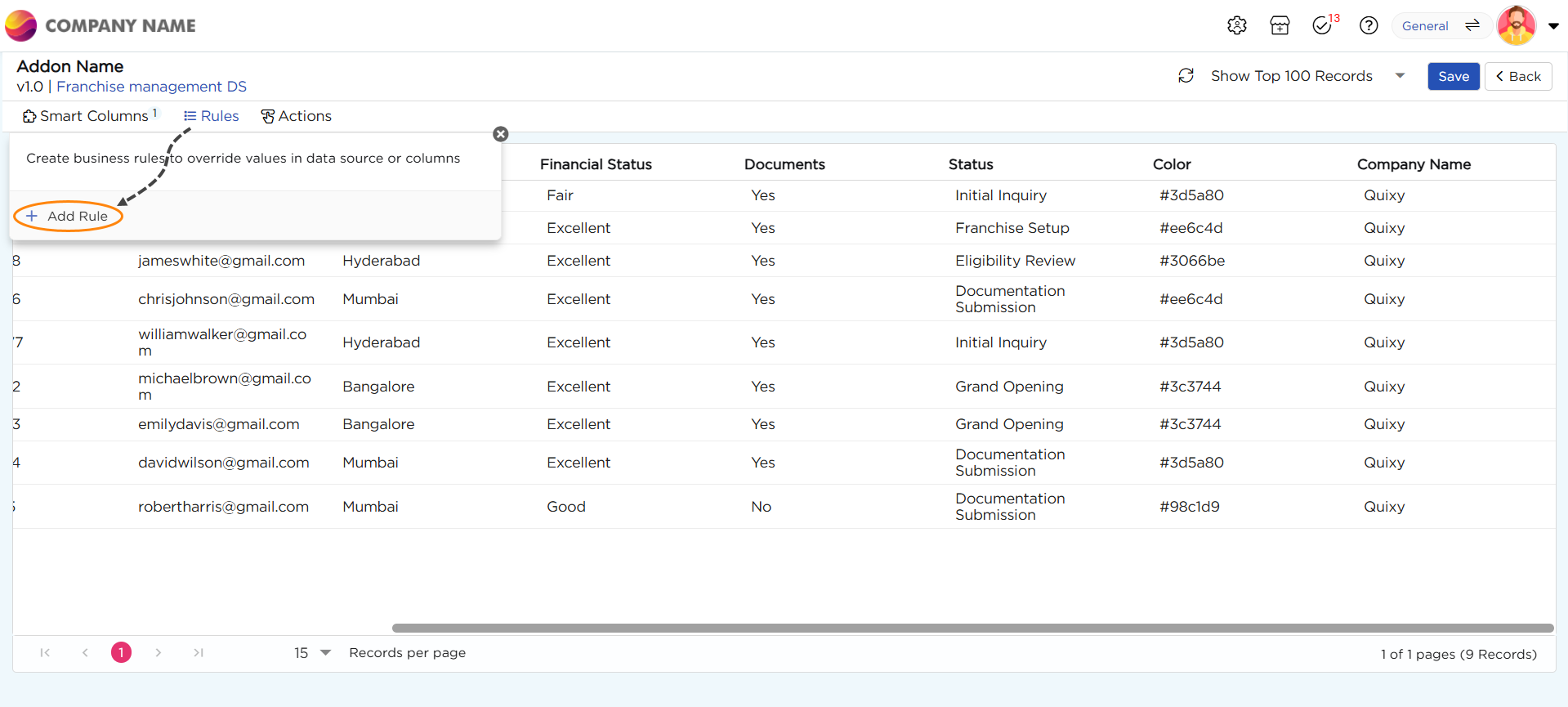
While a Smart Column starts consists of static values, it can truly become "smart" when Rules are applied. These Rules define the behavior of the Smart Column with conditional logic. For instance, a Smart Column can display varying outputs based on specific conditions in the data, making it a powerful tool for tailoring artifacts to meet precise business needs.
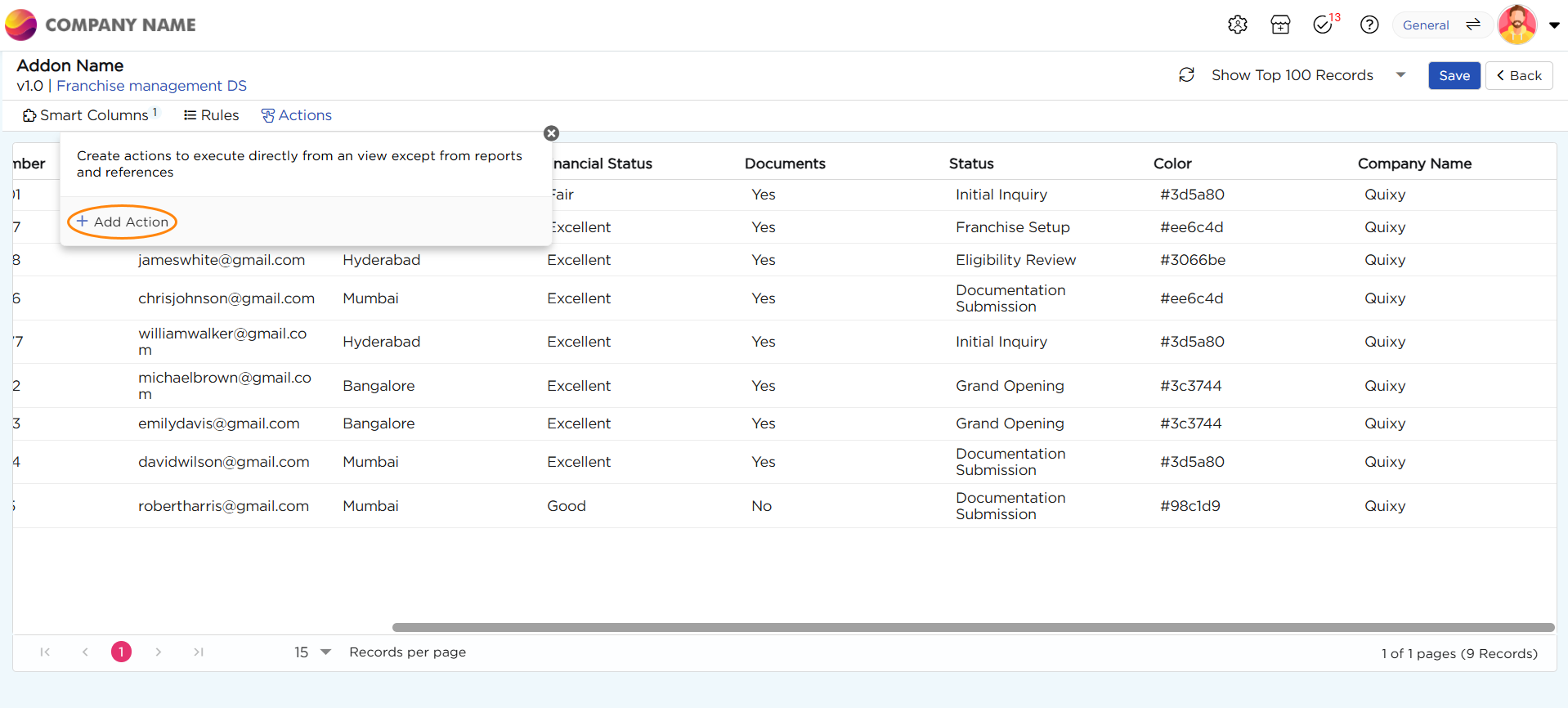
¶ 2.3. Data Actions
Data Actions are operations defined within an Add-On that enable specific interactions or modifications to data. These actions allow users to perform targeted tasks, such as updating, adding, or transforming data directly from the views without needing interactions from the multiple artifacts.
¶ 2.3.1. Types of Data Actions
There are different types of data actions to perform different actions.
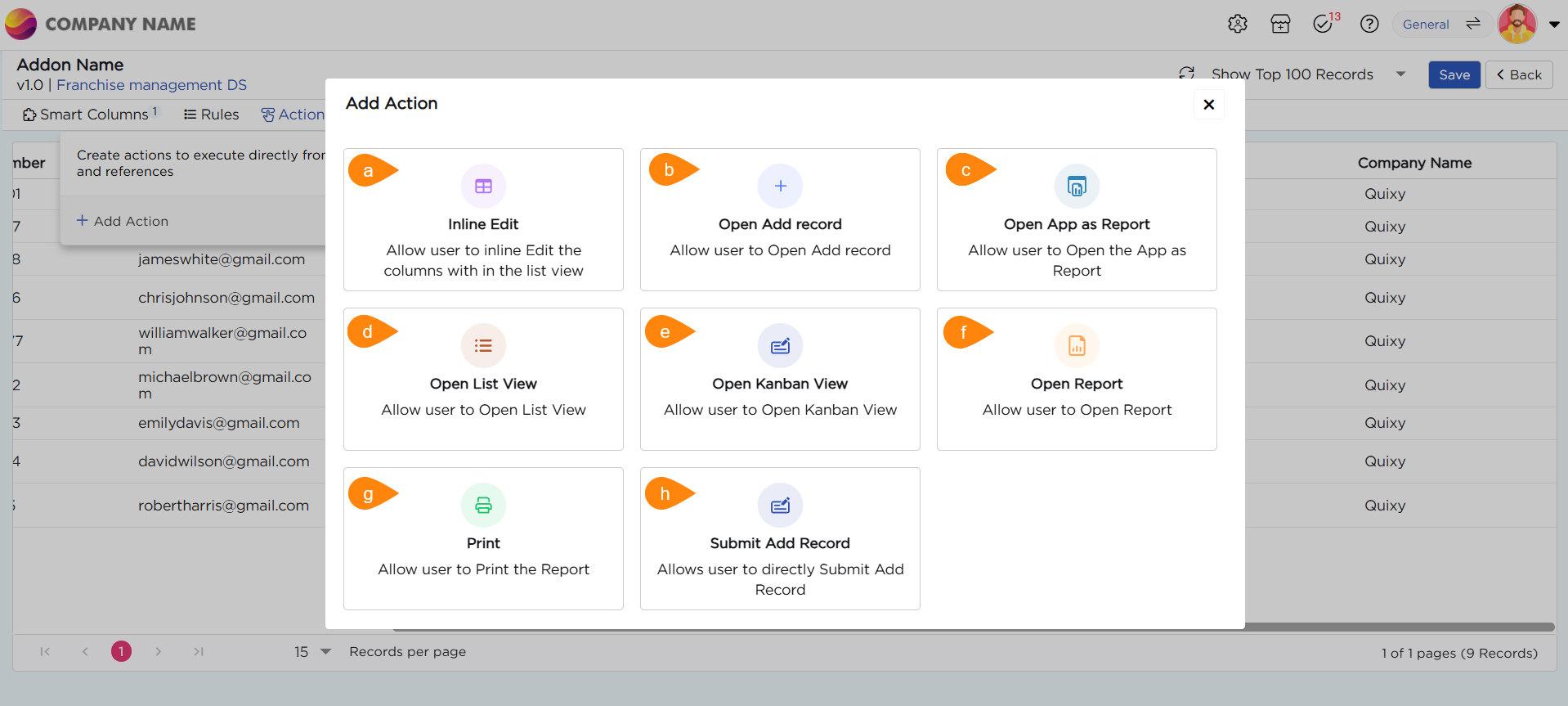
- Inline Edit: This action enables users to modify column data directly within the view, such as a List or Kanban. Changes made through inline editing are immediately updated in the associated data source, including tables, ensuring a seamless and efficient way to manage data without the need to navigate to a separate form or page.
- Open Add Record: This action let users to open an application in "Add Record" mode directly from the view itself, allowing them to create and submit new records directly. This functionality simplifies data entry by providing a straightforward interface for adding transactions or entries to the data tables.
- Open app as report: This action lets you see an application in a view-only mode. For an instance, if an employee’s payroll has more than 20 fields of information in an application, there is no need of showing those 20 fields in the view level, so instead of showing all of them in a view, this action lets you open that application with the detailed information of a particular employee and see those details in app format. It’s helpful when you want to see everything about something, like an employee's payroll, but don’t want to clutter the view with too much information.
- Open List View: This action lets you to access a specific List View (which defined by a CD) and see data displayed in a tabular format and perform any actions associated with that list view. This action is ideal for scenarios where users need to review detailed information or perform actions on a list view.
- Open Kanban View: Similar to the Open List View action works the same way, but it opens a Kanban View instead of a List View. This is helpful when you need to open another Kanban view.
- Open Report: Users can view specific reports (Grid, Pivot, Custom, etc.,) including all types of chart-based reports. This action allows users to access data-driven insights linked to a record, helping them make quick, informed decisions without needing to leave the context of the application.
- Print: Allow users to print the Report which is linked to the action.
- Submit Add Record: From the List View, users can directly submit a new record without navigating away from the current interface. This action streamlines the process of adding and finalizing records, making it quick and efficient for end-users to manage entries directly within their workflow.
Important
Data Actions are exclusive to views and cannot be used in reports or other artifacts, even if they are part of an Add-On.
¶ Related Article
