Facial Recognition lets an app fill in a person's details from a face scan. When you add a record, you scan a face. Quixy finds the matching face in its Facial Recognition database and fetches the data linked to that person, such as a name or an ID. This reduces manual typing and makes the captured data more reliable.
Facial Recognition suits any process that needs to confirm who someone is. For example, employees can mark attendance by scanning their face instead of using a fingerprint scanner. To use Facial Recognition, you build two apps:
| App | Purpose |
|---|---|
| Face Registration app | Saves the face images of each person, along with a reference value such as an Employee ID. |
| Face Recognition app | Scans a face when a user adds a record, and fetches that person's data. |
¶ 1. Face Registration
This step saves the faces of your people in Quixy. Create an app with these two fields:
| Field | Purpose |
|---|---|
| File Upload | Captures the face images. |
| Another field, such as Text Box or Number | Captures a reference value for the face, such as a name, email ID, or Employee ID. |
Then link the app to the Quixy Face Recognition API. Registration does not work without this link.
¶ 1.1. Create the App
The example below creates an app that stores employee faces, with the Employee ID as the reference value.
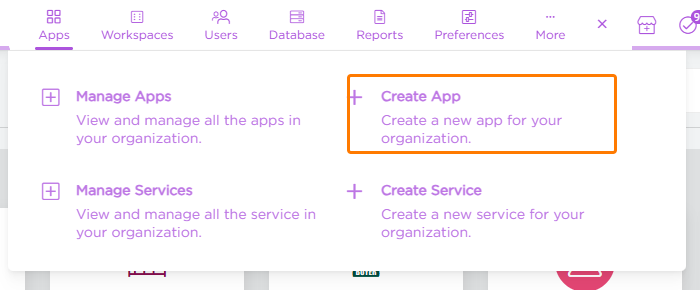
1. Go to Admin Menu → Apps → Create App.
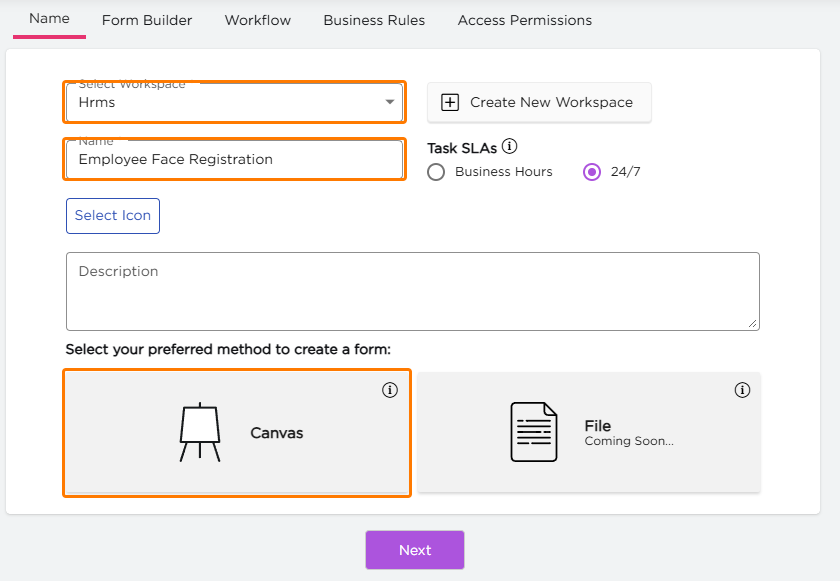
2. On the Name page, select a Workspace and enter a Name for the app.
3. Select Canvas, then click Next.
Note
Next stays disabled until you select a workspace, enter a name of 3 to 100 characters, and select Canvas.
4. On the Form Builder tab, drag the File Upload field and the Number field onto the form. Use File Upload for the face images and Number for the Employee ID. For more about the form builder, see Form Builder.
5. Click Next to open the Workflow tab. Assign a role to the Start step. Users with this role add the records. For more about step settings, see Workflow-Step Properties.
6. Skip Business Rules and Access Permissions. This app only stores face images, so it does not need them.
7. Click Publish at the top right.
¶ 1.2. Link the App to the Face Recognition API
After you link the app to the API, Quixy saves the face images of every submitted record in the Facial Recognition database.
1. Contact the Quixy team to get the Quixy Face Recognition API.
2. Go to Admin Menu → Apps → Manage Apps. Select the workspace of your app, or search for the app by name, and open it.
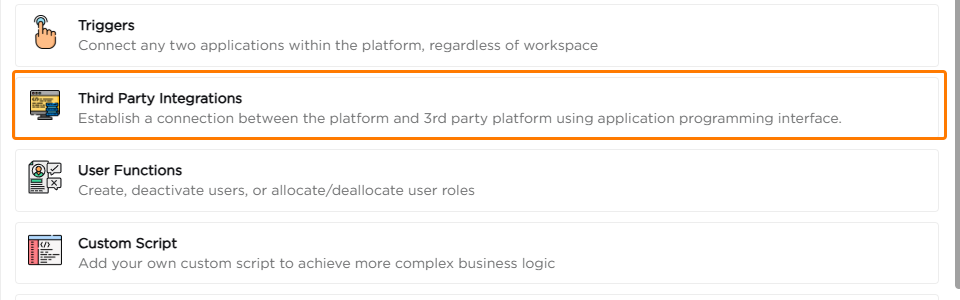
3. Click the Events tab, then click Third Party Integrations.
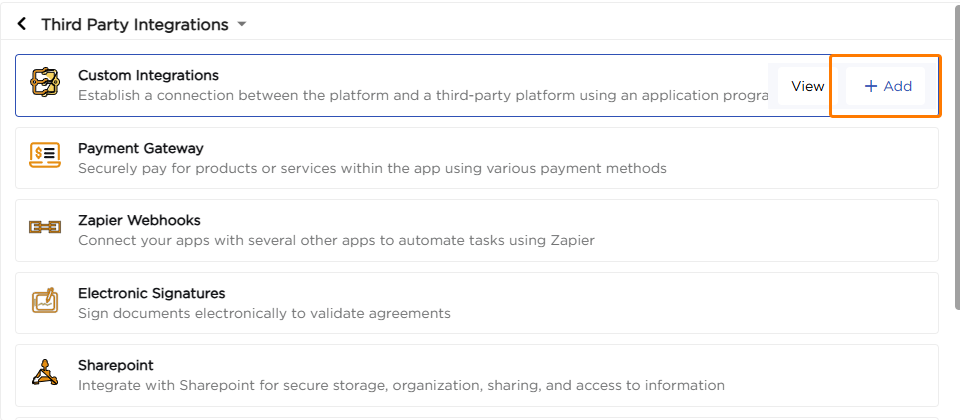
4. Click Add next to Custom Integrations.
5. On the Event Details tab, enter an event name and select the workflow step and action that runs when a user submits the record.

6. Complete the remaining settings with the API details from the Quixy team. For the full steps, see Custom Integration.
Note
After you configure the API, you can add records to register faces.
¶ 1.3. Register the Faces
1. Open the app to add a record.
2. Enter the reference value, such as the Employee ID, and upload all the face images of that person.
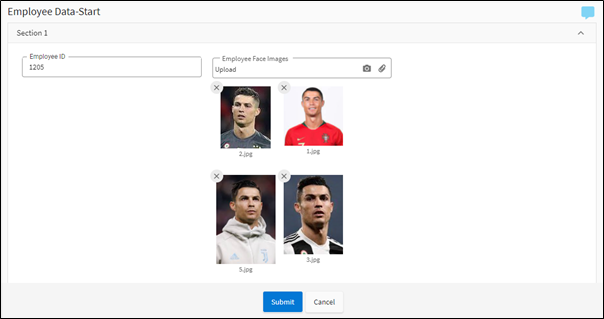
3. Click Submit. Quixy saves the images in the Facial Recognition database.
The person's face is now registered.
¶ 2. Face Recognition
This step uses the registered faces. You create an app with a Reference field that has the face scanner turned on. When a user scans a face, the app fetches that person's data.
The example below is an attendance app. An employee scans their face, the app fetches their details, and the employee submits the attendance.
¶ 2.1. Create the App
1. Go to Admin Menu → Apps → Create App and complete the Name page, as described in section 1.1.
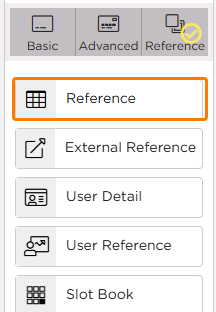
2. On the Form Builder tab, click the Reference tab and drag the Reference field onto the form.
3. Set up the field to fetch the person's details. Select the data table that stores the details and a Get function that finds a person by the reference value. The data table must have a Get function. For the full steps, see Reference.
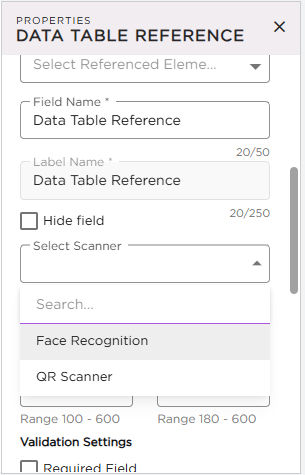
4. In the field properties, open the Select Scanner list and select Face Recognition. The list also has QR Scanner.
5. Set the scanner options. Two options appear after you select Face Recognition.
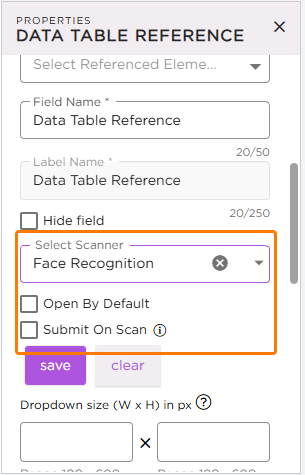
| Option | Description |
|---|---|
| Open By Default | Opens the scanner as soon as the form opens. If you leave it unselected, users open the scanner themselves. |
| Submit On Scan | Runs the first action of the current workflow step as soon as the face is scanned. |
6. Define the Workflow, Business Rules, and Access Permissions to suit your process.
7. Click Publish at the top right.
¶ 2.2. Add a Record by Scanning a Face
1. Open the Quixy mobile app and open the app you created.
2. The face scanner opens. If you selected Open By Default, it opens on its own. Otherwise, open the scanner from the field.
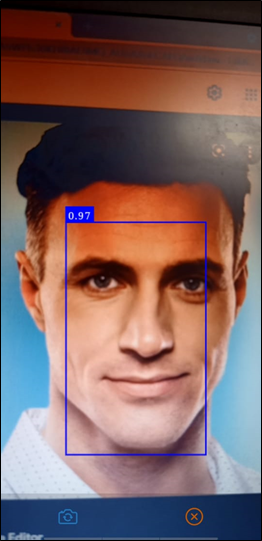
3. Scan the person's face. When Quixy recognizes the face, it fills in the person's data.
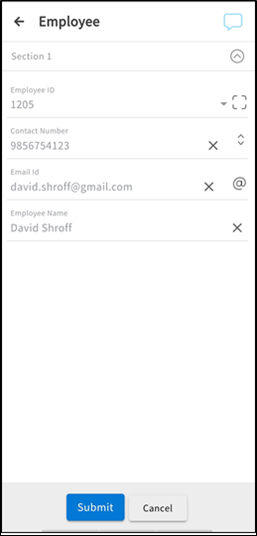
4. Check the data and tap Submit.