Custom Integrations in Quixy allow users to connect their Quixy applications with third-party systems through APIs. This enables automatic data exchange—particularly pushing data from Quixy into external platforms—without manual intervention.
¶ 1. Configuring Custom Integration in Quixy to Push Data into a Third-Party Systems
To enable seamless data transfer from a Quixy application to a third-party system, follow these steps to configure a custom integration:
- Select the Application: Choose the Quixy application from which you want to push data to the third-party system.
- Navigate to Integration Settings: Go to: App Events → Third-Party Integration → Custom Integrations
- Create an Integration Event:
- Provide a name for the event.
- Choose the workflow step at which this integration should be triggered (e.g., On Submit, On Save, etc.).
- Enter API URL
- Enter the API endpoint URL obtained from the third-party application.
- This is the destination where Quixy will send the data.
- Configure Authentication
- Choose the authentication type required by the third-party (e.g., API Key, Basic Auth, Bearer Token, OAuth 2.0).
- Enter the corresponding credentials (e.g., token, username/password), which must be provided by the third-party system.
- Choose HTTP Method
- Select the appropriate HTTP method based on the operation:
- GET for retrieving data
- POST for sending data
- PUT/PATCH for updates
- DELETE if applicable
- Select the appropriate HTTP method based on the operation:
- Add Headers and Parameters
- Enter custom headers (e.g., Content-Type, Authorization) as required by the third-party.
- Add any query or URL parameters that refine or direct the request.
- Configure Request Body
- Enter the JSON or XML payload structure expected by the third-party system.
- If you wish to send data from Quixy fields, enable “Has Mapping” and map each Quixy field to the appropriate third-party field.
- Configure Response Handling (Optional)
- If the third-party returns a response and you need to capture it:
- Enter the expected response structure (JSON/XML).
- Enable response mapping and map relevant response fields back into Quixy fields.
- If the third-party returns a response and you need to capture it:
- Save the Configuration: Once all settings are configured, click Save to finalize the integration setup.
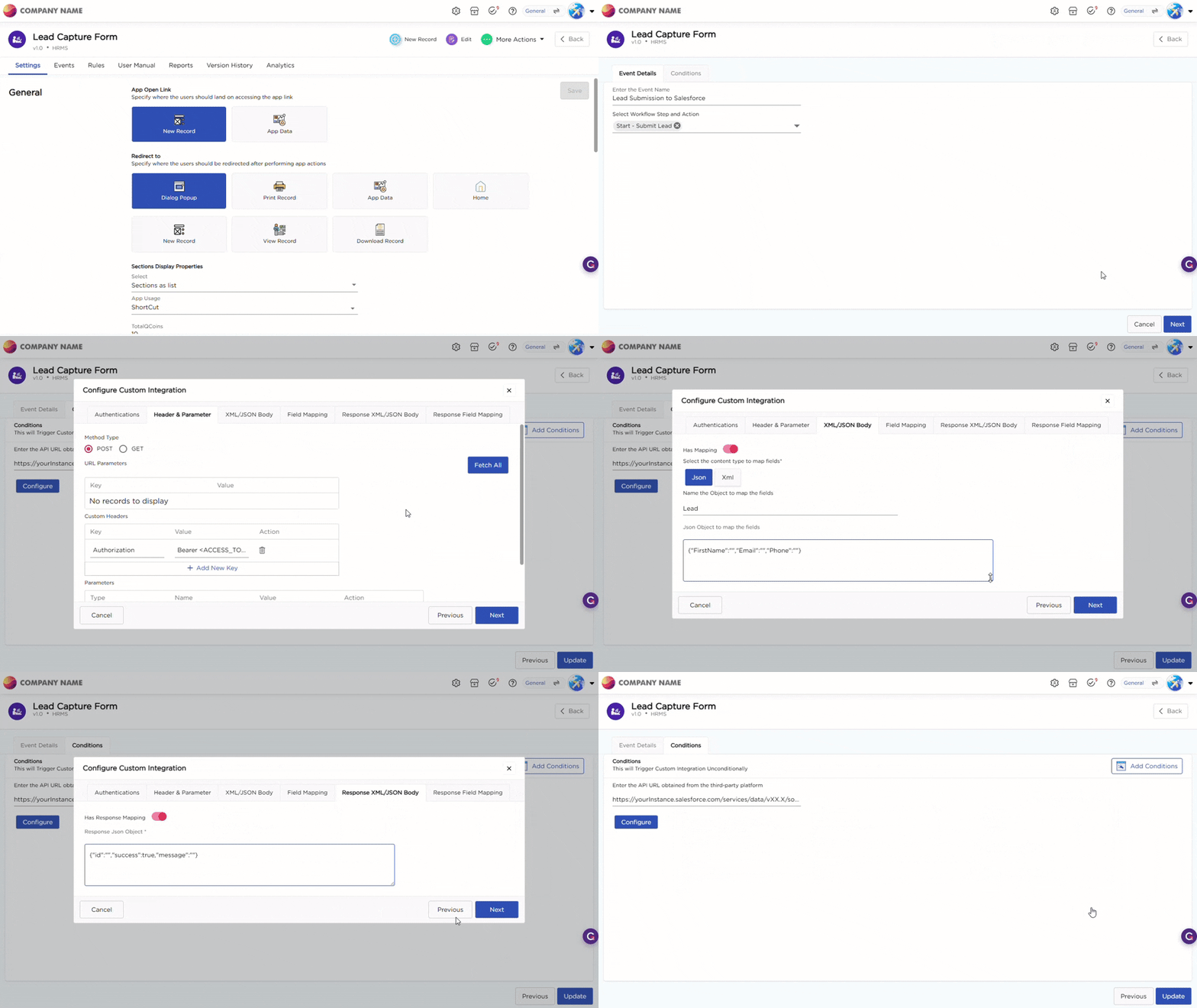
¶ 2. How Data Flows to Third-Party Applications via Step Actions in Quixy
When a Quixy application is integrated with a third-party system through a custom integration, the data transmission is triggered through step actions configured in the workflow.
Here’s what happens under the hood:
¶ 2.1. Trigger Point: Step Action
- When a user performs a step action (e.g., submits a form, clicks "Next", or saves a record), the associated workflow rule fires.
- This rule contains the integration task linked to a specific third-party API.
¶ 2.2. Execution: API Call Is Made
- Quixy collects all mapped data fields from the current application.
- It formats the data as per the API configuration (JSON/XML, URL, headers, parameters).
- It sends the request via HTTP methods like POST, PUT, or GET, depending on how the integration is defined.
¶ 2.3. Destination: Third-Party Application
- The third-party server receives the API request.
- It uses:
- URL parameters to identify the resource
- Query parameters to filter/process data
- Headers for authorization/formatting
- JSON/XML body as the core payload
- The system then processes the data, storing it, triggering a workflow, or updating a record based on what was received.
Example Scenario
- Use Case: You’ve built a Lead Capture Form in Quixy.
- Integration: Connected to Salesforce.
- Step Action: On "Submit", a custom integration task runs.
Outcome:
- Quixy sends the lead data (name, email, phone) to Salesforce via API.
- Salesforce receives the data and creates a new lead record instantly.