The Form Builder in Quixy Studio is the arena where you design and structure forms. You build forms visually using drag-and-drop controls. Every section, field, and setting is managed from this single screen.
The Form Builder helps you decide three things clearly:
- What data the form collects
- How the form looks to the user
- How the form behaves during input and submission
You create forms by placing fields on the canvas, configuring their properties, and previewing the final experience before publishing.
¶ Form Builder layout
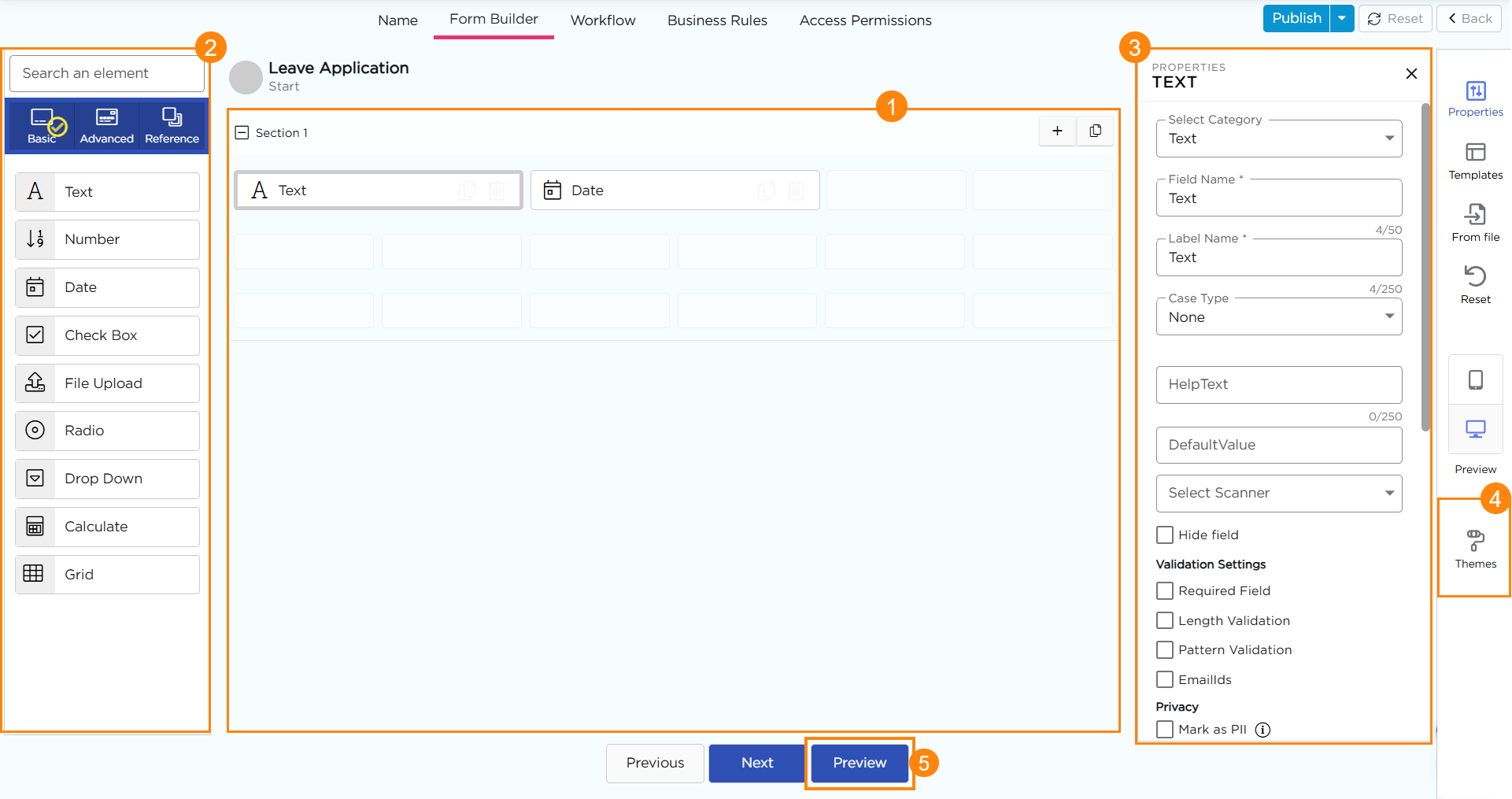
The Form Builder screen is divided into clear areas. Each area supports a specific part of form creation.
¶ 1. Form Canvas
The canvas is where you build the form layout.
What you do here:
- Drag and drop fields onto the form canvas
- Arrange fields into rows, columns, and sections
- Group related fields together
- Reorder or remove fields and sections
This is the primary working area where the form structure takes shape.
¶ 2. Form Fields
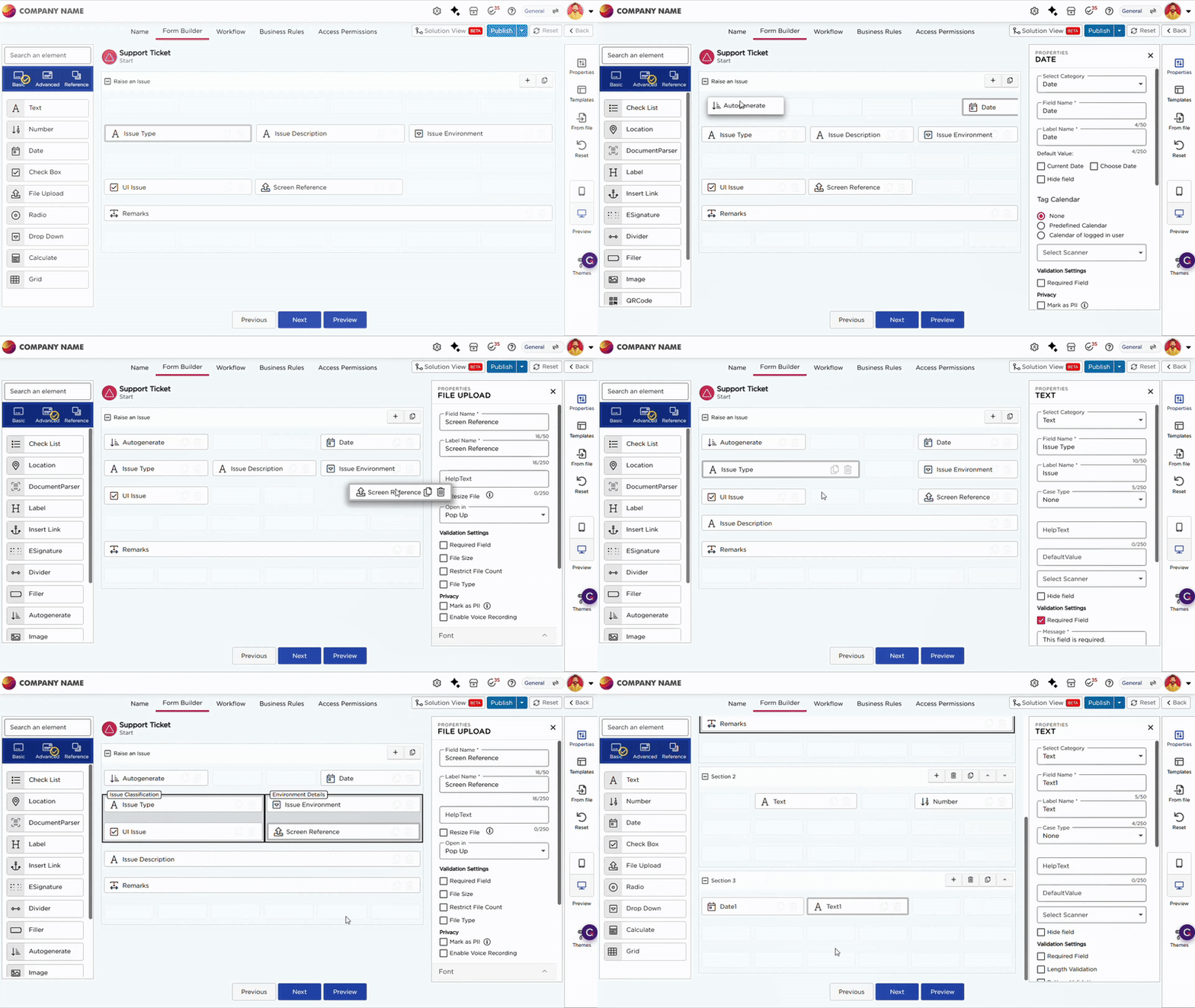
This panel lists all fields you can add to the form.
Field categories:
- Basic: Basic fields collect common inputs like text, numbers, dates, and files.
- Advanced: Advanced fields add automation, interaction, and visual structure.
- Reference: Reference fields pull data from users, applications, or external systems.
¶ 3. Properties Panel
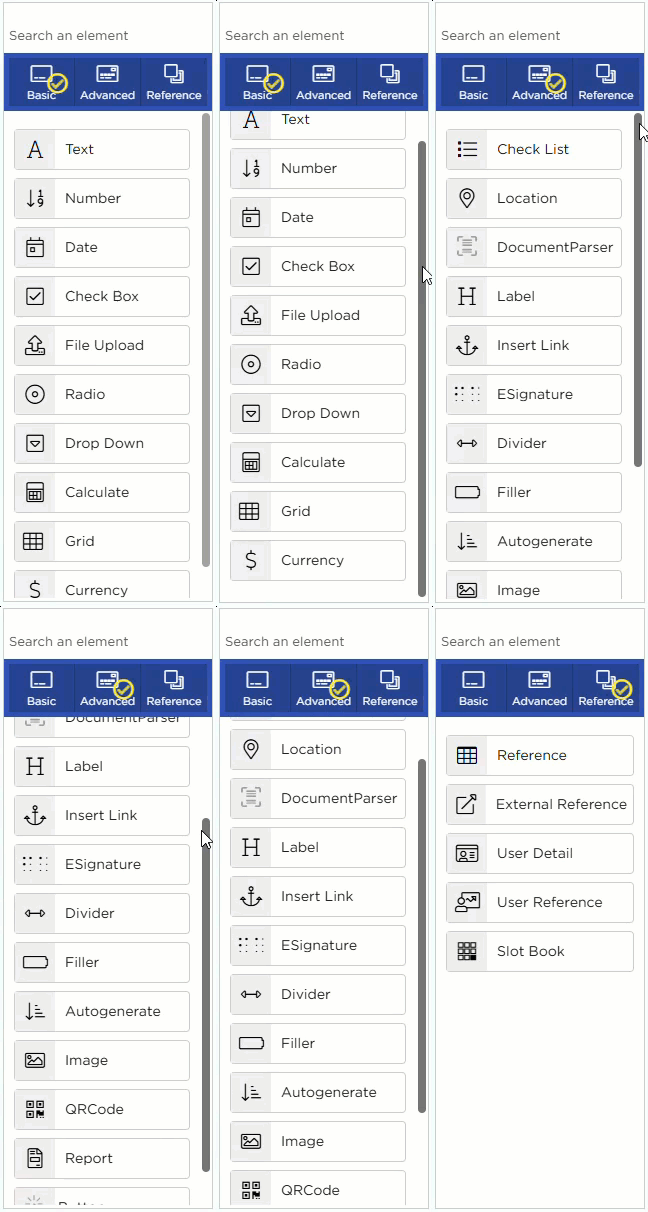
The Properties panel appears when you select a field or section.
What you configure here:
- Field behavior and settings
- Validation rules
- Visibility and interaction logic
Each field has its own properties. These settings control how the field behaves and how data is captured.
For a full breakdown of all field settings, refer to the Form Field Properties article.
¶ 4. Themes
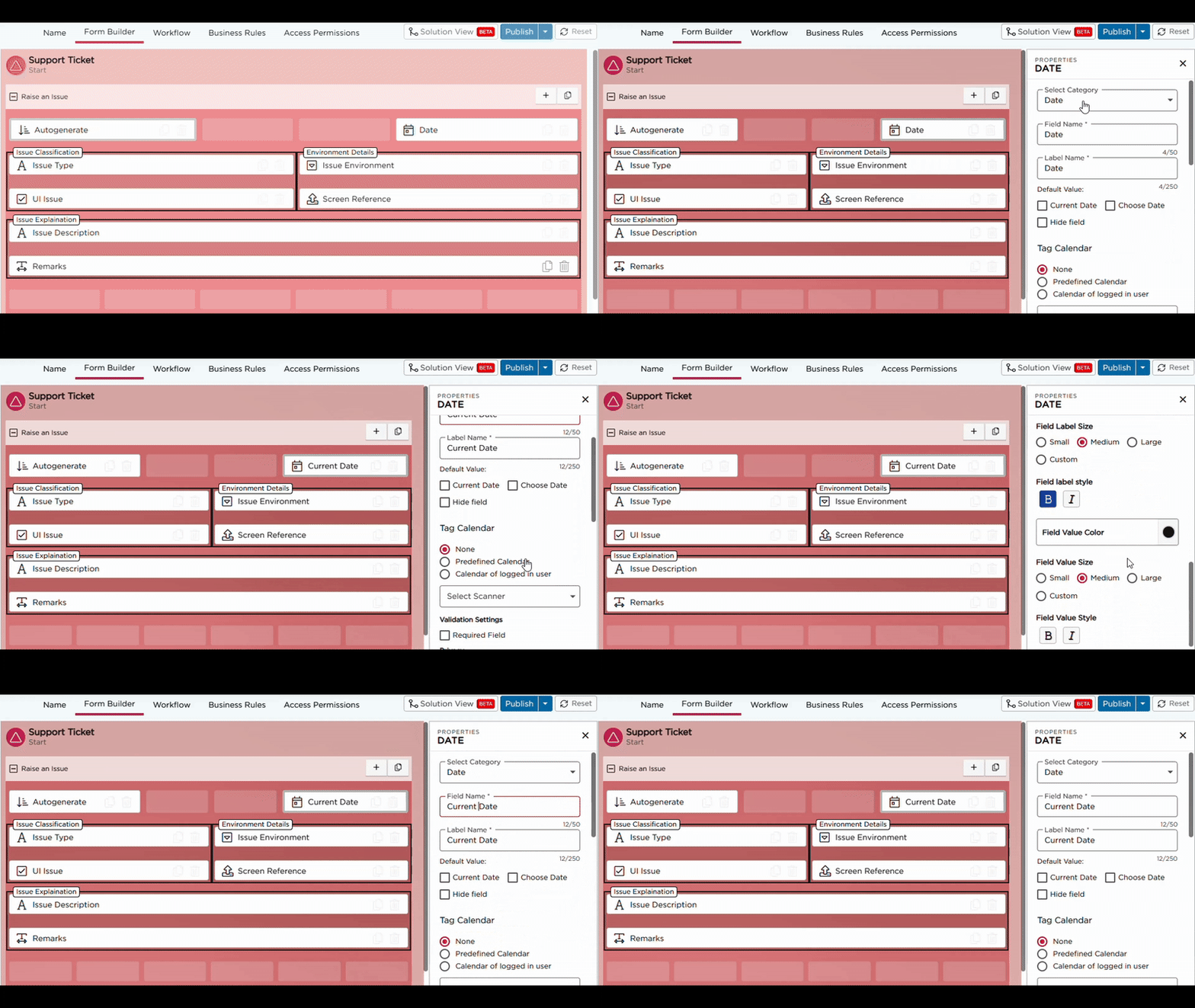
Themes control the visual appearance of the form.
What themes define:
- Colors used across the form
- Font styles and sizes
- Spacing and field borders
Themes ensure consistent styling across all forms without editing each field individually.
.png)
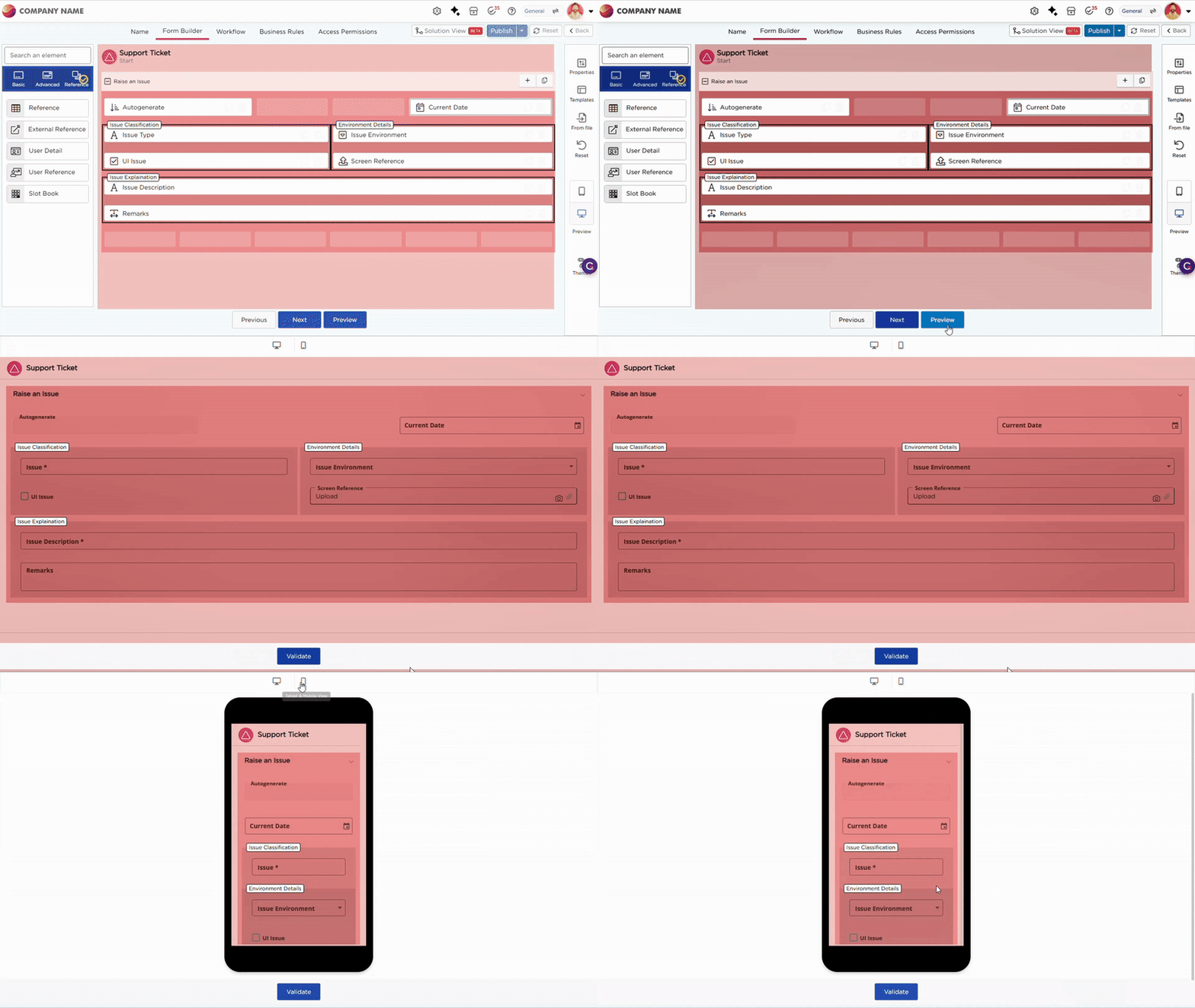
¶ 5. Preview
Preview mode shows the form exactly as an end user will see it.
What preview helps you do:
- Validate layout and spacing
- Check field interactions
- Review applied theme and behavior
You should always preview the form before publishing.
The Form Builder brings structure, behavior, and design together, allowing you to build complete forms without switching screens.