When users log in to the platform, they land in the Live environment by default. The interface displays key areas such as the left menu, Caddie, profile section, tasks, and help options at the top. End users can access the Quixy platform either through the Web Application or the Mobile App.
Note
On tablets, both web and mobile access are supported. The platform adjusts responsively based on the device and automatically adapts the layout.
The placeholders below guide you in understanding the interface layout.
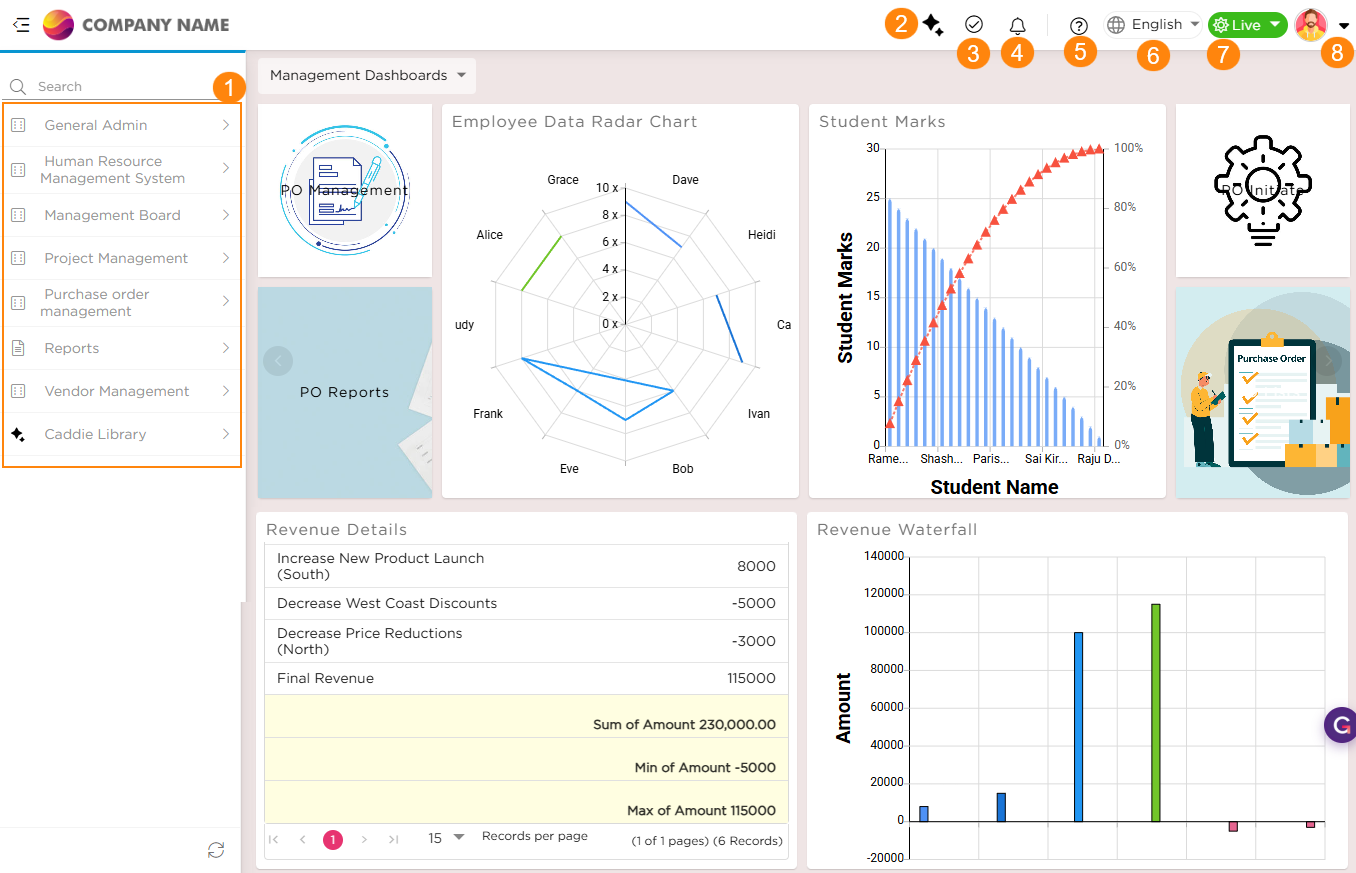
| # | Name | Description |
|---|---|---|
| 1 | Left Menu | Displays your personalized menu with quick access to apps, reports, list views, and Kanban views added to your workspace. Use it to open the items you work with most without searching across the platform. |
| 2 | Caddie | Opens quick access resources such as Get Started, Knowledge Base, Release Notes, Support Access, and training content. |
| 3 | Tasks | Displays tasks assigned to you. Track pending work, deadlines, and updates from this option. |
| 4 | Notifications | Shows alerts related to approvals, assignments, updates, or system activities. Select Show All Notifications to view the full list. |
| 5 | Help | Opens platform guidance including documentation, webinars, feedback options, and support channels. |
| 6 | Multilingual | Lets you switch the platform language. The interface updates instantly based on the selected language. |
| 7 | Sandbox Stages | Displays environment stages such as Dev, QA, UAT, and Live. End users typically work in Live to access approved solutions. |
| 8 | User Profile |
Open your profile menu to manage your account and view activity history. It includes:
|
¶ 1. Adding and Tracking Your Records
After submitting a record inside an application, you can view and manage it later by navigating to User Profile and selecting My Activities. This section helps you track the records you created, monitor task progress, and continue working on saved drafts from one place. My Activities includes the following areas:
- Initiated: Shows records submitted by you. Open a record to view details or check its current status.
- Requests: Displays tasks you created along with their status, due dates, and workspace details.
- Recurring Requests: Lists tasks scheduled to repeat based on the selected frequency.
- Drafts: Contains records or tasks saved without submission. Open a draft to continue editing or remove it when no longer needed.
¶ 2. Caddie
Caddie helps you understand your application data through simple questions. When you open Caddie, an AI workspace appears where you can start a conversation and enter prompts in natural language. Based on your input, Caddie shows insights, summaries, charts, or explanations to help you analyze information faster. You can continue previous conversations or start a new one anytime to explore your data further. Set up Caddie to begin exploring your data.