The Custom Menu also User or Left Menu is an easy-access menu where you can find direct links to the apps, reports, and views (List and Kanban) that you create on the platform. As the name suggests, you can customize the menu by adding or removing links to apps, reports, and views based on your preferences.
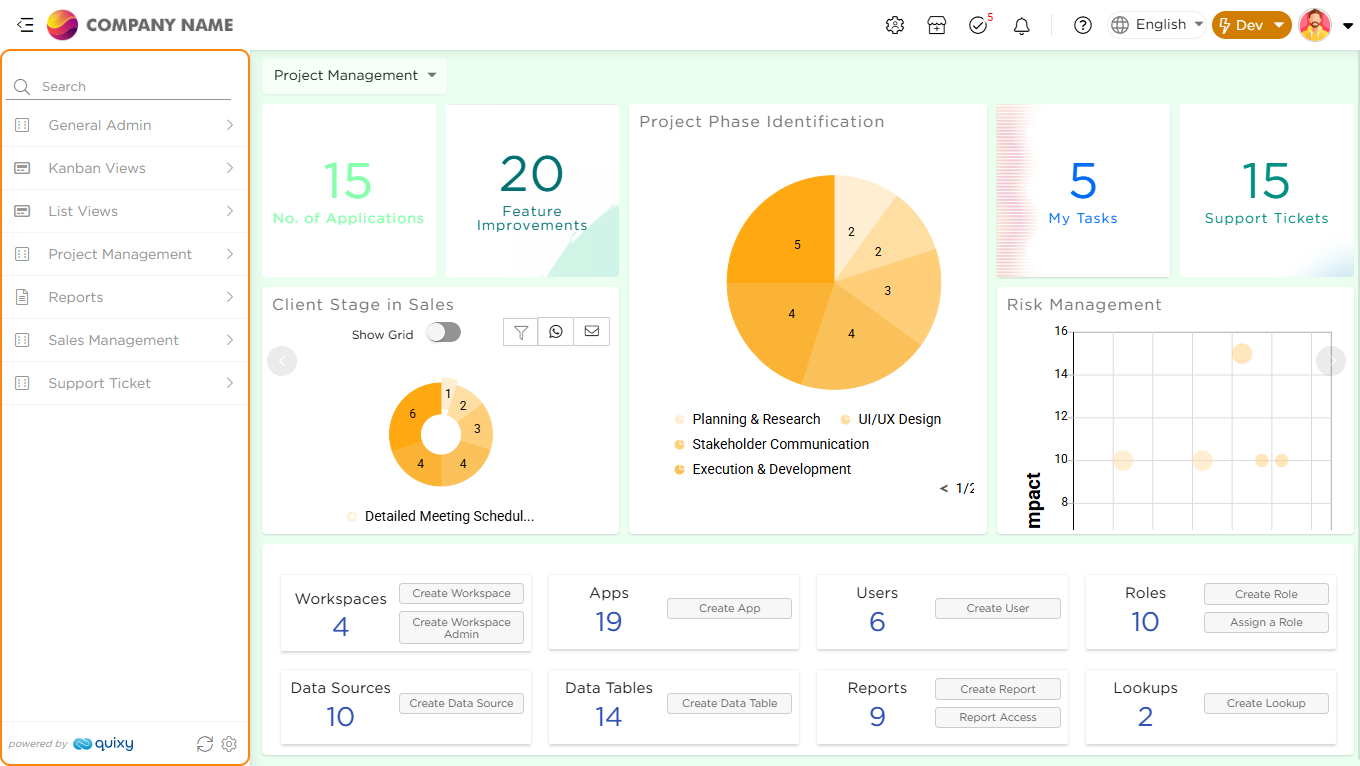
You can find the User Menu on the left side of the dashboard, as shown in the image below.
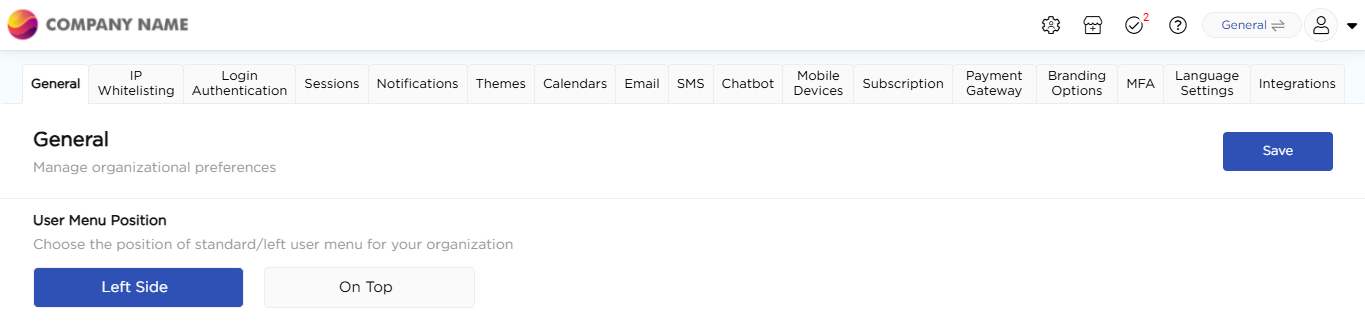
Depending on your organization’s needs, you can move the User Menu (left menu) from its default position on the left to the top of the dashboard. This frees up more space on the dashboard, making it easier to view and manage content.
Wondering how? Go to Admin Menu → Preferences → General → User Menu Position.
¶ 1. How to Configure the Custom Menu?
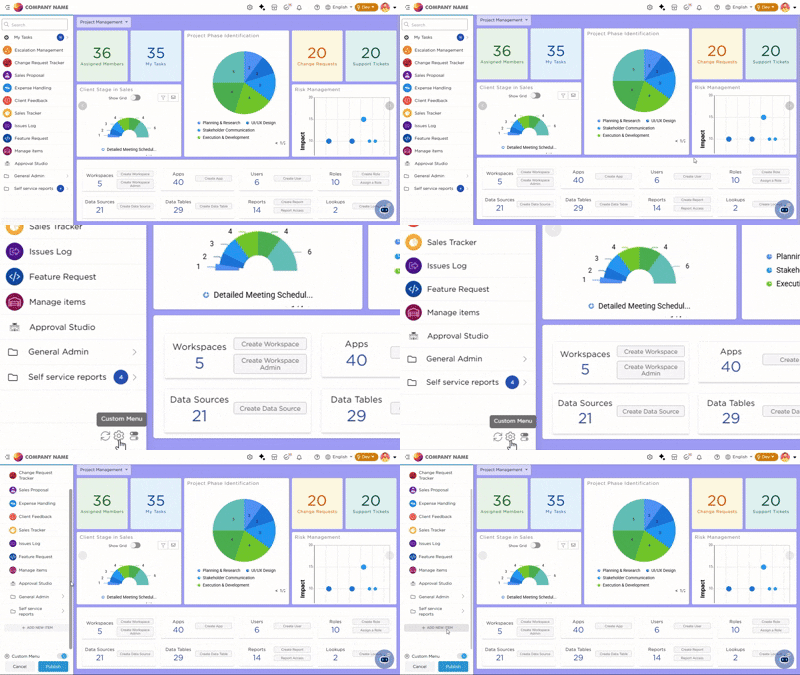
- On the dashboard, navigate to the Custom Menu icon located at the bottom-left corner.
- Click the Settings icon to open the menu configuration window.
¶ 2. Creating Folders and Sub-folders
To Add a New Folder:
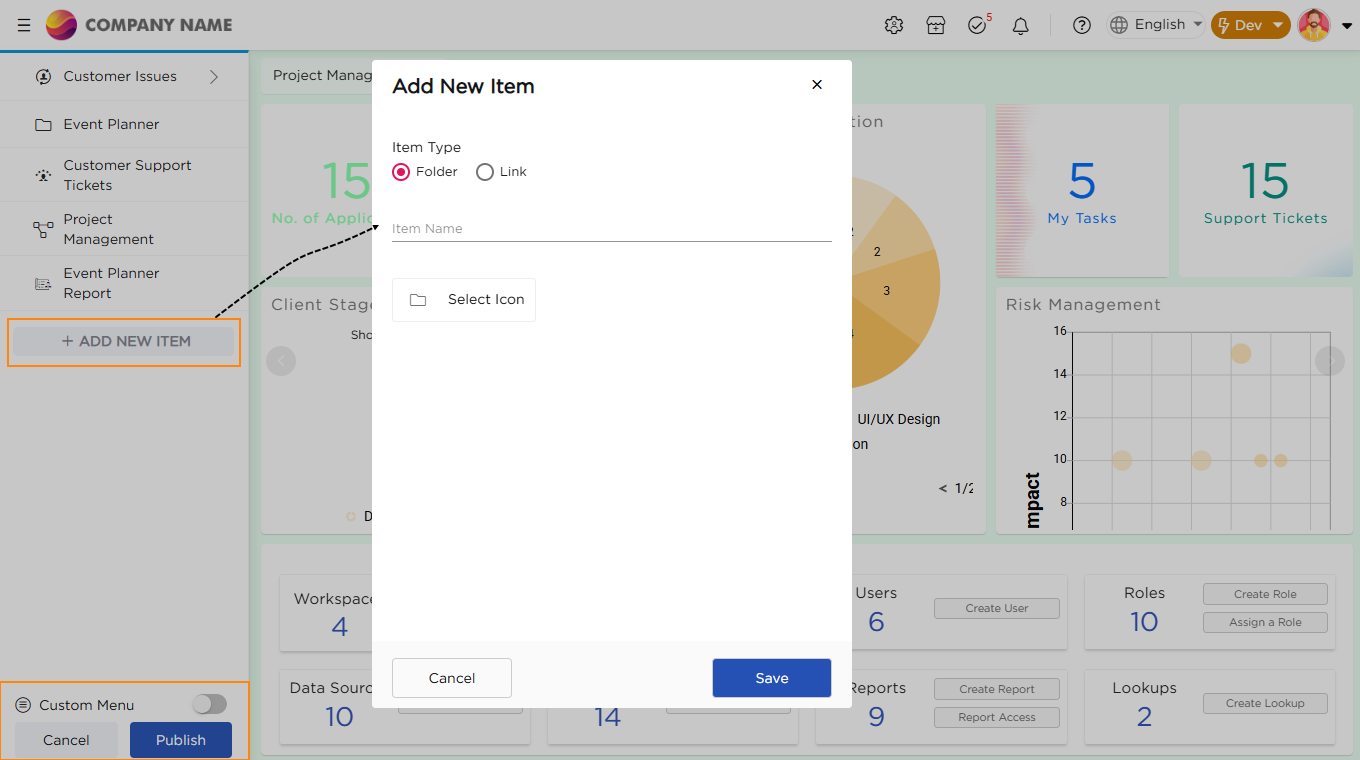
- Click the + Add New Item option.
- An Add New Item pop-up will appear.
- Select Folder as the Item Type.
- Enter the folder name in the Item Name field.
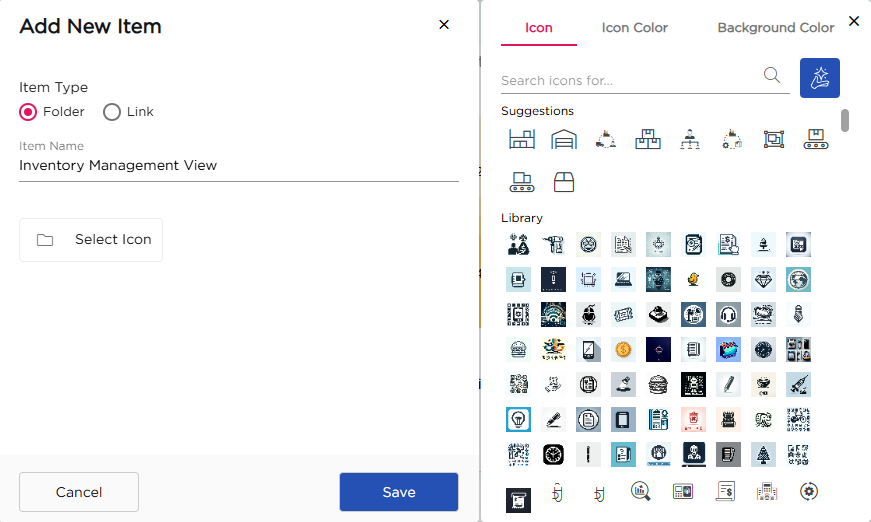
- Click Select Icon to choose an icon from the displayed list.
- Customize the Icon Color to your preference.
- Set the Background Color to enhance the folder’s look.
- Click Save to create the folder.
To Add a Sub-Folder:
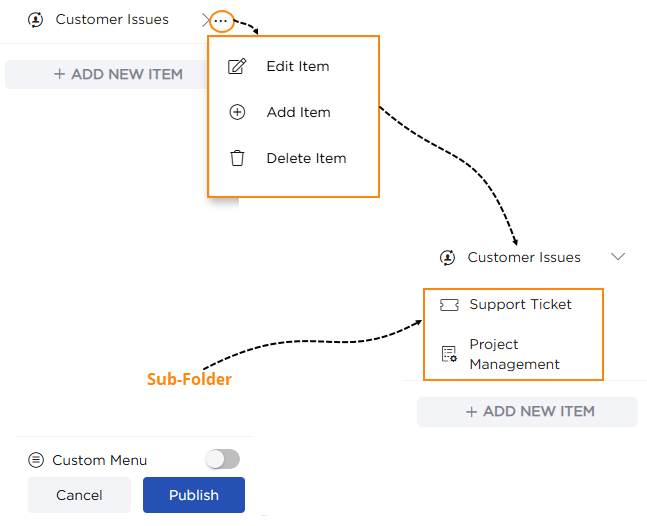
- Hover over the newly created folder.
- Click the three-dot menu and select Add Item.
- In the pop-up, repeat the folder creation steps: choose Folder as the Item Type, provide a Name and select an Icon.
- Click Save to create the sub-folder.
Note
You cannot create additional sub-folders inside a sub-folder.
¶ 3. How to Add Links in the Custom Menu
Adding a New Link to a Folder:
- Click on the + Add New Item option.
- An Add New Item pop-up will appear on the screen.
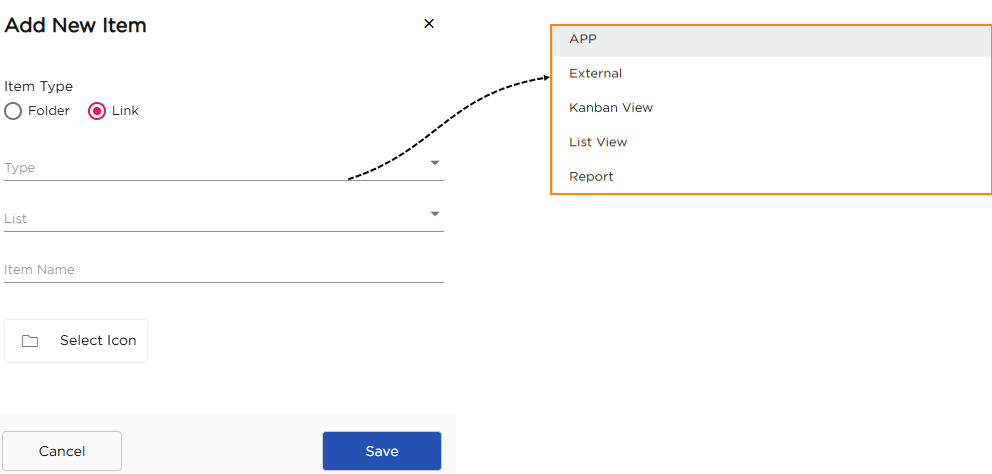
- In the pop-up, select Link as the Item Type.
- From the Type dropdown, choose the link type:
- APP: Links to an application.
- External: Links to an external URL.
- Kanban View: Links to a Kanban-style view.
- List View: Links to a list-style view.
- Report: Links to specific reports.
- Configure the link details based on the selected type.
¶ 4. Configuring Links
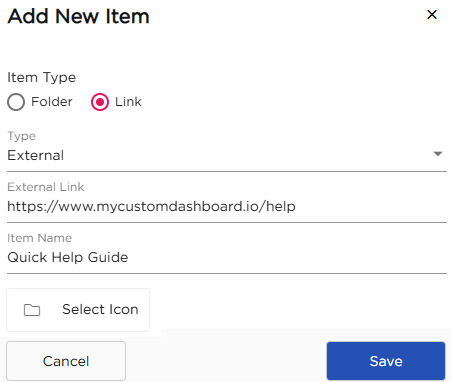
For an External Link:
- Select Type as External from the dropdown.
- Enter the URL in the External Link field.
- Provide a unique name for the link in the Item Name field.
- Click Select Icon to choose an icon for easy recognition.
- Click Save to save the link.
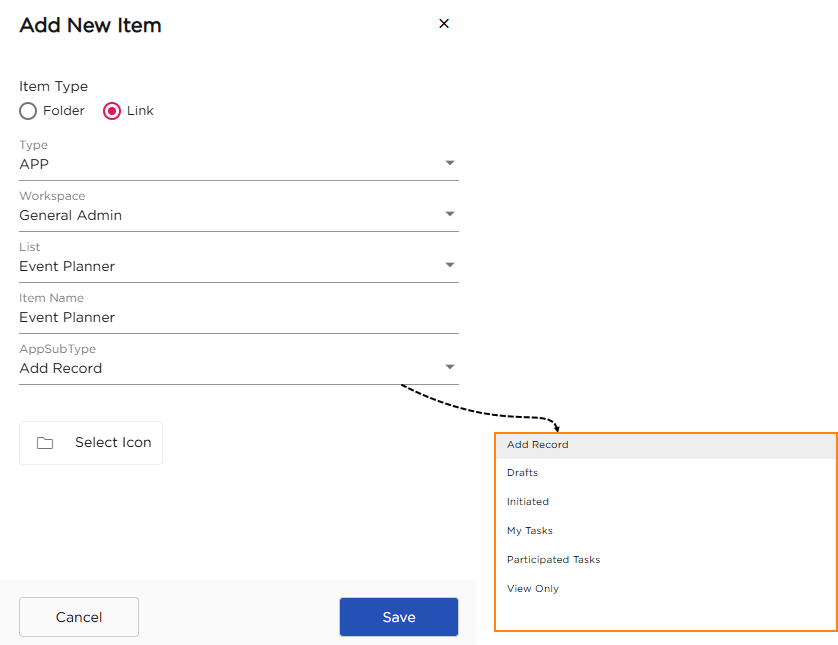
For an Application Link:
- Select Type as APP from the dropdown.
- Choose the Workspace containing the application.
- Select the Application from the list.
- Provide a unique name for the application link.
- Under AppSub Type, choose one of the following based on the required functionality:
- Add Record: To add new records in the app.
- Drafts: Opens saved drafts not yet submitted.
- Initiated: Displays tasks you have initiated.
- My Tasks: Shows tasks assigned to you.
- Participated Tasks: Lists tasks you participated in.
- View Only: Allows view-only access to the app.
- Click Select Icon to assign a visual representation.
- Click Save to save the link.
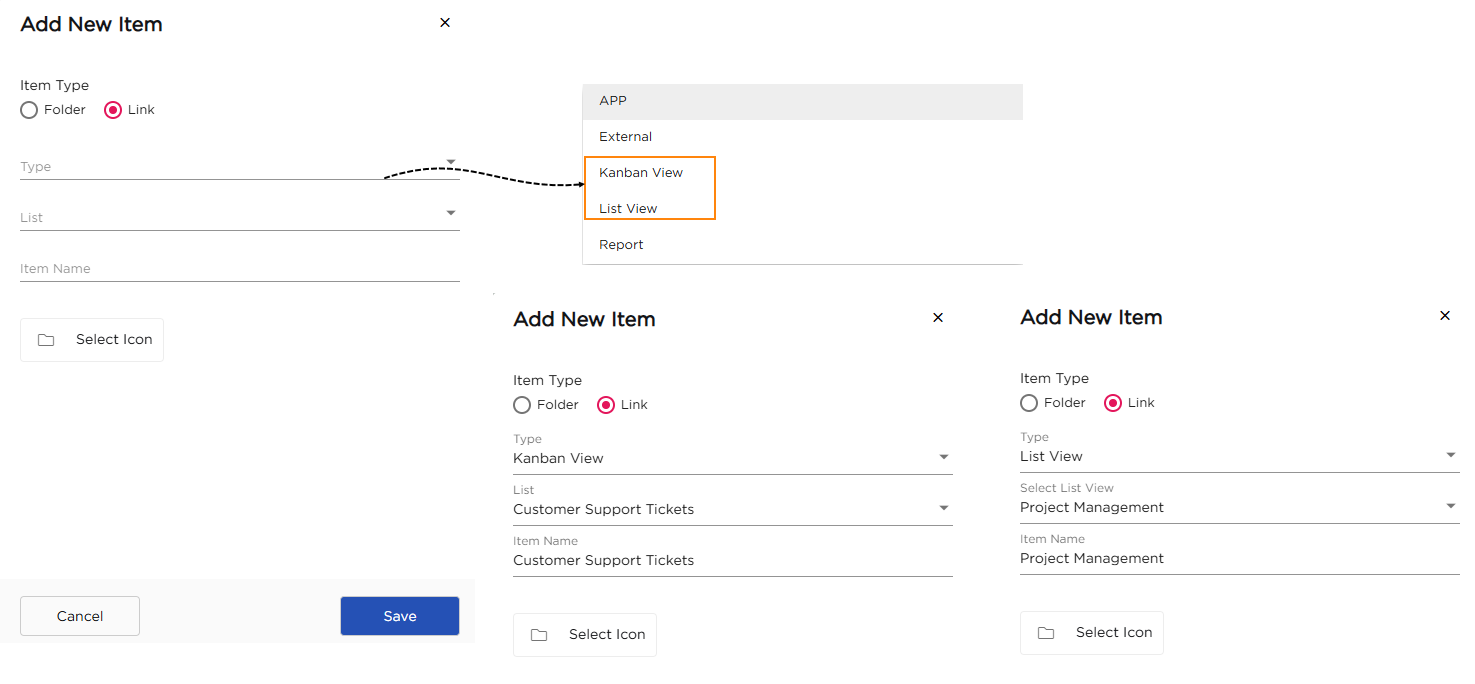
For a Kanban/List View Link:
- Select Kanban View or List View from the Type dropdown.
- A List dropdown will appear containing available Kanban Boards or List Views.
- Select the specific board or list you want to link.
- Provide a unique name for the Kanban/List view.
- Click Select Icon to choose an icon.
- Click Save to save the link.
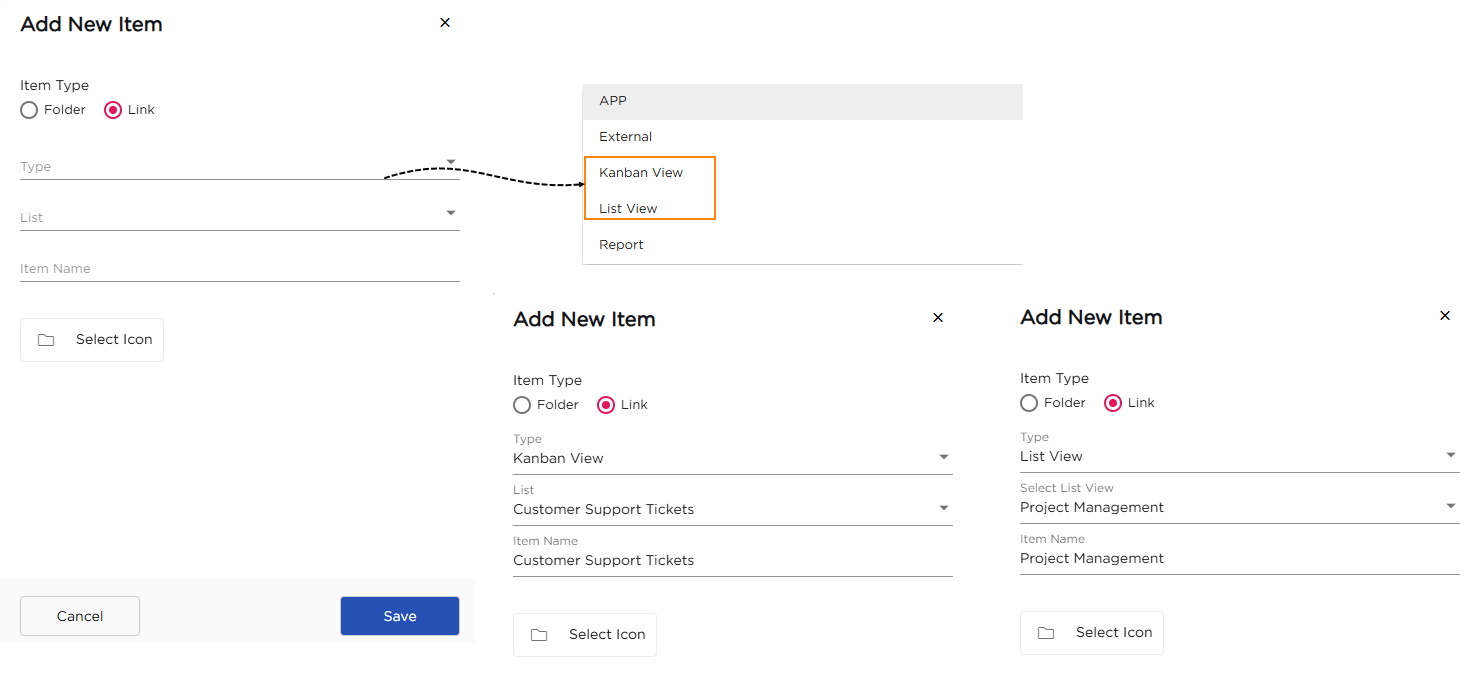
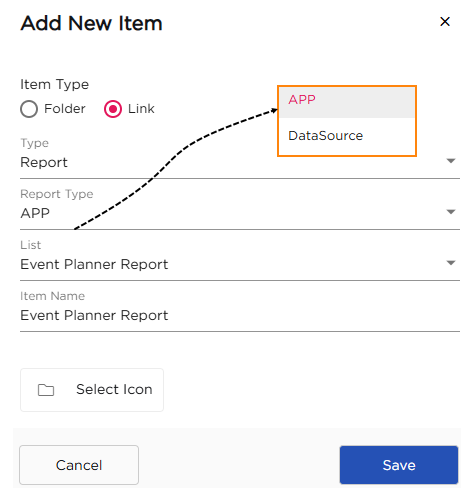
For a Report Link:
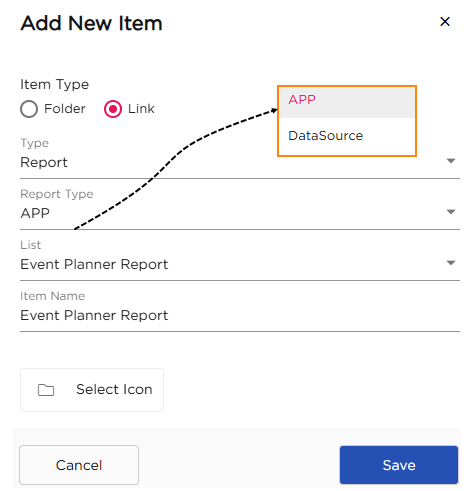
- Select Report from the Type dropdown.
- Under Report Type, choose one of the following:
- APP: If the report is generated from an application.
- DataSource: If the report is based on a data source.
- Select the specific report from the List dropdown.
- Click Select Icon to assign an icon.
- Click Save to save the link.
Note
Users leveraging Advanced BI reports can now access them more conveniently. A new feature allows these reports to be added not only to the dashboard but also directly in the User Menu, ensuring quick and easy access to important insights.
¶ 5. Finalize and Save Your Custom Menu
Once you’ve added all the desired folders and links, follow these steps to save and activate the custom menu:
- Turn On the Custom Menu switch.
- Click Publish to confirm and save your changes.
After publishing, the configured folders and links will appear in the custom menu on the dashboard.
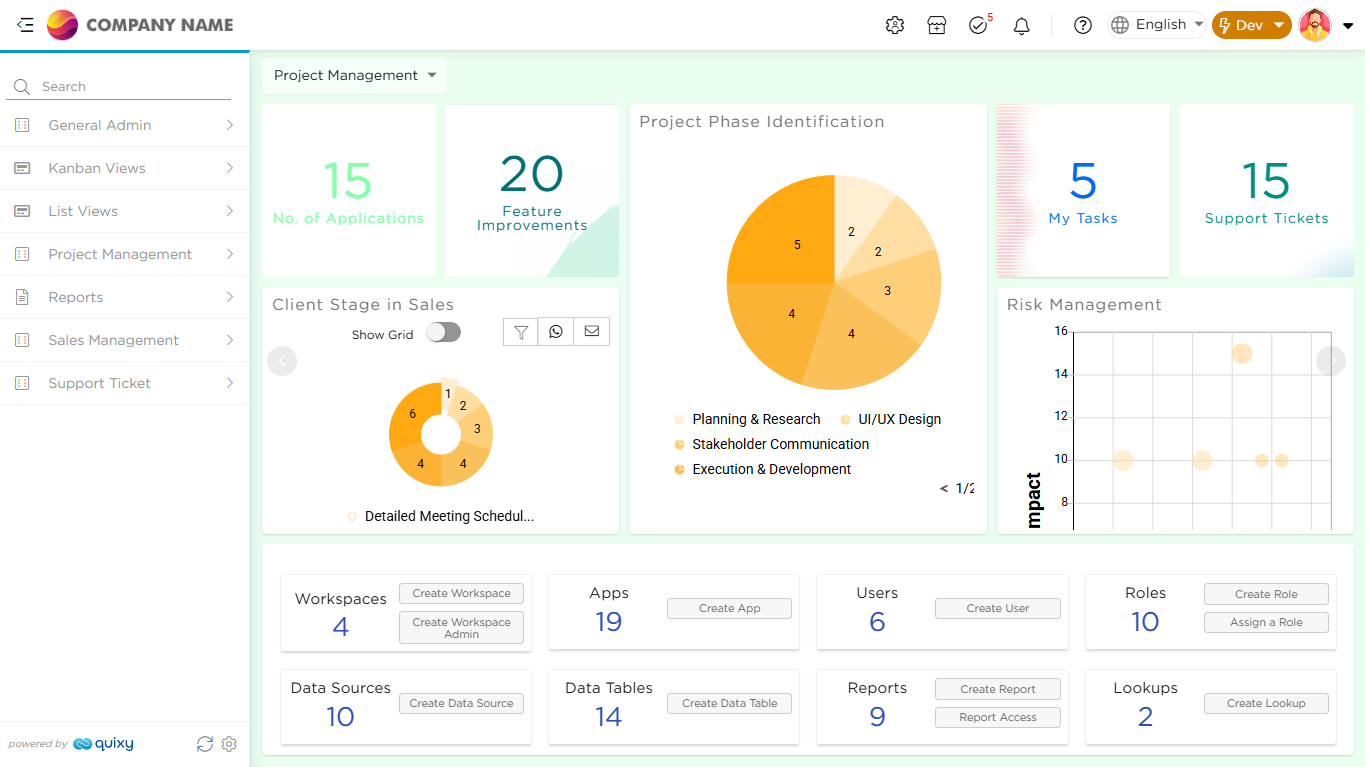
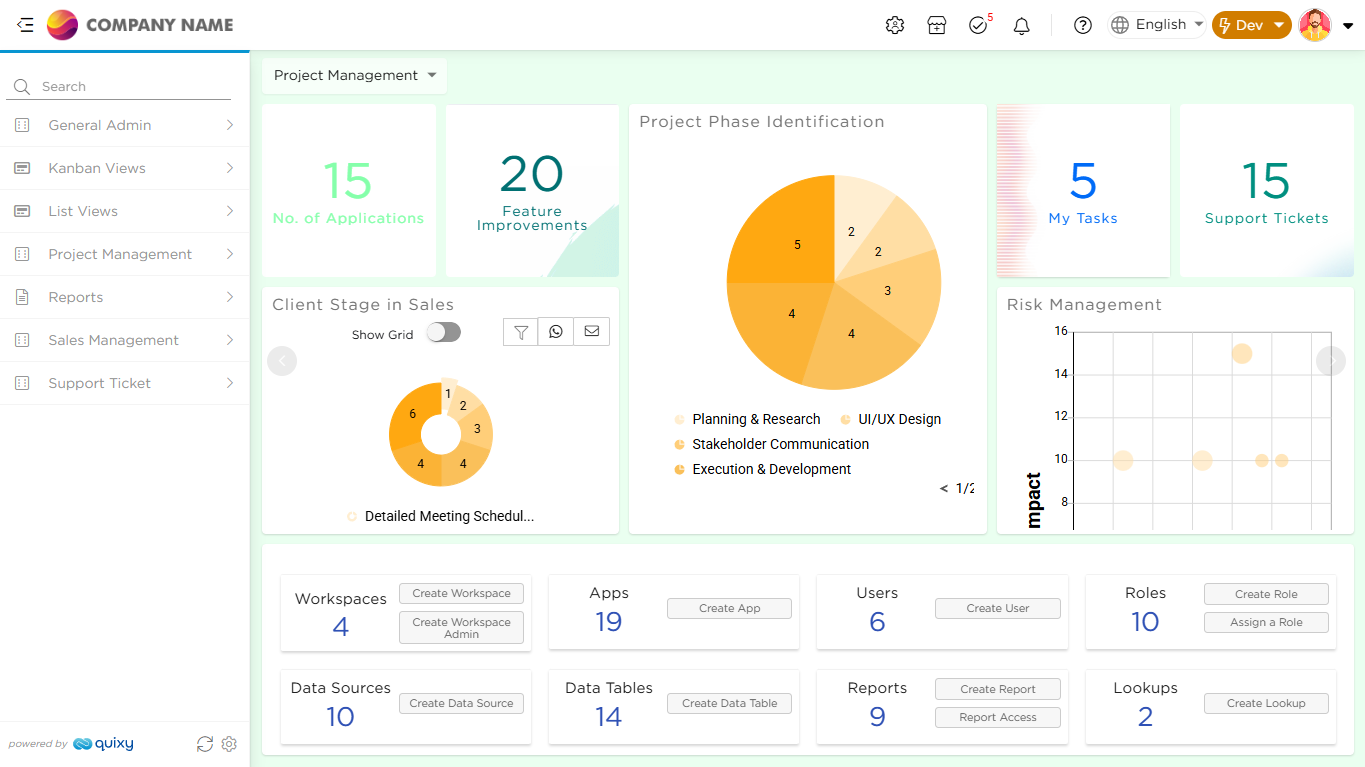
Before: No custom folders or links are visible in the User Menu or Dashboard.
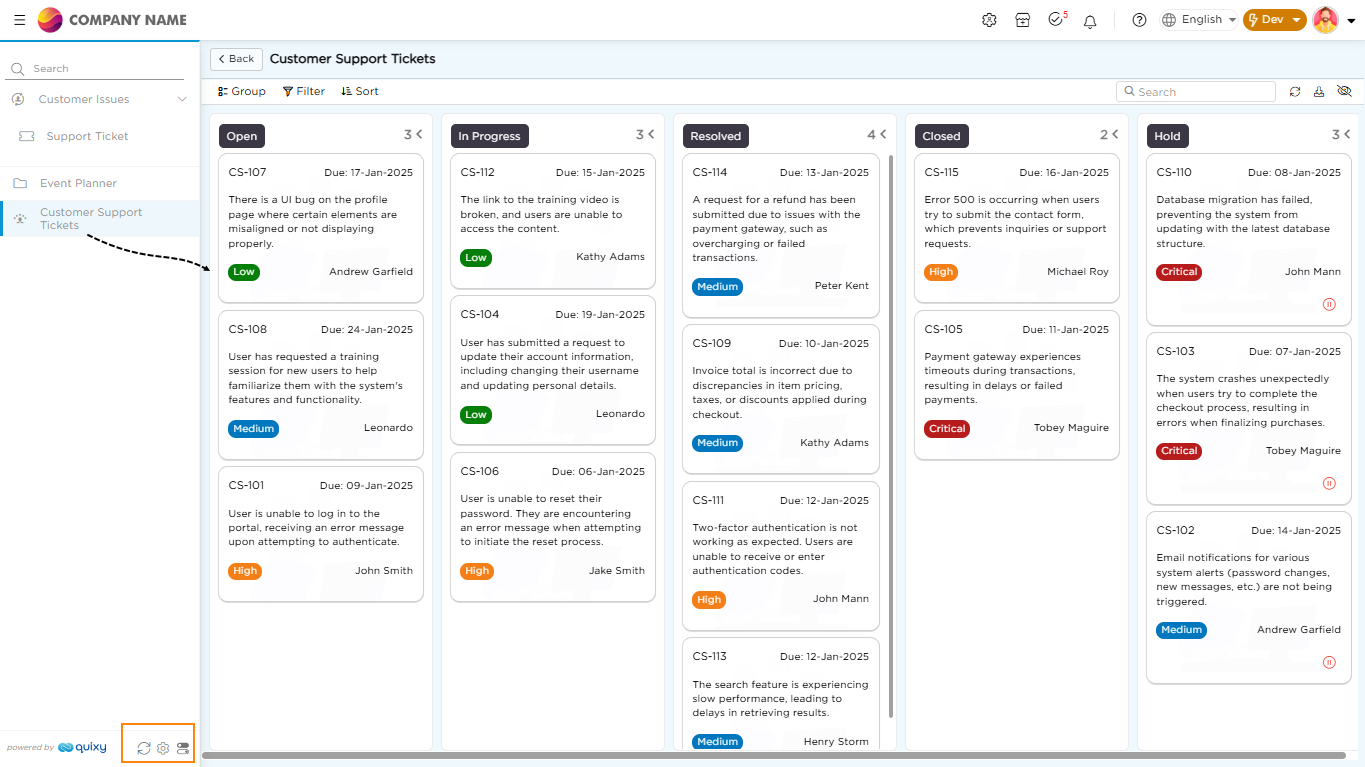
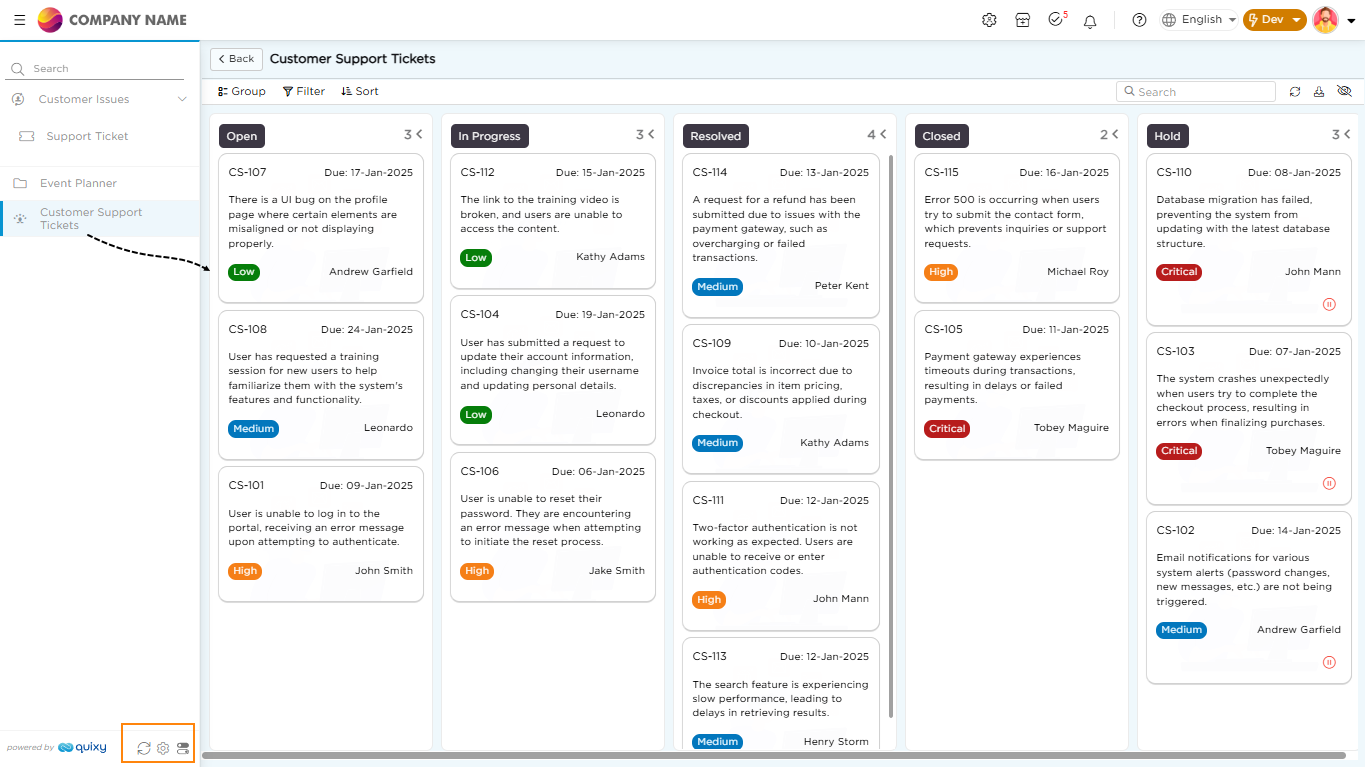
After: The saved folders and links now appear in the Custom Menu, providing users with quick access to the configured items.
¶ 6. Managing Application Visibility in the Custom Menu
When adding applications to the custom menu, it's not always necessary for them to appear in every stage of the development lifecycle. You can now control visibility across environments—Dev, UAT, QA, and Live—to ensure a streamlined, clutter-free experience for users.
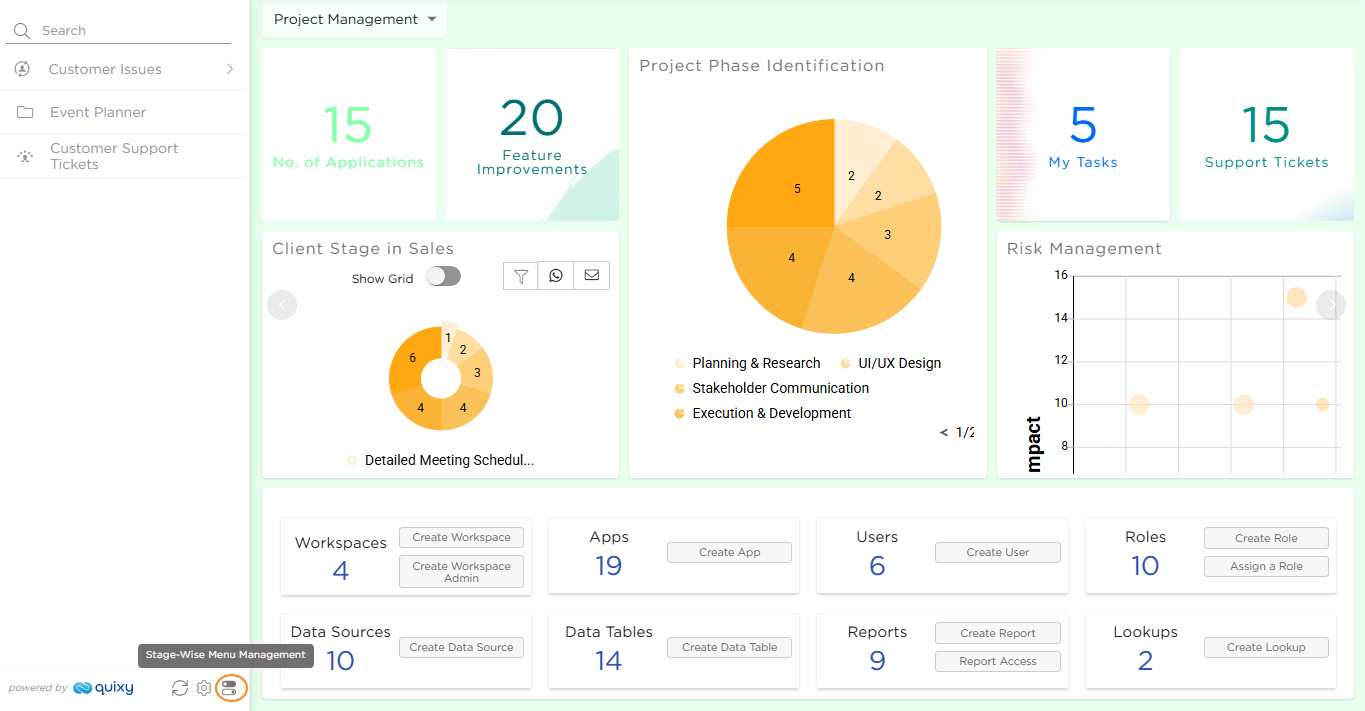
¶ 7. Stage-Wise Menu Management
To manage visibility for different environments:
- Click on Stage-Wise Menu Management.
- Show or hide applications based on the specific stage (e.g., Dev, UAT, QA, Live).
- Customize what users see based on their current workflow or environment.
This ensures that only relevant apps appear in each stage, reducing confusion and improving focus for end users.
Use Case: How Visibility Control Simplifies Application Access
Imagine you’re managing a custom menu with multiple applications, and you need to ensure that the right apps appear at the right time for the right users. Without proper control, every application is visible across all stages—whether it's still in development, being tested, or fully deployed.
This creates unnecessary confusion:
Testers in QA have to sift through unfinished apps they don’t need.
Developers see live applications they shouldn’t be touching.
HR and employees might come across features that aren’t ready yet.
Not ideal, right?
Instead of cluttering the menu with everything at once, you can define visibility for each stage, ensuring a streamlined experience.
Let’s say you have five applications: Employee Onboarding, Payroll Processing, Leave Management, Performance Review, and Exit Process.
In Development? Only show the apps currently being built.
In QA? Let testers access just the ones they need to verify.
In Live? Make sure only the fully ready applications are visible.
This flexibility allows you to manage the user experience effectively, showing only the necessary applications in each environment—no reconfiguration.