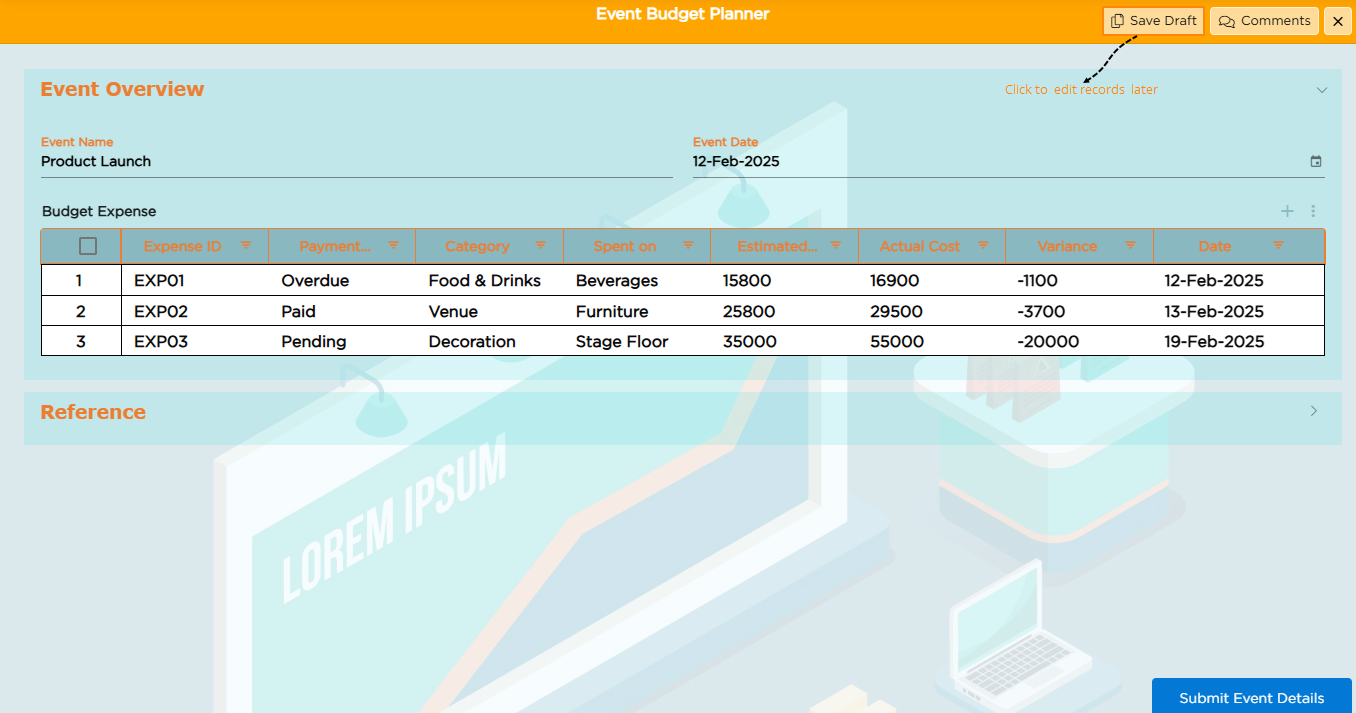
The My Activities section provides a detailed overview of all the actions and tasks associated with your account. It allows you to track, manage, and interact with records, tasks, and requests efficiently. This section is organized into the following sub-sections, each designed to help you navigate and manage your activities seamlessly
¶ 1.Initiated
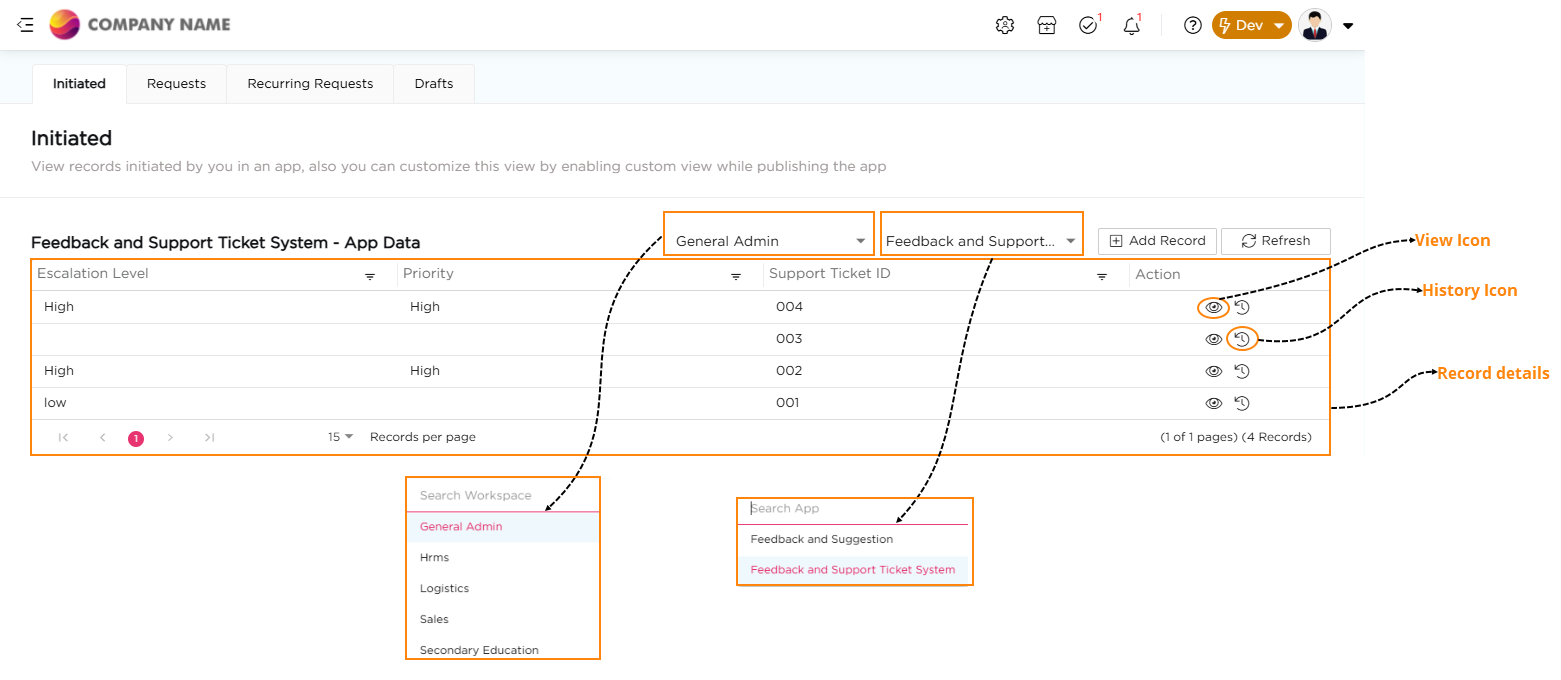
The Initiated tab provides an overview of all records created by you within the application. From here, you can easily access, view, track, and manage your records.
¶ 1.1. Accessing Your Records
To access your records:
- Select the required Workspace from the Workspace dropdown.
- Select the required App from the Select App dropdown.
- Click +Add Record to create a new record.
- Click Refresh to display the latest records.
If no records are available, the table displays No records to display.
¶ 1.2. Viewing Record Details
The Action column lets you view record details and record history. To view a record:
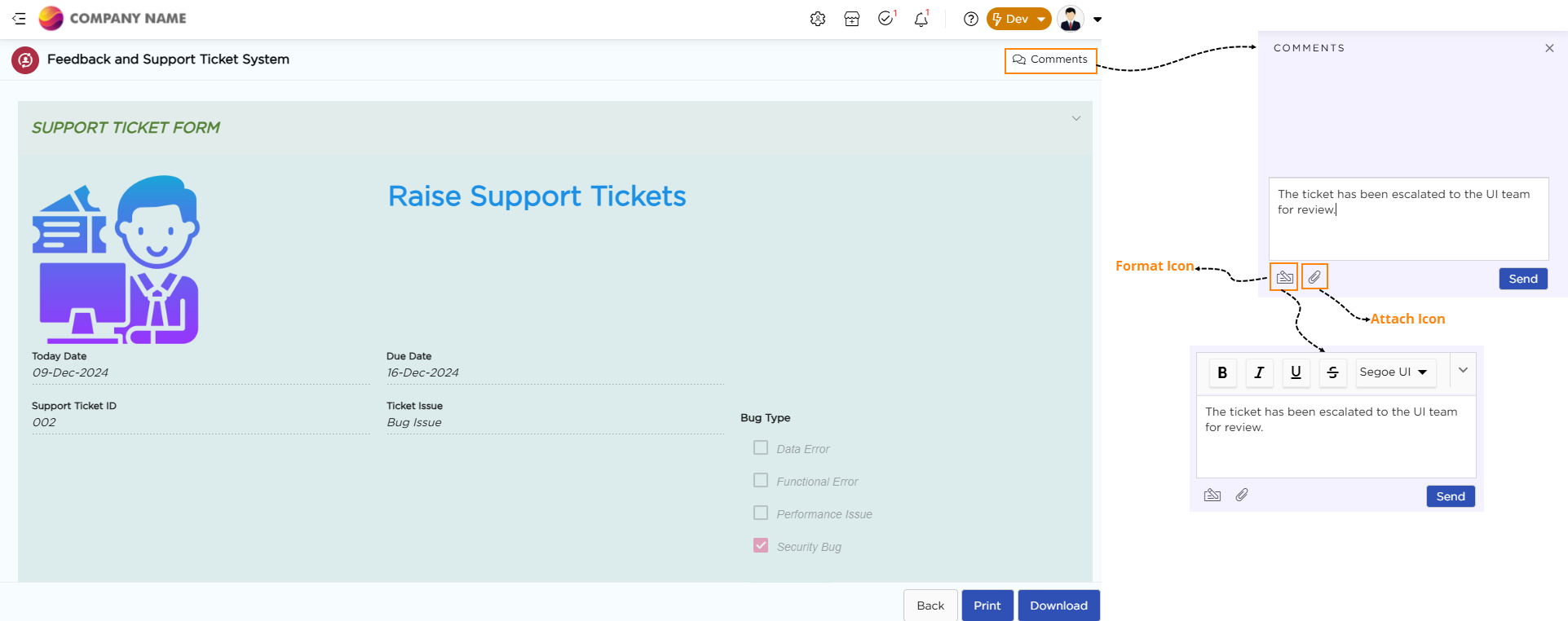
- Click the View icon in the Action column.
- When the record opens, you can perform the following actions:
- Print or Download: Save the record for offline reference.
- Add Comments: Enter your comments in the Comments section and click Send. The comment appears in the assigned user's My Tasks section, allowing them to review and respond to the task.
¶ 1.3. Viewing Record History
To view a record's history:
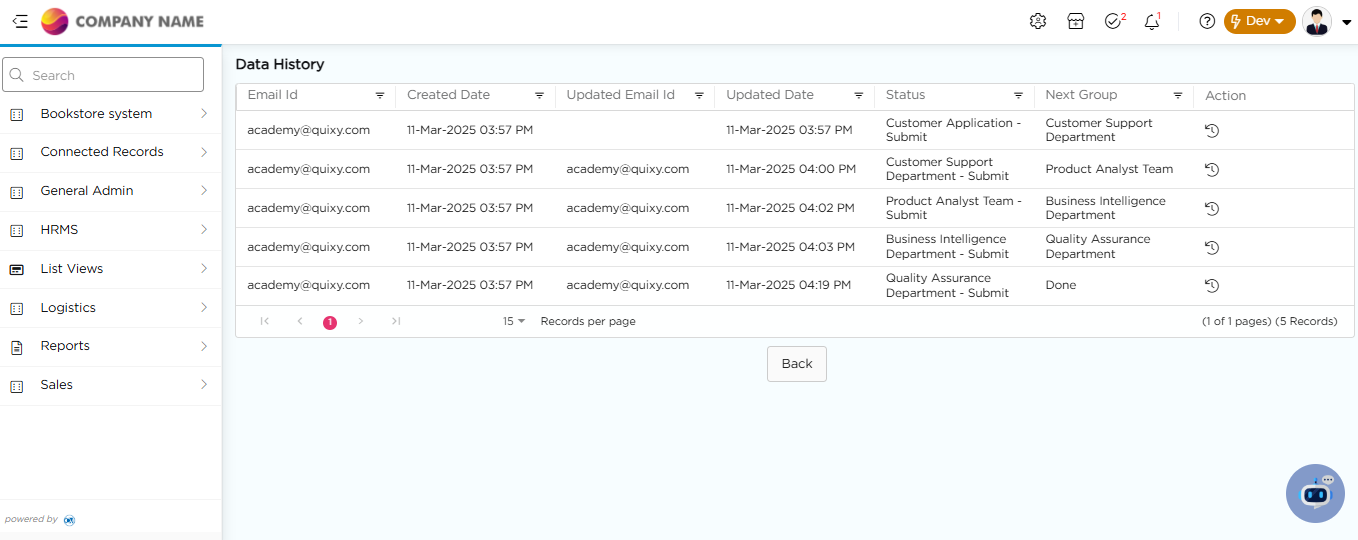
- Click the History icon in the Action column.
- Review the complete history of changes and updates made to the record.
¶ 2. Requests
The Requests tab displays all tasks created by you along with their current status. It allows you to monitor existing tasks, create new tasks, and manage them from a single location.
¶ 2.1. Viewing and Managing Tasks
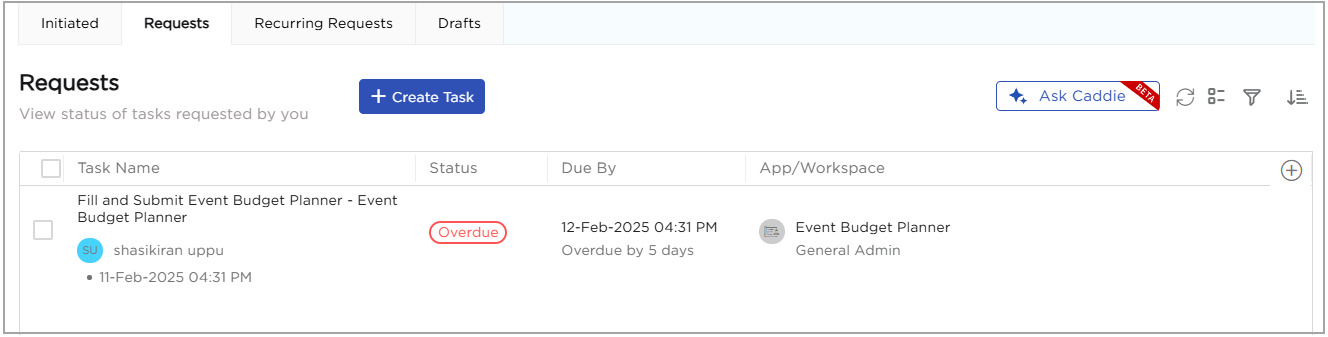
The Requests table includes the following columns:
| Column | Description |
|---|---|
| Task Name | Displays the name of the task. |
| Status | Shows the current status of the task, such as Open, Overdue, or Completed. |
| Due By | Displays the task completion deadline. |
| App/Workspace | Indicates the app or workspace associated with the task. |
You can also customize the table to display additional columns based on your requirements.
To display additional columns:
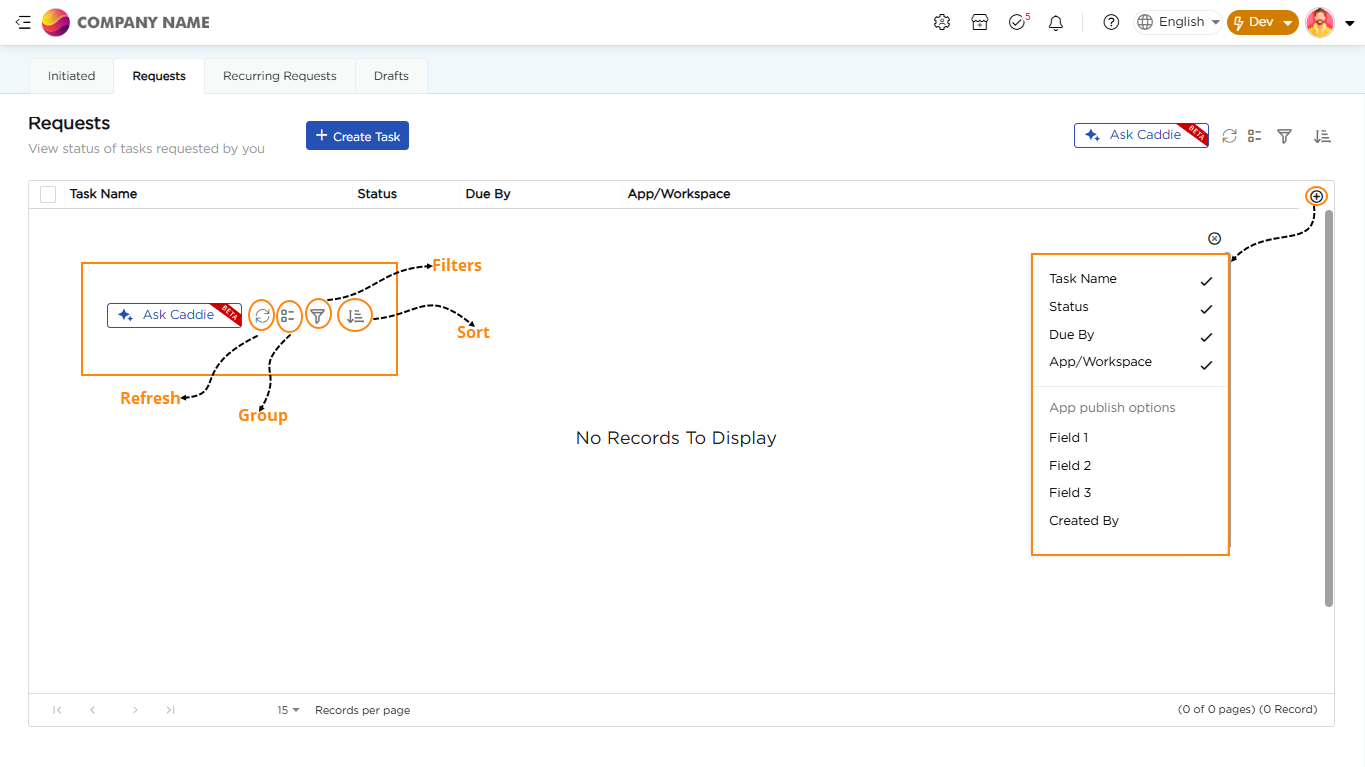
- Click the Plus (+) icon located at the end of the table.
- Select the required columns from the dropdown list.
The following toolbar options are available to manage the task list:
- Refresh Tasks: Updates the table to display the latest task status.
- Group Tasks: Groups tasks based on the selected criteria.
- Filter Tasks: Filters tasks based on specific conditions, such as workspace or due date.
- Sort Tasks: Sorts tasks in ascending or descending order based on selected criteria, such as due date or status.
¶ 2.2. Creating a New Task
To create a new task:
- Click + Create Task.
- Configure the task details as required.
- Click Save.
For detailed instructions on configuring task details, see Create a Task (Manually).
¶ 3. Recurring Requests
The Recurring Requests tab displays all recurring tasks created by you. From here, you can monitor recurring tasks, customize the table view, and manage recurring task schedules.
¶ 3.1. Viewing Recurring Task Details
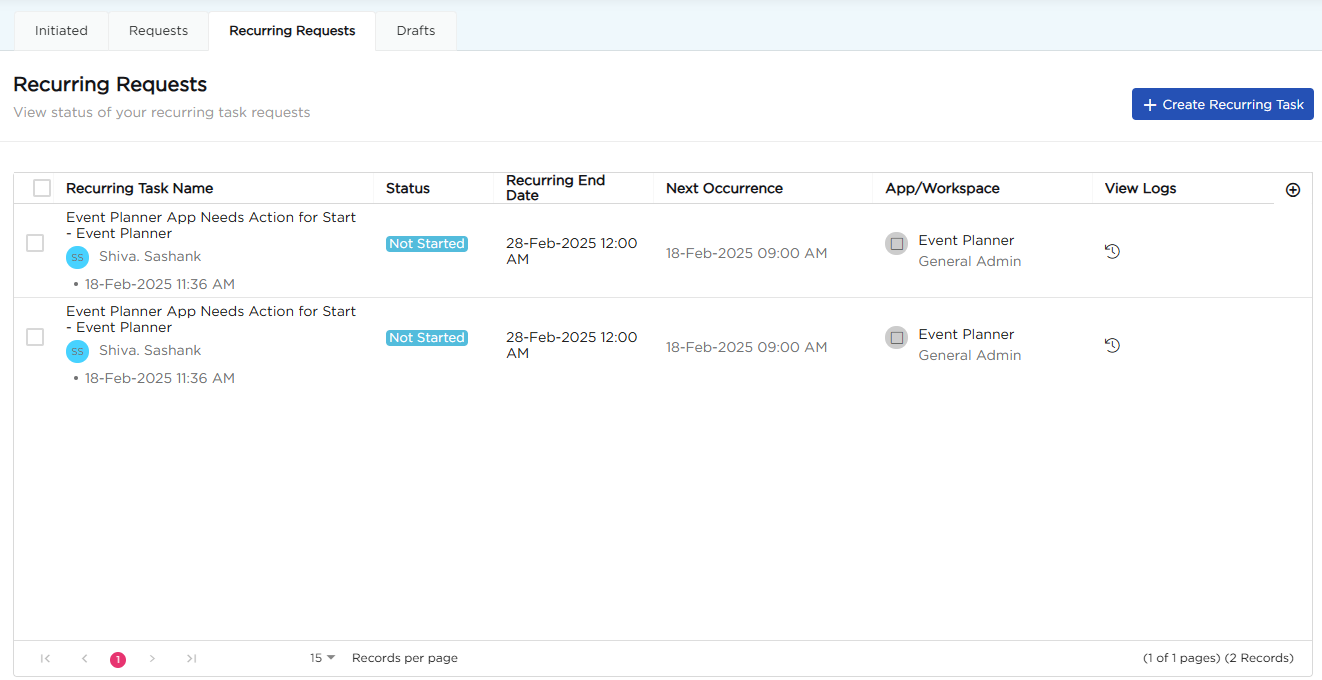
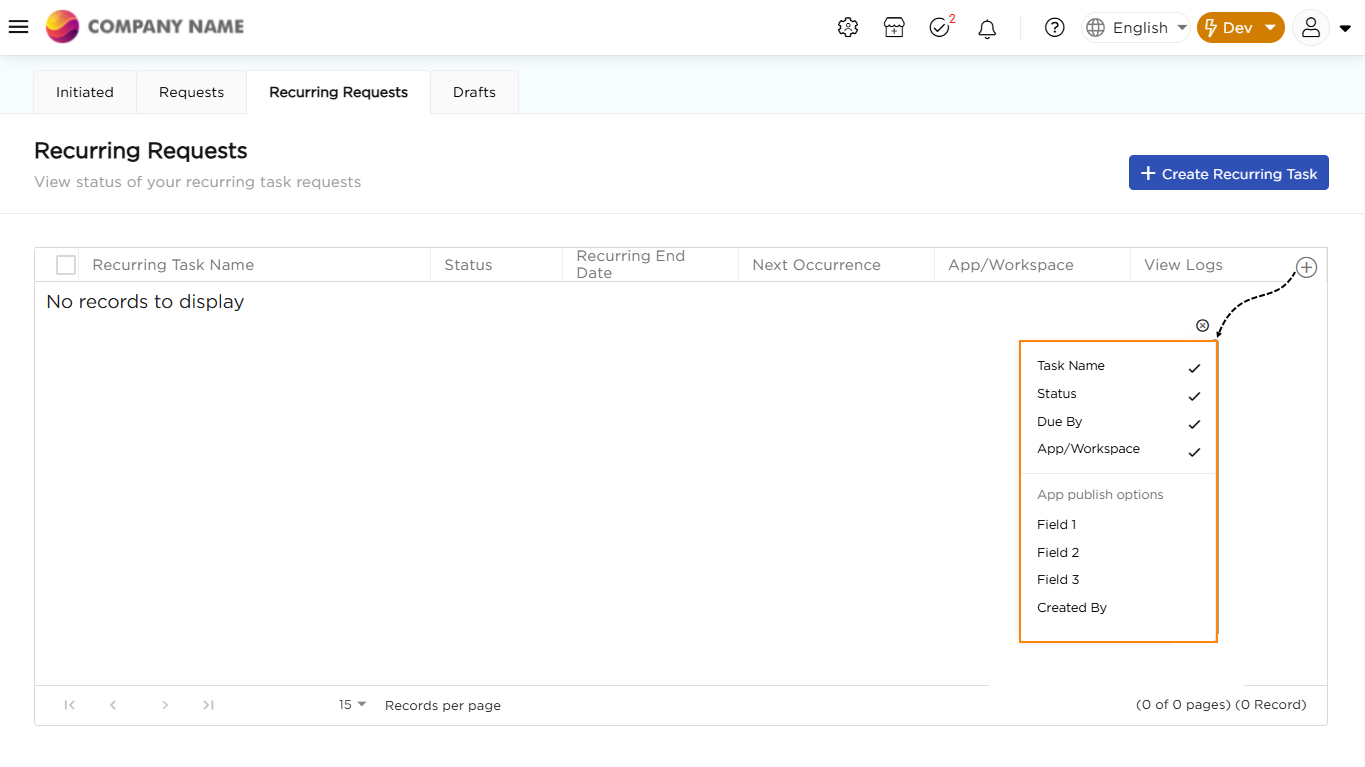
The Recurring Requests table includes the following columns:
| Column/Option | Description |
|---|---|
| Recurring Task Name | Displays the name of the recurring task. |
| Status | Shows the current status of the recurring task. |
| Recurring End Date | Indicates the date on which the recurring task schedule ends. |
| Next Occurrence | Displays the next scheduled occurrence of the recurring task. |
| App/Workspace | Indicates the app or workspace associated with the recurring task. |
| View Logs | Opens the execution history of the recurring task. |
| (+) | Displays the list of available columns, allowing you to show or hide columns in the table. |
¶ 3.2. Managing a Recurring Task
To manage a recurring task:
- Select the required recurring task from the table.
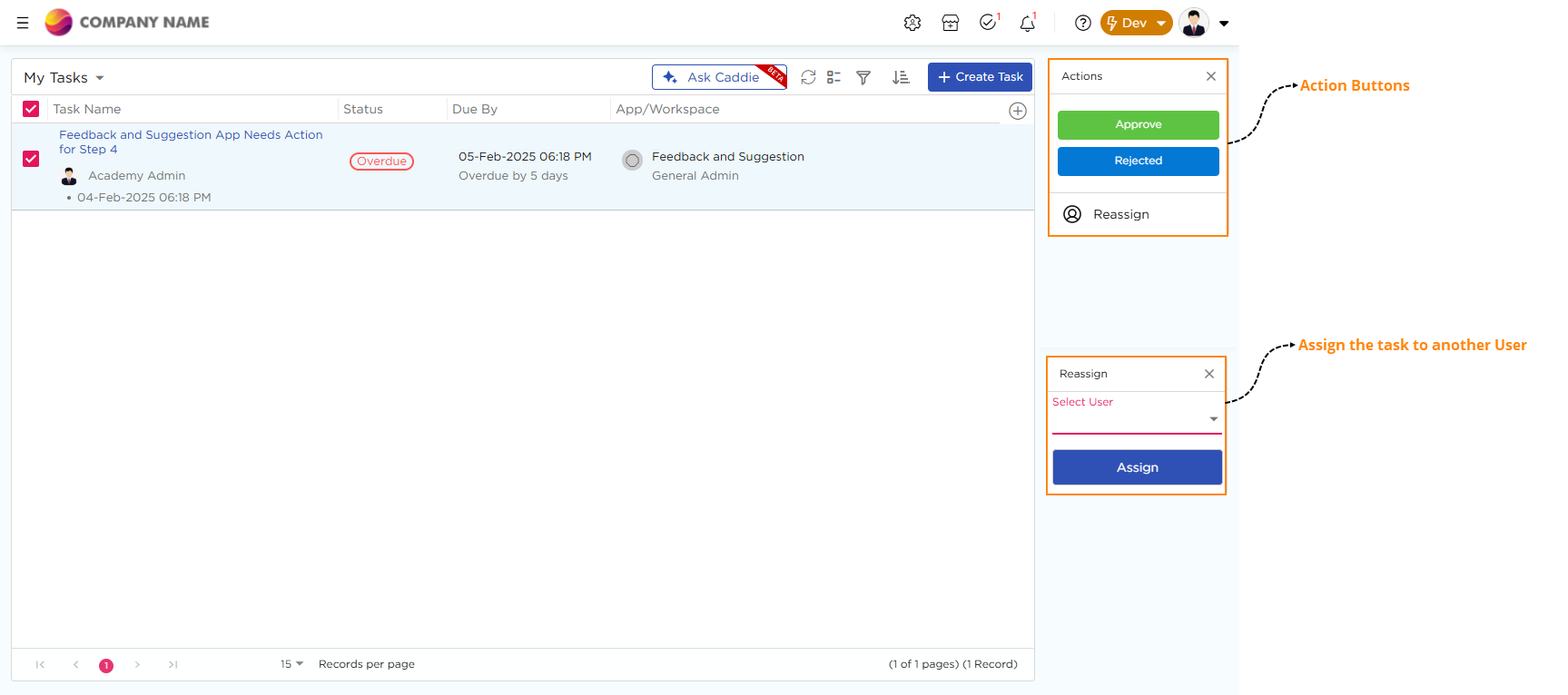
- Use the Actions panel to perform one of the following actions:
- Pause: Temporarily stops the recurring task schedule.
- Delete: Permanently deletes the recurring task.
¶ 3.3. Creating a Recurring Task
To create a recurring task:
- Click + Create Recurring Task.
- Configure the recurring task details as required.
- Click Save.
For detailed instructions on configuring recurring tasks, see Create a Recurring Task.
¶ 4. Drafts
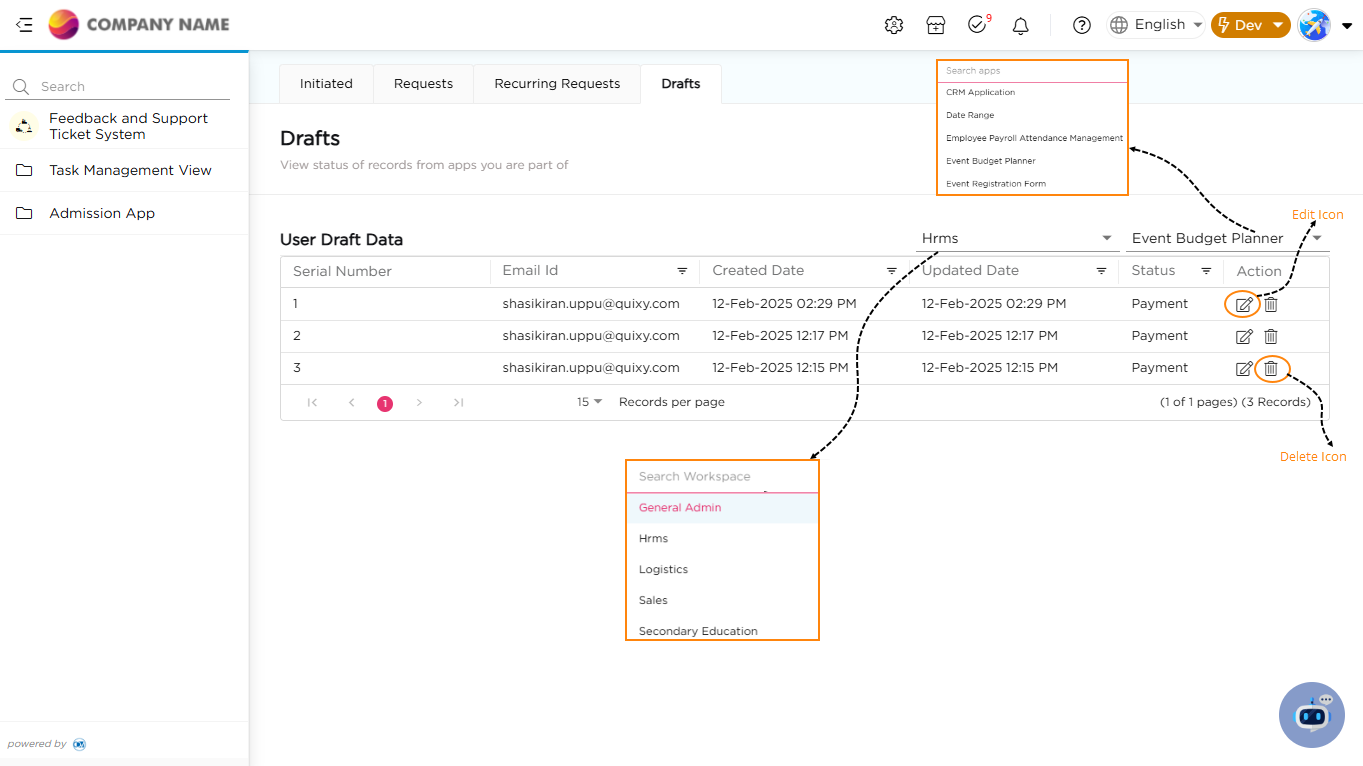
The Drafts tab displays all records that have been saved as drafts but not yet submitted. It allows you to resume editing, complete the remaining information, or delete drafts that are no longer required.
¶ 4.1. Accessing and Managing Drafts
To access your drafts:
- Select the required Workspace.
- Select the required App.
The Drafts table includes the following columns:
| Column | Description |
|---|---|
| Serial Number | Displays the unique identifier assigned to the draft. |
| Email ID | Displays the email address of the user who saved the draft. |
| Created Date | Shows the date and time when the draft was created. |
| Updated Date | Shows the date and time when the draft was last modified. |
| Status | Displays the workflow step at which the draft was saved. |
| Action | Provides options to manage the draft. |
| Edit (Pencil Icon) | Opens the draft to continue editing. |
| Delete (Trash Icon) | Permanently deletes the draft. |
¶ 4.2. Enabling Save as Draft
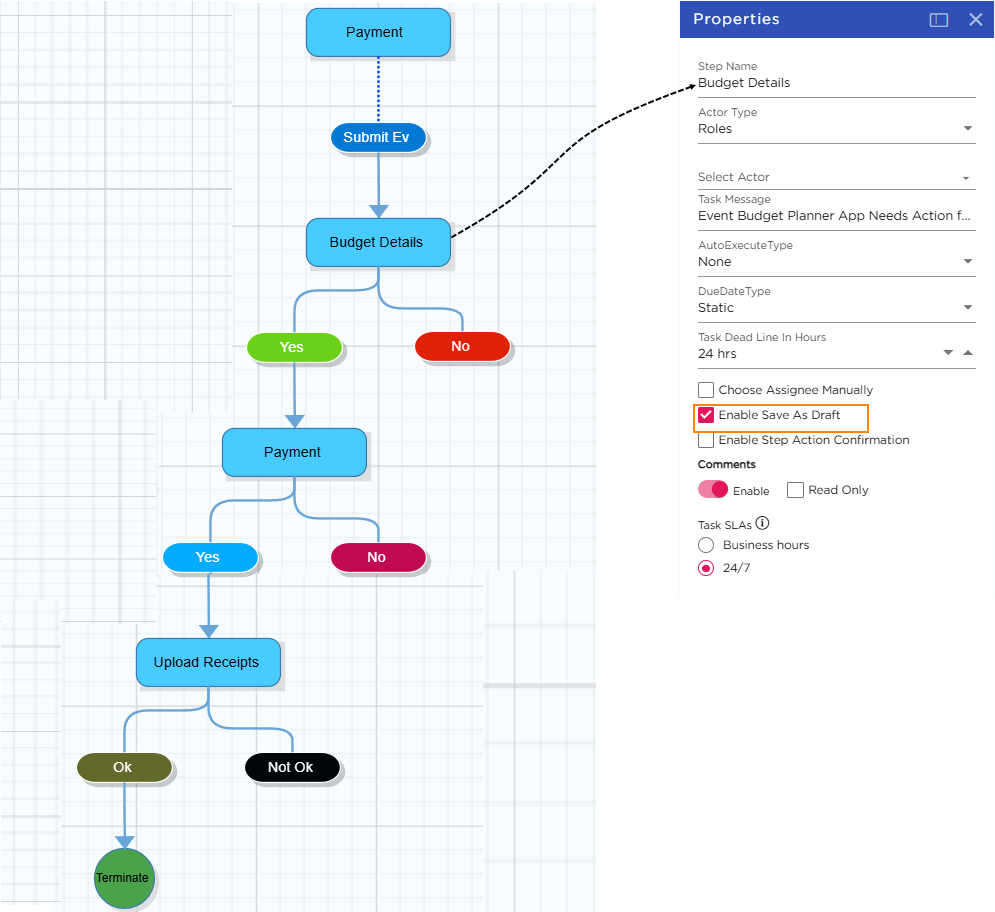
To allow users to save records as drafts:
- Navigate to the Workflow tab.
- Select the workflow step where users should be able to save records as drafts.
- In the Properties panel, enable Save As Draft.
- Publish the application to apply the changes.
Note
Users can save records as drafts only if the Save As Draft option is enabled for the corresponding workflow step.
¶ 4.3. Working with Drafts
Once the Save As Draft option is enabled, users can save incomplete records and continue working on them later.
To save a record as a draft:
- Open the application and start entering the required record details.
- Click Save Draft instead of submitting the record.
To resume working on a saved draft:
- Open the Drafts tab.
- Select the required Workspace.
- Select the required App.
- Click the Edit icon in the Action column.
- Continue editing the record and submit it when ready.
To delete a draft:
- Open the Drafts tab.
- Locate the required draft.
- Click the Delete icon in the Action column.