This article explains how to create and manage custom user fields. To learn what they are and where they are used, see Custom User Fields.
¶ 1. Create a Custom User Field
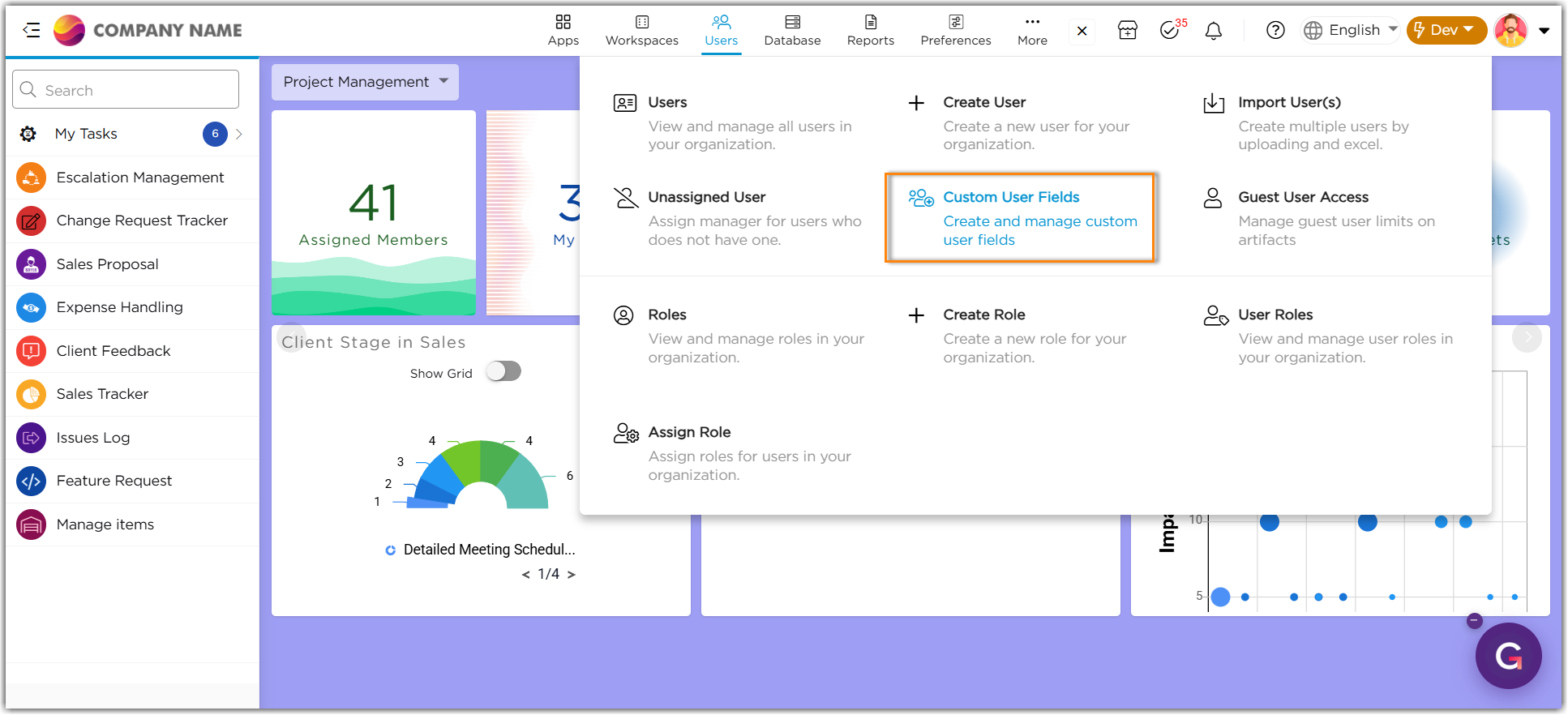
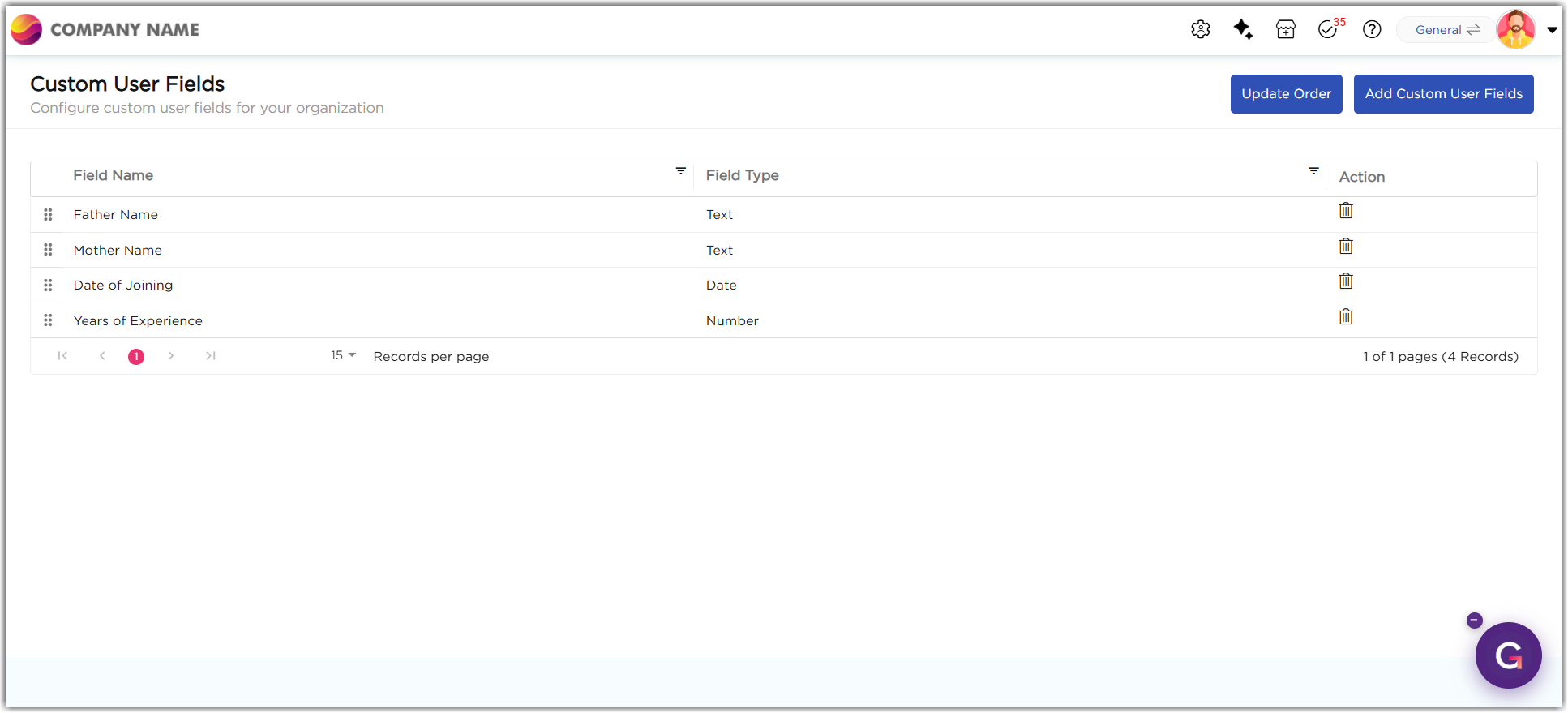
1. Go to Admin Menu → Users → Custom User Fields.
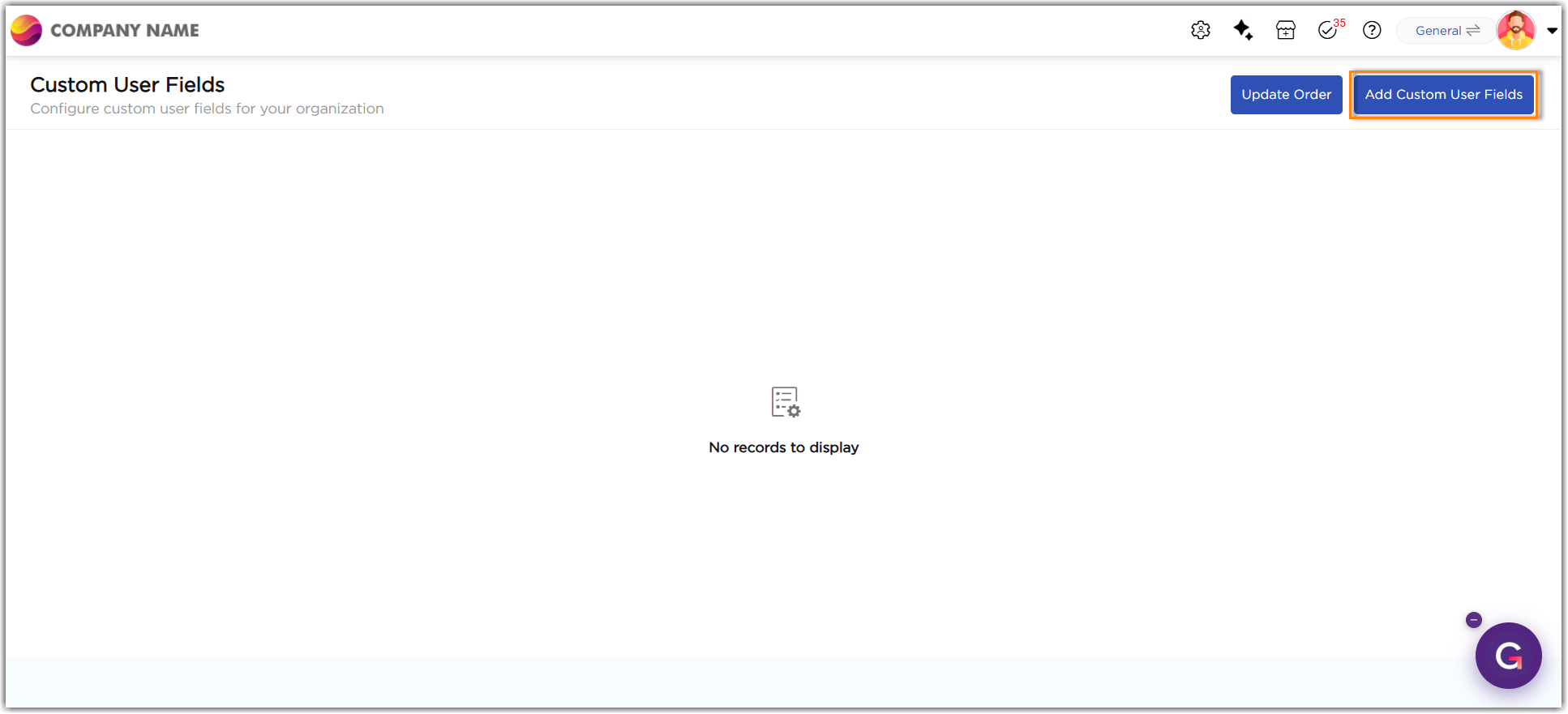
2. Click Add Custom User Fields.
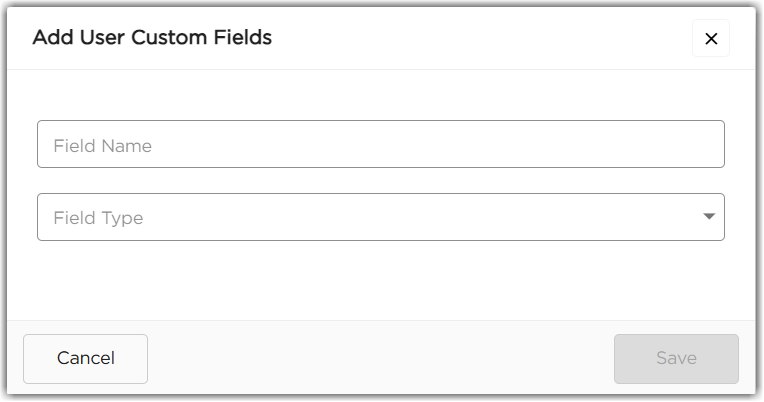
3. In the Add User Custom Fields pop-up, provide the following details:
| # | Property | Description |
|---|---|---|
| 1 | Field Name | Enter a descriptive name for the field. Example: Blood Group, Employee Grade. |
| 2 | Field Type | Select the type of value the field accepts: Text, Date, or Number. |
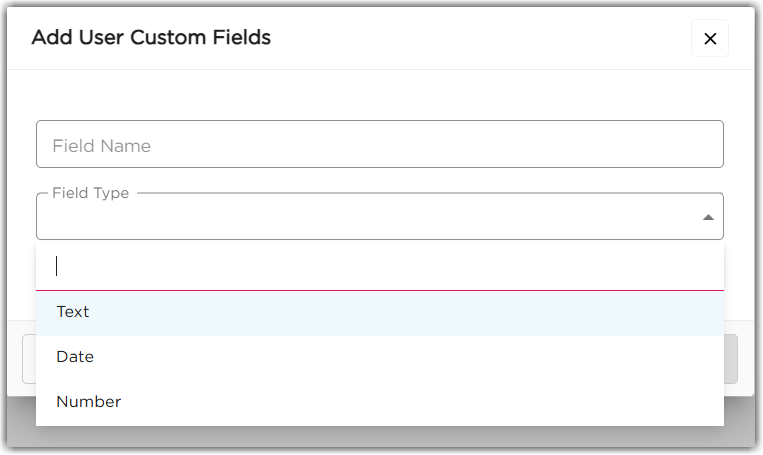
4. Click Save.
Note
- Once saved, the field is available across the organization.
- Field Name must be unique. A name that already exists is rejected with the message "Field name already exists". The check is case-sensitive, so "Blood Group" and "blood group" are treated as different names.
- A saved custom field cannot be edited. To change its name or type, delete the field and create it again.
¶ 2. Access Custom User Fields
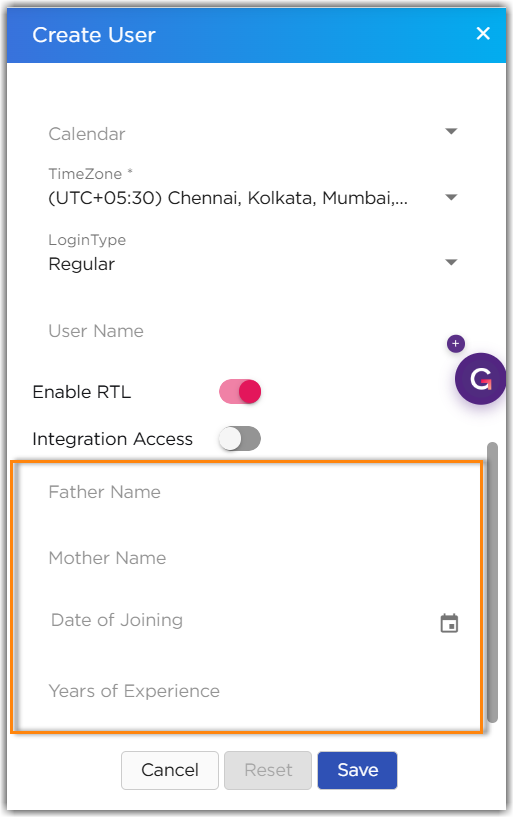
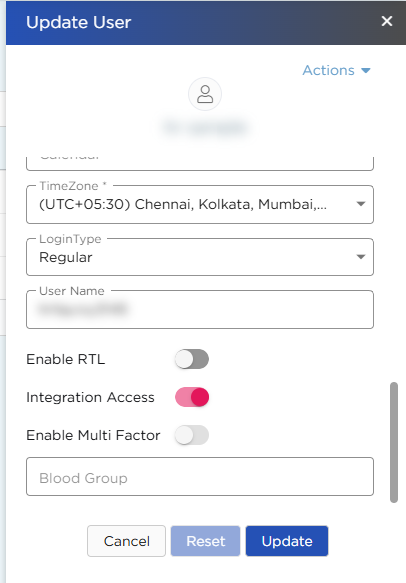
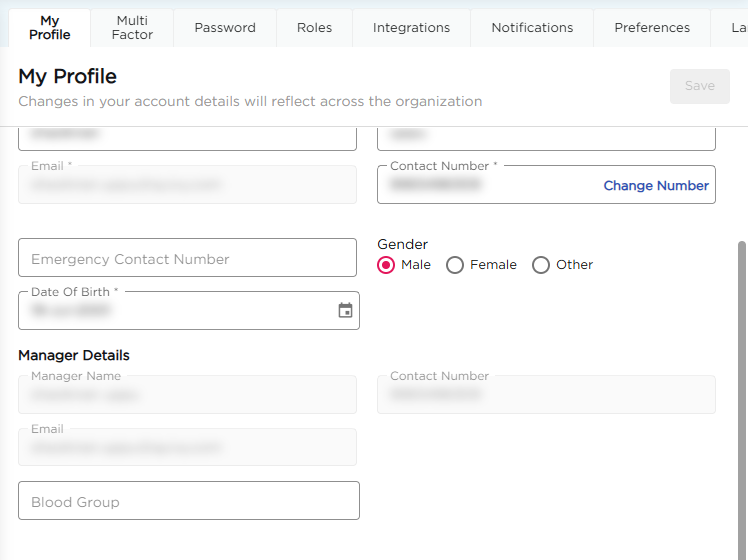
Custom user fields are available in the following places:
| # | Location | Description |
|---|---|---|
| 1 | Create User | Appear below the default user detail fields. An organization admin can fill them in while creating a user. |
| 2 | Update User | Appear below the default fields when an admin edits an existing user. |
| 3 | My Profile | Appear in the user’s profile, where the user can edit them. |
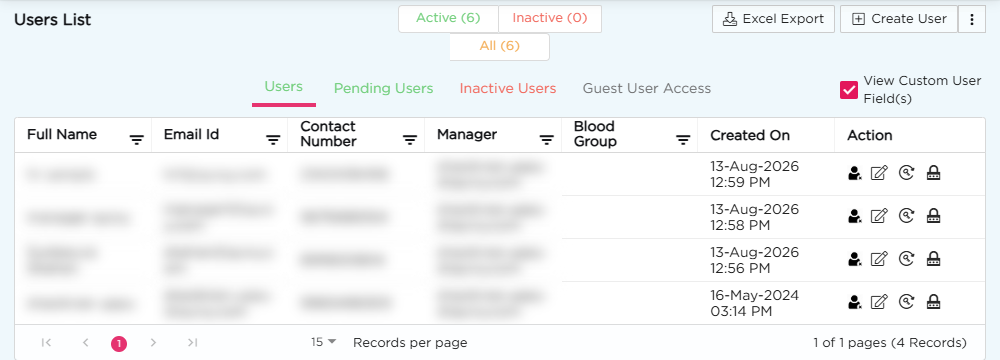
| 4 | Users list | Select View Custom User Field(s) to display the custom fields as columns in the list. |
| 5 | Create Users (bulk) | Appear as extra columns in the bulk Create Users grid and in the downloadable Excel template. |

Note
To include custom fields in an Excel export of the Users list, select View Custom User Field(s) before clicking Excel Export.
Learn more about creating a user.
¶ 3. Arrange Custom User Fields
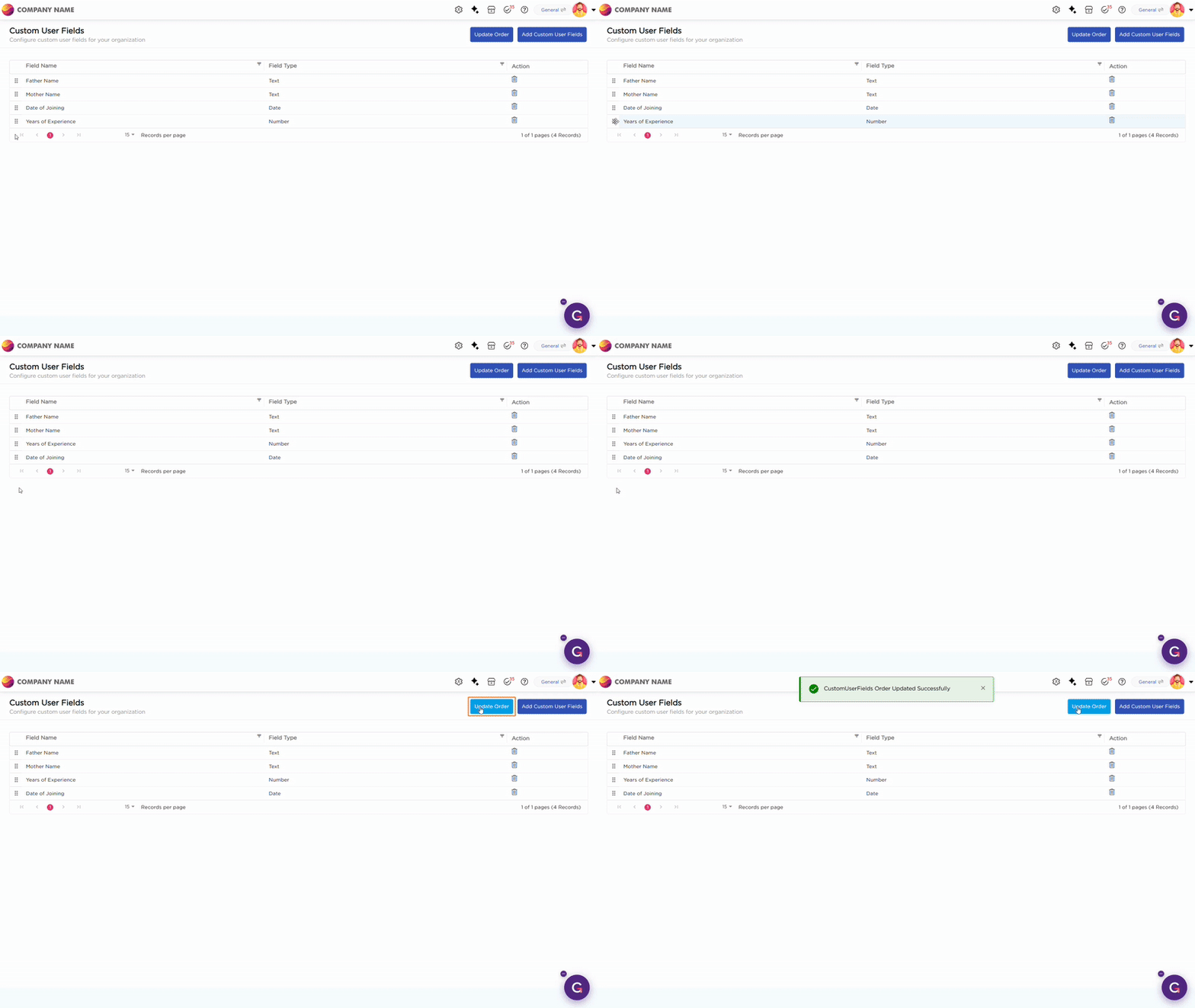
The order of fields in the Custom User Fields list is the order in which they appear in the Create User panel. To arrange the fields:
- Drag and drop a field above or below another field.
- Click Update Order.
Note
The new order is saved only when you click Update Order. If you leave the page without clicking it, the previous order is restored.
¶ 4. Delete a Custom User Field
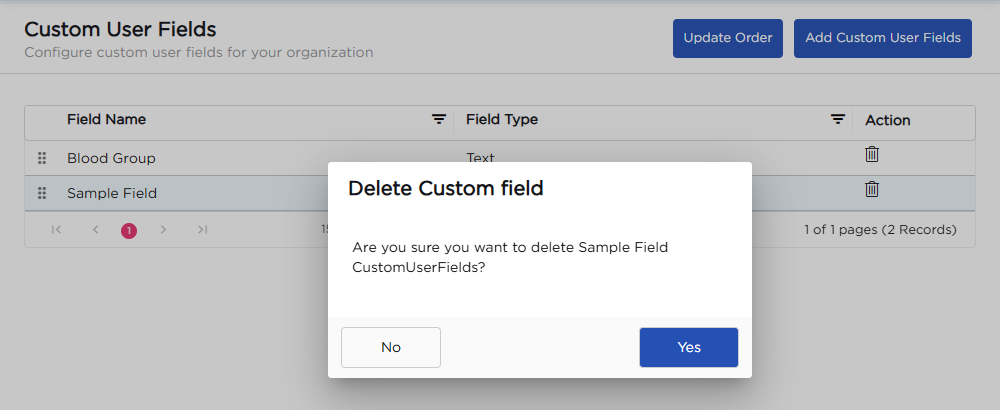
- In the Action column, click the delete icon next to the field.
- In the confirmation pop-up, click Yes.
¶ 5. Use Custom User Fields in Applications
Custom user fields can also be used in applications through the User Detail form field. The User Detail field fetches the profile data of the logged-in user into the form.
- In the Form Builder, go to the Reference section and drag the User Detail field onto the canvas.
- Under Select Referenced Elements, select the required fields. Default fields are listed under System Field(s), and the fields you created are listed under Custom Field(s).
- Click Save.
Learn more about the User Detail form field.