The Artifact Summary page lists every artifact you create or modify in the Dev stage until you deploy it to the next stage. It gives you one place to review your changes, select what is ready, and deploy it.

¶ 1. Key Features of the Artifact Summary Page
- Holds undeployed artifacts: It stores newly created artifacts, and changes to existing ones, until they are ready for deployment.
- Acts as a staging area: You can review and manage artifacts here before you deploy them.
- Linked to branches: The artifacts of a branch are listed here. In the Basic Sandbox, they stay in the General branch until you deploy them.
- Easy to reach: Click the branch name at the top right of any Admin Menu page, such as Apps, Data Tables, Reports, Workspaces, or Users. In the Advanced Sandbox, you can also click View artifact summary on the Branches page.
- Selective deployment: Not every artifact must be deployed, only those that need to be available in the next stage. See Deploying Artifacts in Basic Sandbox for the list.
¶ 2. Understanding the Artifact Summary Page

- Artifacts: The list of newly created artifacts and changes to existing ones.
- Artifacts category drop-down: Lists the artifact categories. Select a category to see only its artifacts.
- Search: Enter a keyword to find an artifact.
- Filters: Filter the artifacts by Change type, Created date, and Workspace.
- Expand all: Shows what changed in each artifact, such as whether it was created, updated, or deleted. Click Collapse all to hide the details.
- Select stage (Advanced Sandbox only): The stage you deploy from.
- Deploy: Deploys the selected artifacts. In the Basic Sandbox, the button is Deploy to Live. In the Advanced Sandbox, it reads Deploy (Dev to QA), Deploy (QA to UAT), or Deploy (UAT to Live), depending on the stage.

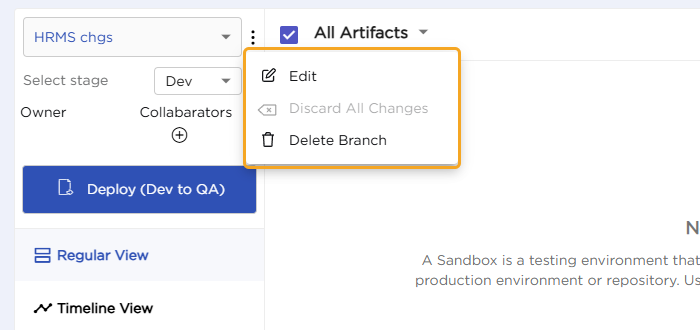
8. Three-dot menu: The Discard All Changes option removes all changes (created and updated) in the branch. On a branch you created, the menu also has Edit and Delete Branch. To discard the changes of a single artifact, use Discard all changes on that artifact.
9. Deployment Log: A deployment is one artifact or a set of artifacts deployed together. The log lists each deployment with its branch, date, and status (Active or Rolled Back), and the artifacts it contains. You can click Export or Download JSON to save the details of a deployment.
- Rollback: Undoes the most recent deployment and removes its artifacts and changes from the next stage. Rollback applies only to the latest deployment.
- Send Release Notes: Within 72 hours of a deployment, you can send release notes for its artifacts. Each message can have up to 150 characters.

10. Regular View and Timeline View
- Regular View: Lists the artifacts that were created or modified, with the time they were created.
- Timeline View: Lists who created or updated the artifacts, with the time of each action.

11. Manage Stages: Each stage (Dev and Live, and in the Advanced Sandbox QA and UAT) has a colored button. Use Manage Stages to change these colors.
¶ 3. Managing Artifact Dependencies for Deployment
In Quixy, artifacts are linked to each other to build a working solution. A dependent (child) artifact needs its parent artifact in the next stage. So, deploy related artifacts together or deploy the parent artifact first and then the child.
If you deploy a child artifact before its parent, the platform shows a dependency error. The error names the missing parent artifact, so you can deploy it first. The following examples show how this works:
- App: The app's workspace must already be in the next stage.
- App with lookups: The lookups must already be in the next stage.
- App event (data function): Both the app and the data table must already be in the next stage.
- Report: Its data source must already be in the next stage.
- List screen (app and report used in a data action): Both the app and the report must already be in the next stage.