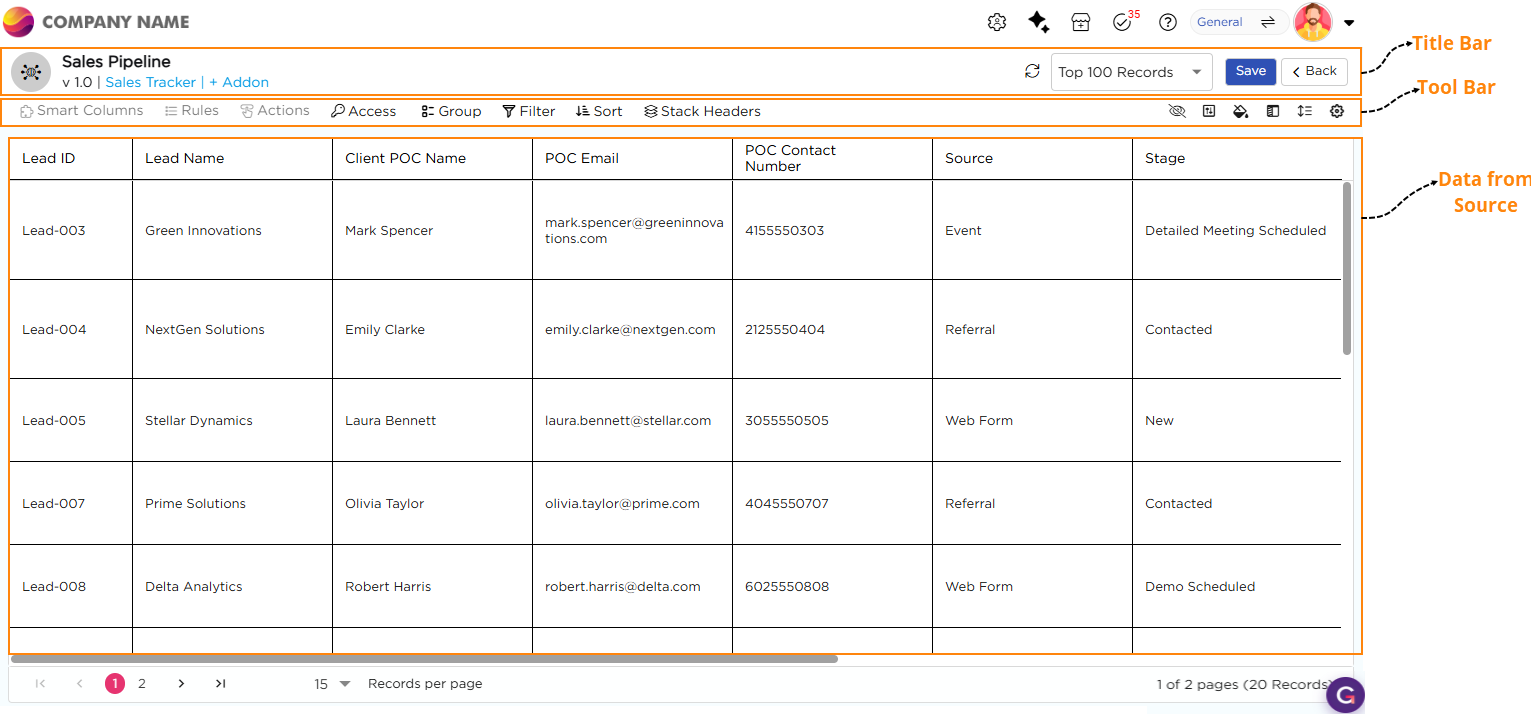
The List View landing page is the main screen where you configure and manage the List View. It is divided into three sections Title Bar, Tool Bar, and Data Area.
¶ 1. Title Bar
The Title Bar appears at the top of the page. On the left, it shows the List View name, version, data source name, and the option to plug in add-ons. On the right, it shows the Refresh button, record count dropdown, Save button, and Back button.
¶ 2. Tool Bar
The Tool Bar is displayed below the Title Bar. It contains the main controls used to manage the List View. On the left side, you will see Smart Columns, Rules, and Actions. These are available in view-only mode and become active when an add-on is plugged in. You will also see Access, Group, Filter, Sort, and Stack Headers. On the right side, you will see Hide Columns, Field Properties, Color, Freeze Columns, Row Height, and Additional Settings.
¶ 3. Data Area
The Data Area displays records from the associated data source in a table format. Each row represents a record.
Each column represents a field. This is the area where users view, review, and interact with the data.