The toolbar provides options to manage how data is displayed, organized, and highlighted in the List View.
¶ 1. Hide Column
Imagine you're navigating through the list view, filled with multiple columns of information. You only need to see a few specific columns at the moment. With the Hide Columns option, you can quickly choose which columns to display and which ones to hide.
.gif)
¶ 2. Conditional Colors
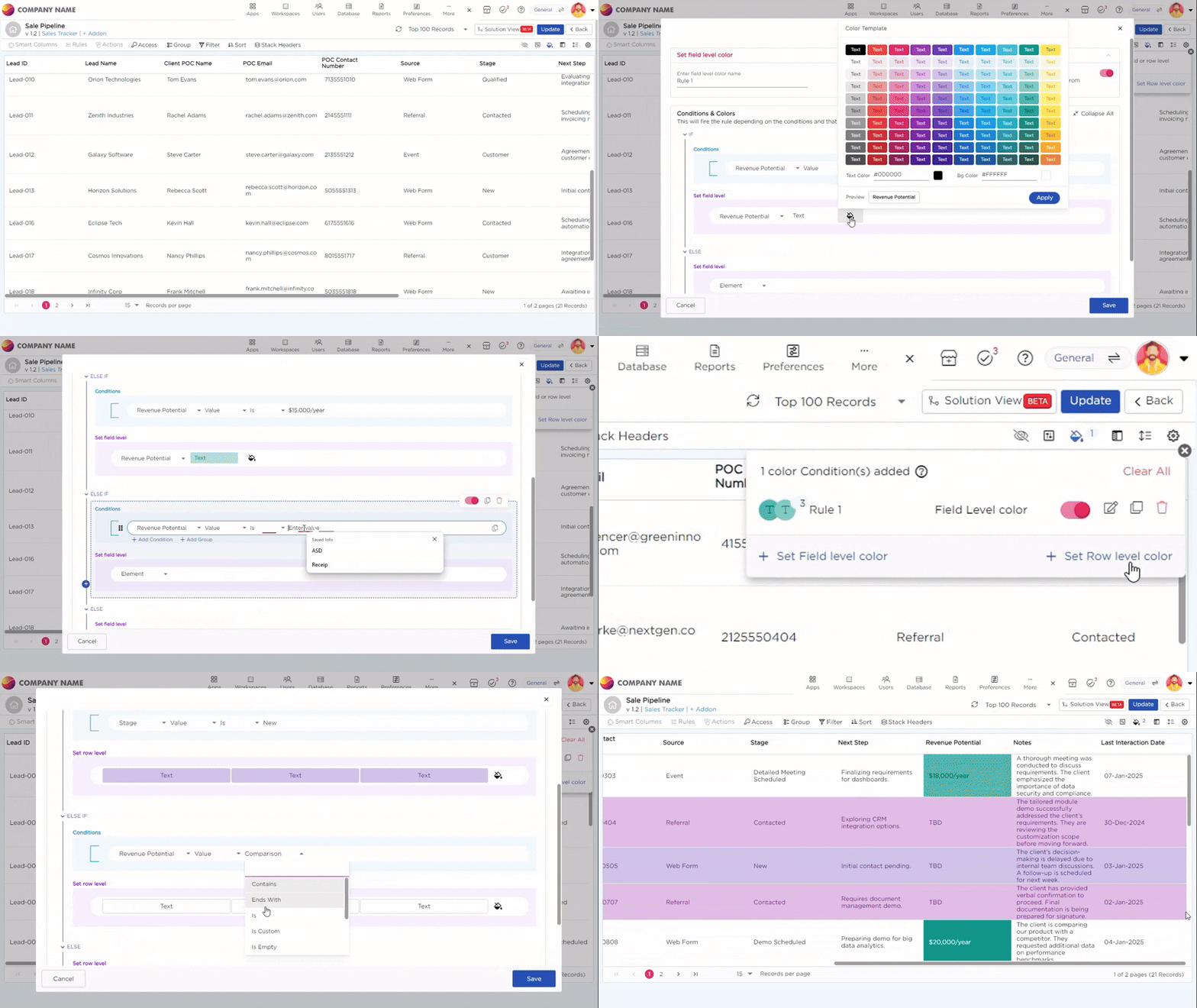
In the sales pipeline list view, we can visually highlight each lead’s value potential by applying colors to different revenue ranges. This helps us to easily spot high-value opportunities and prioritize them. There are two color coding options to choose from:
- Row-Level Color: This option applies color to the entire row based on revenue criteria, making high-value leads stand out instantly in the List View.
- Field-Level Color: This option applies color only to the revenue field, highlighting the individual value without affecting the whole row, allowing us to focus on specific revenue amounts.
To assign colors, we create rules based on the lead’s Estimated Revenue:
- If a lead’s Estimated Revenue exceeds $50,000, we assign green to highlight it as a high-value opportunity.
- If a lead’s Estimated Revenue is between $20,000 and $50,000, we assign yellow to mark it as a moderate-value opportunity.
- If a lead’s Estimated Revenue is below $20,000, we assign red to show it's a low-value opportunity.
These color options help us to quickly assess and prioritize leads based on their revenue potential.
¶ 3. Freeze Columns
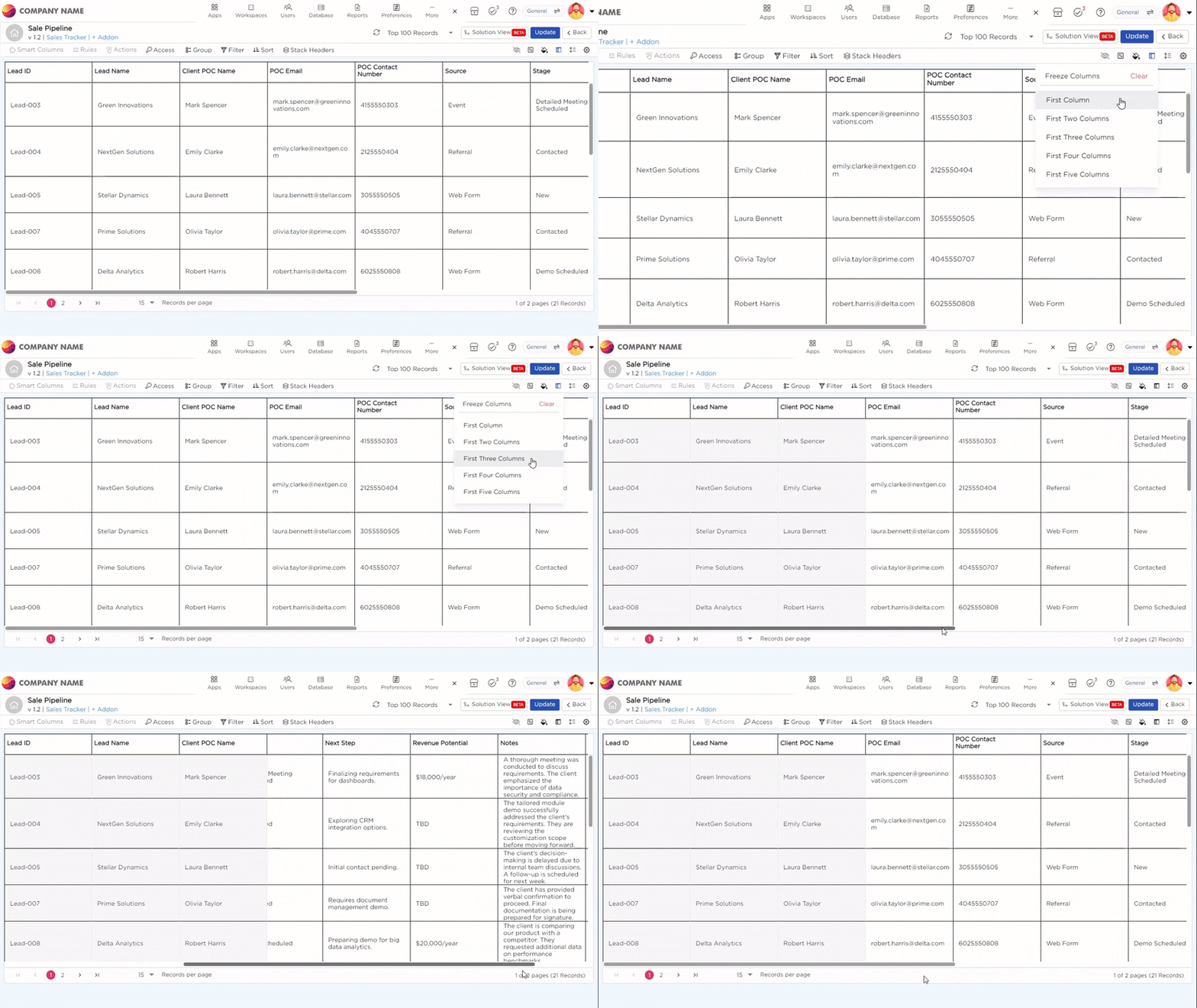
When you’re working with a massive dataset, it can be tough to keep track of the most important columns. That’s where the Freeze Columns option steps in. It lets you lock the essential columns in place, so as you scroll through records, the key information stays in view. This makes it much easier to navigate through the data and stay focused on what matters.
¶ 4. Filters
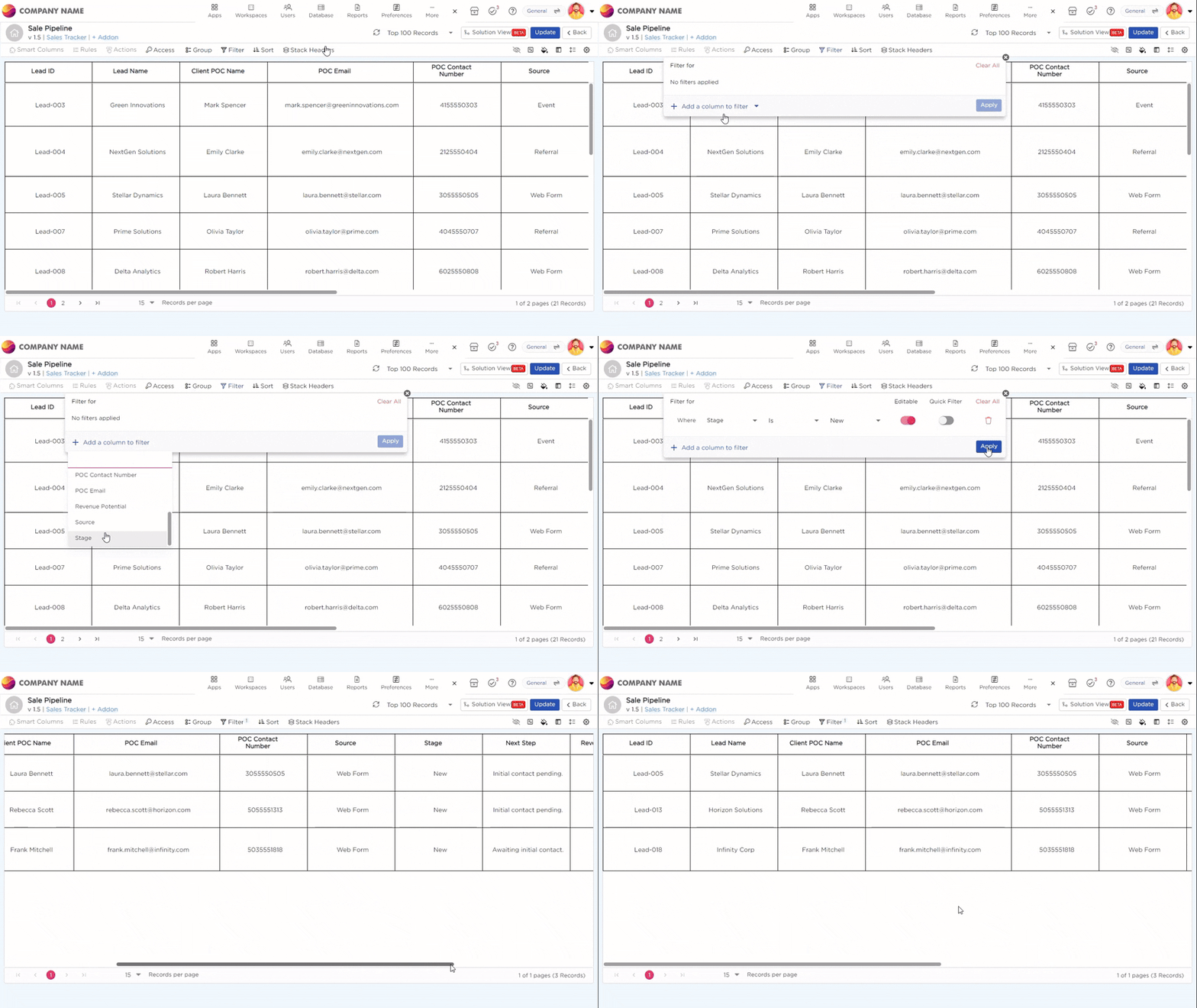
Imagine you're staring at a long list of leads, trying to figure out which ones actually need your attention today. Scrolling endlessly isn’t going to help. That’s where filters come in. You open the Filter panel and set a condition—maybe you want to see only the leads in the New stage. Instantly, your list shortens. You’re now looking at just the ones that matter. Simple, right? But it gets even better. As soon as you apply a filter, you’ll see an Edit toggle. Turn this on, and it unlocks something powerful: the Quick Filter toggle.
Note
You can’t enable Quick Filters unless the Edit toggle is switched on first. Think of it as the key that unlocks the shortcut feature. Turning on Quick Filters creates a shortcut bar that you can use to instantly find what you need—without having to mess with filter settings.
¶ 4.1. So, What's Different About Quick Filters?
Quick Filters help you narrow down your list quickly without having to set rules each time.
Here’s the difference:
- Filters: You have to choose specific rules each time (like "Stage is New" or "Status is Qualified") to narrow things down.
- Quick Filters: These are ready-to-use. The columns you already see in the list (like Stage, Client Name, etc.) are pre-set. All you have to do is click on them to instantly filter the data.
In short: Quick Filters let you filter the data instantly by clicking on the columns already in the list. Filters require you to set the rules manually every time. Quick Filters save you time and effort!
How to Set Up a Quick Filter:
- Apply a filter first. Once the Edit toggle appears, turn it on—only then can you enable the Quick Filter.
- In Additional Settings, turn on the “Generate Reports with Quick Filters” option to ensure your filters show up in reports.
- In the Access tab, assign the appropriate workspace and user roles, then grant column access to make the Quick Filter visible in the actions view.
¶ 5. Grouping
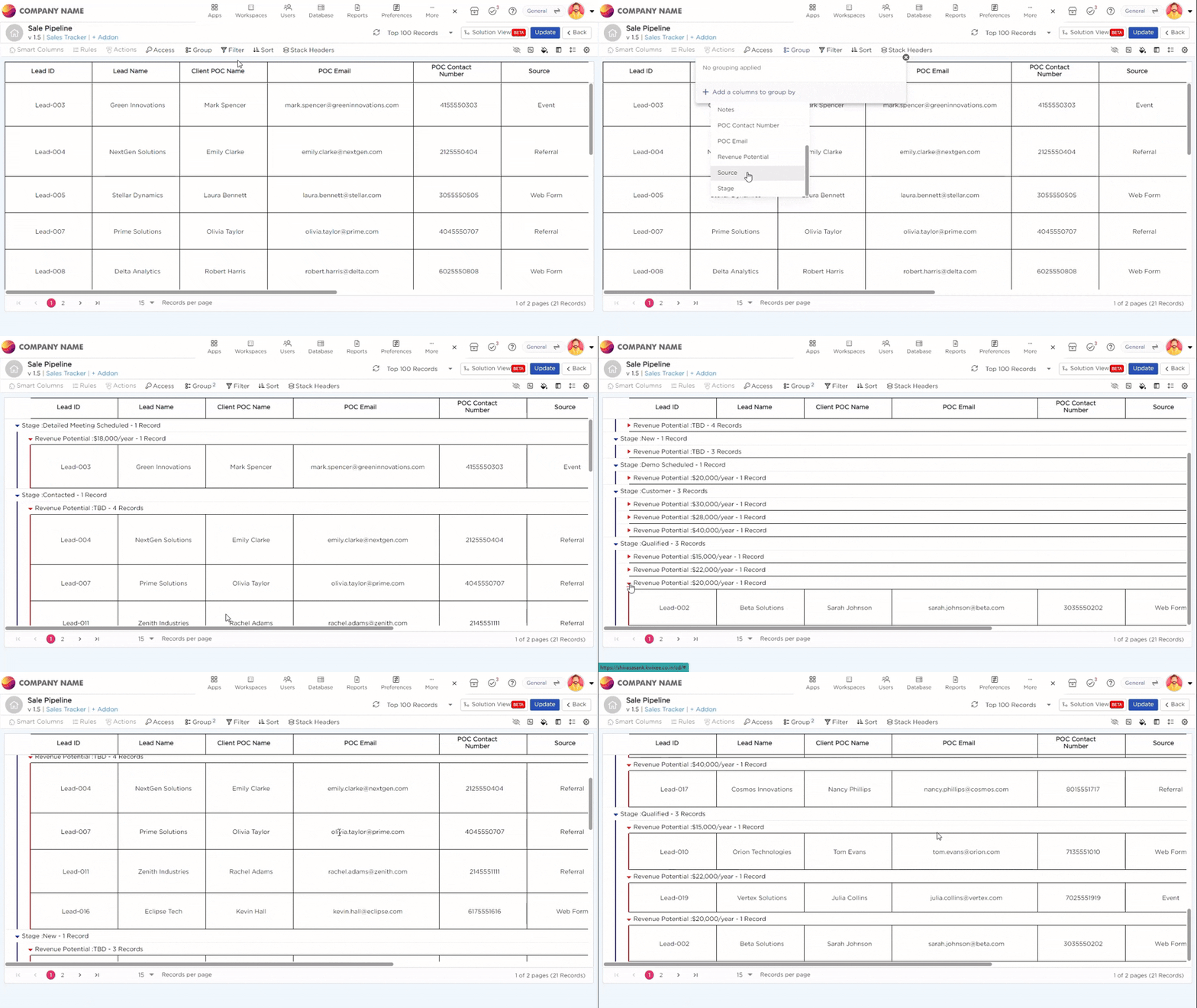
As you dive deeper into the pipeline, you begin monitoring how leads progress through different stages. With the Group option, you can easily organize records by their current stage, such as grouping leads into categories like Demo Scheduled or Customer. This gives you a clear overview of where each lead stands, allowing you to focus on those that require immediate attention.
¶ 6. Row Height
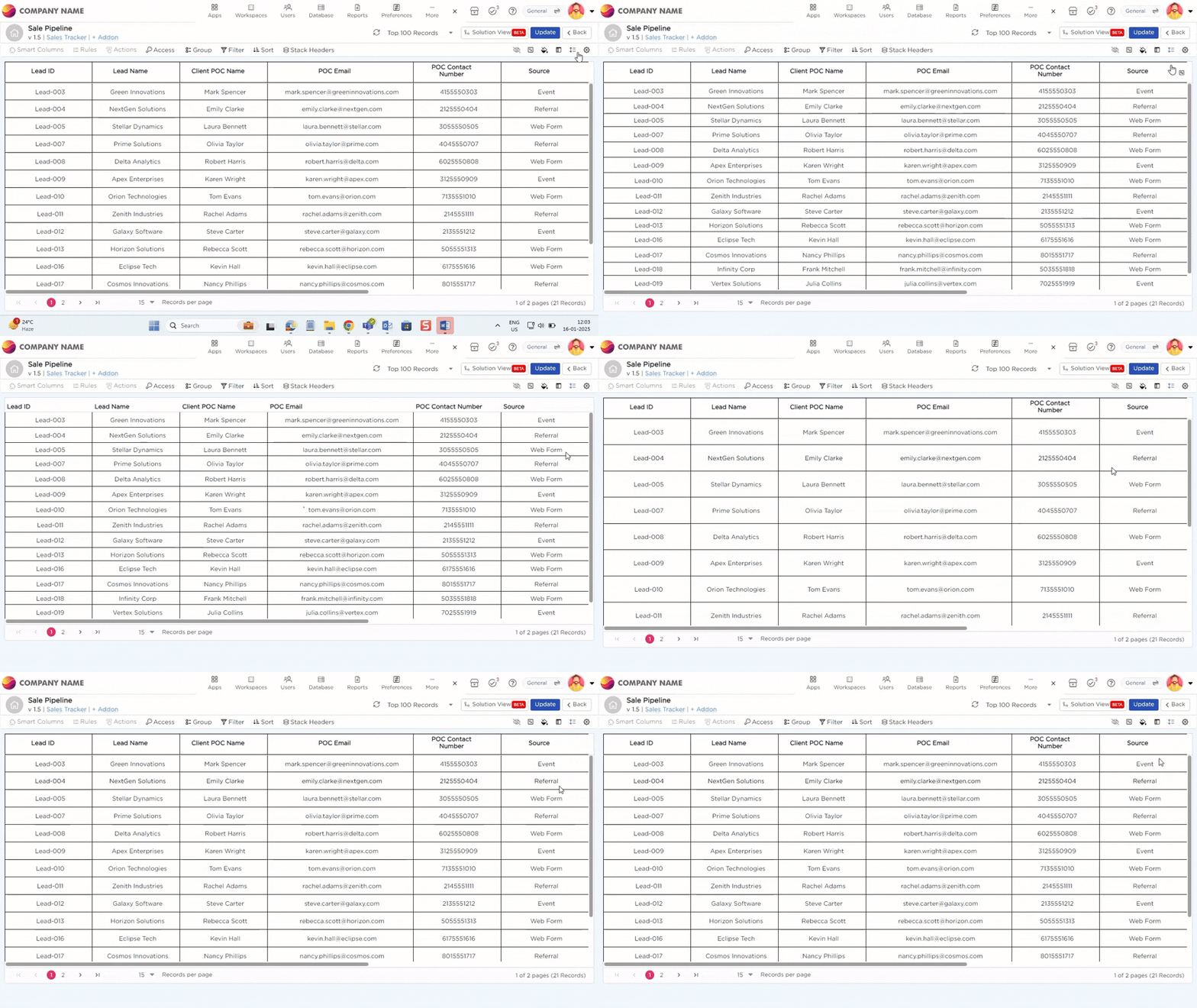
The Row Height option helps make your data easier to read. You can select from three views—Compact for a more compressed look, Default for the standard layout, or Expanded for a spacious, detailed view.
¶ 7. Sort
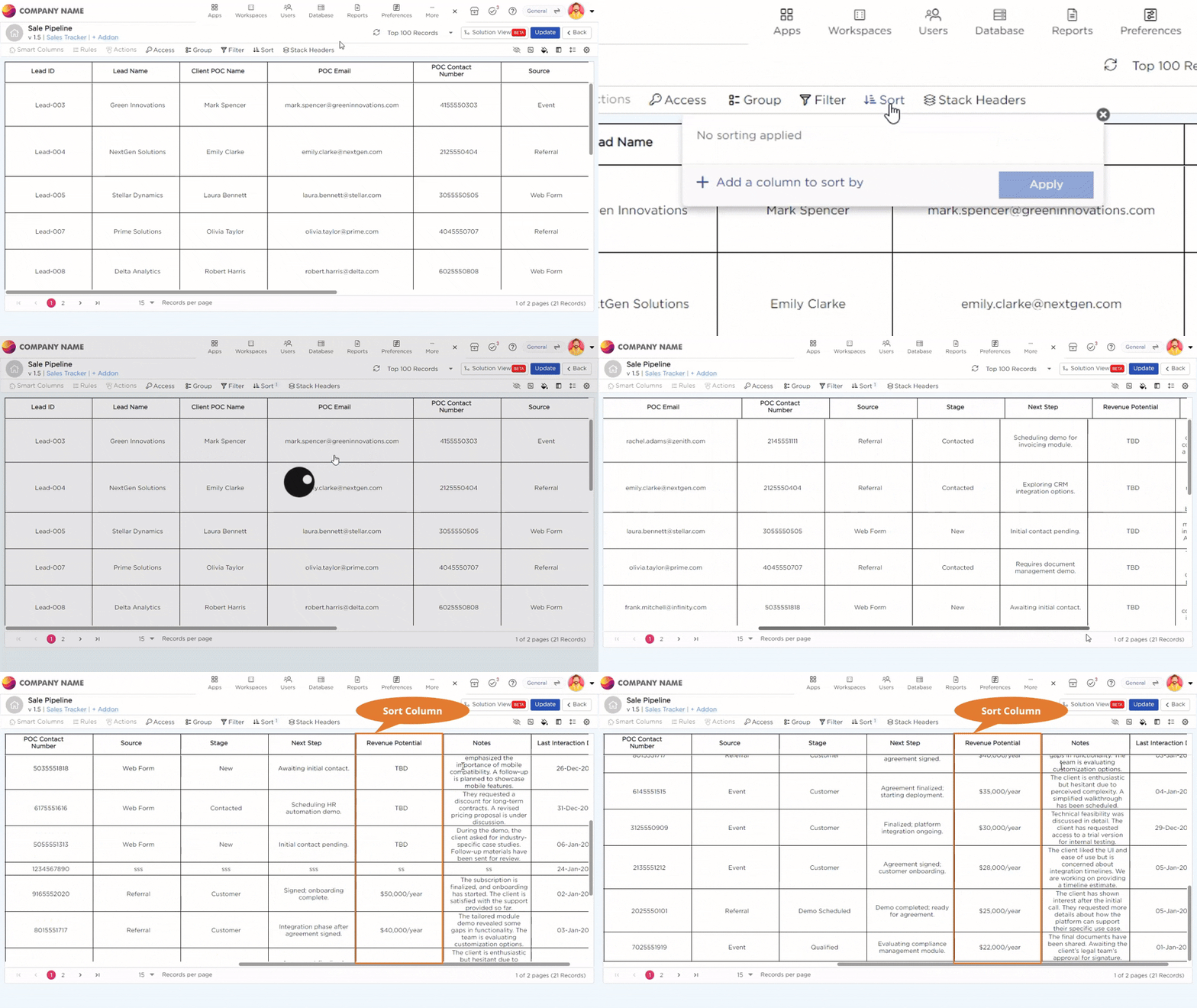
When you want to focus on the leads with the highest revenue potential, the Sort option helps you organize them quickly. By sorting leads based on revenue potential, you can easily spot high-value opportunities and stay focused on the leads that matter most.
¶ 8. Stack Headers
When you need to organize your data, the Stack Headers option helps group related fields together. For example, you can combine fields like POC Name and POC Email under a 'Point of Contact' section, or group Stage and Revenue Potential under 'Lead Details.' This makes your data easier to analyze and navigate, giving you a clearer view of important information.
.gif)