Recurring tasks can be created directly from the My Tasks page.
- Click on Tasks. The My Tasks page opens.
- Click + Create Task at the top right.
- A popup opens for entering task details.
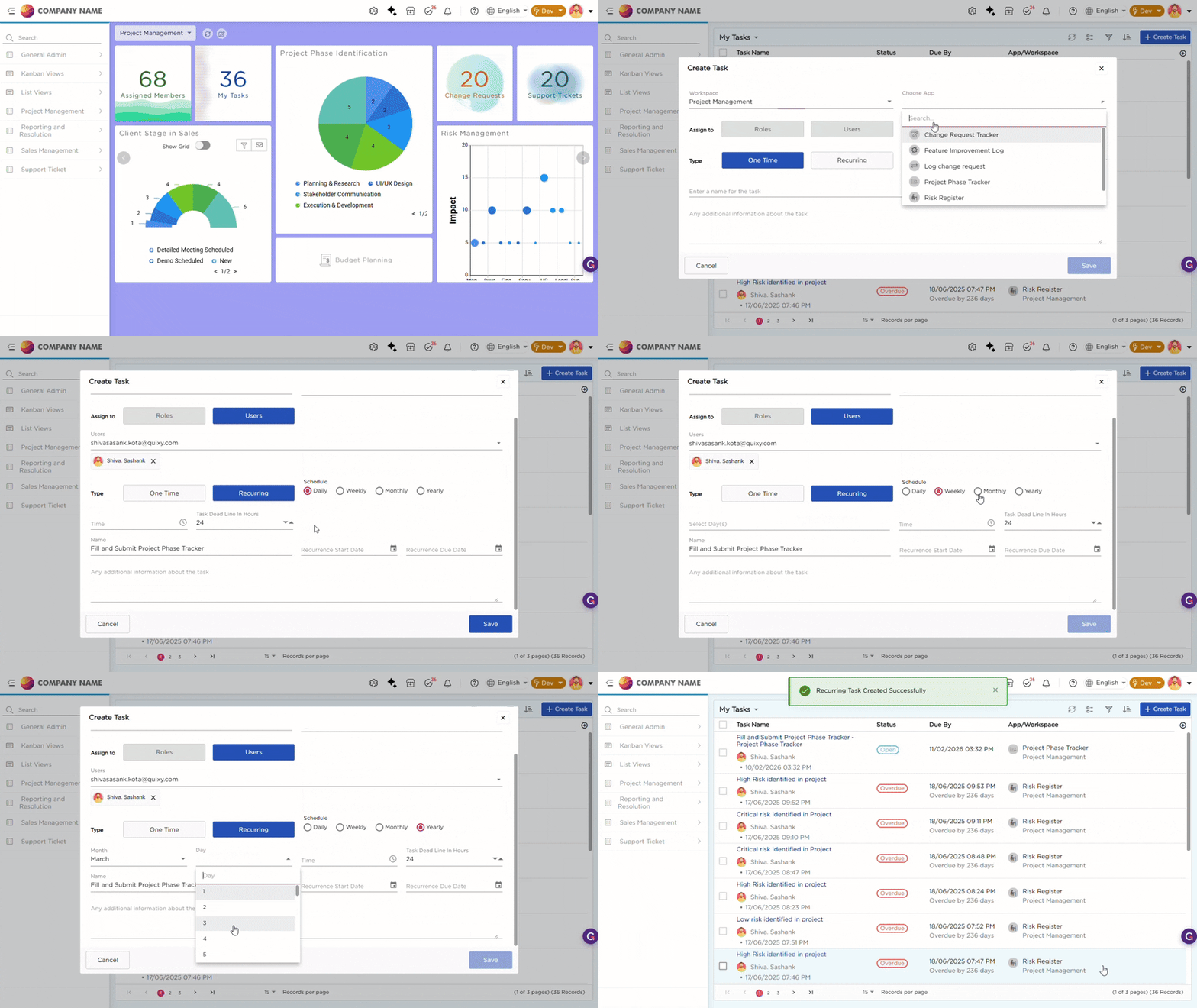
4. Follow the steps from the table below:
| # | Action | Description |
|---|---|---|
| 1 | Select Workspace | Choose the workspace to which the task should belong. |
| 2 | Select Application | Pick the application under which the task will be categorized (optional for general tasks). |
| 3 | Choose Assignee | Assign the task to a specific user, role, or team based on who needs to perform the action. |
| 4 | Choose Task Type | Select between a One-time Task or Recurring Task. |
| 5 | Configure Dates | For recurring tasks, set the Recurrence Start Date and Recurrence Due Date to define when the task schedule begins and ends. |
| 6 | Schedule |
Select how often the recurring task should be created.
|
| 7 | Enter Task Name | Provide a clear and meaningful title for the task. |
| 8 | Add Task Description (optional) | Include additional information or instructions for the assignee. |
| 9 | Click Save | The task will be created and assigned to the chosen user or role. A confirmation message appears once saved. |