Note
Before understanding the development of an application, you must know that development of any artifact in Quixy happens in a sustained environment, i.e., Sandbox. A Sandbox is the environment where citizen developers build, test, and deploy solutions. It can have two stages—Dev and Live or four stages—Dev, QA, UAT, and Live.
Developing an application in Quixy is a 6-step process and for you to initiate the application development you must ensure the following:
- Switch to Dev stage of the Sandbox to have the developer options, i.e., Admin Menu.
- Click on the Admin Menu → Apps → Create App.
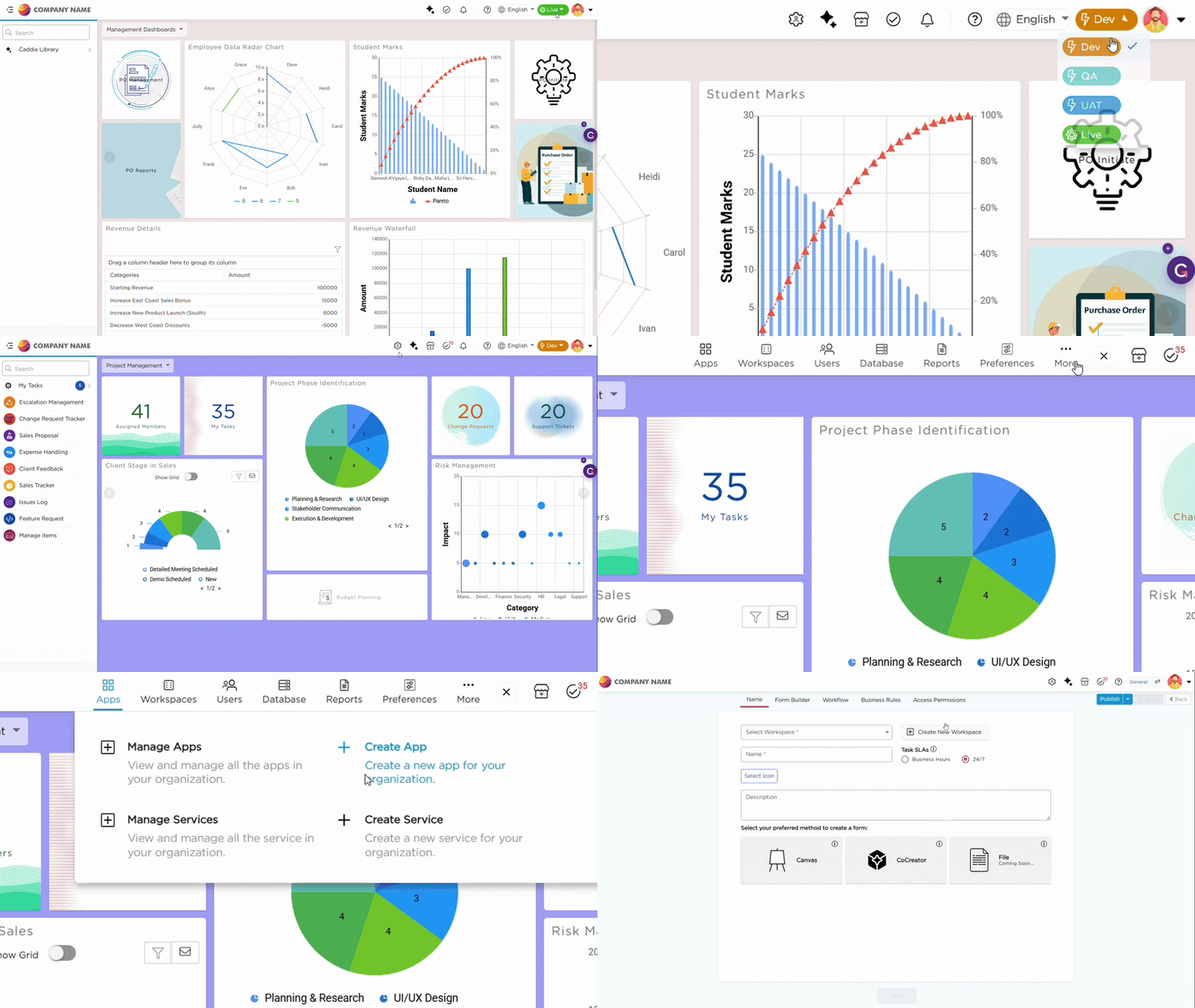
Now, you can start developing the application using the 6-step process as explained Below:
¶ 1. Application Name
This step focuses on naming the application and also choose how you want to develop the form as instructed below:
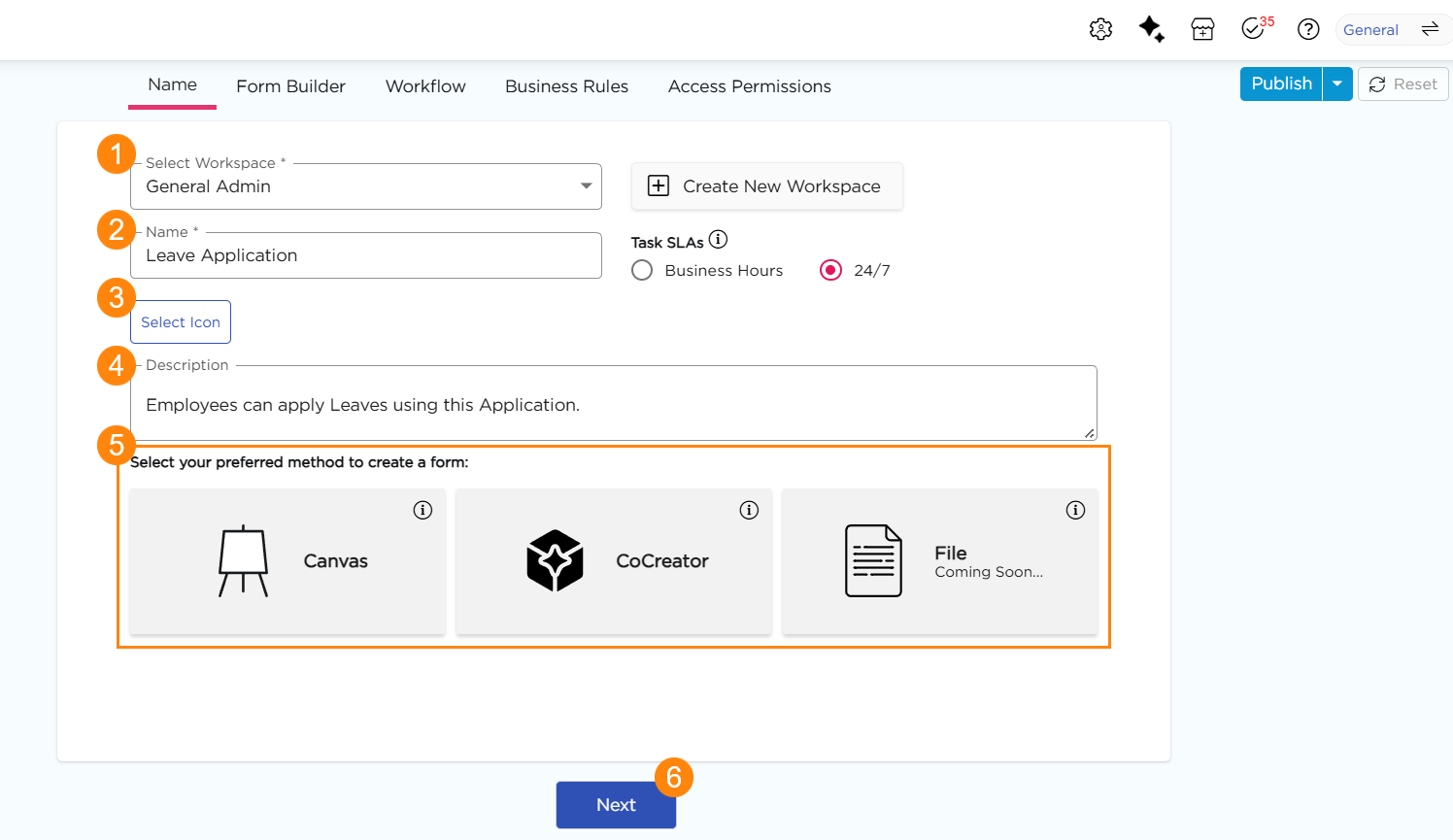
- (Mandatory) Select a Workspace
- (Mandatory) Provide a Name to the application.
- Select an Icon.
- Provide a Description explaining What & Why of the app.
- Choose your preference how you want to develop the form, i.e., Canvas, Co-creator, or File
- Canvas: Choose this option to build the form manually from scratch using the drag-and-drop functionality.
- Co-creator: Choose this option to build the form using AI. Just like how you use LLMs, such as ChatGPT, Claude or Perplexity. You simply explain & conversate how you need the form in plain text and AI will do the job for you.
- File (Coming soon): Choose this option to replicate any pre-existing templates or hand-drawn forms.
- Click next to navigate to the form designing step.
¶ 2. Form Designing
This step focuses on designing your form. You can design it manually by dragging and dropping the required data fields —such as text boxes, dropdowns, checkboxes, and date pickers onto the form builder canvas, arranging them into sections, and grouping related fields. You can also personalize the appearance of the form by applying themes.
If you prefer, you can design the form with AI. Simply describe what you want through short prompts, including how the form should look, what fields you need, and how those fields should be organized into sections or groups. The AI will create the form based on your instructions. To understand the Form Builder interface, layout, and available controls, refer to the Form Builder article.
Once the form is designed, click Next to navigate to the Workflow step.
¶ 3. Workflow
This step focuses on defining how a process moves from start to finish. You set the path your workflow follows and decide how each step should progress based on your requirements. Learn to create a Workflow
Once the workflow is defined, click Next to navigate to the Business Rules step.
¶ 4. Form Logic: Rules & Validations
This step focuses on defining the form's behavior logic. You set conditional actions to the data fields and sections based on the data presented or not presented in the fields, such as automatically setting data of one field to other, showing or hiding fields and sections, or validating data entered by users. Learn to define Form Logics
Once the Form Logics are defined, click Next to navigate to the Access Permissions step.
¶ 5. Access Permissions
This step focuses on which parts of the form each workflow step can access and how users at that step interact with those sections or fields.
You assign one of three access types for every section or field:
- Edit: Users enter new data or update existing data.
- Read-only: Users view the data but cannot modify it.
- Hidden: Users do not see the section or field at all.
Learn to define Access Permissions
¶ 6. Publish
Once all the 5 preceding steps are established. You can Publish the application to complete the development of the application.
- You will find the Publish button on the top-right corner.