Once you've structured the board, assigned colors to the Kanban column headers, and arranged the columns in the desired order, the next step is to integrate a service into the Kanban and map the Kanban elements to the service.
¶ 1. Service Utilization in Kanban View
Service Utilization is where you integrate a service with a Kanban, ensuring that any changes made within the Kanban are reflected in the data source.
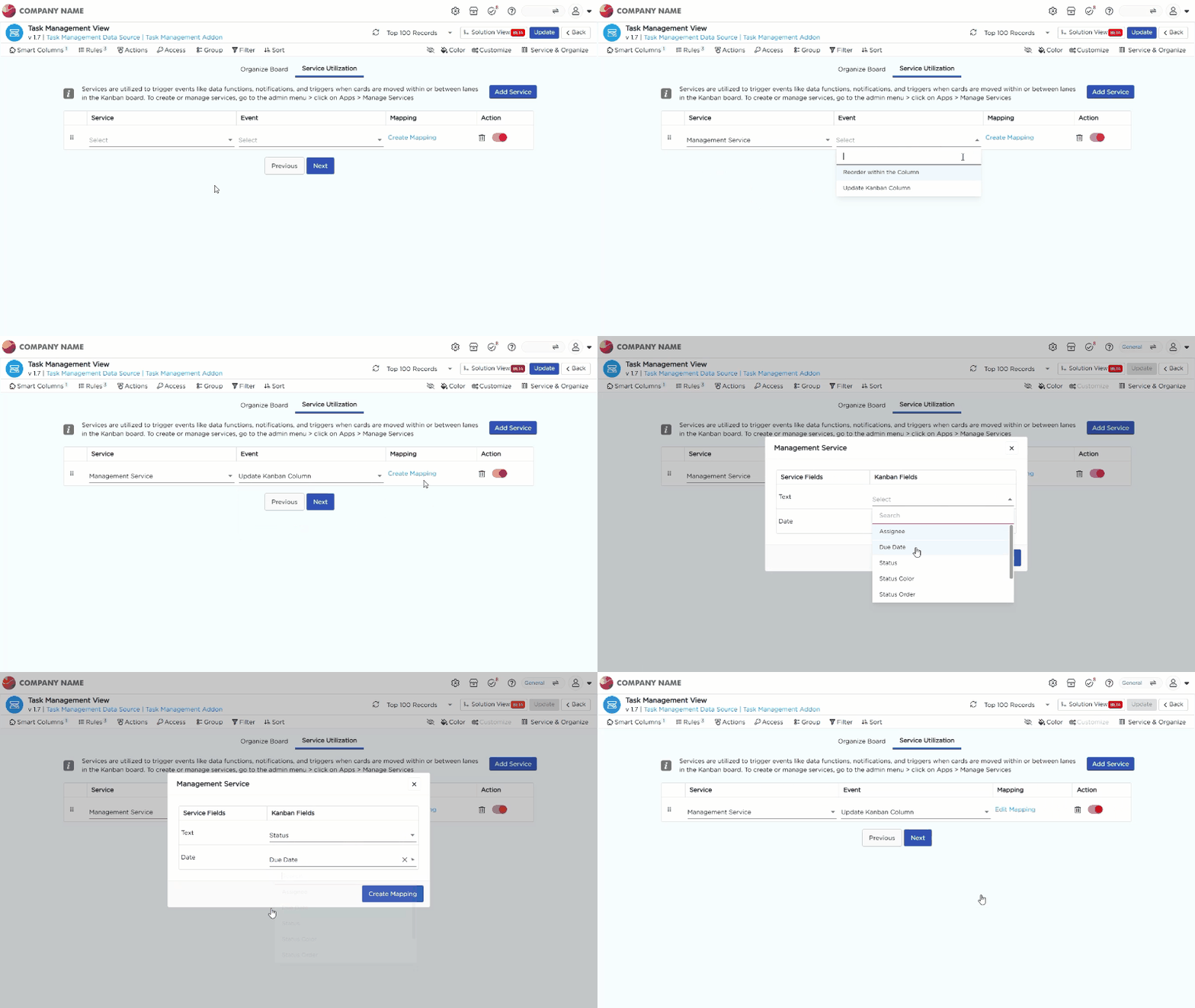
- Select the Service: To begin, select the service you created earlier and assign it to the Kanban view. This ensures that the Kanban is connected to the appropriate service, allowing it to interact with the data and trigger necessary actions.
- Specify the Trigger Event: Events are essentially the data functions you created when setting up the service. These functions handle actions like updating data in the table. For example, you should choose an update function as the event, so whenever a change is made in the Kanban board (e.g., moving a task to a different column), the service will instruct the table to update the status of the corresponding row. This ensures the data remains synchronized.
- Mapping: Mapping refers to the process of connecting the elements of your Kanban view with the corresponding elements in the service.
- Map Kanban Elements to Service: Each element (e.g., task status, columns) in the Kanban view needs to be linked to a corresponding element in the service. This mapping ensures that when a user interacts with the Kanban (e.g., moving a task between columns), the change is communicated to the service.
- Synchronization: The mapped service elements act as intermediaries between the Kanban and the data table. When a task’s status is updated in the Kanban, the service informs the data table to update the status for that specific row, maintaining data consistency
- Actions: Under Actions, you can enable, disable, or delete the service based on your preferences. This step allows you to control the functionality and behavior of the service as it interacts with the Kanban view.
¶ 2. Navigating the Kanban View
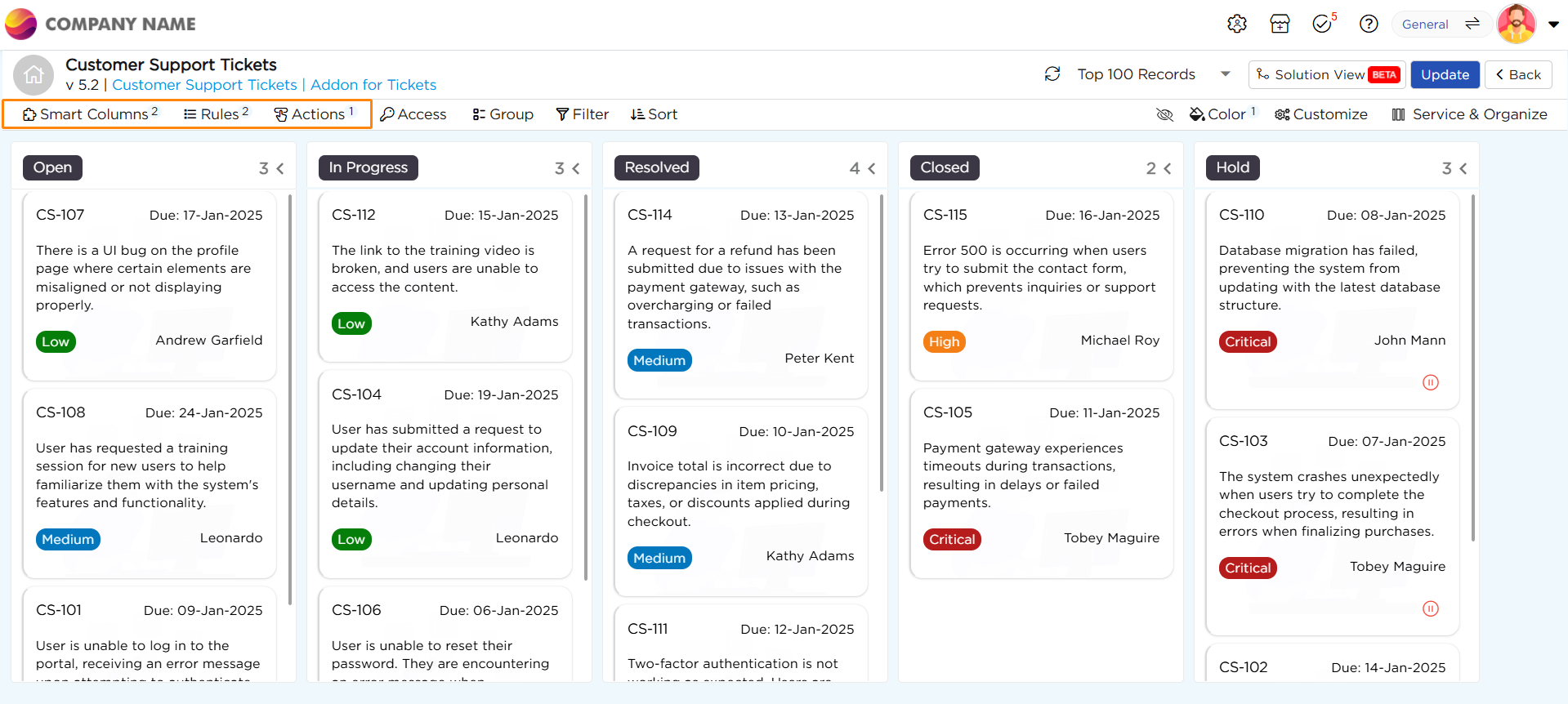
Once the Kanban View is set up, you can utilize smart columns, rules, and actions. These are available when an Add-on is integrated.
- Smart Columns: Smart columns or Static columns which are created in the add-on will appear here for your reference.
- Rules: The Rules which are defined or created in the Add-on will appear here for your reference.
- Actions: Actions which are configured and defined in the add-on will appear here for your reference.
Note
You can make edits to the data source from the Add-On creation page by clicking the hyperlink under the Add-On name. Reload the page after editing to see the updates.