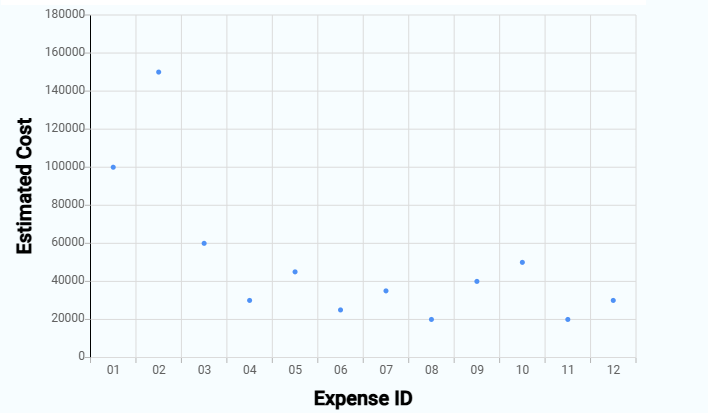
A Scatter Chart displays values as individual points on a graph using two axes. Each point represents a record based on its X-axis and Y-axis values. It is used to compare two numeric fields and see how values are distributed.
¶ 1. How a Scatter Chart Works
- Each record is plotted as a point on the chart.
- The X-axis represents one numeric field.
- The Y-axis represents another numeric field.
- The position of each point shows the relationship between the two values.
- This makes it easy to compare data distribution across records.
¶ 2. How to Create a Scatter Chart
After completing the initial setup for chart reports, configure the Scatter chart using the following steps from the Chart Configuration page:
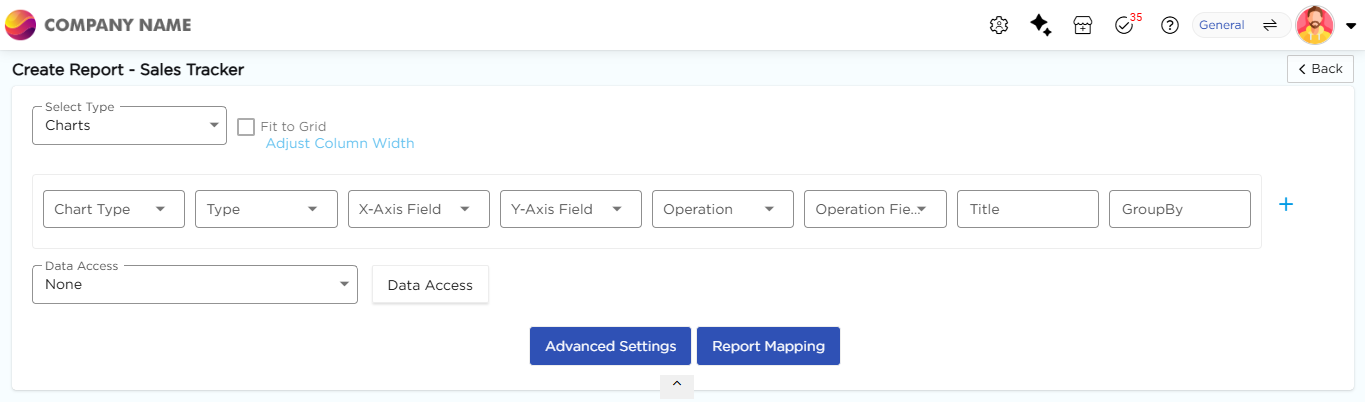
- In the Chart Type drop-down, select Scatter.
- In the Type drop-down, select the sub-type for the selected chart type.
- In the X-Axis Field drop-down, select the category field.
- In the Y-Axis Field drop-down, select the numeric field.
- In the Operation drop-down, select the required operation such as Count, Sum, or Average.
- In the Title column, enter the chart title.
- In the GroupBy column, select a field if grouping is required.
- Click Report Mapping if field mapping is required.
- Click Advanced Settings if additional configuration is required.
- Click Save to generate the Scatter Chart.
Note
For details on Advanced Settings, Report Mapping, and GroupBy configuration, refer to the Chart Configuration Overview article.