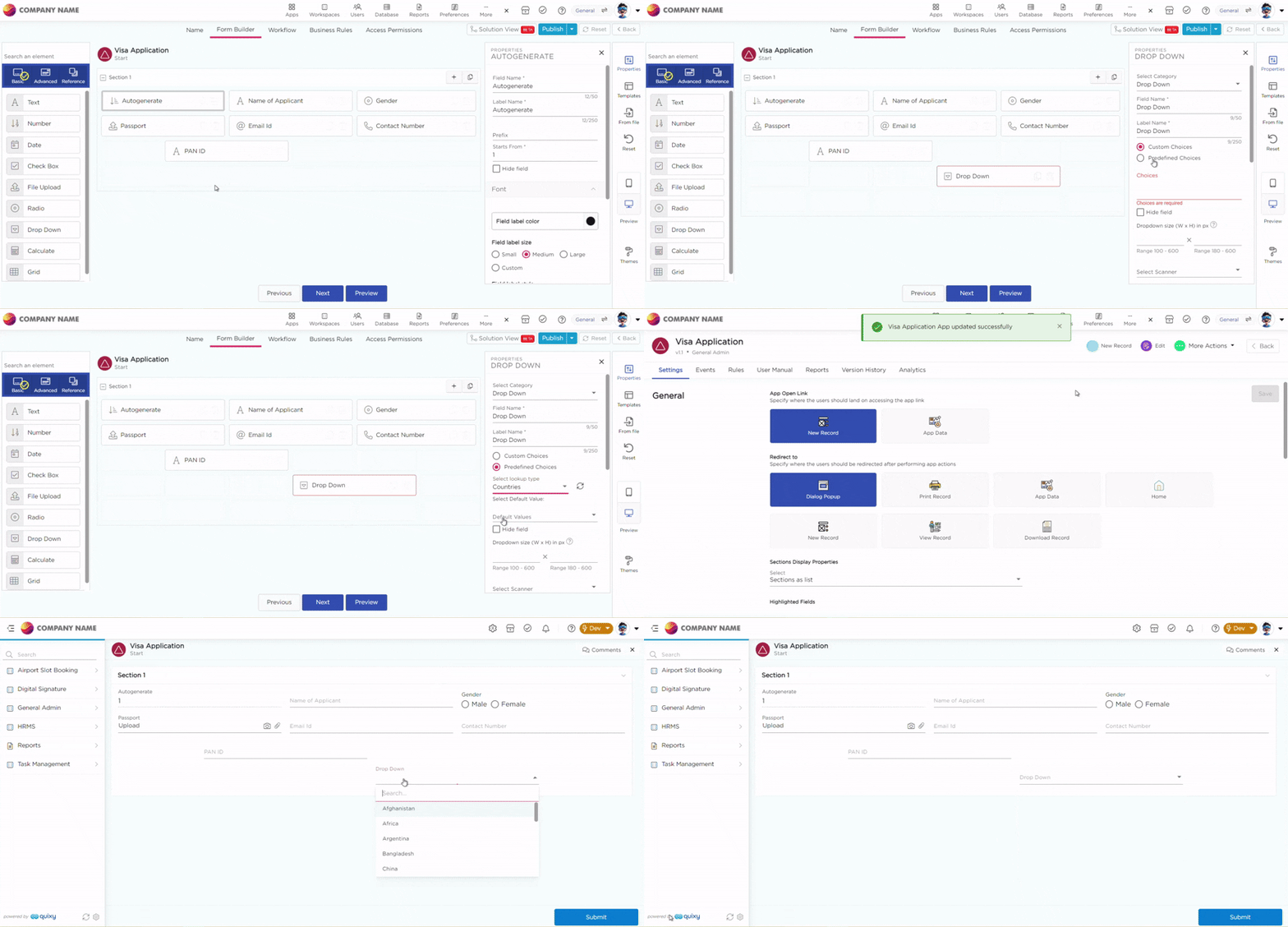
Configure Lookups lets you add, edit, and manage values within an existing lookup. These values appear as selectable options in drop-down fields across applications.
You can configure lookup values in the following ways:
- Add values manually
- Import values using Excel
¶ 1. Add Lookup Values Manually
Follow these steps to create a lookup and add values manually:
- Go to Admin Menu → Database → Lookups. The Lookups List page opens.
- From the Select Workspace drop-down, choose a workspace. The lookup is available only within the selected workspace.
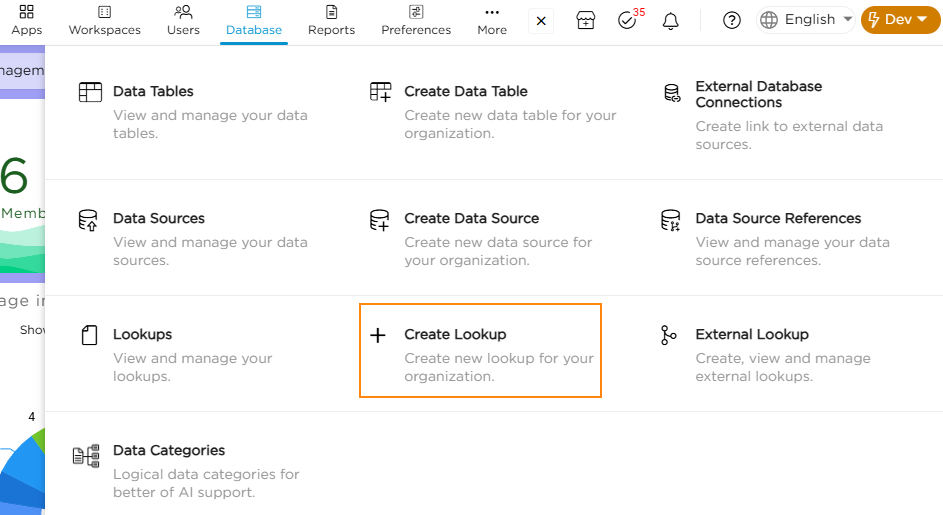

3. Click Add Lookup. The Add Lookup dialog opens.
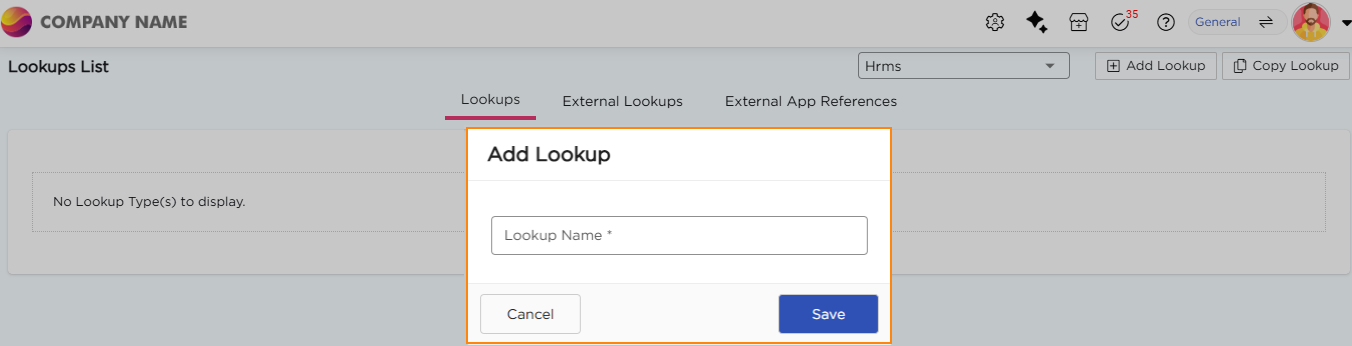
4. Enter a Lookup Name, then click Save. The lookup is created.
5. Click the newly created lookup to add values. You are redirected to the Lookup Values page.
6. Select the required environment (Dev, QA, UAT, or Live). Values added are saved only to selected environment.

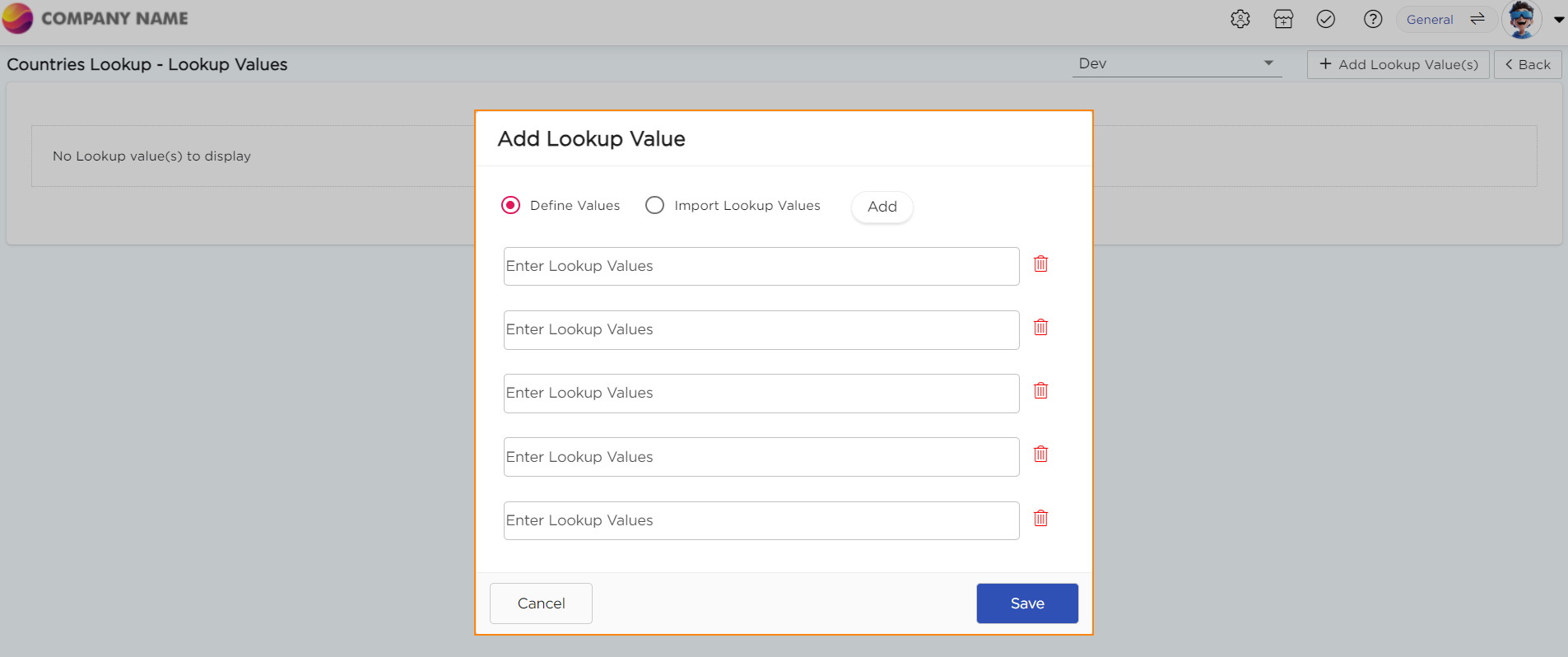
7. Click + Add Lookup Value(s). The Add Lookup Value dialog opens.
8. Enter the required values in the fields. Use Add to insert more rows if needed.
9. Click Save to store the values.
¶ 2. Import Lookup Values Using Excel
Use this option to add multiple lookup values in one action using an Excel file:
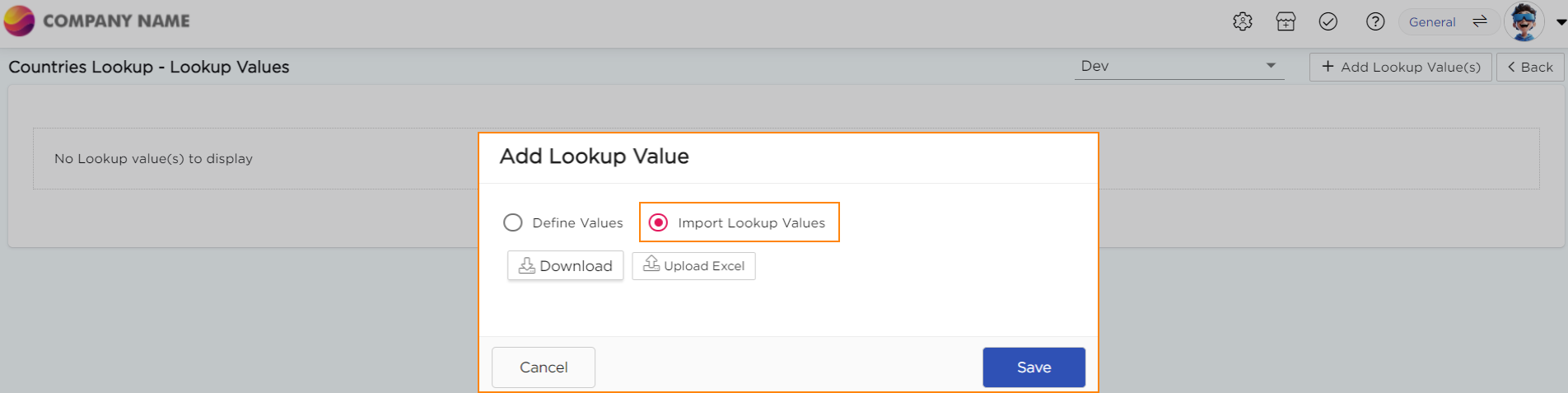
- On the Lookup Values page, click + Add Lookup Value(s).
- In the Add Lookup Value dialog, select Import Lookup Values.
- Click Download to download the Excel template.
4. Open the file and enter values in a single column. Example: country names or weekdays.
5. Save the Excel file.
6. In the dialog, click Upload Excel.
7. Select the saved Excel file.
8. Review the imported values.
9. Click Save to store the values.