Once you drag and drop the dashlet onto the canvas and click the dashlet, a blue line appears surrounding the dashlet border, and a settings icon shows on the right side of the dashlet. When you click the settings icon, the properties panel opens on the right. The properties panel is divided into two sections, General and Display.
¶ 1. General Settings
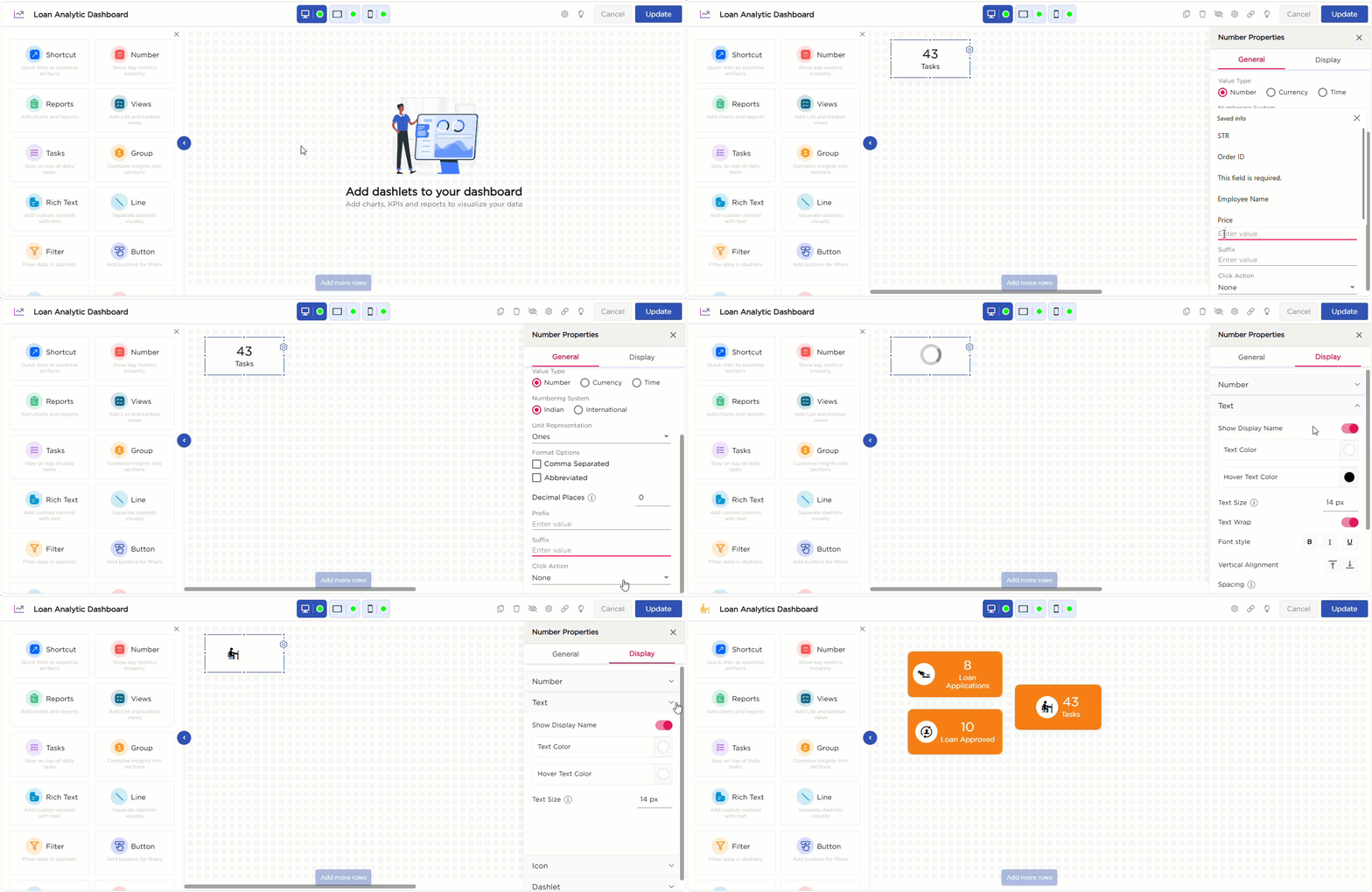
The General settings control where the Number dashlet gets its value from and how the value should behave on the dashboard.
Key Behavior
The Number dashlet supports multiple source types, and each source type enables a different set of configuration options. When a source type is selected, only the relevant settings are displayed, so the configuration is presented in separate sections for clarity.
¶ 1.1 Source
| S.No | Setting | Description |
|---|---|---|
| 1 | Source |
Select where the dashlet should pick the value from:
|
¶ 1.2 Source Configuration
Based on the selected Source, the configuration changes. Refer to the corresponding sections below.
¶ 1.2.1 Aggregate Value
When Aggregate Value is selected as the Source, refer to the below table for configuration details.
| S.No | Setting | Description |
|---|---|---|
| 1 | Aggregate On | Choose whether the calculation should use a List View or a Report |
| 2 | Source Selection | After choosing the type, select the required list view or report |
| 3 | Define Calculation | A link named Define Calculation appears. Click it to open the calculation panel |
| 4 | Column Selection | The panel shows only numeric columns from the selected view or report |
| 5 | Function | Select the column and apply Sum, Count, Min, Max, or Average |
| 6 | Save | Save the formula to apply it to the dashlet |
¶ 1.2.2 Views
When Views is selected as the Source, refer to the below table for configuration details.
| S.No | Setting | Description |
|---|---|---|
| 1 | View Type | Choose either List View or Kanban View |
| 2 | View Selection | Then select the required view |
| 3 | Output | The dashlet displays the total record count for that view |
¶ 1.2.3 Tasks
When Tasks is selected as the Source, refer to the below table for configuration details.
| S.No | Setting | Description |
|---|---|---|
| 1 | Task Type | Choose My Tasks, My Team Tasks, or Manage Tasks |
| 2 | Output | The dashlet displays the total count for the selected task type |
¶ 1.2.4 Report Data Count
When Report Data Count is selected as the Source, refer to the below table for configuration details.
| S.No | Setting | Description |
|---|---|---|
| 1 | Report | Select the required report |
| 2 | Output | The dashlet displays the total record count from that report |
¶ 1.3 Value, Format, and Interaction Settings
The following settings control how the selected value is formatted, displayed, and how the dashlet behaves on interaction.
| S.No | Setting | Description |
|---|---|---|
| 1 | Display Name | Enter the label that should appear below the number on the dashlet |
| 2 | Value Type | Select how the value should be interpreted: Number, Currency, or Time |
| 3 | Currency | Shows only when Value Type is set to Currency. Select the required currency from the list |
| 4 | Numbering System | Choose how large numbers should be grouped: Indian or International |
| 5 | Unit Representation | Select how the number should be scaled before display |
| 6 | Format Options | Choose how the value should appear, such as Comma Separated or Abbreviated |
| 7 | Decimal Places | Set how many digits should appear after the decimal point |
| 8 | Prefix | Add text before the value |
| 9 | Suffix | Add text after the value |
| 10 | Click Action |
Select what should happen when the dashlet is clicked:
|