The External Reference form field enables Quixy to retrieve and display data from an external database within the application. It allows users to access and use external data in the form.
¶ 1. External Categories
Choose the External Reference type based on the kind of data you need and how it will be used in the form.
| Category Types | Description |
|---|---|
| External Drop-down (External Lookup) | Retrieves single-column values from external databases using Open or Secured APIs, such as names, city names, or codes. |
| External App Reference | Retrieves multi-column data from external databases. |
¶ 2. Field-Specific Properties
Note
This field supports all standard field properties. Refer to the Form Field Properties article for validation, visibility, and styling options.
¶ 2.1. External Drop-down Properties
The properties below apply only when the External Drop-down (External Lookup) category is selected.
Note
This lookup works only when the application workspace matches the external lookup workspace.
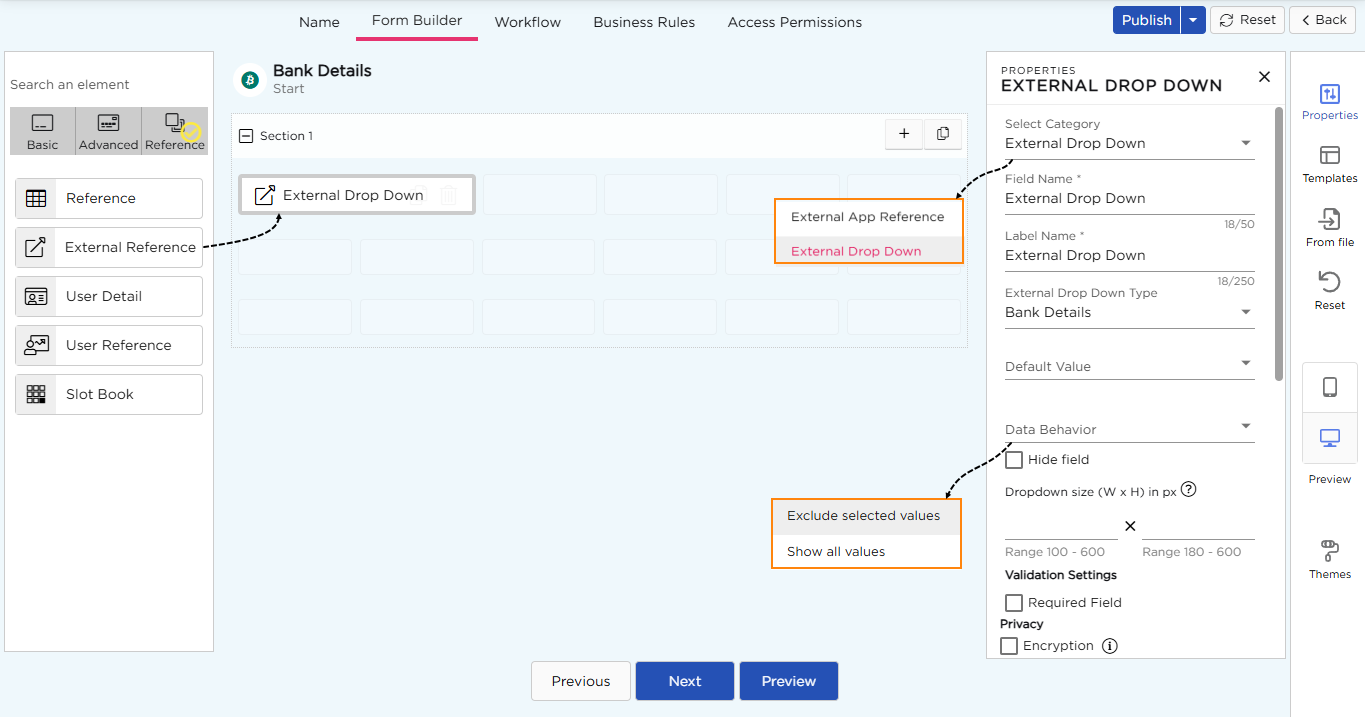
| Property Type | Description |
|---|---|
| Default Value | Sets a value that appears automatically when the form opens. Users can change it if needed. Example: If the drop-down contains bank names such as HDFC, ICICI, and SBI, and HDFC is set as the default value, it is pre-selected when the form opens. Users can select a different option if needed. |
| Data Behavior |
Controls how values are displayed and selected across rows in a table or grid. Available options:
|
| Drop-down Size |
Defines the height and width of the drop-down list. Range: • Height: 180–600 px• Width: 100–600 px |
¶ 2.2. External App Reference Properties
The properties below apply only when the External App Reference category is selected.
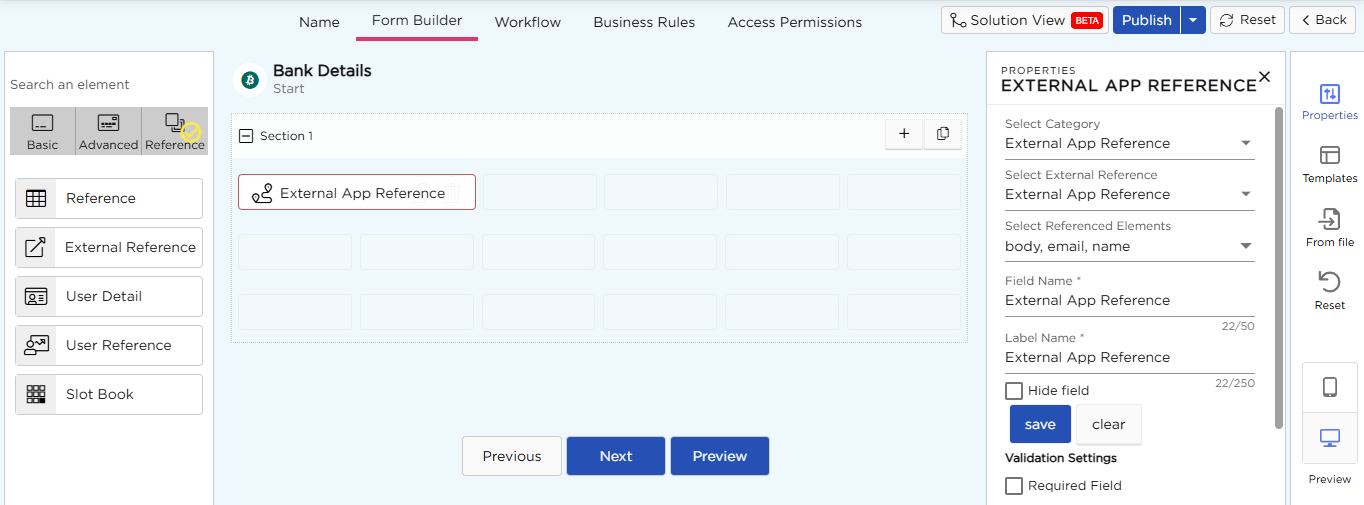
| Property Type | Description |
|---|---|
| Select External Reference | Selects the external app reference source from which data is fetched. |
| Select Referenced Elements | Selects the output fields to retrieve from the external application. |
| Hide Field | Hides the reference selector from end users while keeping the mapped output fields active. |
| Required Field | Makes the reference selection mandatory before submitting the form. |
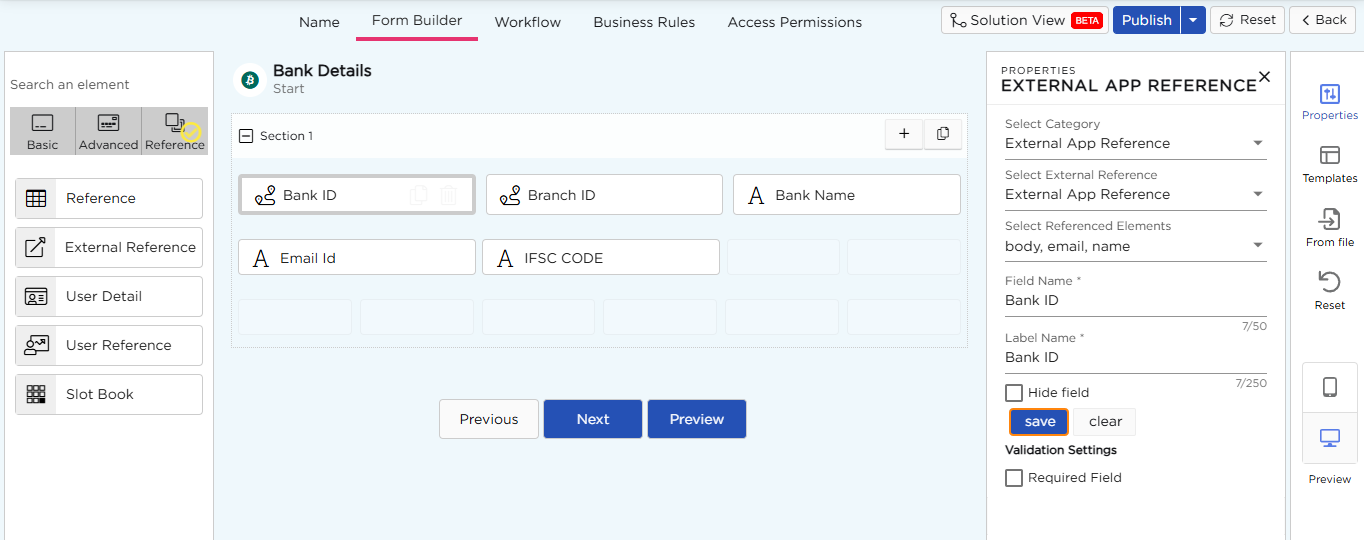
¶ 2.3. Validation behavior for External App Reference fields
| Type | Description |
|---|---|
| Required Field | Makes the field mandatory. Users must select a value before submitting the form. Use it when the selection is essential, such as choosing a bank, branch, or reference value. |