General Settings define how users access the app and what happens when they submit records. They directly affect user experience and navigation.
¶ 1. App Open Link
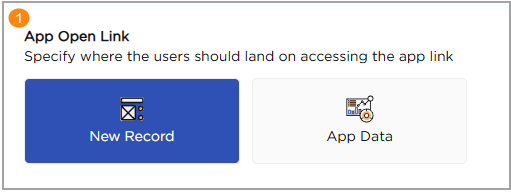
Defines the default landing page when users access the app link:
- Add Record: Opens the application directly in record creation mode.
- App Data: Opens the application in data view to see existing records.
¶ 2. Redirect To
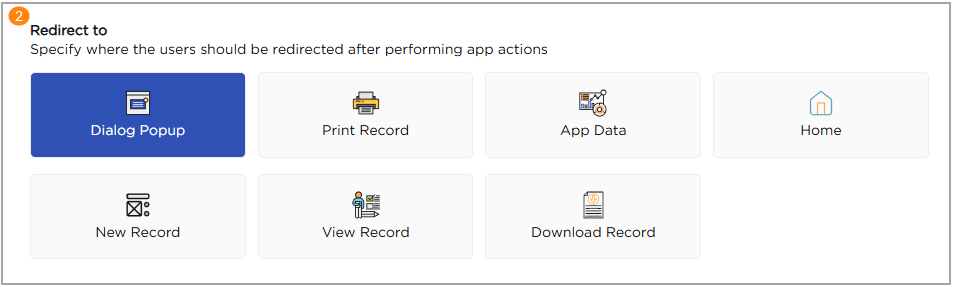
Controls where users are redirected after submitting a record. The image below shows the available Redirect To options that define post-submission navigation:
¶ 2.1 Dialog Popup
Displays a confirmation popup after record submission with quick actions such as add, view, print, or return to dashboard. The available actions include:
- Add: Opens Add Record mode.
- View: Opens the latest submitted record in view mode.
- Print: Opens the print view of the record.
- Back: Redirects the user to the dashboard.
¶ 2.2 New Record
Redirects the user back to the Add Record form after submission.
¶ 2.3 App Data
Redirects the user to the Initiated page (history of submitted records).
- Navigation Path: User Profile → My Activities → Initiated
¶ 2.4 Home
Redirects the user to the dashboard.
¶ 2.5 View Record
Opens the recently submitted record in read-only mode.
¶ 2.6 Print Record
Opens a printable view of the submitted record.
¶ 2.7 Download Record
Allows users to download the submitted record.
¶ 3. Section Display Properties
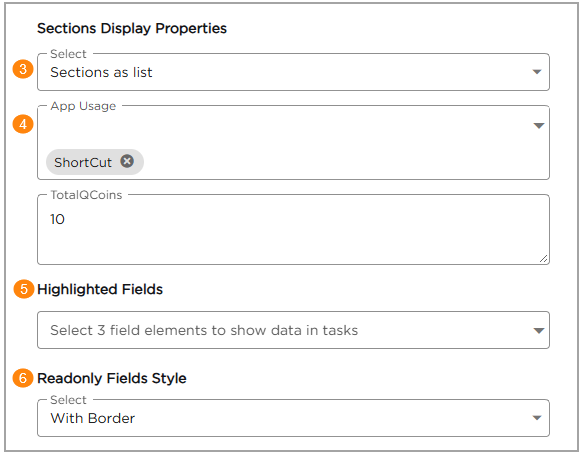
Controls how form sections are displayed to users while filling the application:
- One Section at a Time: Displays one form section at a time to guide users step by step.
- Sections as List: Displays all form sections in a single vertical layout.
- Sections as Tabs: Displays form sections as tabs for easy navigation between sections.
- Tabs Except the First Section: Displays the first section normally and shows the remaining sections as tabs.
¶ 4. App Usage
App Usage defines where and how the application can be used after it is published:
- Page: Allows the application to be accessed as a standalone page.
- Views: Allows the application to be accessed from list or report views.
- Shortcuts: Allows the application to be accessed using shortcuts.
- Webhook: Allows external systems to interact with the application using webhooks.
- Triggers: Allows the application to be triggered by another application or event.
Note
Enabling each access location consumes 10 Q Coins.
¶ 5. Highlighted Fields
The Highlighted Fields setting allows you to select up to three field elements from your application. The data entered into these selected fields will be displayed directly inside task notifications, helping approvers or task owners quickly view key information without opening the full record.
¶ 6. Read-only Fields Style
Defines how read-only fields are visually represented:
- With Border: Displays read-only fields with a visible border.
- Without Border: Displays read-only fields without a border.
¶ 7. Custom View
The Custom View option allows users to define a personalized view of app data by selecting specific fields they want to highlight in the transaction history.
When this setting is enabled and configured, admins can view app records in a customized layout. The fields selected in the Custom View settings will appear as columns in the transaction history, making it easier to scan, compare, and analyze key information without opening each record.

¶ 8. Enable Comments
- If Enabled: End-Users can add comments in an application.
- If Disabled: Comments option is hidden to the end-users.

¶ 9. Enable Notifications
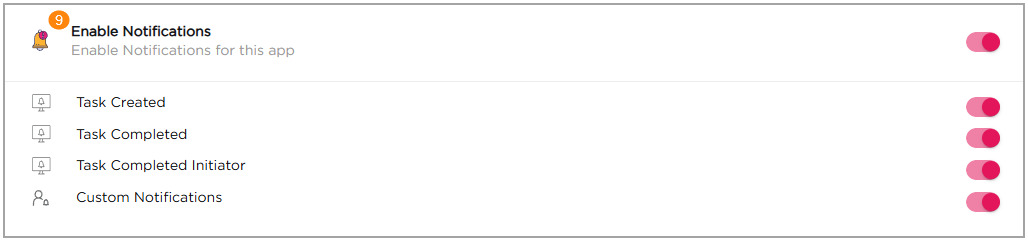
Allows the application to send notifications for tasks and application events. The available notification options include:
- Task Created: Sends a notification when a new task is created and assigned to a user.
- Task Completed: Sends a notification when a task is completed.
- Task Completed Initiator: Sends a notification to the user who initiated the process when the task is completed.
- Custom Notifications: Allows admins to configure custom notification messages for specific application events.
Refer to App Notifications for more details.