Notifications configured within an application is applicable for various scenarios. These notifications are triggered based on specific actions or events within the application. Let's know the types of notifications in Application.
Notifications in an application are designed to trigger automatically based on specific user actions or system events. These notifications help keep users informed about important updates, changes, or required actions within a workflow.
Notifications can be triggered under the following conditions:
When an Action Button is Clicked: In many applications, action buttons (such as Submit, Approve, Reject, Save, or Update) are used to perform specific operations within a workflow.
When a user clicks one of these buttons, a notification can be triggered to inform relevant stakeholders about the action taken.
When a Particular Workflow Step is Completed: Notifications can also be set to trigger automatically once a predefined workflow step is completed.
This ensures that users are aware of progress in a process and can take necessary actions based on the workflow stage.
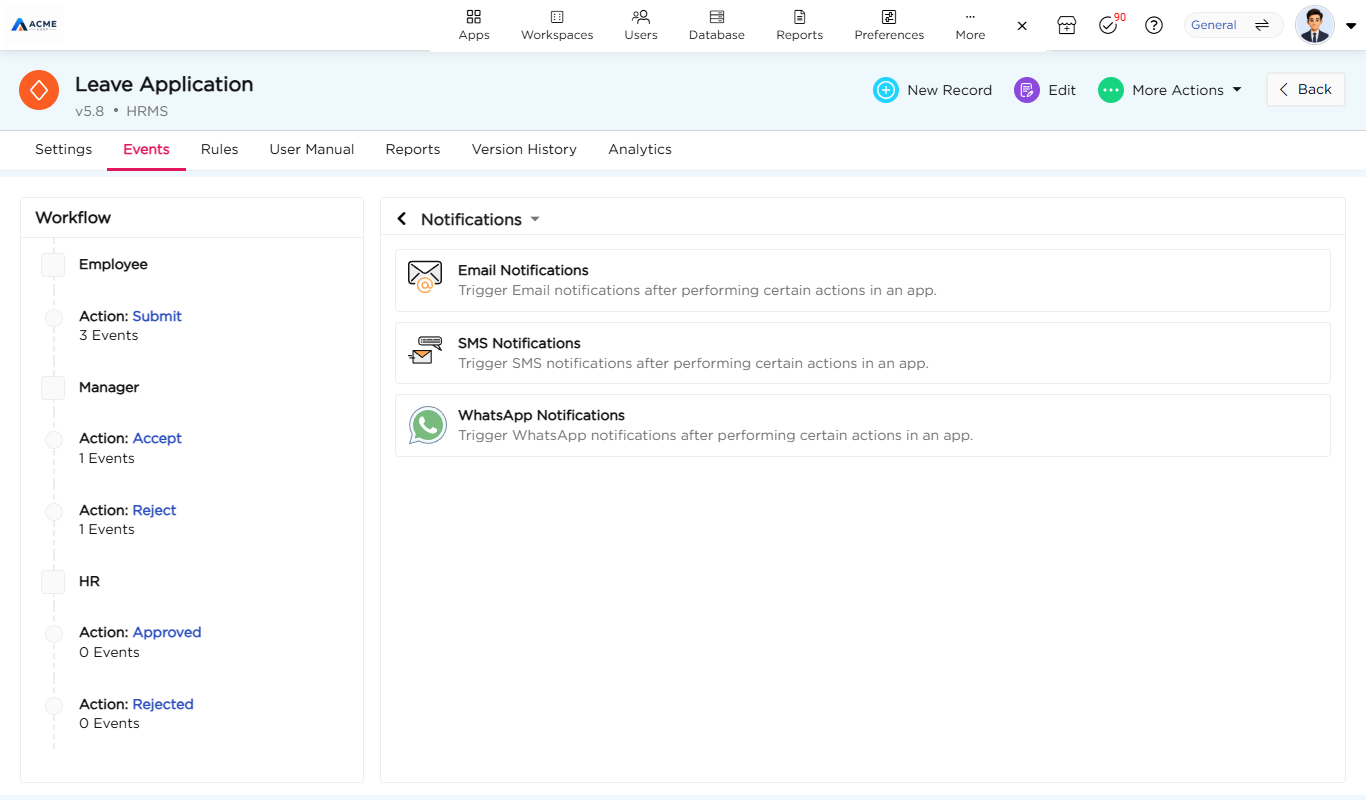
While configuring an App Notification, you will notice different types of notification channels available, such as Email, SMS, and WhatsApp Notifications. These notification types can be configured based on the preferred communication method for users.
Once a notification is configured, it will be triggered when the specified event occurs within the application. These notifications ensure that important updates reach the right users at the right time.
Types of Notifications and Their Triggering Events
Email Notification: Sends an email to the assigned users when the configured workflow action is performed.
SMS Notification: Delivers a text message to the recipient’s registered mobile number.
WhatsApp Notification: Sends a WhatsApp message to the recipient for instant updates.
Triggering Notifications Based on Workflow Events
These notifications are linked to specific workflow actions.
They are triggered when a user clicks on a step action button or when a workflow step is completed.
Once triggered, the notification is sent to the designated roles or users who need to be informed.
To configure notifications in an application, follow these steps:
Navigate to the App settings → Events → Notifications.
Select the notification channel among Email, SMS, and WhatsApp.
Click on the + Add Notification to create a new notification.
Select Notification Type from the available.
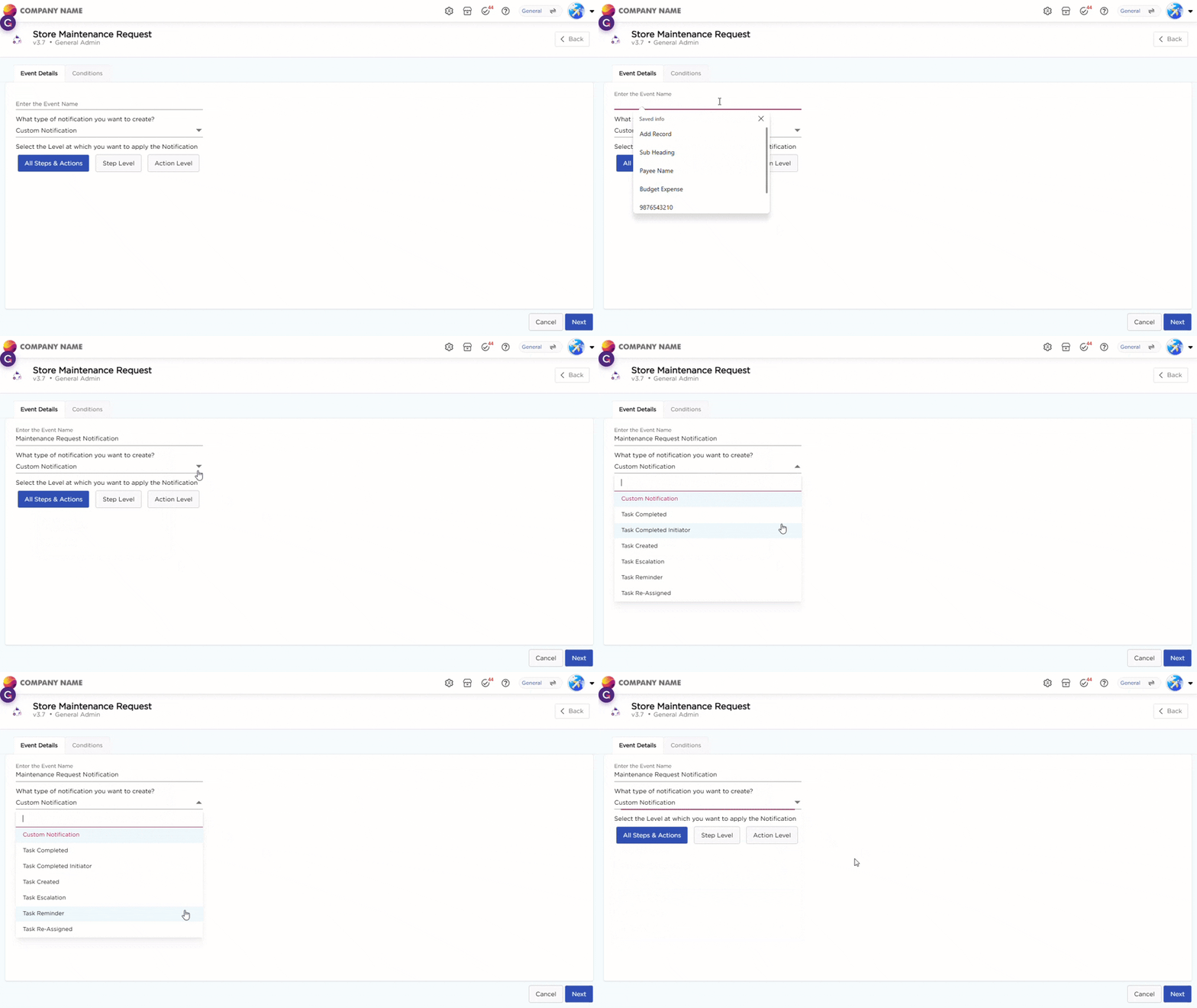
Give a unique name to the Event.
6. Select the type of notification type from the drop-down.
Custom notifications: Custom notifications allow administrators to define alerts for specific events or workflows beyond standard triggers.
These notifications can be sent based on custom rules and configured to reach selected users, roles, or dynamic recipients from the app data.
Task completed: This notification is sent when a user completes a task assigned to them. It ensures that relevant stakeholders are aware of the task's progress.
Task completed initiator: When a user completes a task, this notification is sent to the task initiator to confirm that the task has been completed.
Task created: This notification is sent when a new task is generated from the application. It ensures that the assigned user or role is notified about their new responsibility.
Manage Notifications at App Level
Example Scenario: A Project Manager overseeing multiple teams realizes that the current notification settings are overwhelming the team. Every minor change such as updates to task descriptions or due dates triggers a notification, causing several issues such as Inbox Clutter, Disruptions to Workflow, Missed Important Updates.
To solve this, the Project Manager decides to refine the app-level notification settings to ensure that only essential updates are sent while reducing unnecessary distractions. To create a more efficient notification system, the Project Manager makes the following changes:
Enables the notifications such as Task Created, Task Completed Initiator and Custom Notifications
Disables the Task Completed notifications.
Steps to Configure App-Level Notifications
To implement these changes, follow these steps:
Navigate to App Settings → Events → Notifications.
Click Save to apply the settings across the application.
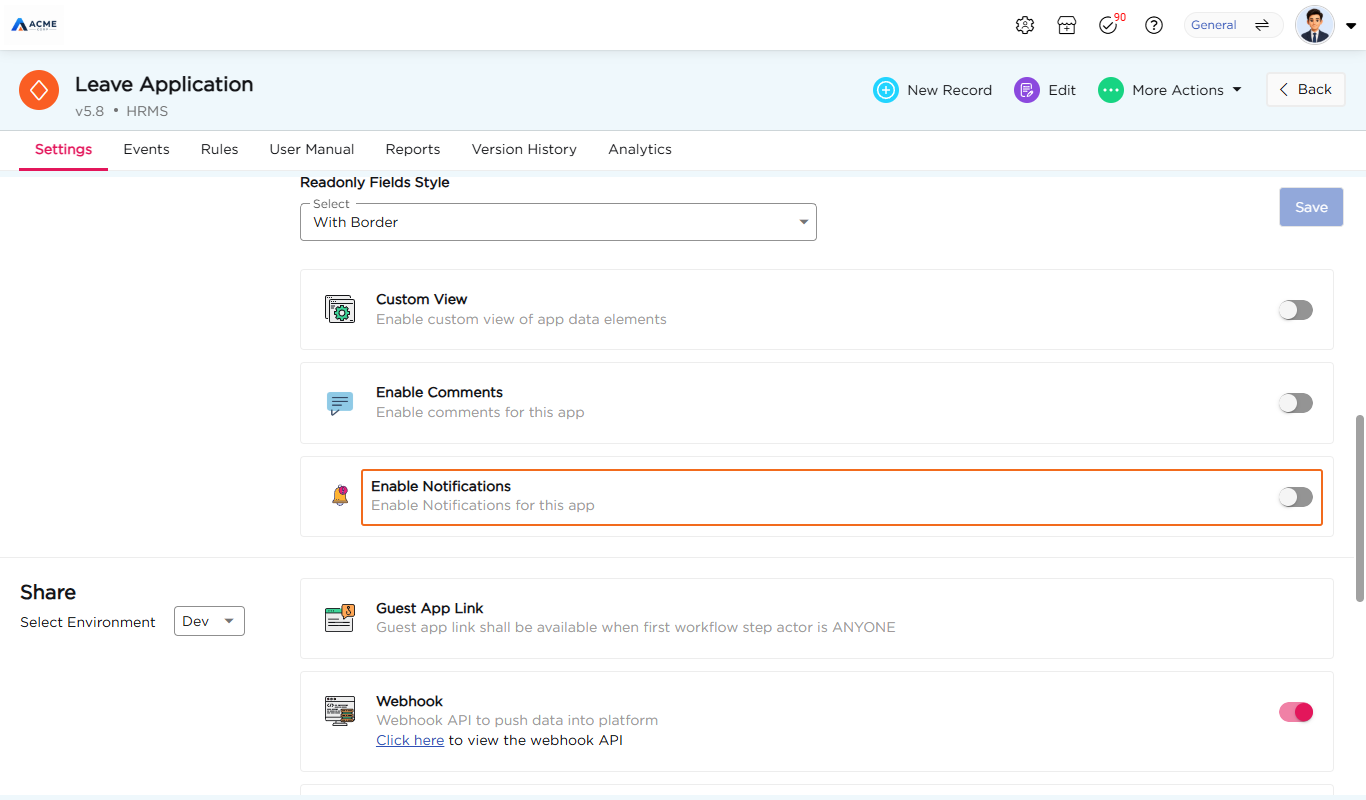
Note: Disabling app-level notifications overrides workflow-level settings. This means that even if notifications are configured at the workflow level, they will not be sent unless they are enabled at the app level.
Task escalation: When an assigned task is not completed within a specified time frame, Task Escalation Notifications are sent to escalate the issue. Notifications can be configured based on:
Time intervals (e.g., reminders every 4 hours).
Number of occurrences (e.g., after two missed deadlines).
Task reminder: This notification reminds users about pending tasks before their deadline to ensure timely completion. Task reminders can be scheduled based on:
Fixed time intervals (e.g., send reminders every 2 hours).
Number of occurrences (e.g., remind three times before the deadline).
Task Re-assigned: This allows users to transfer an assigned task from one user to another. This ensures that tasks continue to progress efficiently, even if the originally assigned user is unavailable or if responsibilities change. Select the level when the notification should be triggered:
All Steps and Actions: Triggers at every workflow step and step action.
Step Level: Triggers at a selected specific step in the application.
Action Level: Triggers at a selected specific step action in the application.
Once you click Next, you will land on the Conditions Page, where you need to configure three key sections to create a notification: