This page explains how to create an email notification for an event in an app. For what each notification type does, see App Notifications.
SMS and WhatsApp notifications are available from the same Notifications screen. The steps below follow Email Notifications.
¶ 1. Turn on notifications for the app
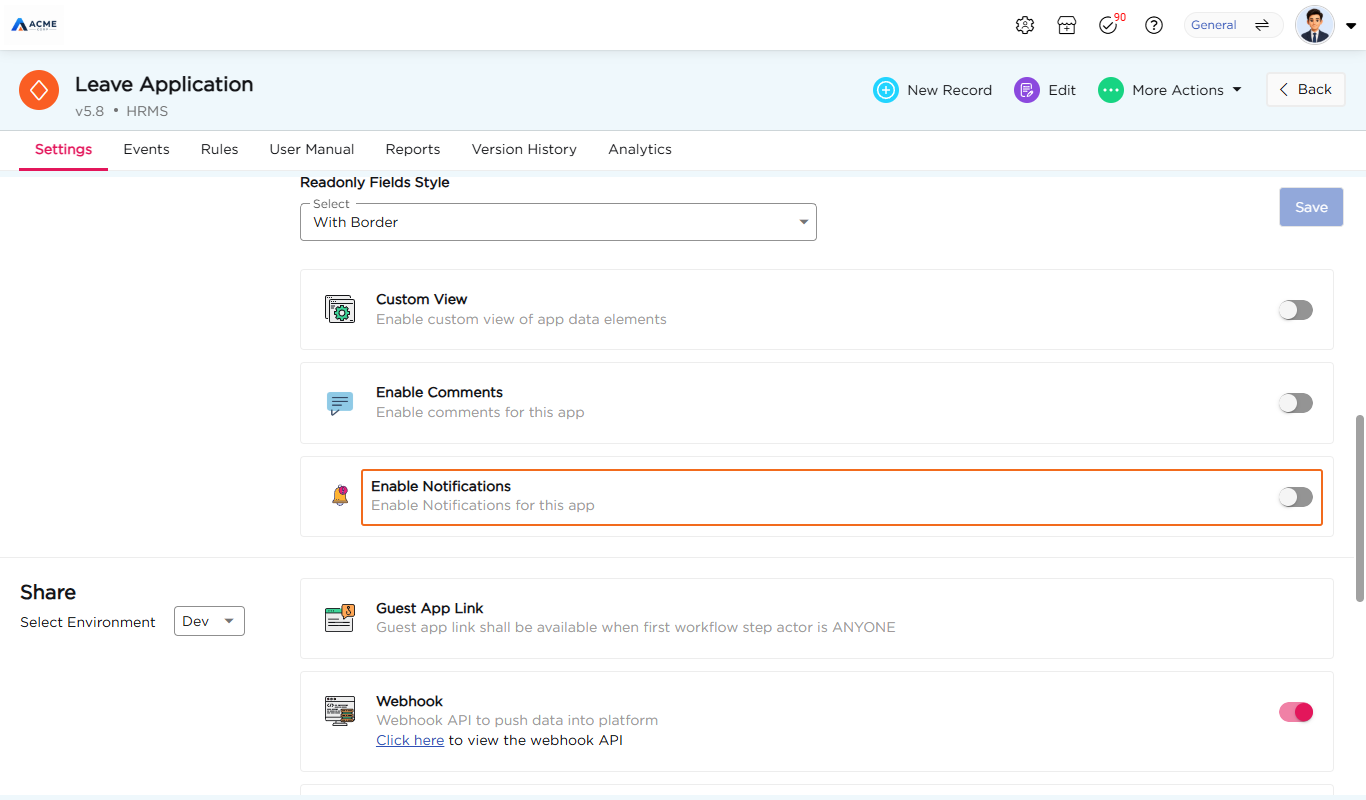
- Open the app and click the Settings tab.
- Turn on Enable Notifications (“Enable Notifications for this app”).
- Click Save.
Note
Notifications you configure are sent only while Enable Notifications is turned on for the app.
¶ 2. Open the Notifications screen
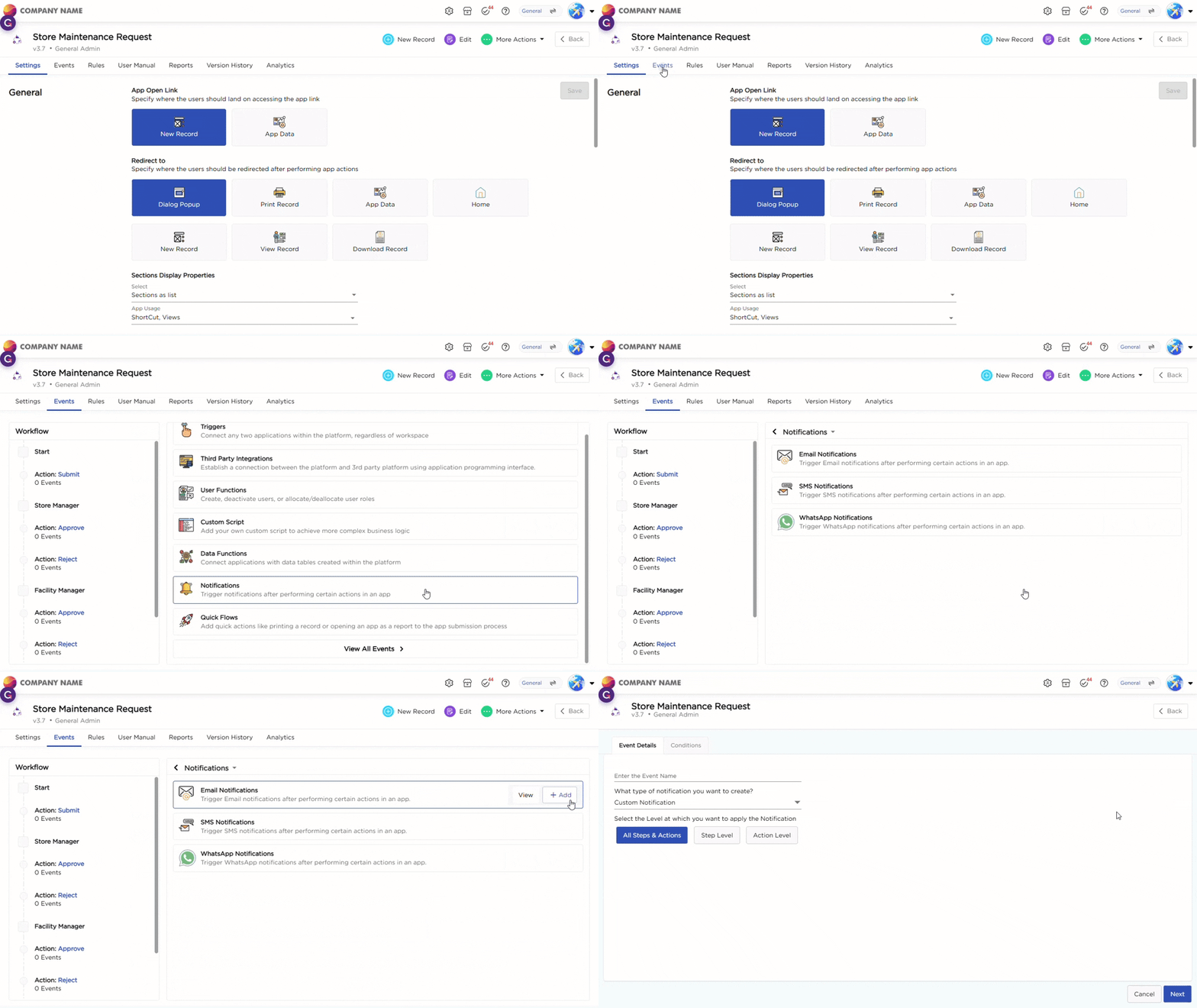
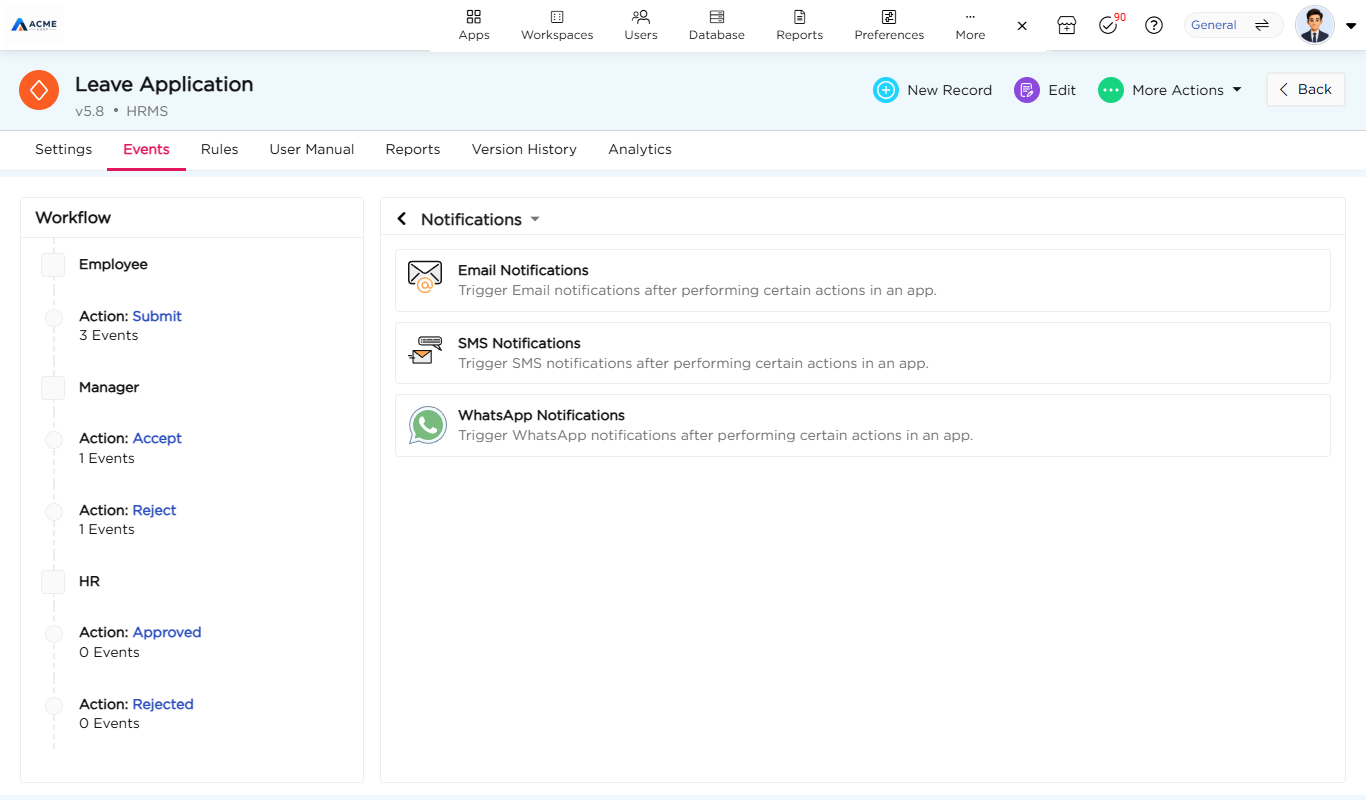
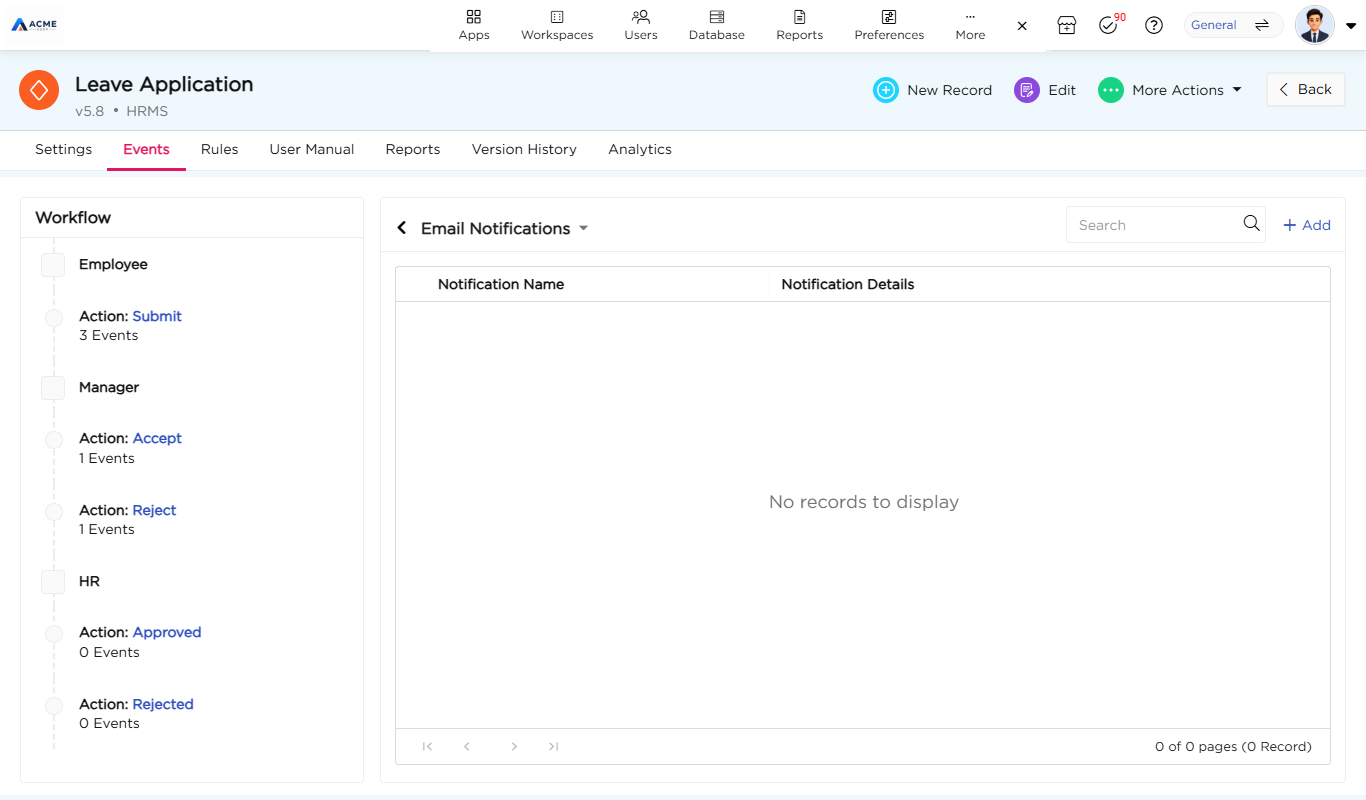
- In the app, click the Events tab.
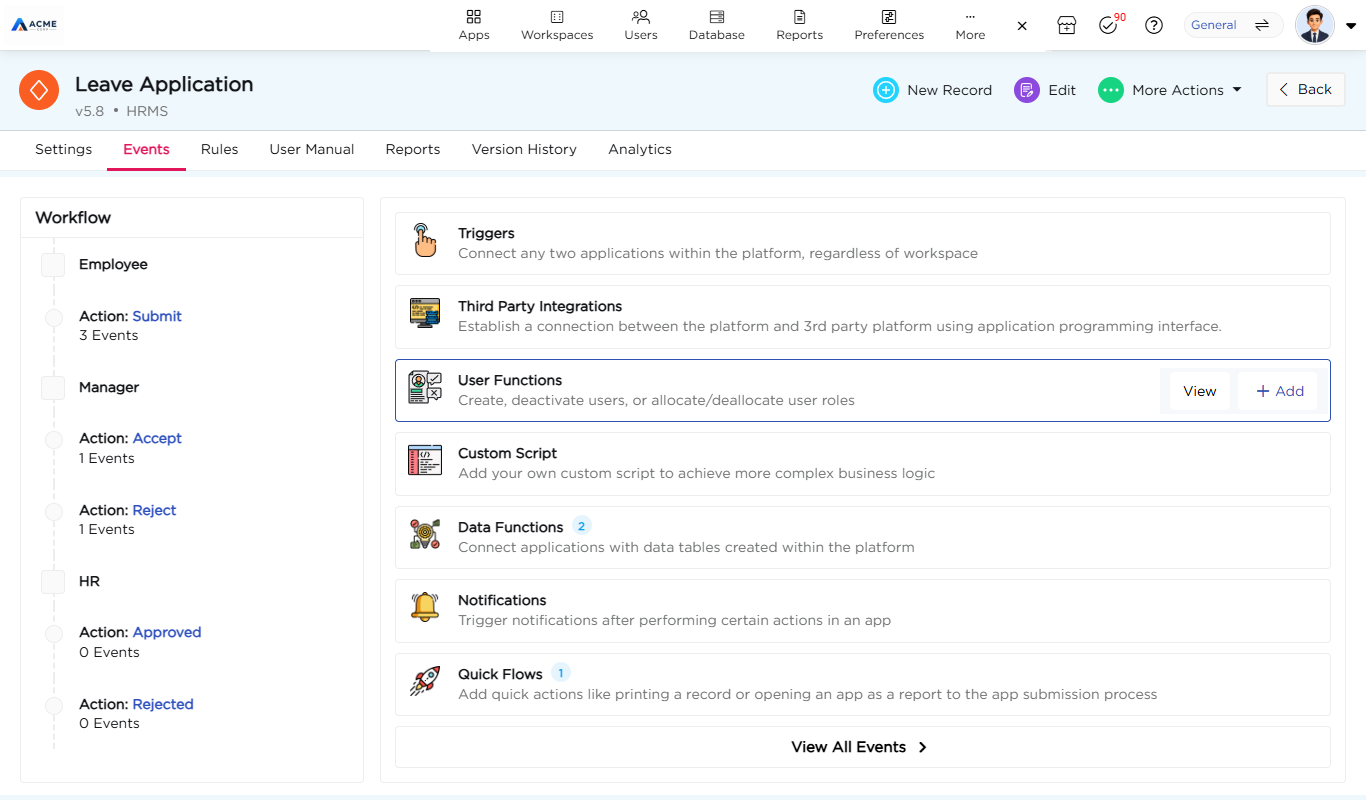
- Click Notifications. The screen offers Email Notifications, SMS Notifications, and WhatsApp Notifications.
- Click Email Notifications, then click Add.
¶ 3. Set the event details
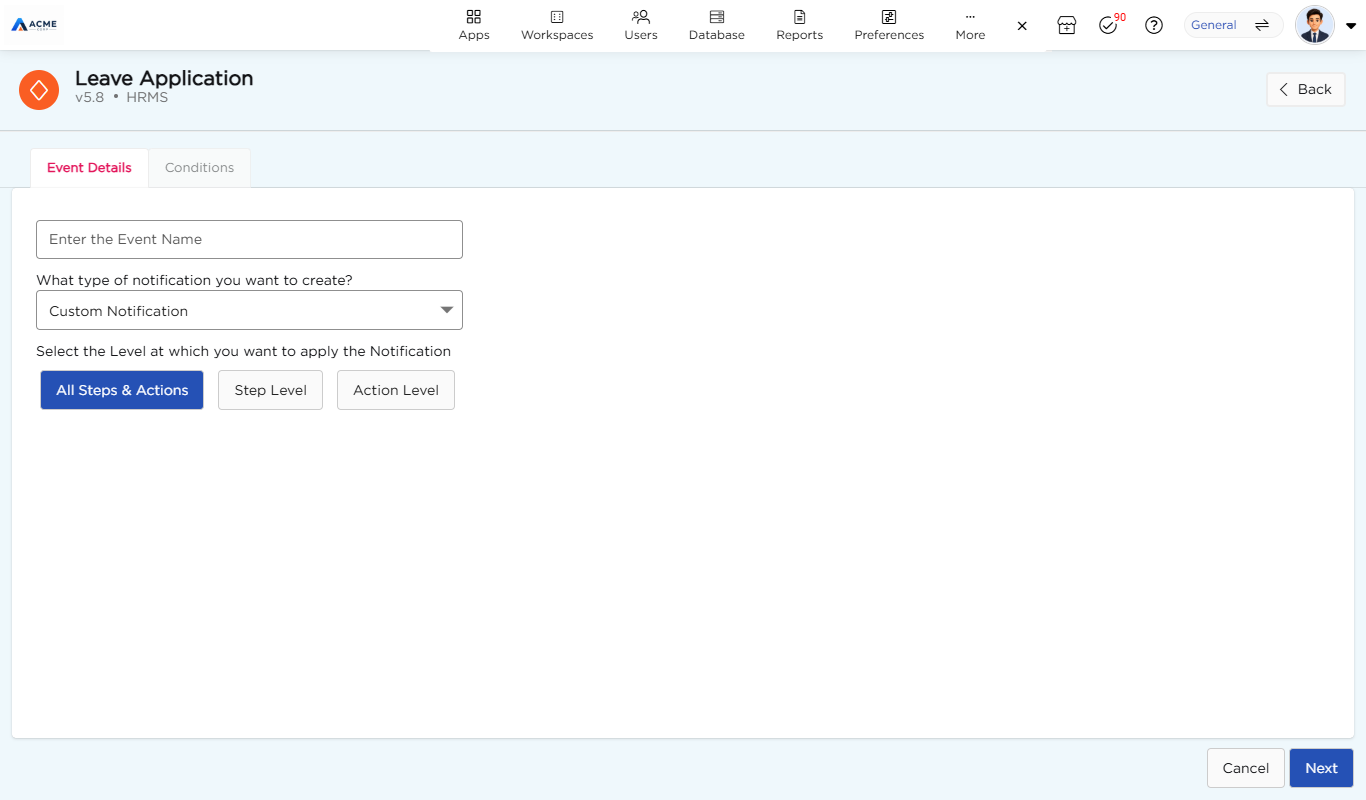
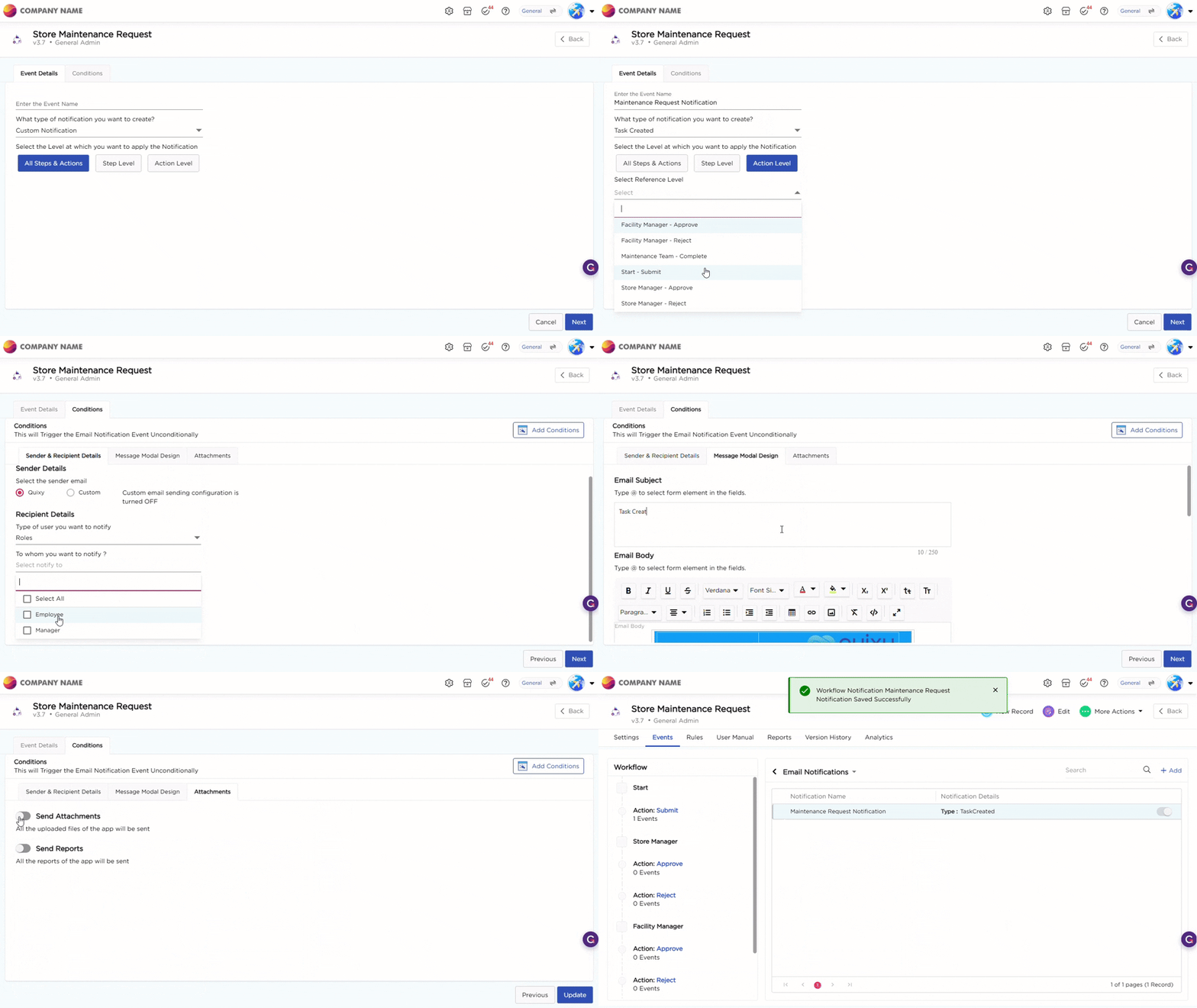
The Add Notification page has two steps, Event Details and Conditions. Start with Event Details.
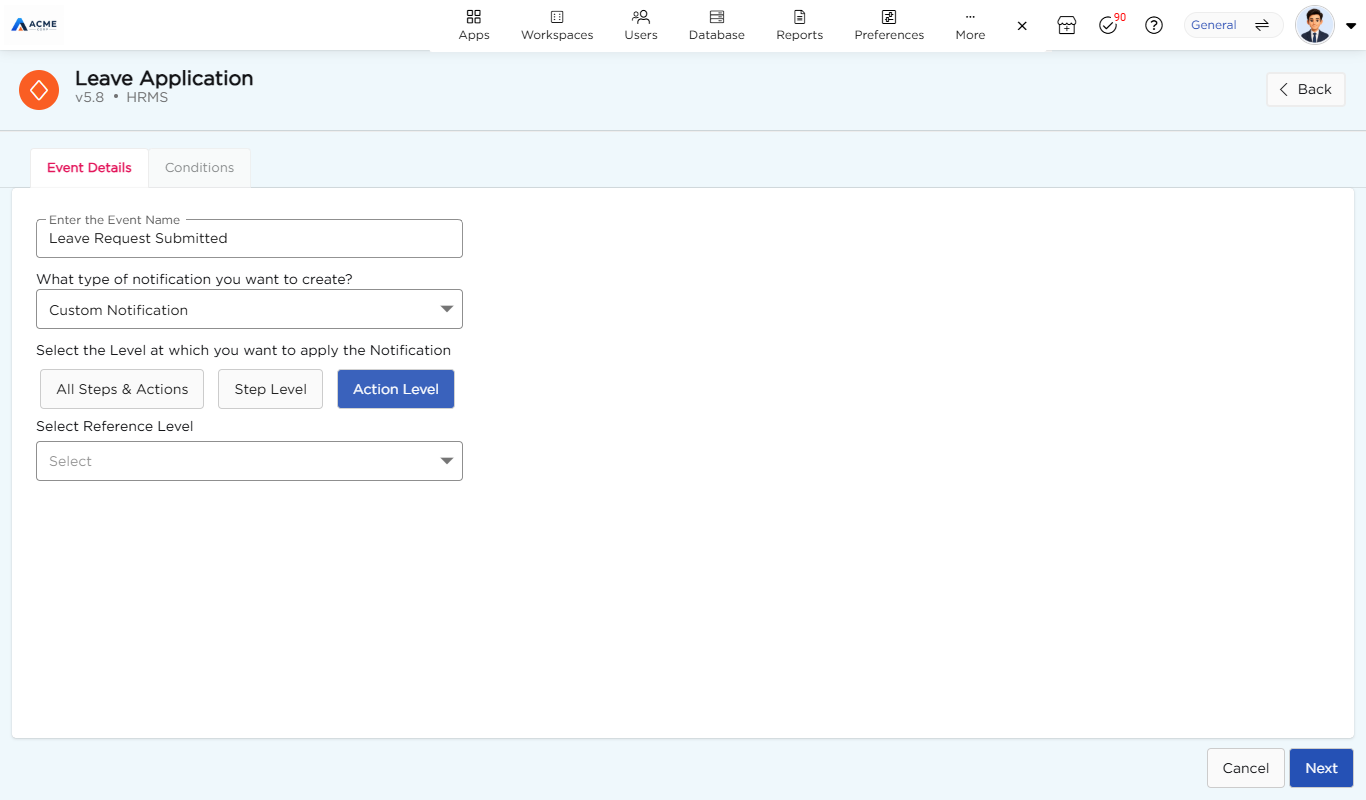
- Enter a name in Enter the Event Name.
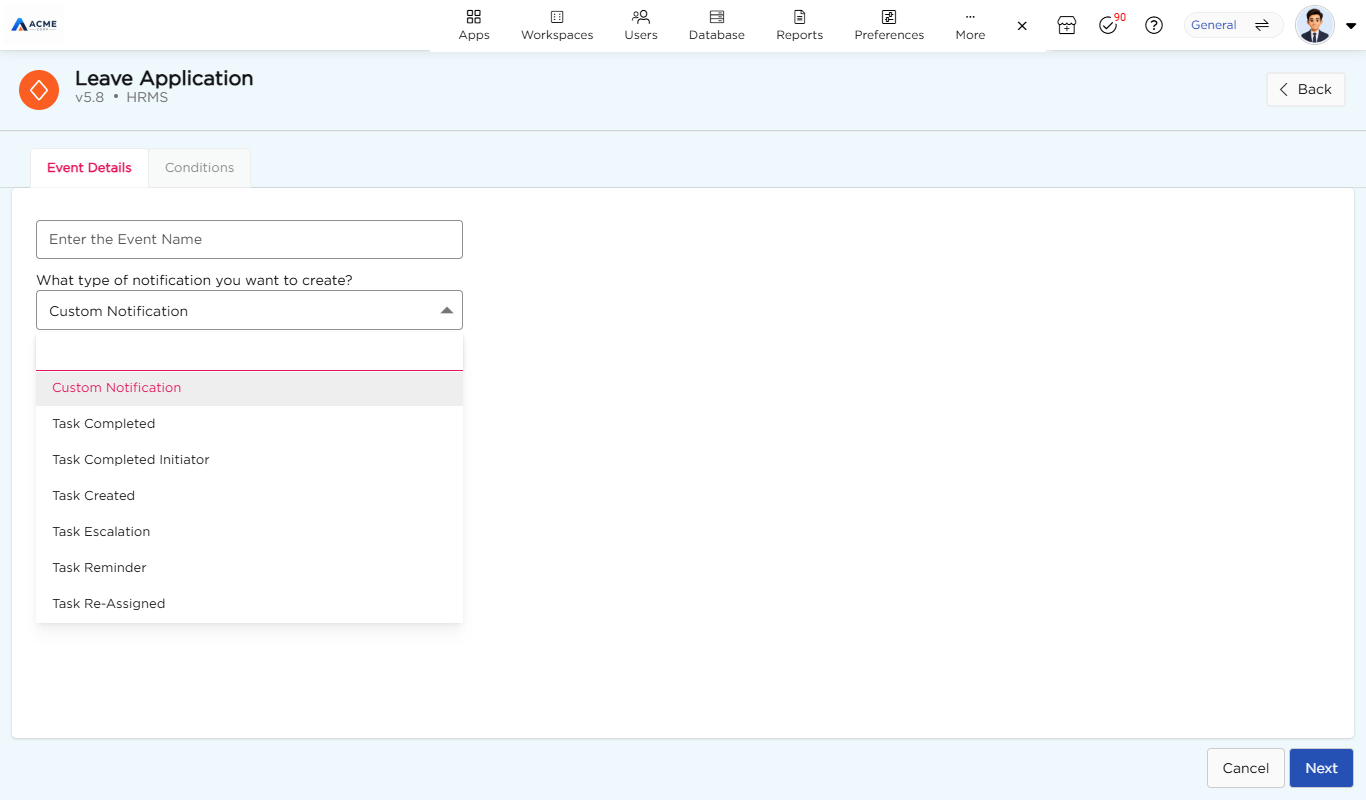
- Under What type of notification you want to create?, choose a type: Custom Notification (the default), Task Completed, Task Completed Initiator, Task Created, Task Escalation, Task Reminder, or Task Re-Assigned.
- Under Select the Level at which you want to apply the Notification, choose All Steps & Actions (the default), Step Level, or Action Level. For Step Level and Action Level, choose the step or action in Select Reference Level, for example Employee - Submit.
- Click Next.
¶ 4. Add conditions (optional)
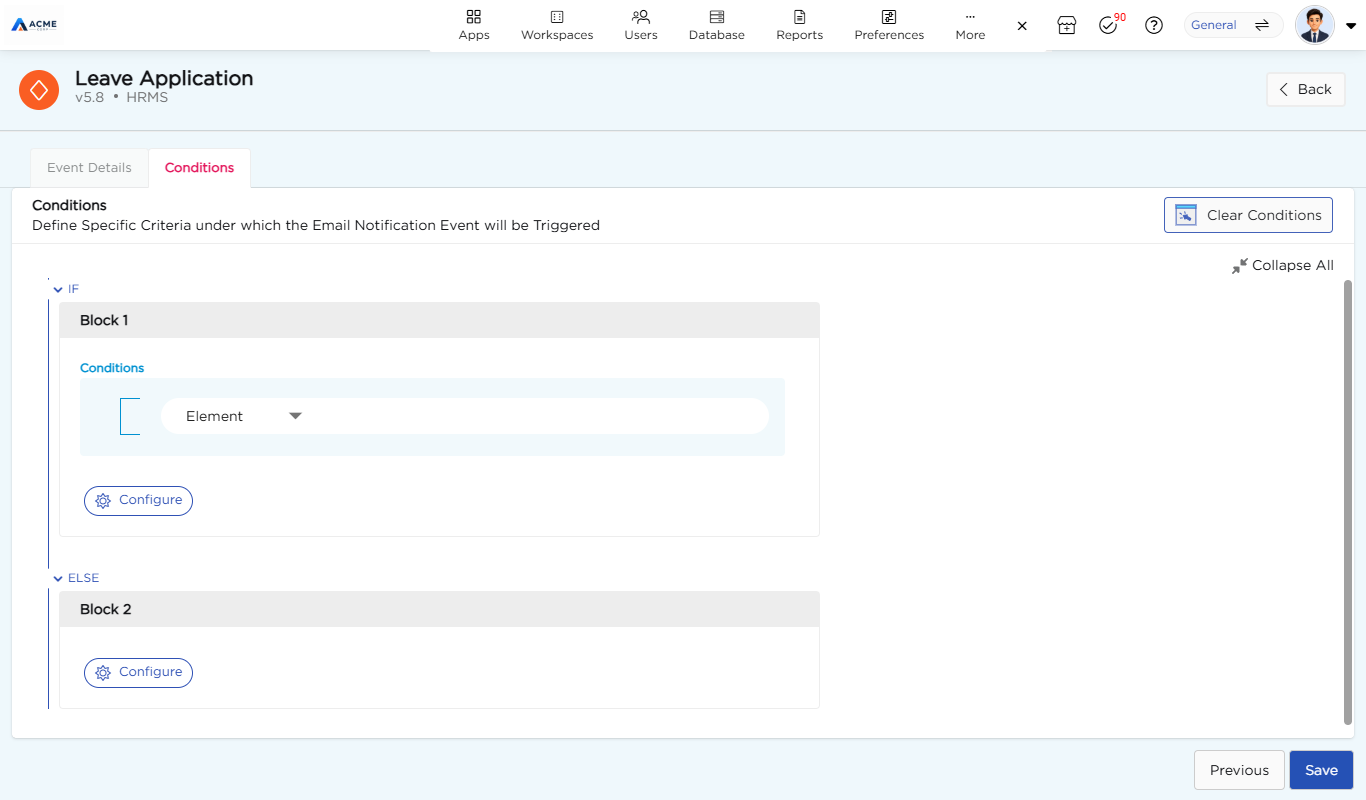
The Conditions step opens with the message “This will Trigger the Email Notification Event Unconditionally.” The notification is then sent every time the event occurs. To send it only in certain cases, click Add Conditions.
Conditions are built as IF and ELSE blocks. Block 1 (IF) has a Conditions area where you choose an element, and each block has a Configure button for setting up that block’s notification. Use Clear Conditions to remove the conditions and Collapse All to fold the blocks.
Example
In a purchase order app, send one notification to the Department Manager when the amount is below a limit (the IF block), and a different one to the Finance Head otherwise (the ELSE block).
¶ 5. Set the sender and recipients
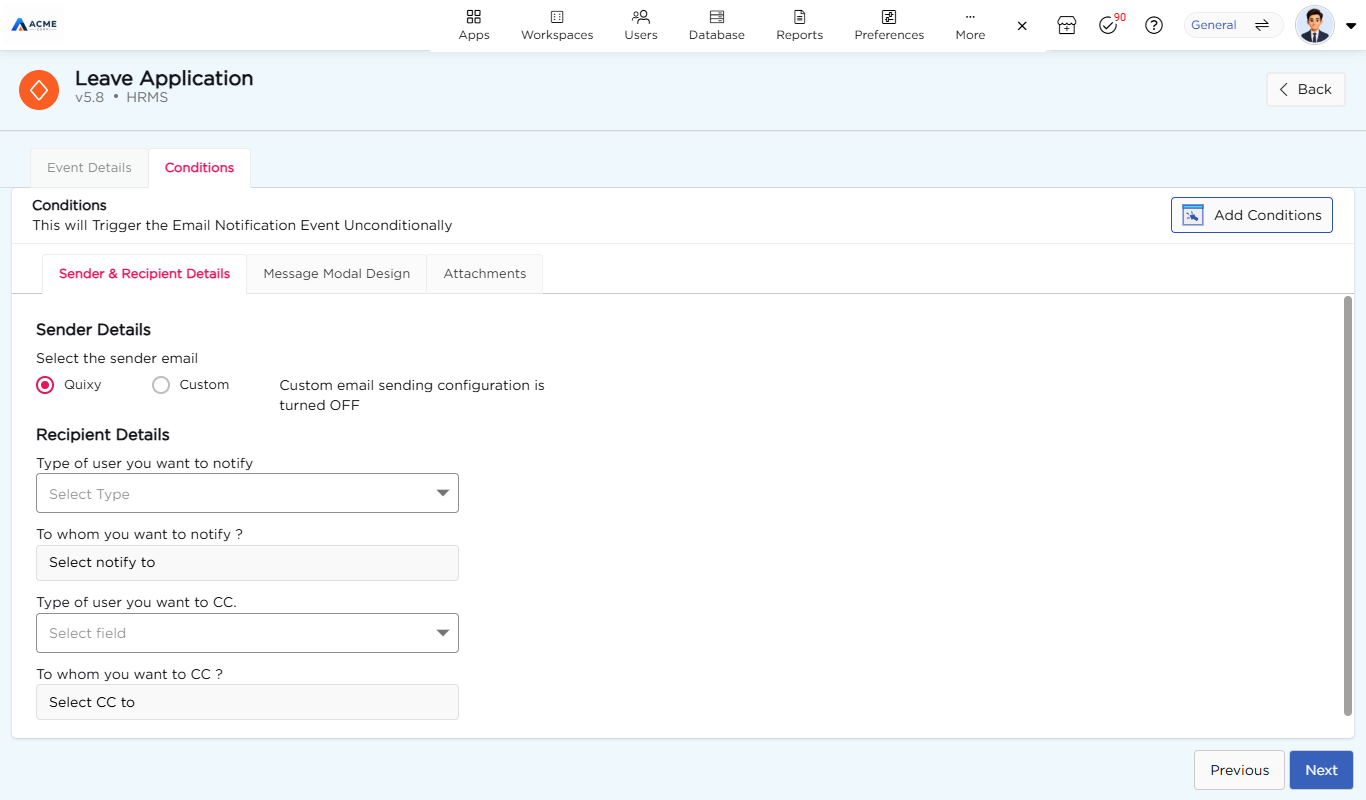
The Conditions step has three tabs: Sender & Recipient Details, Message Modal Design, and Attachments. Use Next to move between them. Fill in the required fields before you move on.
On Sender & Recipient Details:
- Under Select the sender email, choose Quixy (the default) or Custom. If custom sending isn’t set up, the screen shows “Custom email sending configuration is turned OFF.”
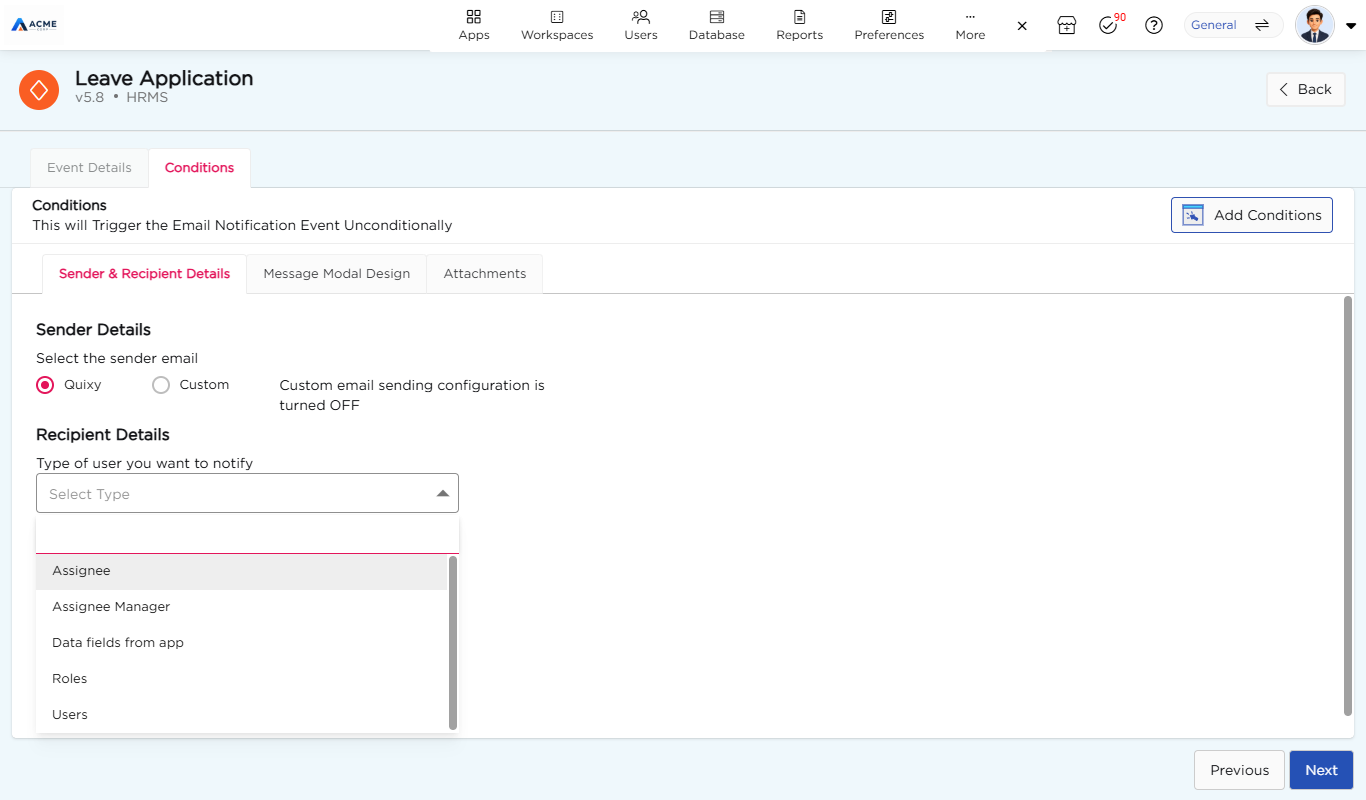
- In Type of user you want to notify, choose who receives the notification:
| Option | Who is notified |
|---|---|
| Assignee | The user assigned to the task. |
| Assignee Manager | The manager of the assigned user. |
| Data fields from app | The email addresses stored in an email field of the app. |
| Roles | All users in the roles you select from the workspace. |
| Users | The individual users you select. |
To copy other people on the email, use Type of user you want to CC and To whom you want to CC?. They offer the same options.
¶ 6. Write the message
On Message Modal Design:
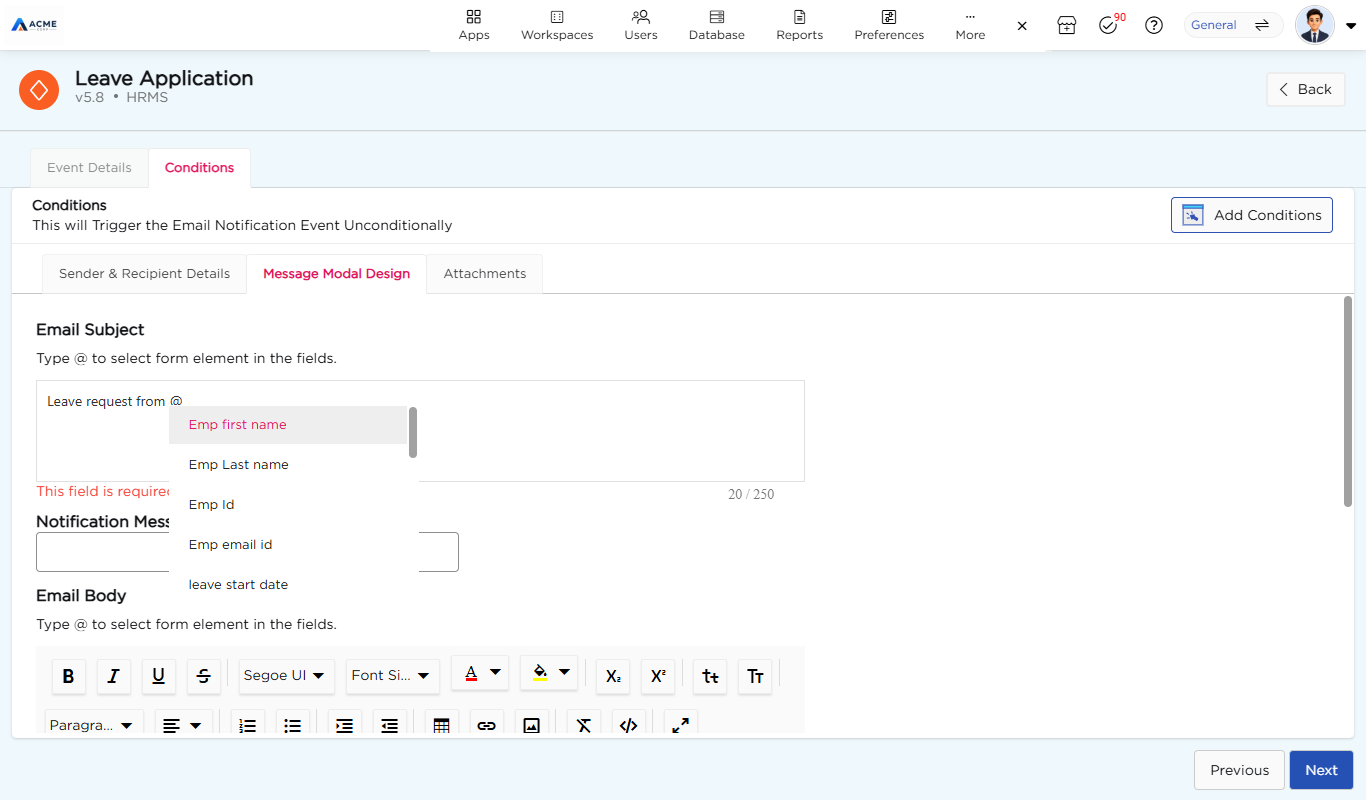
- Enter the Email Subject. It is required and can be up to 250 characters. Type @ to insert a field from the app’s form, for example “Leave request from @Emp first name”.
- Enter the Notification Message. It appears in the email body where {{%NotificationMessage%}} is placed.
- Edit the Email Body in the rich-text editor. The default body greets the user, names the app, shows your notification message, and links to the details. Type @ to insert fields from the app’s form here too.
¶ 7. Choose attachments
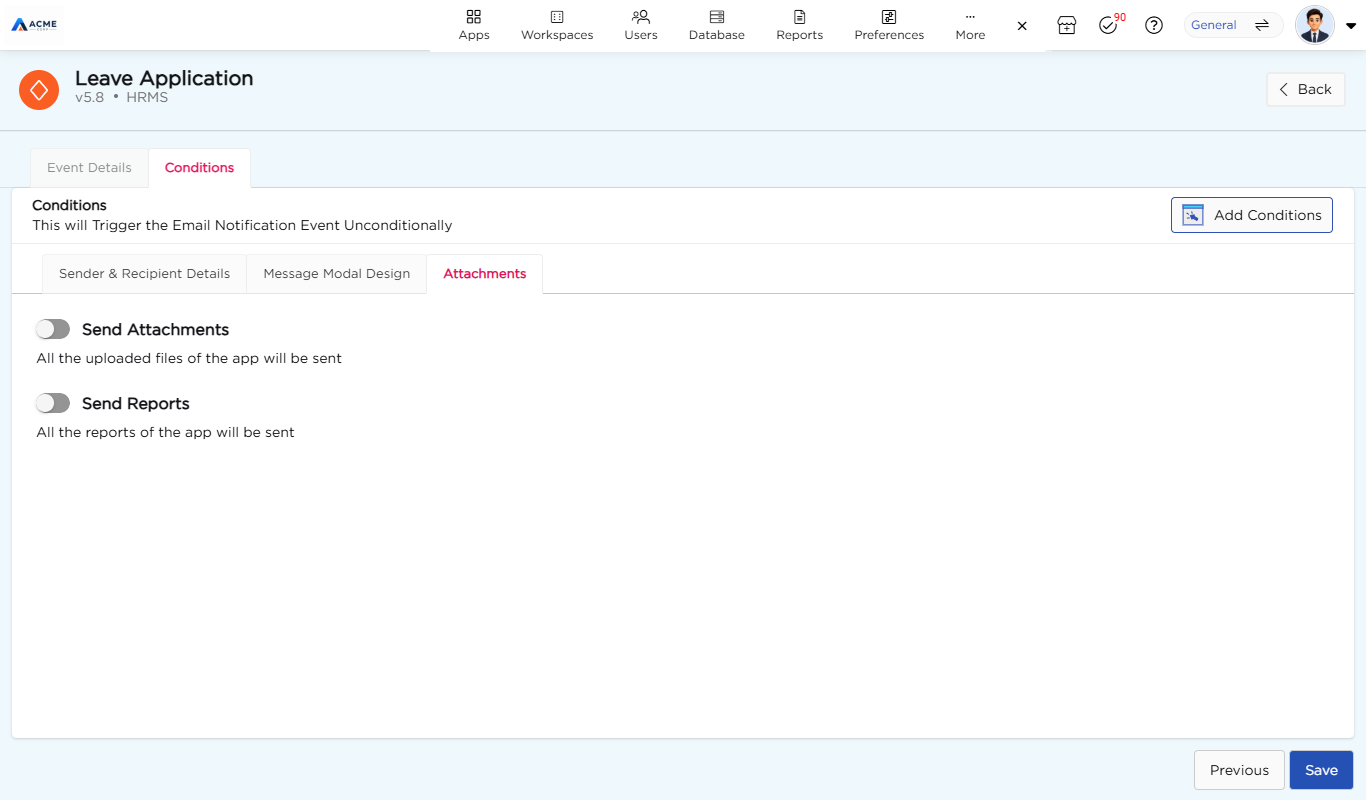
On Attachments, turn on either or both options:
- Send Attachments: sends all the uploaded files of the app.
- Send Reports: sends all the reports of the app.
¶ 8. Save the notification
Click Save on the Attachments tab. The notification is added to the Email Notifications list under its event name.