Important
Only a Data Admin can add records manually, if not added while adding record in the application.
¶ 1. Adding Single Records:
- Go to Admin Menu → Database → Data Tables.
- You will land on tables list page.
- Select the table to add a record.
- Click the 3-dot icon next to the table.
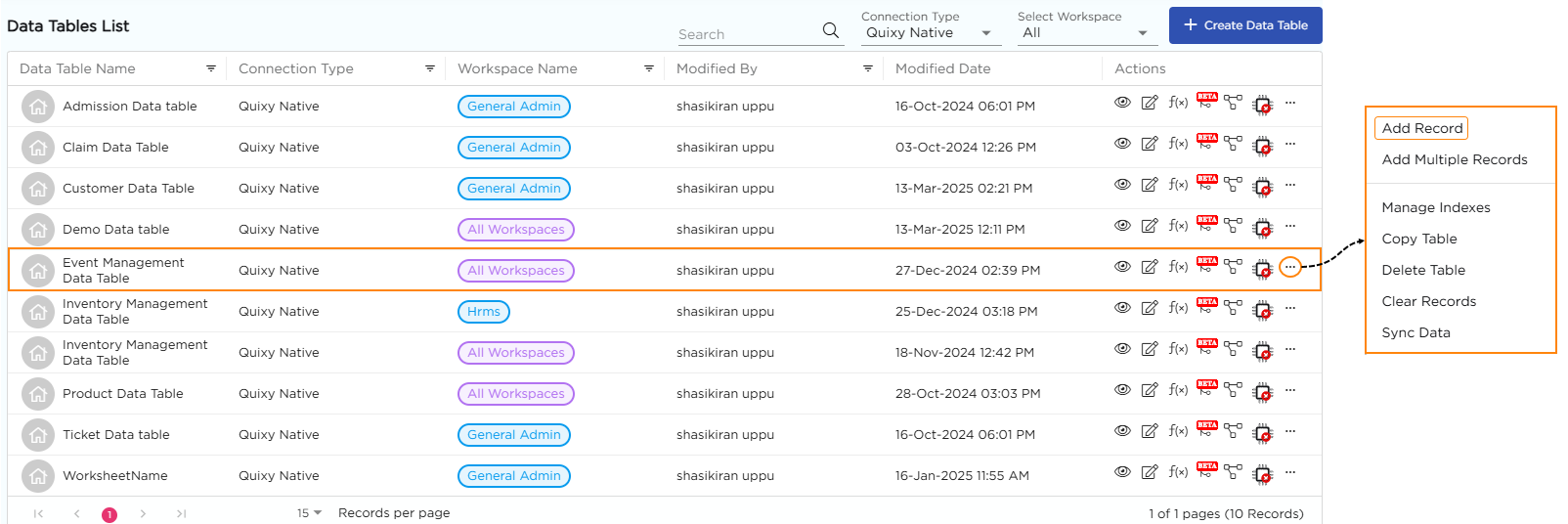
5. Select Add Record to add a single record.
6. Fill in the required data on the Add Record page.
7. Click Save to add the record to the table.
8. The new record will now appear in the table records.
¶ 2. Adding Multiple Records:
There are two ways to enter multiple records in a table:
¶ 2.1. Manual Entry
- From the tables list page, select a data table and click 3-dot icon.
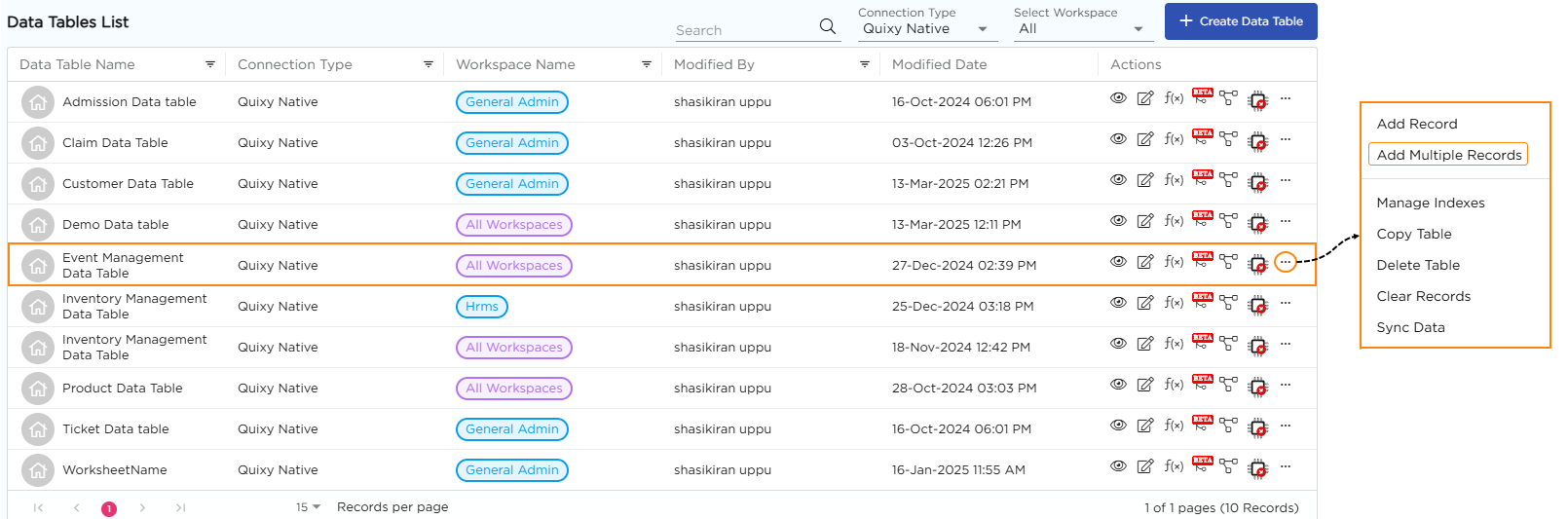
2. Click on Add Multiple Records.
3. Click on an empty row.
4. Enter a record in a row.
5. To add more rows, click +Add Row and continue entering data.
6. Click Save to add the multiple records to the table.
¶ 2.2. Using Excel
- Select a table and click the 3-dot icon.
- Select Add Multiple Records.
- Click Upload Excel.

Note
The “Download Excel” option allows admins to download the table and its columns as a template for entering data. This template can then be filled out and uploaded back into the table, reducing the risk of column name mismatches and ensuring data is added accurately.
4. Upload your Excel.
5. Select the excel sheet in an Excel Workbook.
6. You can see the data records in the table.
Note
Ensure that the field names in the Excel file match exactly with the field names in the data table, including case sensitivity. Date fields should be in the format (DD-MM-YYYY)