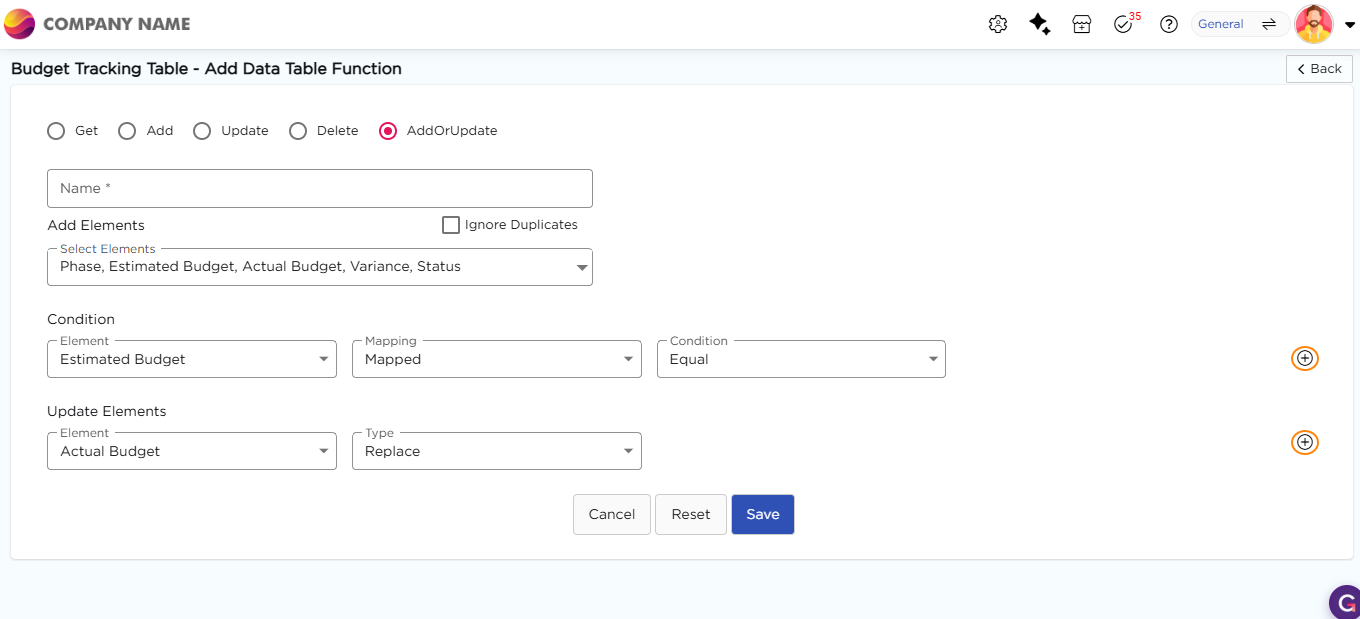
The Add or Update function allows the data table to capture new data when it is entered into the app or update data that is already present in the data table by using a data value as a reference that is already present in the data table records.
¶ 1. Steps to create an Add or Update function:
- Go to Admin Menu → Database → Data Tables. You will land on the Data Tables List page.
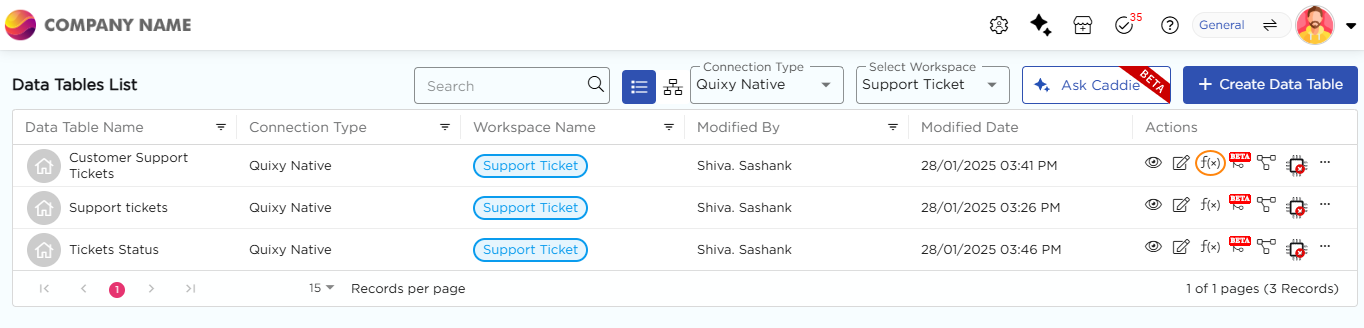
- Select the required data table and click the f(x) icon under the Actions column. You will land on the Data Table Function page.
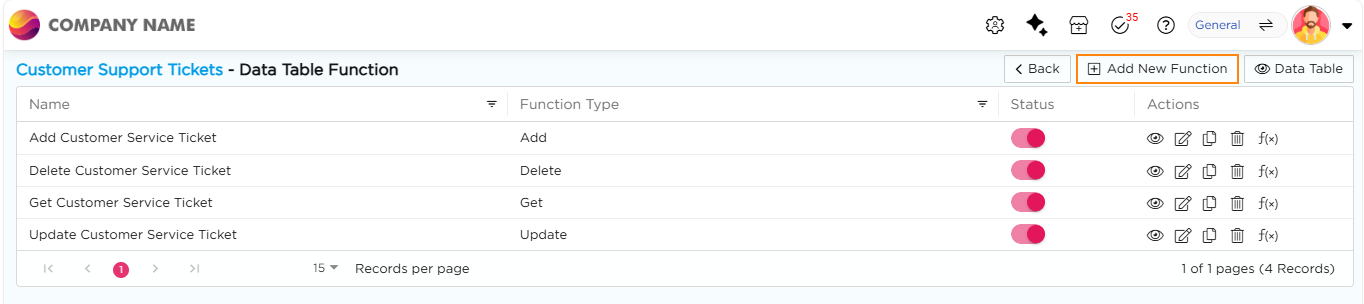
3. Click + Add New Function. You will land on the Add Data Table Function page.
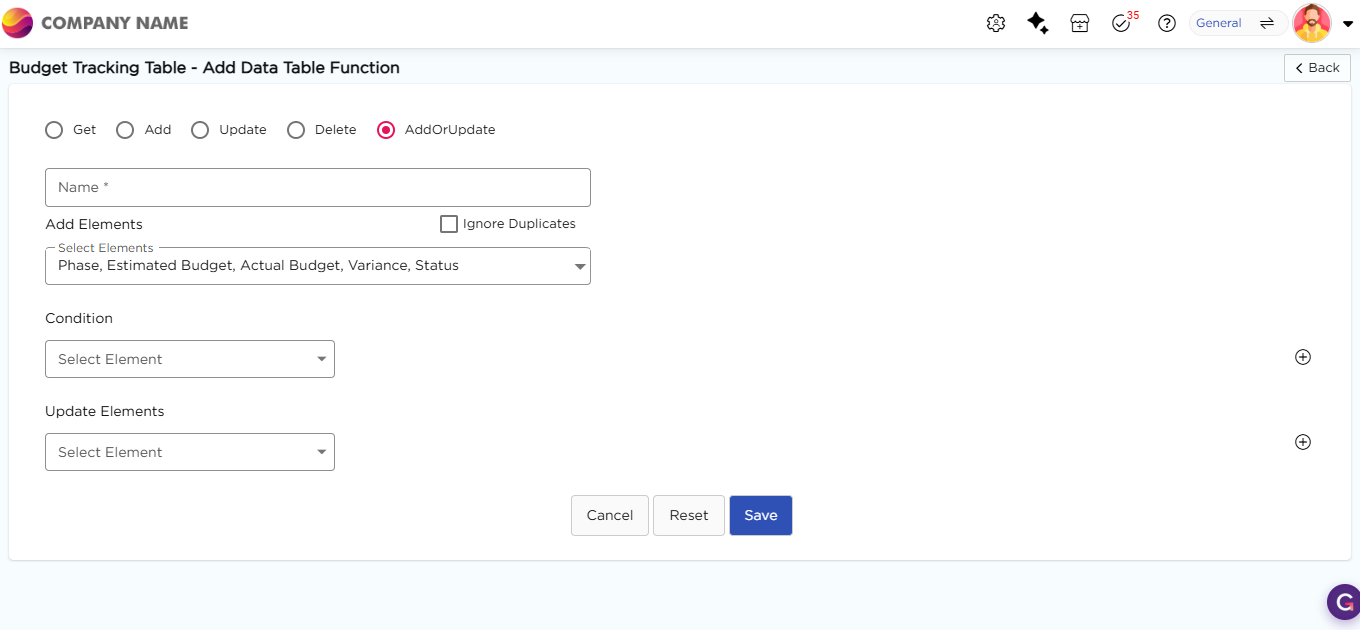
4. Select AddOrUpdate as the function type and enter a name for the function.
5. Under Add Elements, select the elements whose data should be added to the data table.
6. Under Condition, select the element that should be used as the reference to identify existing records.
7. Set the Mapping value for the selected condition element. Mapping supports Mapped and Static options.
8. Set the Condition value for the selected element. Conditions include:
| Condition | When it becomes true |
|---|---|
| Contains | When the field contains the specified value |
| Not Contains | When the field does not contain the specified value |
| Empty | When the field has no value |
| Not Empty | When the field has any value |
| Equal | When the field value matches the selected value |
| Not Equal | When the field value does not match the selected value |
| Starts With | When the field value begins with the selected value |
| Ends With | When the field value ends with the selected value |
9. Under Update Elements, select the elements that should be updated when the condition is met.
10. You can click the + icon to add additional condition rules or update elements if multiple mappings are required.
11. Set the Type as Replace for elements that should overwrite existing values.
12. Click Save to store the data function.