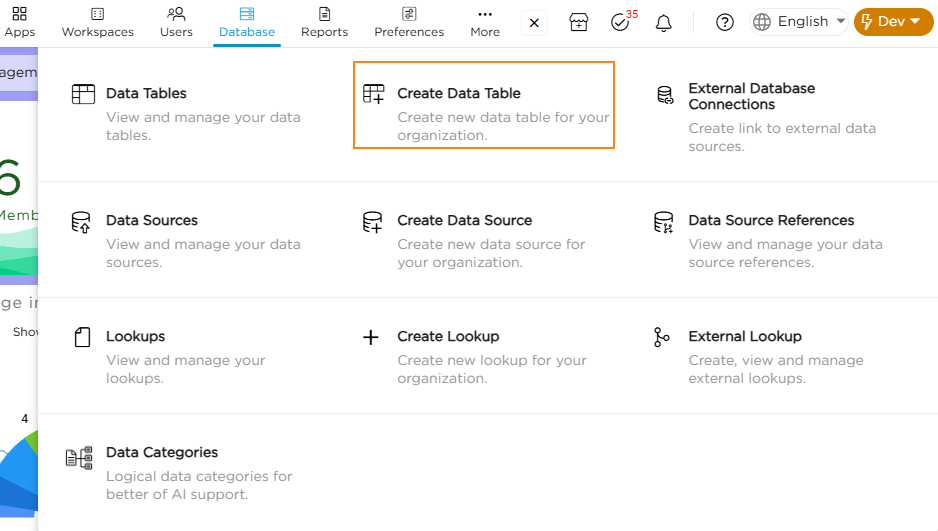
- Go to Admin Menu → Database → Create Data Table.
2. Choose Create from Scratch to create your data table.
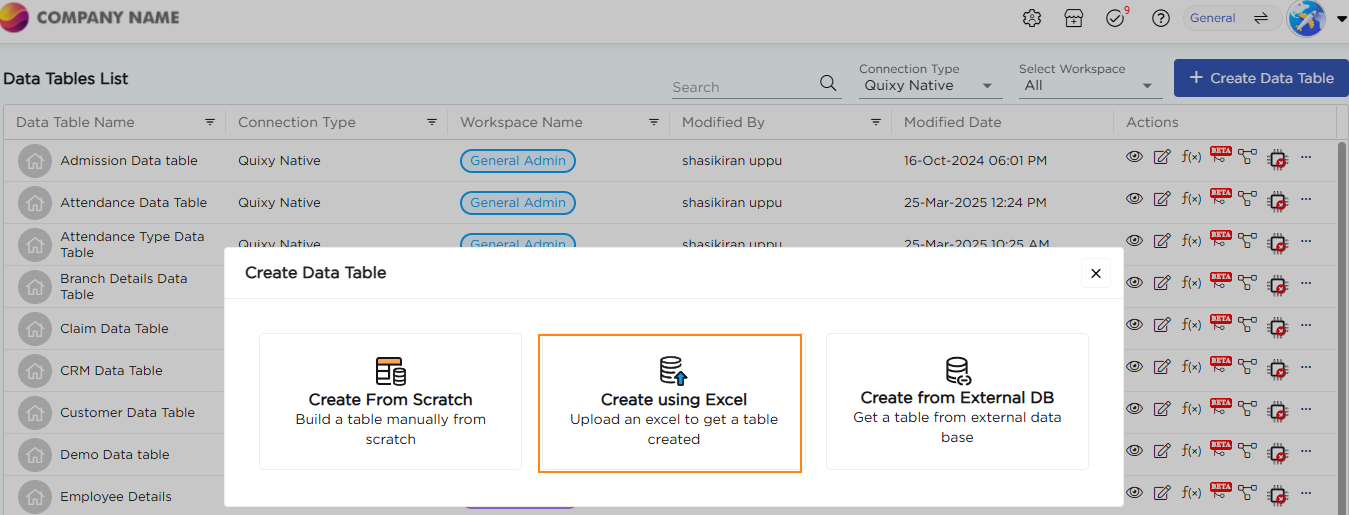
3. A Create Data Table Using Excel Sheet pop-up window will appear.
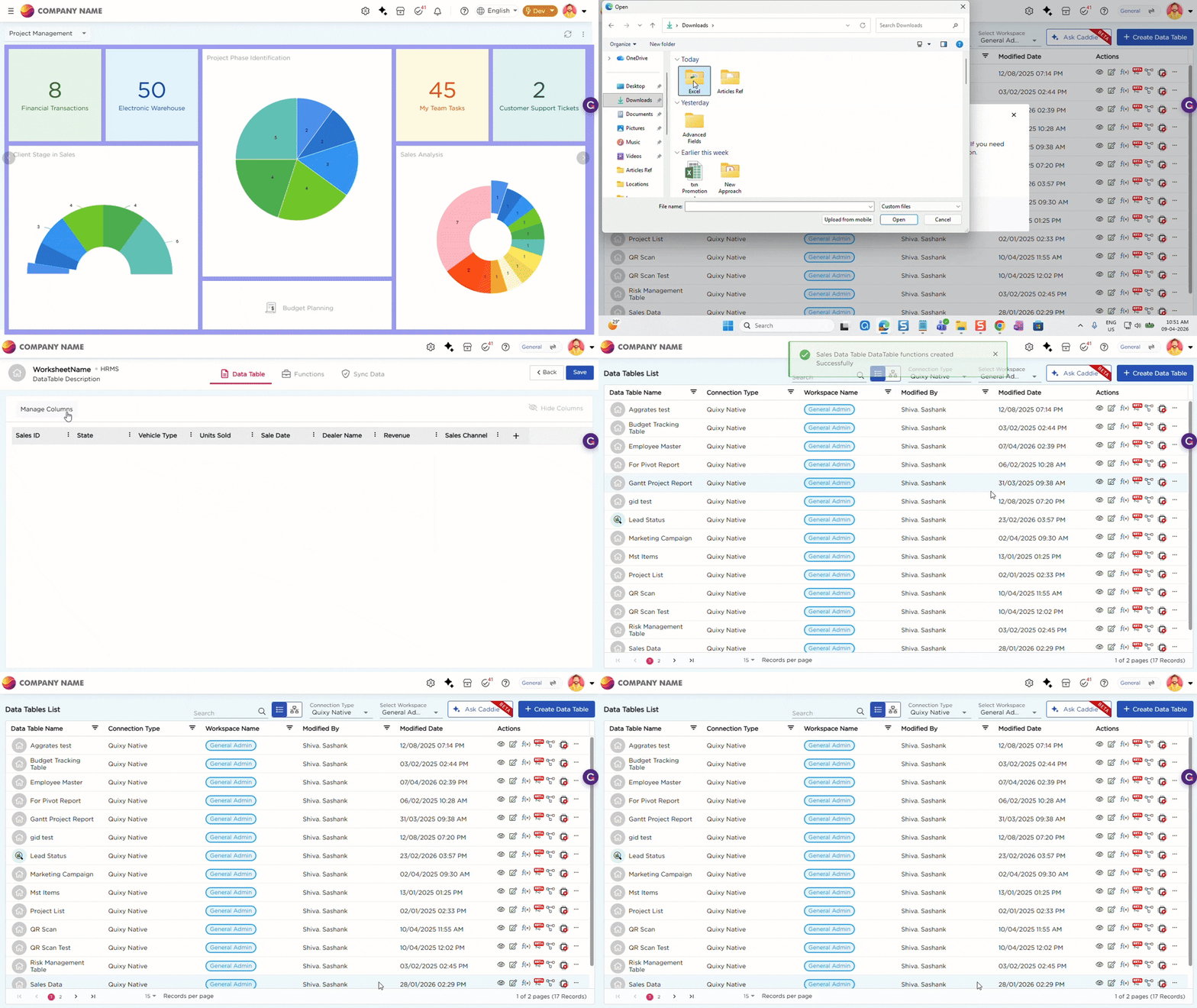
4. Click Upload Excel to select the required excel file from your system.
5. In the Upload Excel dialog, select the required sheet and click Next.
6. When prompted, choose whether to import data along with the table and then click Next.
7. The column review screen opens. Review the columns created from the Excel sheet and then click Next.
8. Select the workspace where the table is to be created and then click Next.
9. You will be redirected to the Table Configuration Page.
10. Click Manage Columns to modify or add data fields and configure field properties as required.
11. Click Save.
12. Upon saving a confirmation dialog appears asking to create basic CRUD functions.
13. Click Yes to create the CRUD functions.
14. The data table is now created and listed on the Data Tables List page.