This page explains how to create and configure Data Source Schedulers in Quixy. Use Data Source Schedulers to automate actions or notifications based on time schedules and data conditions.
To navigate to Data Source Schedulers,
- Go to Admin Menu → Database → Data Sources. This opens the Data Source list page.
- Click on a Data Source to open the Actions panel on the right.
- Click the "+" icon corresponding to the Schedule Notifications option. You will land on the Create Schedule Notification page
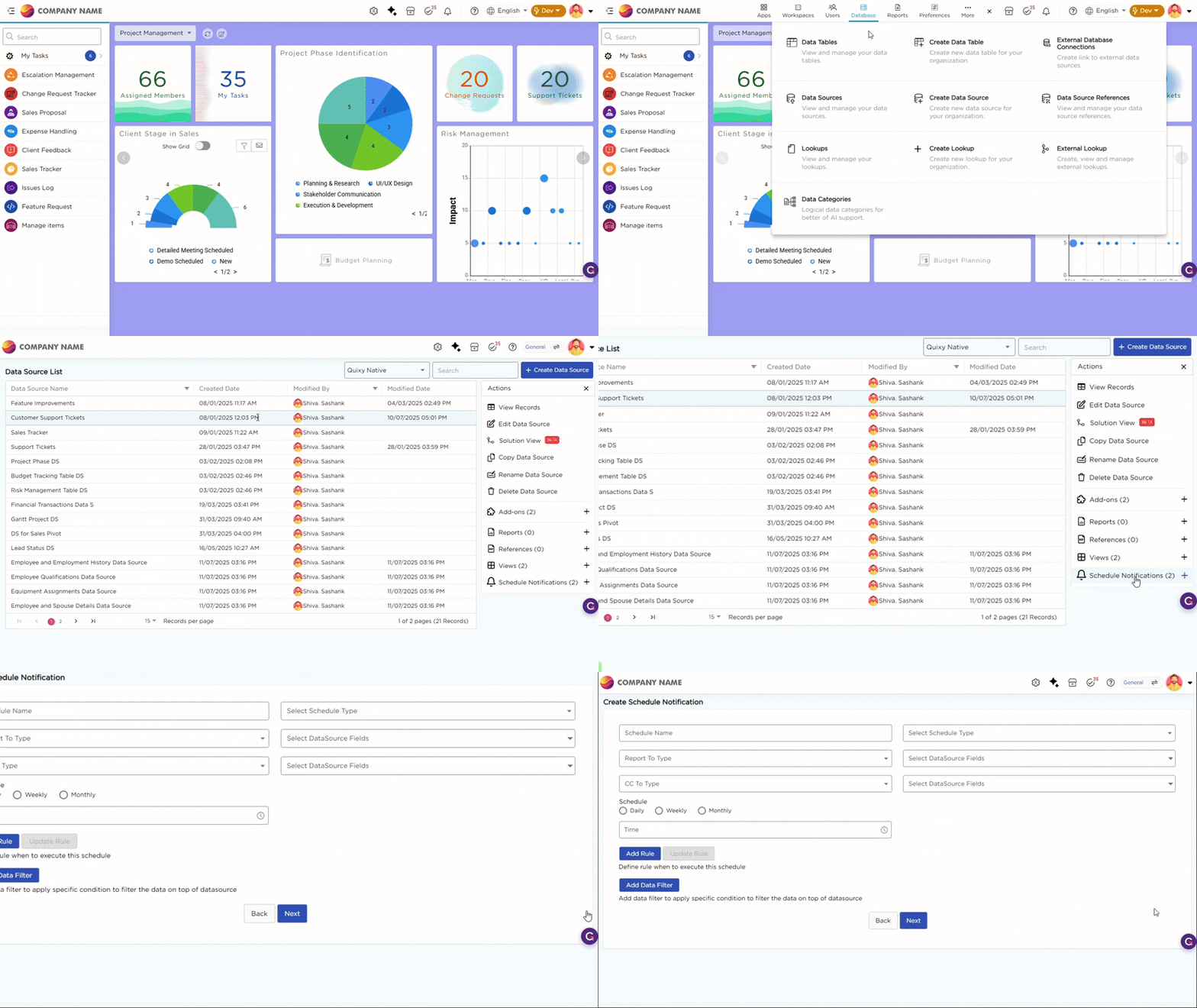
¶ 1. Create Schedule Notification
On this page, you define how and when notifications should be sent.
| # | Field | Description |
|---|---|---|
| 1 | Schedule Name | Enter a unique name to identify this scheduler. Use a clear, meaningful name. Example: Daily Lead Follow-up Reminder. |
| 2 | Select Schedule Type | Choose how records are processed. Options are Group, Individual, and List. |
| 3 | Report To Type | Select who should receive the notification. Options are Data Source, Users, and Roles. |
| 4 | Select Data Source Fields (Report To) | Choose the data source field that contains the recipient email ID or user reference. |
| 5 | CC To Type | Select who should be added in CC. Options are Data Source, Users, and Roles. |
| 6 | Select Data Source Fields (CC) | Choose the data source field that contains the CC email ID or user reference. |
| 7 | Schedule | Choose how often the scheduler should run. Options are Daily, Weekly, and Monthly. |
| 8 | Add Rule | Define conditions to control when the scheduler should execute. Example: Run only when Status is Pending. |
| 9 | Add Data Filter | Apply filters to restrict which records are considered. Example: Filter records where Due Date is today. |
¶ 2. Configure Schedule Type
Select how records should be processed when the scheduler runs. The Schedule Type controls whether notifications are sent per record, per group, or as a single list. Quixy supports three schedule types:
- Group
- Individual
- List
Choose the type based on how you want records to be evaluated and notifications to be sent.
¶ 3. View Scheduler Execution History
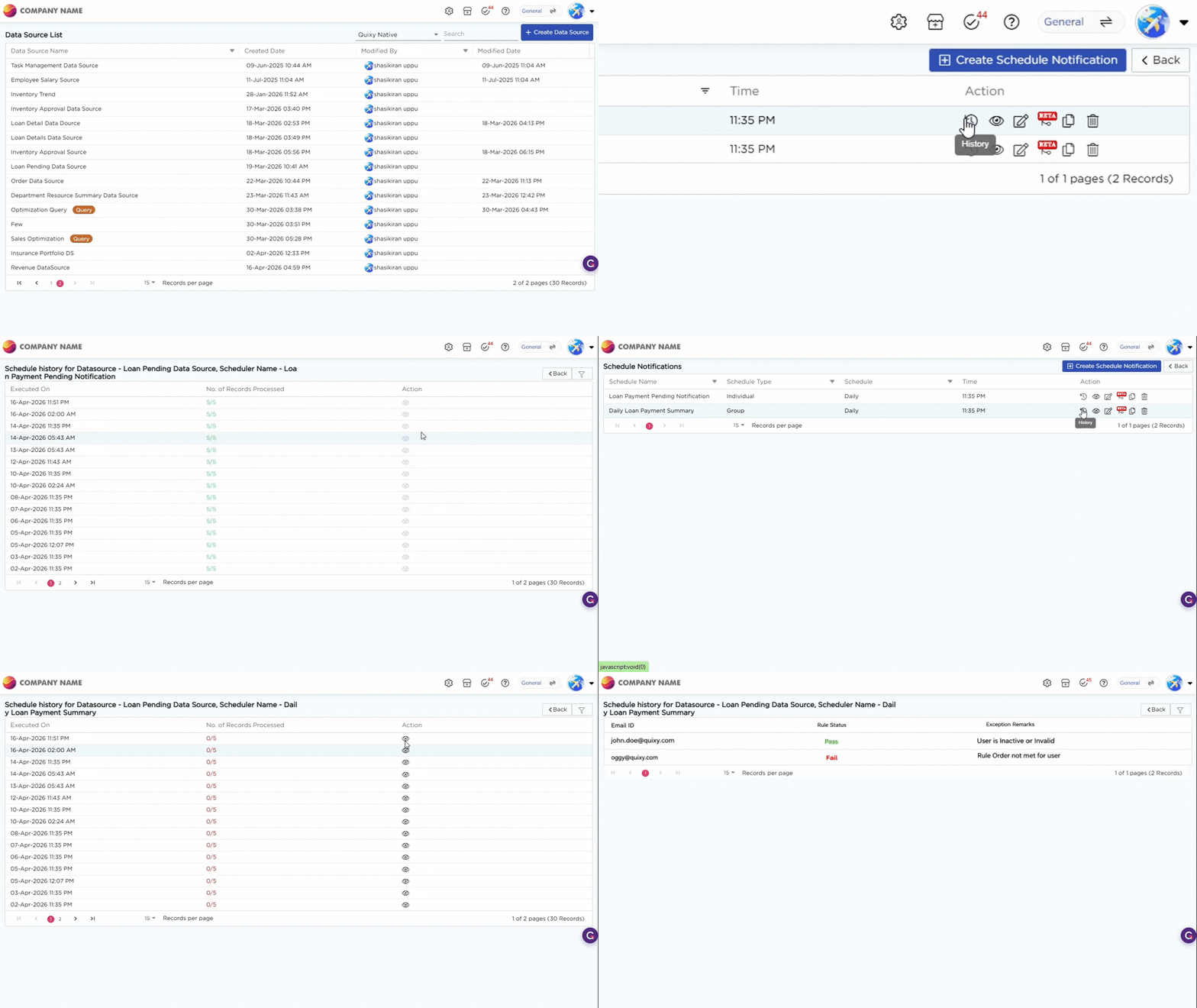
Once a scheduler is configured and starts running, you can track its execution using Scheduler Audit Logs. From the Schedule Notifications page, click the History icon corresponding to a scheduler to view its execution history.
The history page shows details of each scheduler run. You can see when the scheduler was executed and how many records were processed. The processed count is displayed in a format such as 3/5 or 5/5, indicating the number of records successfully processed out of the total.
If all records are processed successfully, the count is shown in green. If some records fail, the count is shown in red. To view more details, click the View icon for a specific run. This opens the detailed view. In the detailed view, you can see:
- The Email ID for which the notification was processed
- The Rule Status, indicating whether the record passed or failed
- The Exception Remarks, which show the reason for failure
This helps you identify which records failed and understand the cause of the issue. If the scheduler runs successfully, all records are processed and no failures are shown.
Refer to the GIF below to understand how the scheduler execution history works: