Multi-Factor Authentication (MFA) adds an extra layer of protection to your Quixy account by requiring users to verify their identity using a One-Time Password (OTP). When enabled, users must authenticate using the selected verification method—Email, SMS, or both—before accessing their accounts.
The MFA settings are managed at the organization level through the Security & Privacy section in Admin Console.
¶ 1. Configuring MFA
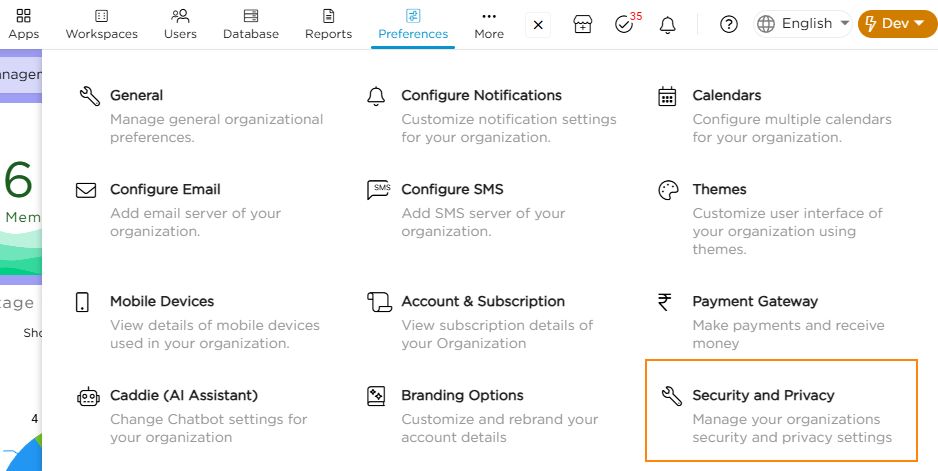
- Go to Admin Menu → Preferences → Security & Privacy.
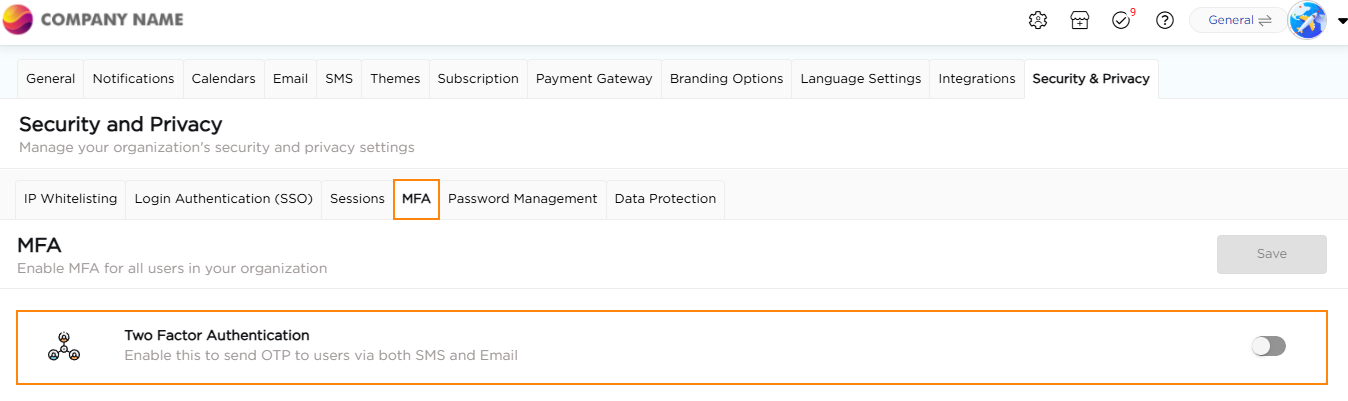
- Navigate to the MFA tab. From here, administrators can enable or configure MFA for all users in the organization.
- Turn ON the Two Factor Authentication toggle.
- Once enabled, all users will be required to complete MFA during login based on the configured settings.
- When MFA is enabled, the system sends a One-Time Password to users during login through the selected communication channel(s).
¶ 2. Configuring OTP and Verification Settings
After enabling MFA, administrators can configure how OTP verification works.
¶ 2.1. OTP validity
- Administrators can define how long the OTP remains valid.
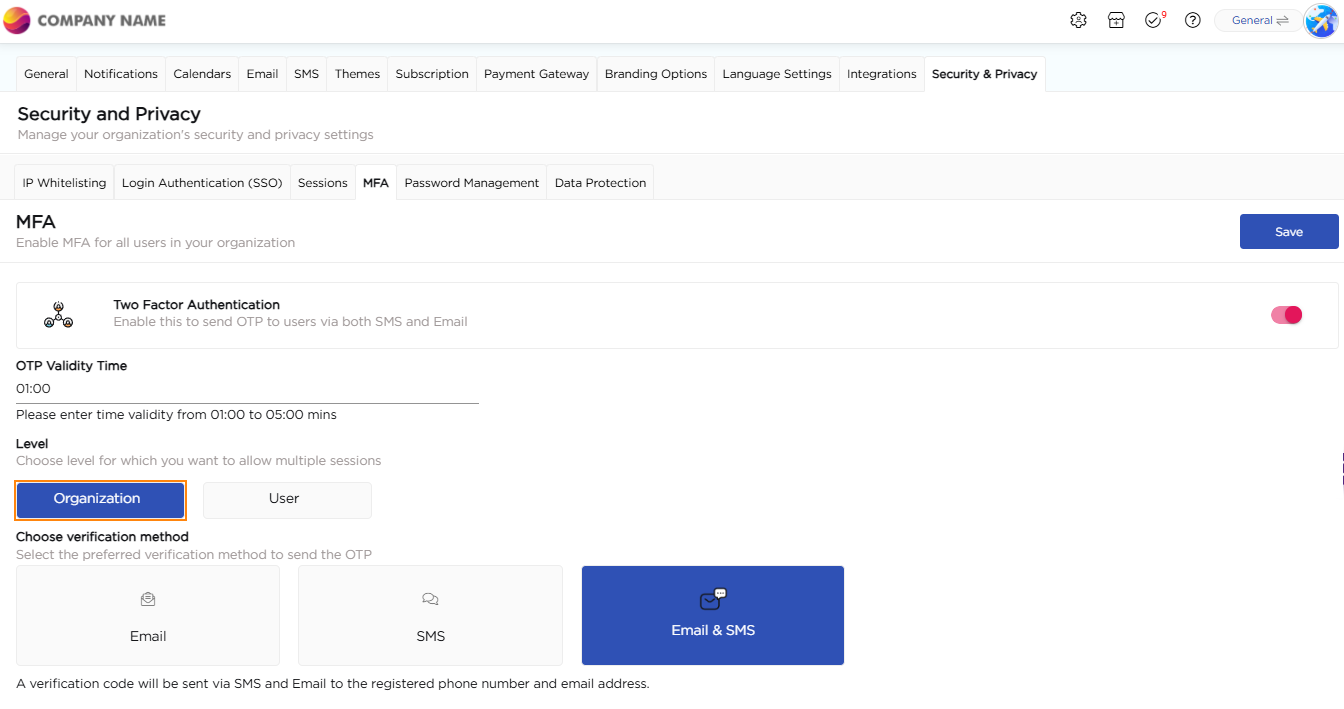
- The OTP Validity Time field allows setting a duration between 01:00 and 05:00 minutes.
- Users must enter the received OTP within this validity window to complete authentication.
- If the OTP expires, users must request a new OTP.
¶ 2.2. MFA enforcement level
Quixy allows MFA enforcement either across the entire organization or at the individual-user level.
- Organization Level: MFA applies to all users within the organization.
- User Level: Admins can selectively enforce MFA only for specific users.
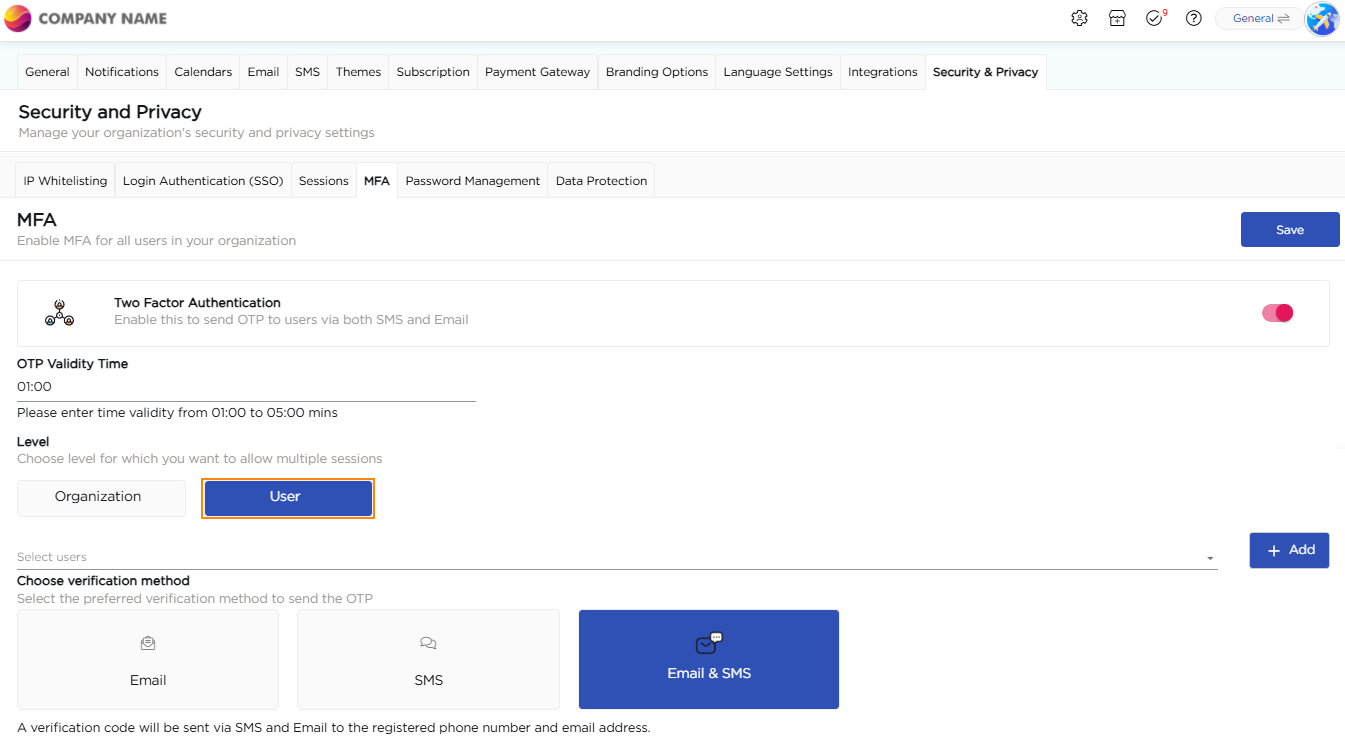
This flexibility allows organizations to meet varied compliance or departmental security requirements.
¶ 2.3. Choosing the Verification Method
- After configuring OTP behavior, administrators can choose how OTPs are sent to users.
- Under Choose Verification Method, select one of the following options.
- Email: The OTP is delivered to the user’s registered email address.
- SMS: The OTP is sent to the user’s registered mobile number.
- Email & SMS: The system sends the OTP simultaneously to both channels. Users can use the OTP from either method to complete verification.
- After adjusting MFA settings, click Save.
- All affected users will experience the updated authentication method during their next login.