IP Whitelisting restricts access to Quixy so that only users connecting from approved and trusted IP addresses can log in to the organization. This allows administrators to control where applications can be accessed from and protects sensitive business data from unauthorized locations.
Typically, employees access Quixy from office networks using company-managed systems. In situations such as remote work, travel, or emergency access, users may attempt to log in from personal devices or unfamiliar networks.
To prevent unauthorized or unmonitored access, administrators can explicitly allow only trusted IP addresses or IP ranges.
With IP Whitelisting enabled, organizations can:
- Allow access only from approved IP addresses or IP ranges.
- Block login attempts from unknown or untrusted networks.
- Improve overall security and compliance.
- Ensure applications are accessed only from controlled environments.
This feature is especially useful for organizations with strict IT policies or regulatory access requirements.
¶ 1. Enable and Configure IP Whitelisting
Follow the steps below to set up IP Whitelisting for your organization:
- Navigate to Admin Menu → Preferences → Security & Privacy → IP Whitelisting
- Toggle the Enable IP Whitelisting option. Once enabled, access will be permitted only from the IPs you configure.
- You can add Single IPs or a Range of IPs based on your organization’s network structure.
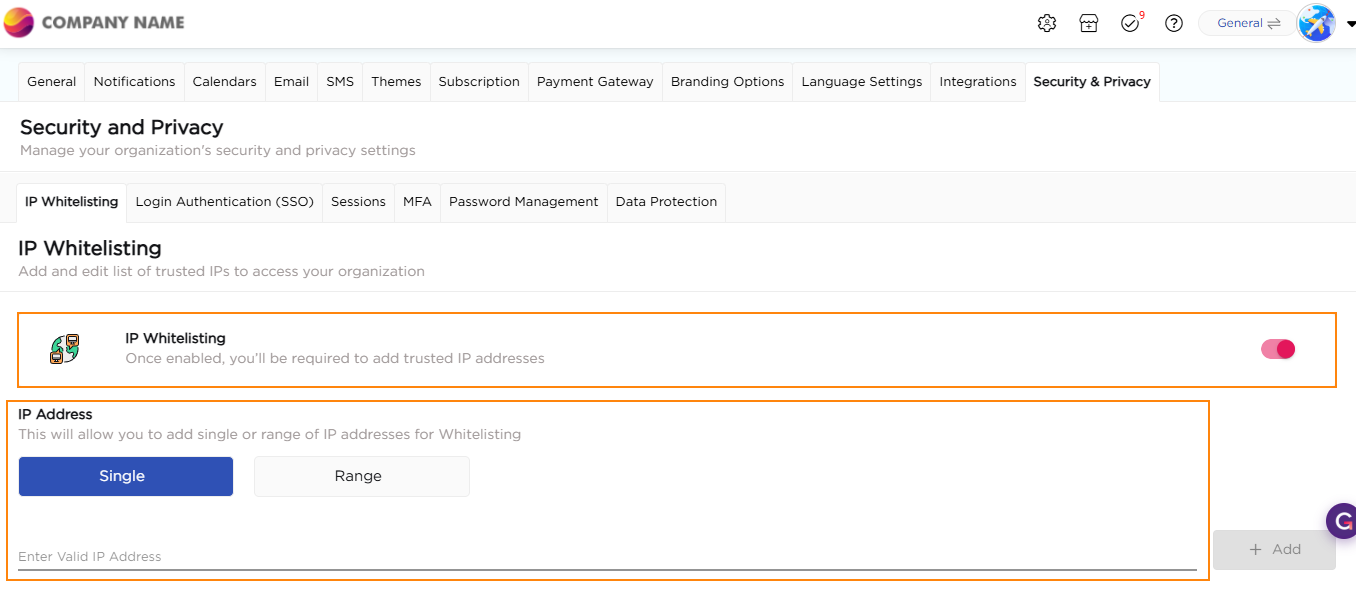
4. Select Single and click +Add to enter IPs one by one. Example single IP entries:
172.16.254.2172.16.454.2182.16.254.2
5. This is ideal when users connect from fixed or known locations.
6. Select Range to enter a consecutive sequence of IP addresses:
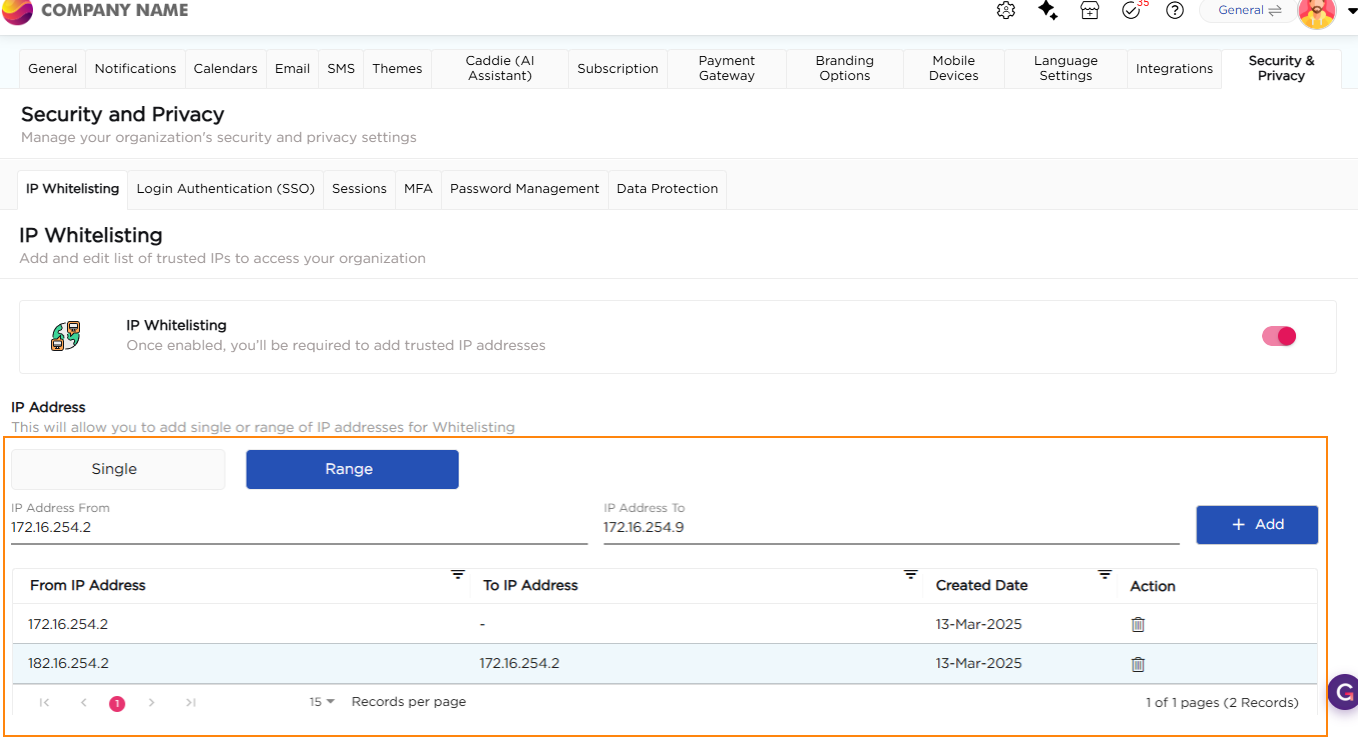
- This is useful when your office network assigns dynamic IPs within a specific block.
- Example IP range entry:
172.16.254.2→172.16.254.8
7. Click +Add to save each IP or range.
8. Once saved, Quixy will allow access only from the listed addresses.