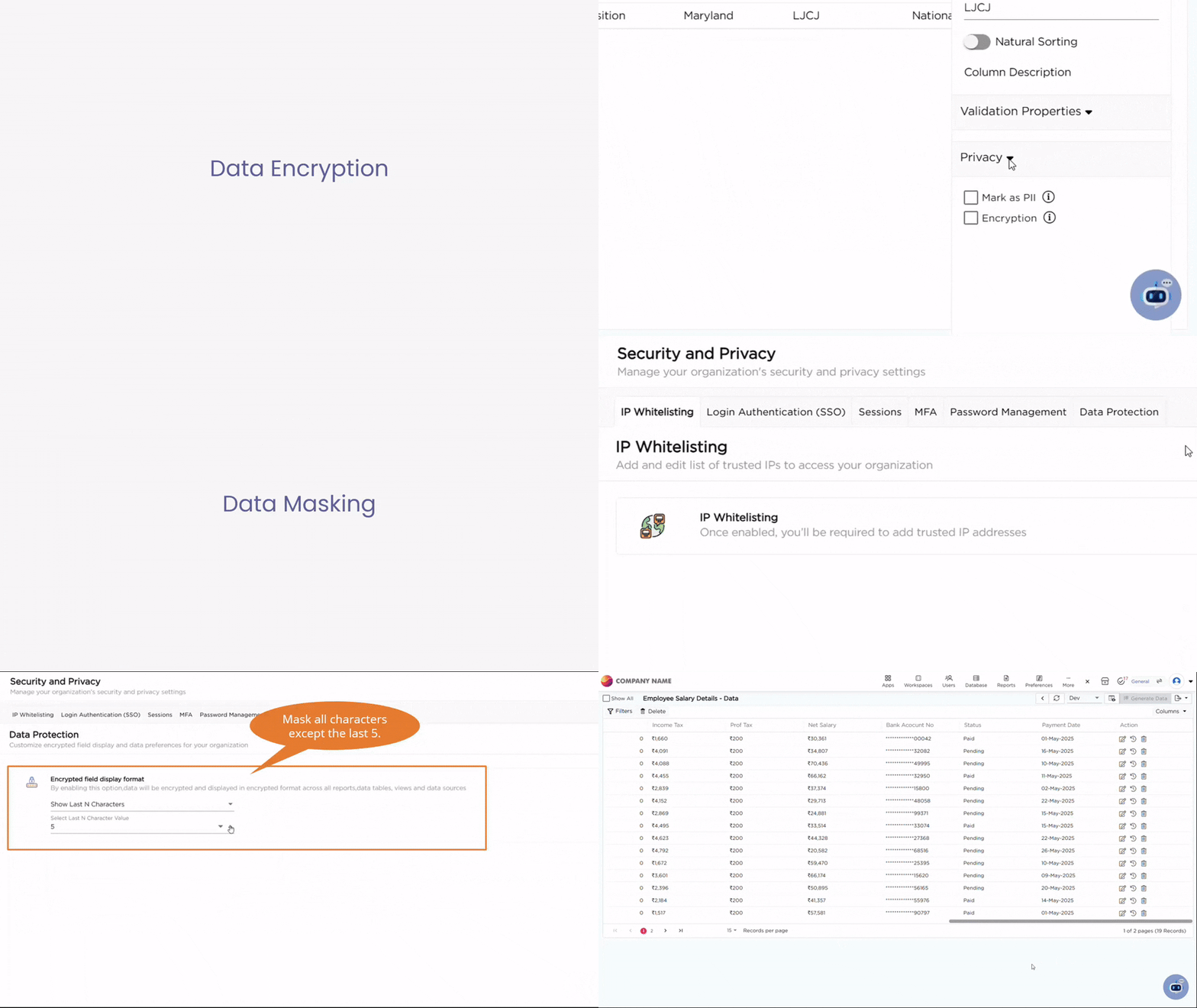
Data Protection allows administrators to control how encrypted field values are displayed across reports, data tables, views, and data sources in Quixy. These settings help limit the visible portion of sensitive data while keeping the actual values encrypted in the backend.
This configuration applies at the organization level and ensures consistent data visibility across the platform.
¶ 1. Encryption
Encryption transforms your data into a protected, unreadable format as soon as it's saved in the backend. Even if someone gains unauthorized access to the database, encrypted values remain scrambled and unreadable.
This is especially important for fields that store sensitive or personally identifiable information (PII), like:
- Government-issued ID numbers
- Bank account details
- Employee salaries
- Contact numbers
By encrypting this data, you add a layer of safety that protects it from unauthorized viewing or tampering—even at the system level.
¶ 2. What is Data Masking?
Data masking controls what part of sensitive information is shown to users on the screen. Even though the actual value exists in the system, masking helps hide or blur it when it appears in reports, data tables, views, or data sources.
This is useful when users need to see or work with records—like customer IDs or phone numbers—without viewing the entire value.
Example
Instead of showing a full phone number like 9876543210, you could mask it as *******210.
Masking is especially helpful for fields such as:
- Contact numbers
- Bank or ID numbers
- Email addresses
- Financial or payroll data
By masking data, you reduce the chances of accidental exposure while still allowing users to verify or identify records when needed.
¶ 3. How to Enable and Configure Data Protection
- Click on Admin Menu → Preferences → Security & Privacy.
- Navigate to Data Protection tab.
- From here, you’ll find the Encrypted Field Display Format section.
- This section lets you decide how encrypted field values appear across all reports, data tables, views, and data sources.
- You can select one of the following display formats based on your data protection needs:
- With Mask – Fully hides the encrypted value using asterisks (e.g., ********).
- Without Mask – Displays the complete value (only use this if necessary).
- Show First N Characters – Reveals only the first few characters. You’ll need to enter how many characters to show.
Example
Original: 9876543210
N = 4 → Shown as: 9876******
- Show Last N Characters – Reveals only the last few characters. You’ll need to enter how many characters to show.
Example
Original: 9876543210
N = 5 → Shown as: *****43210
6. After selecting the desired option and entering the number of characters (if applicable), click Save to apply your settings. These settings will now apply consistently across all areas of your platform where encrypted data appears—keeping your display preferences clean and your data safe.