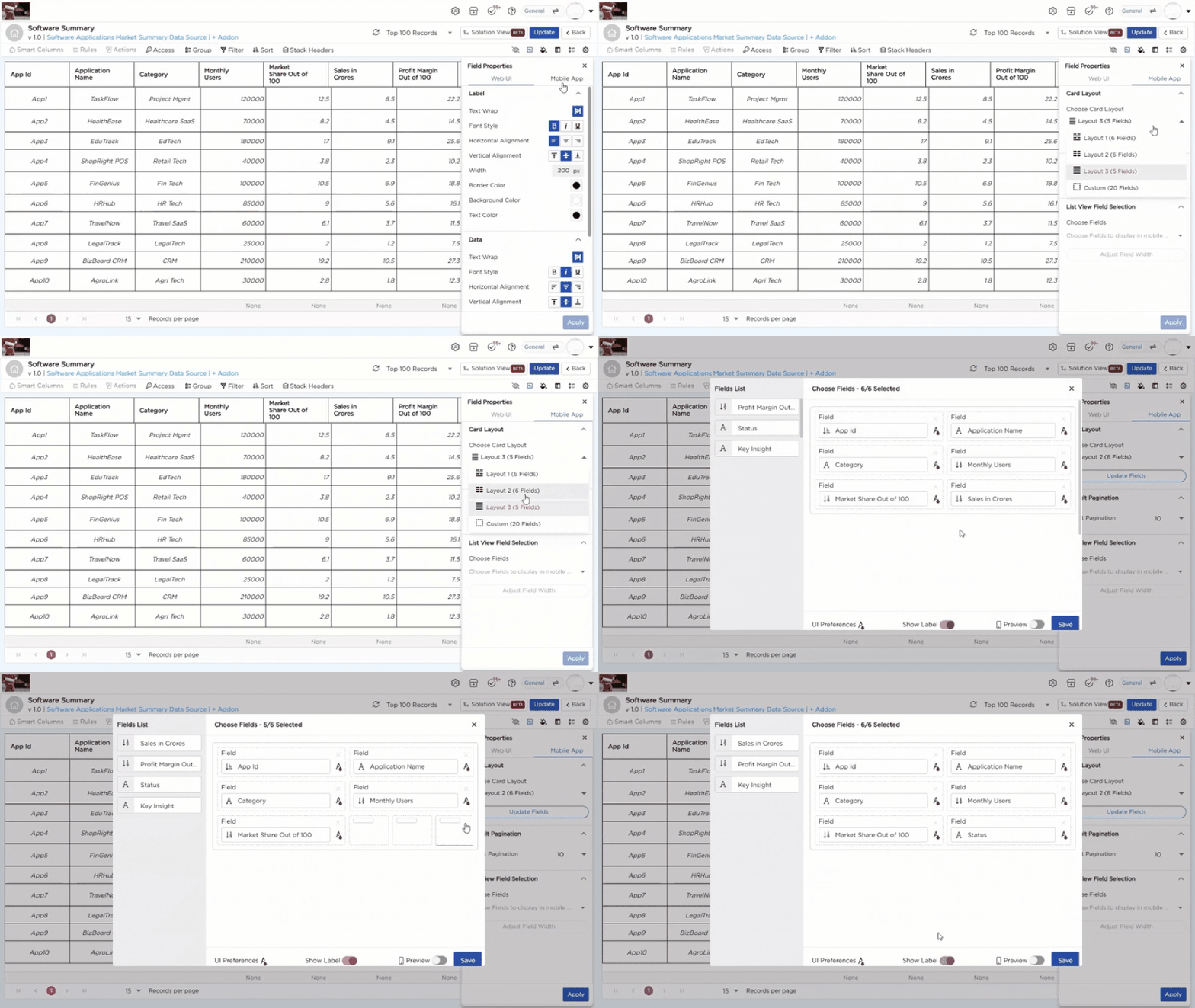
Use Card Layout to customize how records appear in the List View on the mobile app.
¶ 1. Card Layout
Choose how many fields should appear on each card and how they are arranged.
| Option | Fields | Description |
|---|---|---|
| Layout 1 | 6 | Fixed layout. You can replace fields. Order and size stay fixed. |
| Layout 2 | 6 | Fixed layout. You can replace fields. Order and size stay fixed. |
| Layout 3 | 5 | Fixed layout. You can replace fields. Order and size stay fixed. |
| Custom Layout | Up to 20 | Flexible layouts. You can add, remove, reorder, and resize fields. |
After selecting a layout, click Update Fields to open the customization panel and adjust the overall appearance and behavior of the card.
¶ 2. Entire Card Layout Customization
Use these settings to control the overall look and behavior of the card. These changes apply to all fields in the card.
| Property | Description |
|---|---|
| Font Size | Set small, medium, or large font size. |
| Text Wrap | Wrap text within the container. |
| Font Style | Apply bold, italic, or underline. |
| Horizontal Alignment | Align text left, center, or right. |
| Text Color | Set text color for labels and data. |
| Background Color | Set a background color for the card. |
| Background Image | Add an image as the card background. |
| Show Label Toggle | Show or hide field labels. |
| Preview Toggle | Preview the card layout on a mobile device. |
After customizing the overall card layout, you may want to highlight or style specific fields differently. This is where selected field customization is used.
¶ 3. Selected Field Customization
Use this section to style individual fields separately. You can change how a specific field’s label and data appear.
| Label Properties | |
|---|---|
| Property | Description |
| Font Size | Set small, medium, or large font size. |
| Text Wrap | Wrap label text within the container. |
| Font Style | Apply bold, italic, or underline. |
| Horizontal Alignment | Align label text left, center, or right. |
| Text Color | Set label text color. |
| Show Label Toggle | Show or hide the label. |
| Data Properties | |
|---|---|
| Property | Description |
| Font Size | Set small, medium, or large font size. |
| Text Wrap | Wrap data text within the container. |
| Font Style | Apply bold, italic, or underline. |
| Horizontal Alignment | Align data text left, center, or right. |
| Text Color | Set data text color. |
¶ 4. Default Pagination
Set how many records appear per page in the mobile list view. Select a value from the dropdown.
¶ 5. List View Field Selection
Use this section to choose which fields appear on the card and adjust their width.
| Option | Description |
|---|---|
| Choose Fields | Select fields to display in the card. |
| Adjust Field Width | Set column width in pixels. |