¶ 1. Initiating creation of a Kanban
To create a fully functional Kanban, few prerequisites must be met and shall be created, before the creation of Kanban.
Let’s go through these requirements with a use case
Use Case - Customer Support Tickets
Let’s consider a Customer Support Ticket use case, where the Kanban view is used to track tickets. In this case, the tickets are divided into different stages, like Open, In Progress, Resolved, Hold, and Closed, which represent the progression of the support tickets.
¶ 1.1. Pre-requisite 1: Create Data Tables
1. Start by creating tables that holds customer issue details, either by importing an Excel file or building it from scratch.
2. Based on the use case, include the following columns in table 1:
- Ticket ID: Unique identifier for each ticket.
- Description: Description of the issue.
- Issue Type: Type of the issue (e.g., bug, feedback, feature request).
- Due By: Due date of the ticket.
- Requester: Name of the requester who submitted the ticket.
- Status: Current status (Open, In Progress, Resolved, etc.)
3. Include the following columns in table 2:
- Status: Current status (Open, In Progress, Resolved, etc.)
- Color: Hex code defines the colors of the Kanban column headers.
4. Set Ticket ID as the primary key in table 1 and Status as the primary key in table 2 and click Save.
5. After saving the tables, CRUD functions will be created, which are helped to establish a connection between the tables and service.
¶ 1.2. Pre-requisite 2: Create a Data Source
The data source serves as the foundation for your Kanban view.
- Navigate to Admin Menu → Database → Data Source.
- Click on "Create a Data Source".
- From the available options, select "Basic".
- A pop-up will appear, prompting you to choose data tables. Select Table 1 and Table 2.
- Select the required elements from Table 1 and Table 2.
- Use Left Joins to establish a connection between Table 1 and Table 2.
- Assign a unique name to the data source and click Save.
¶ 1.3. Pre-requisite 3: Create a Service
Services are essential for ensuring that any updates made on the Kanban board are reflected and saved in the data table.
- Navigate to Admin Menu → Apps → Create a Service.
- Create a service and add the necessary elements, linking them to the corresponding elements (using update function) of the data table created earlier. Learn more about services and how to create one…
¶ 1.4. Pre-requisite 4: Add-ons
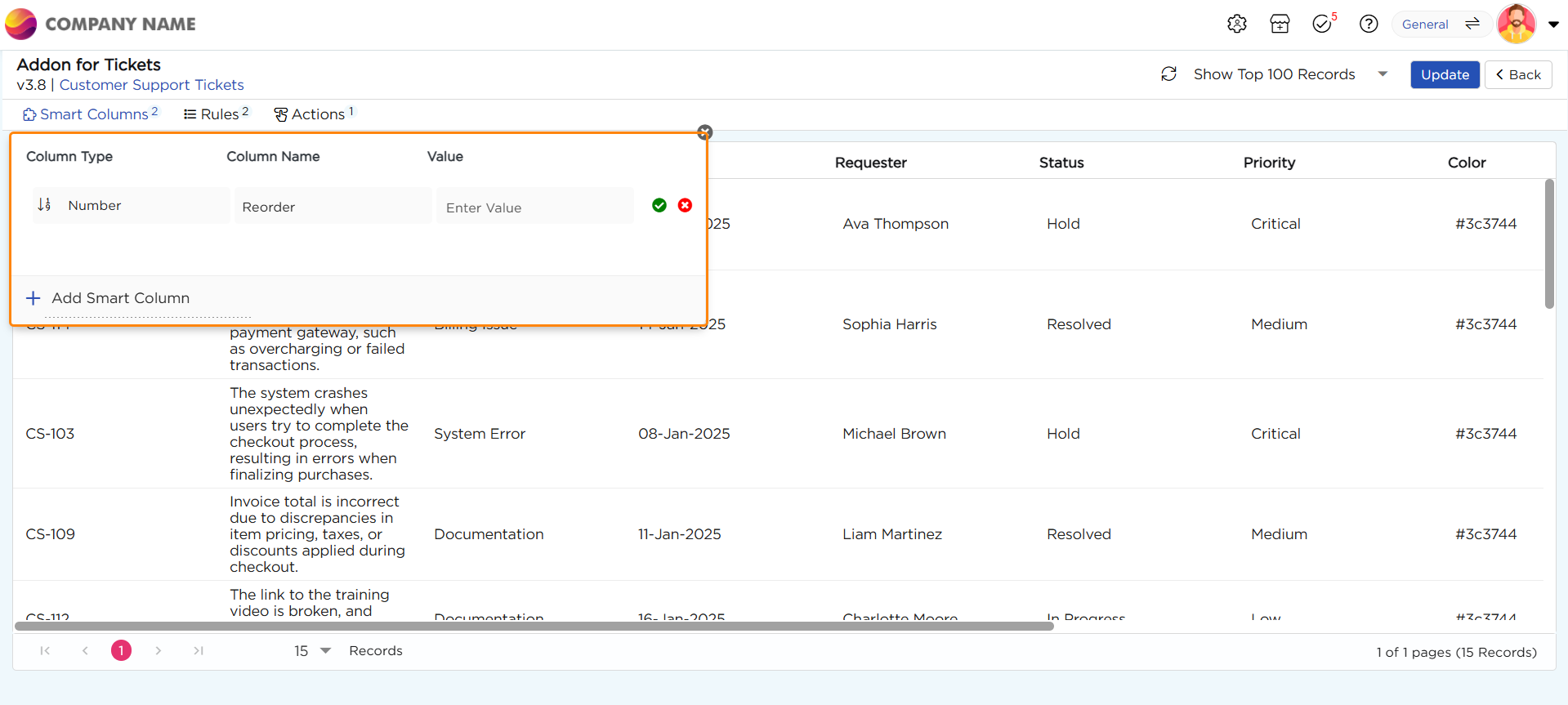
- An add-on acts as a plugin that extends the functionality of a View by providing additional columns, actions and rules to define behavior of actions and columns. Later in this article, you will learn how Add-ons can benefit a Kanban View. Know and learn more about Add-ons and how to create it….
- Create a smart column named "Priority" and assign it a default static value of "Low." While smart columns typically hold constant values, you can modify their data dynamically using rules.
3. Now, define a rule based on the Issue Type:
- If the Issue Type is Bug, set the Priority to High.
- If the Issue Type is Feedback, set the Priority to Medium.
- If the Issue Type is Feature Request, keep the Priority as Low.
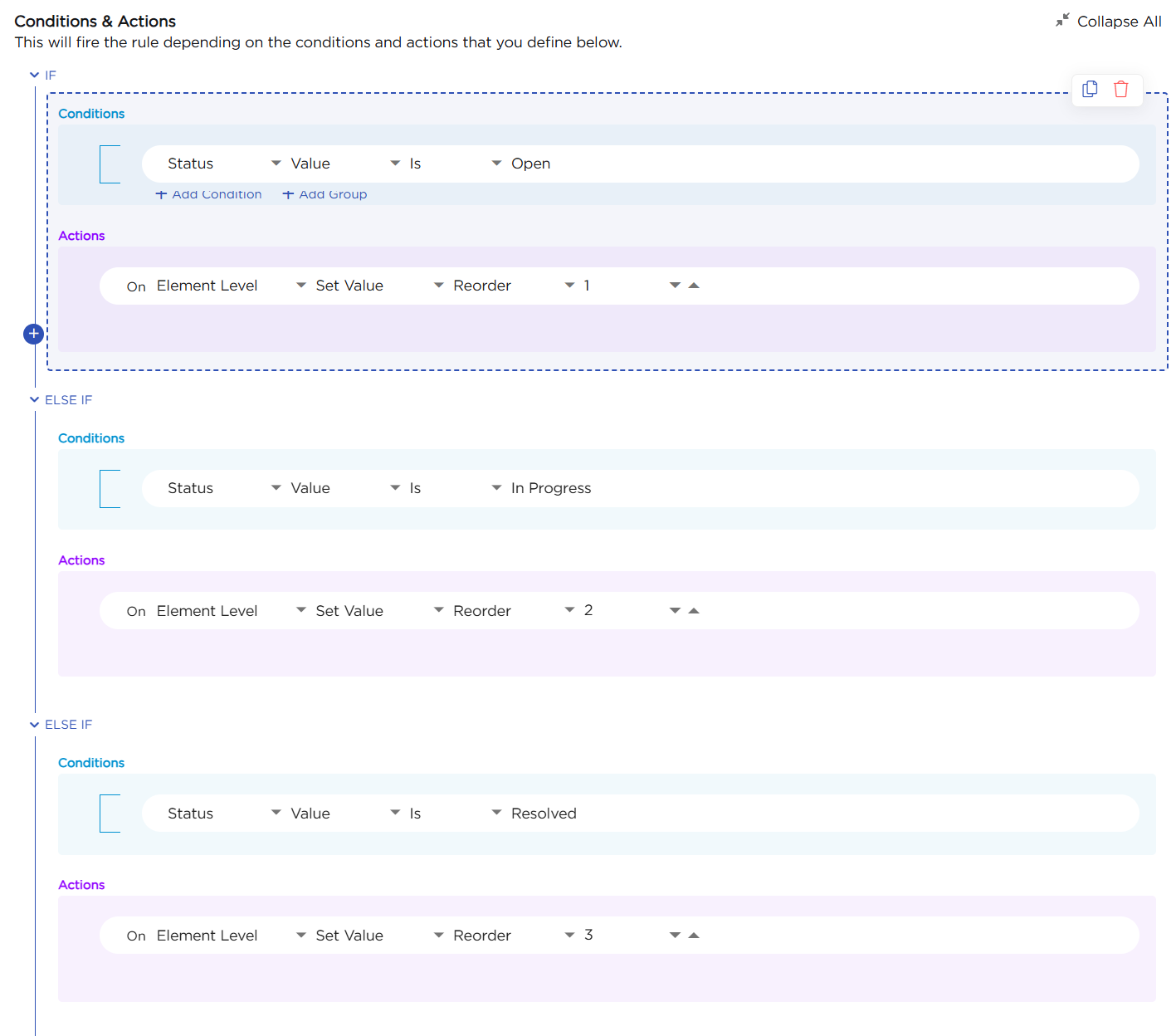
4. This approach ensures that the Priority value adapts automatically based on the type of issue while maintaining the flexibility of smart columns.