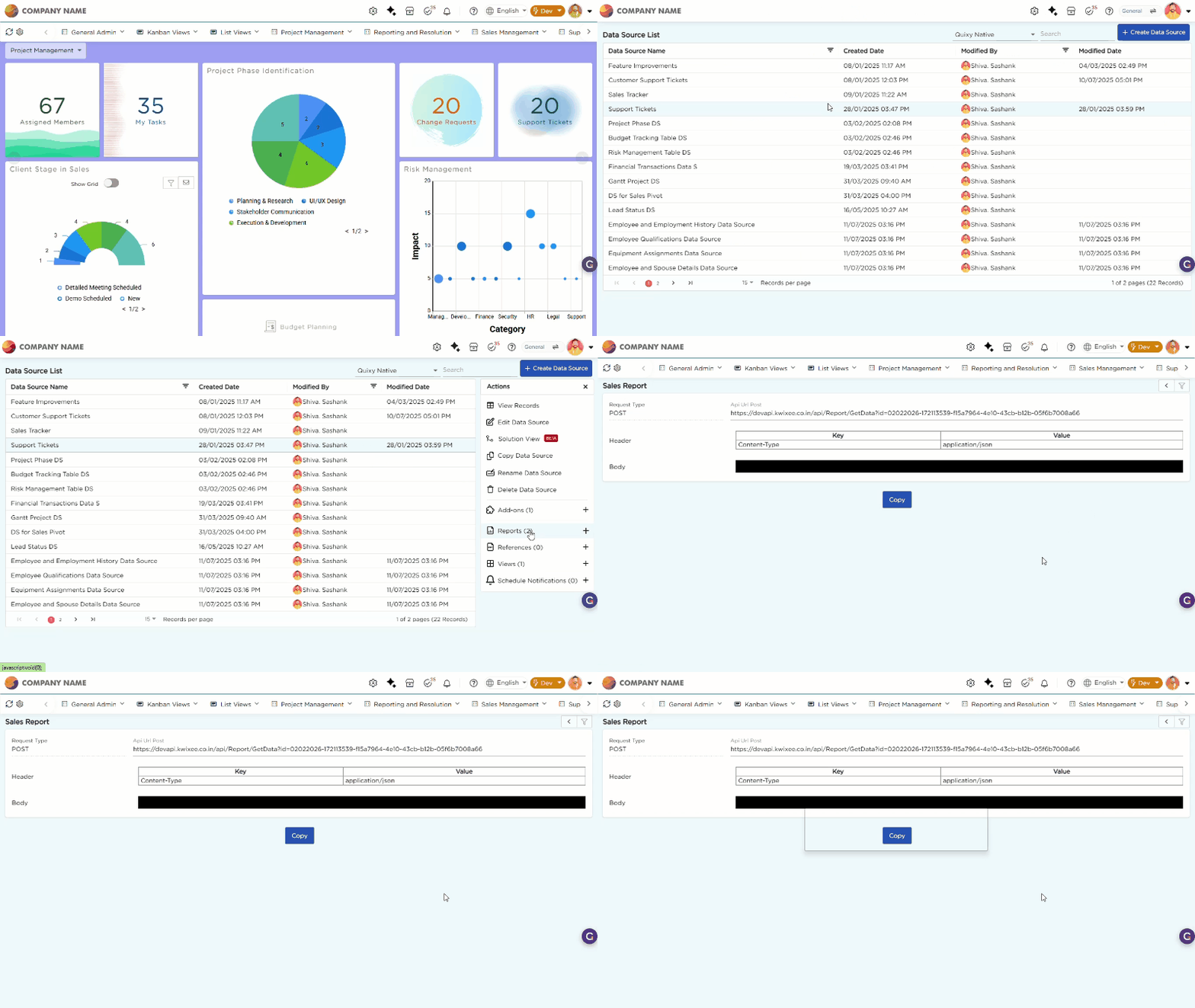
An API Report in Quixy allows third-party platforms to access filtered and structured data from a data source in a controlled way. Instead of sharing entire datasets, you define filters, select specific fields, and apply role-based access so only approved data is available externally.
API Reports suit integrations, analytics synchronization, and downstream automation.
¶ 1. Security & Access Requirements
To use an API Report:
- The third-party platform authenticates using a Bearer Token.
- The user configuring the API Report must have Integration Access within Quixy.
- Only data explicitly defined in the report configuration will be available via the API endpoint.
¶ 2. How to Create an API Report?
There are two methods to create an API Report in Quixy:
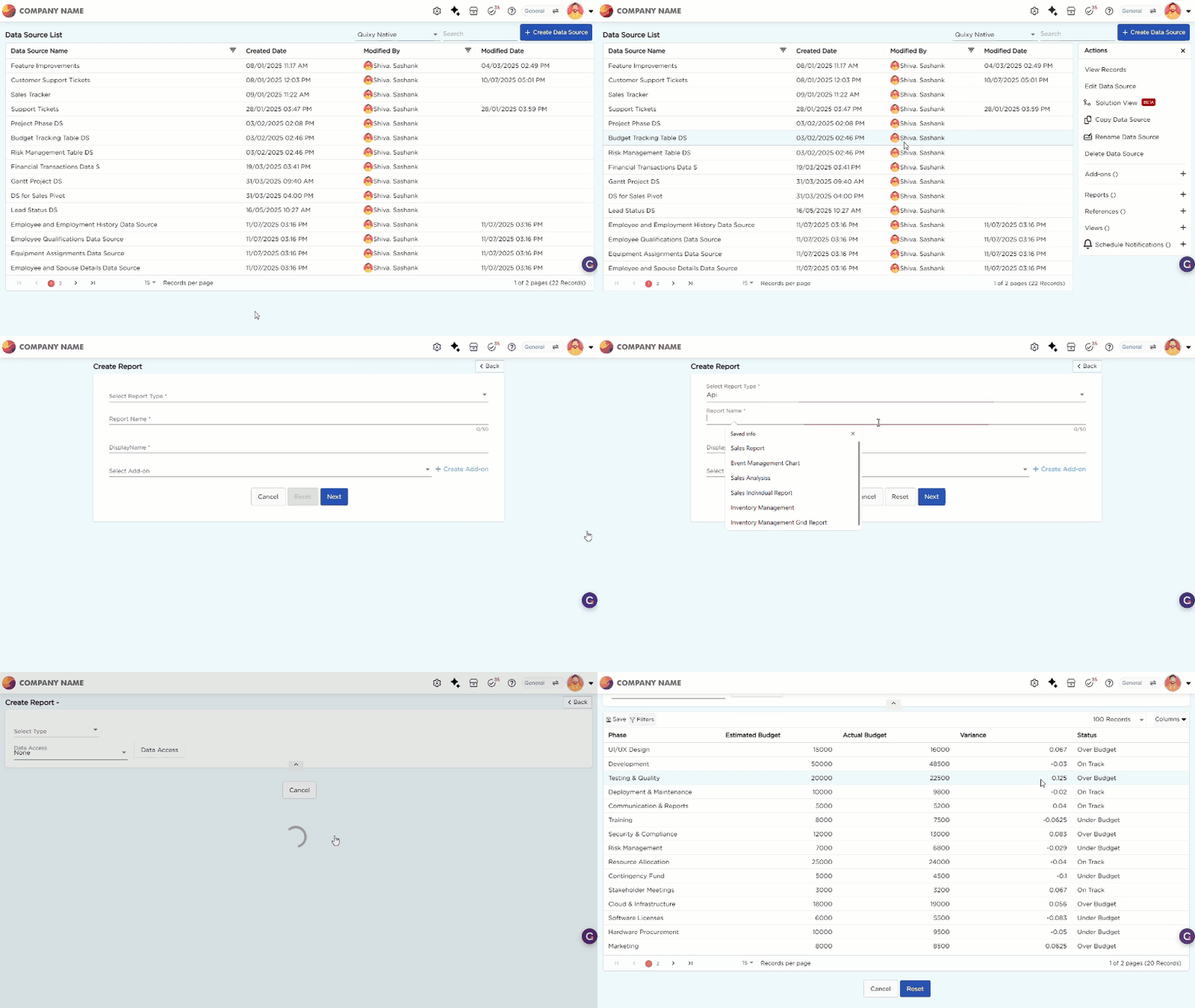
¶ 2.1. From the Data Source List Page
- From the Data Source List Page, select the required data source from which you want to expose data.
- Click the selected data source to open the Actions panel on the right.
- Click the "+" icon corresponding to the Reports option in the Actions panel to start creating a new view.
- Choose Report Type as API Report.
- Enter the Name and Display Name, then click Next to proceed to the configuration interface.
¶ 2.2. From the Admin Menu
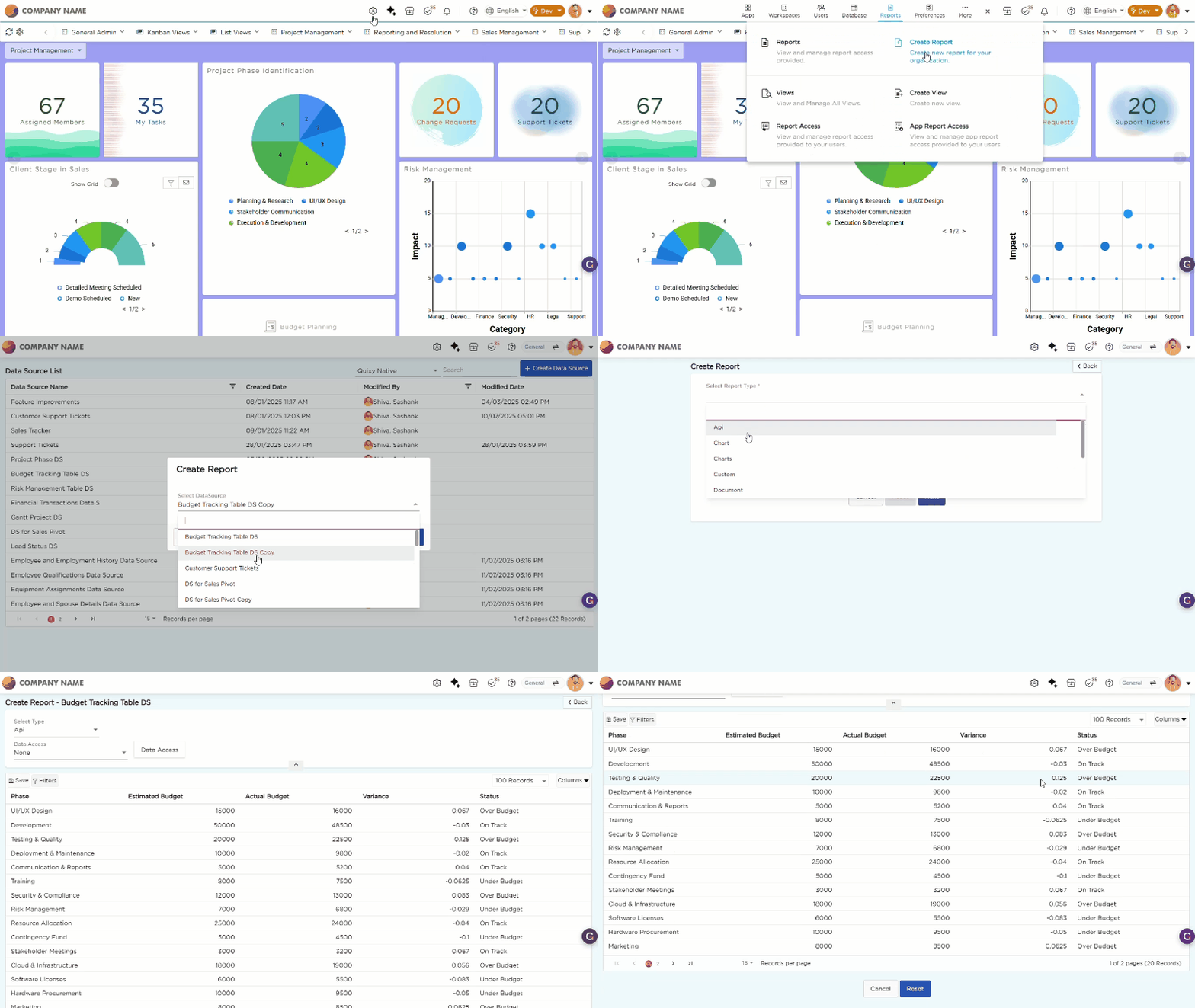
- Go to Admin Menu → Reports → Create Report.
- The platform opens a Create Report dialog box.
- Select a data source from the dropdown.
- Enter the Name and Display Name, then click Next to proceed to the configuration interface.
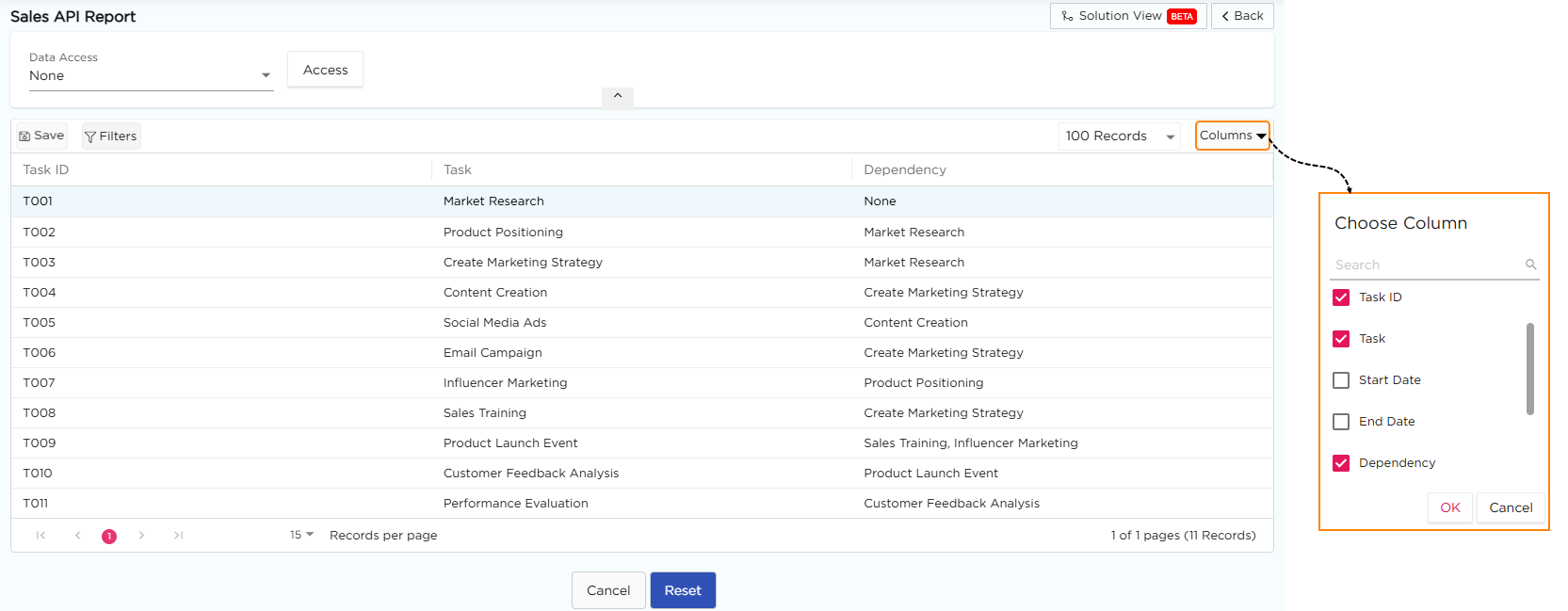
Once inside the API Report configuration screen, you’ll define:
- Which records to include
- Which fields to expose
- Who has access to what
| Configuration Tool | Description |
|---|---|
| Filters (Left Panel) | Apply filters based on task status, user input, date range, or other business conditions. This reduces the data volume exposed through the API. |
| Columns (Right Panel) | Show or hide specific columns to control which data fields are included in the API response payload. |
| Data Access (Top Bar) | Define field-level visibility rules based on user roles, conditions, or access control logic. Useful for restricting sensitive fields from public exposure. |
Best Practice
Always review the filter and field configuration to ensure only the intended data is shared externally.
After configuration is complete:
- Click Save.
- Your API Report will now be listed under the Reports section for the associated data source.
¶ 3. How to View an API Report
To access and manage your API Report post-creation:
- Go to the Data Source List Page and select the data source for which the API Report was created.
- On the right-side Actions panel, click on Reports.
- You’ll be redirected to the Reports Page, showing a list of all associated reports.
- Locate the API Report under the Report Type column.
- Click the View (👁) icon to open and review configuration details, API URLs, authentication credentials, and data structure.