To enable Google Drive for document storage in Quixy, configuration must be completed at two different levels. Each level serves a specific purpose:
To use Google Drive for document storage in Quixy, configure the integration at the organization level and then associate it with applications as required.
¶ 1. Configuring Google Drive in Two Levels
Google Drive configuration consists of two levels:
¶ 1.1. Level 1 – Platform Configuration
- Navigate to Admin Menu → Preferences→ Integrations
- In the Integrations page, select Document Repository from the list of available integrations.
- Click Add.
- In the Select Document Repository drop down, select Google Drive.
- Enter a unique name for the repository in the Enter Repository Name field.
- Under Authentication Details, select OAuth 2 ClientId from the Select Authentication Type drop-down.
- Copy the Authorized redirect URL displayed in Quixy and add it to the corresponding authorized redirect URI configuration in Google Cloud.
- Enter the Client Id and Client Secret Key provided by Google Cloud.
- Click Give Consent to authorize the Google Drive connection.
- Click Save.
¶ 1.2. Level 2 – App Configuration
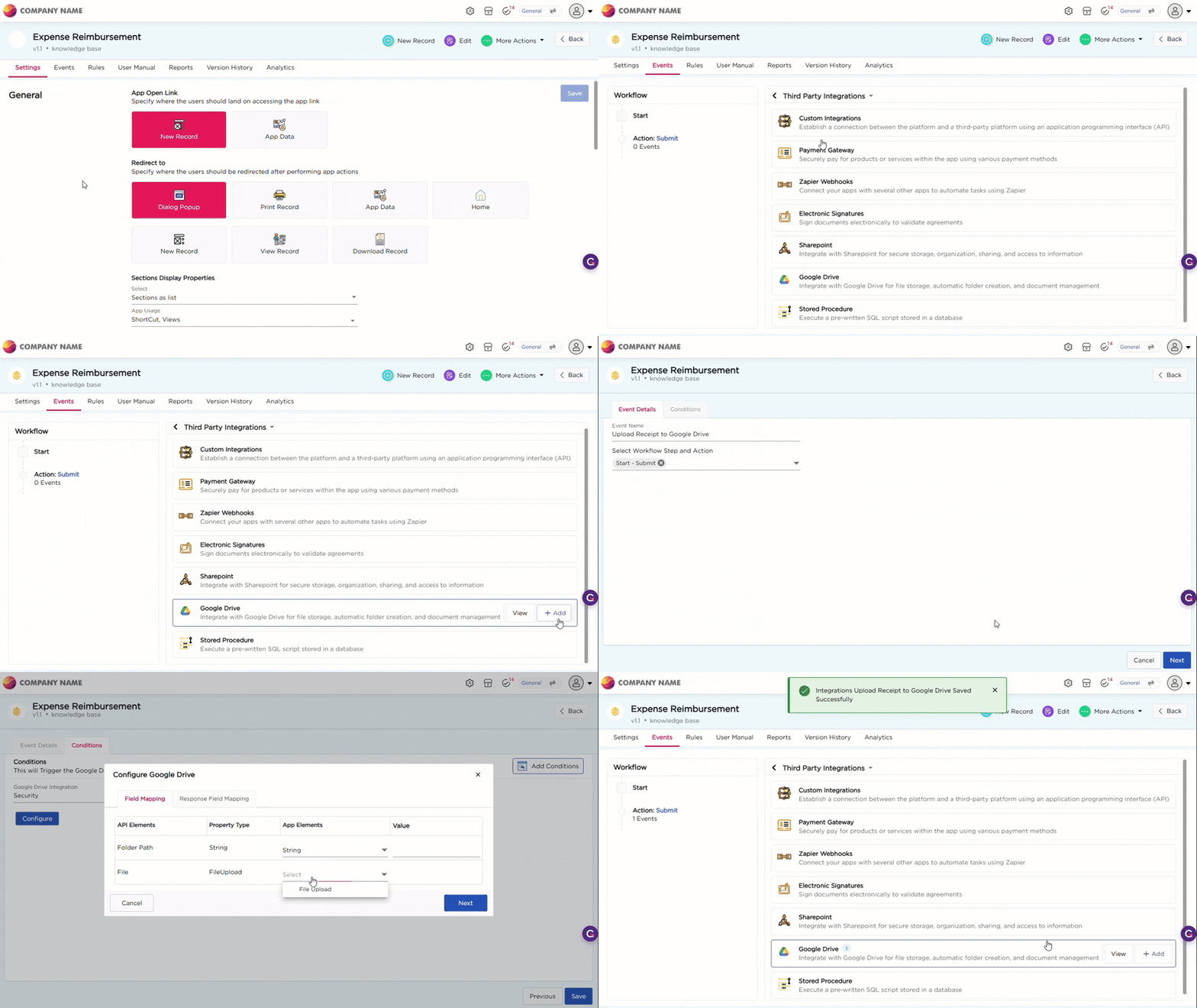
- Navigate to Admin Menu → Apps → Manage Apps.
- Select an application.
- Click on Events → Third-Party Integrations → Google Drive.
- Select + Add.
- Provide a name for the Event.
- Select the Workflow Step and Action where the Google Drive integration should trigger.
- Click Next to go to the Conditions tab.
- In the Conditions tab, select the Google Drive Integration from the drop-down.
- Click Configure. This opens the Configure Google Drive pop-up.
- In the Field Mapping tab, map the following API elements to the corresponding application elements:
- Folder Path
- File
- Click Next to go to the Response Field Mapping tab.
- Configure the response field mapping for the response returned by Google Drive.
- Click Save.
This completes the application-level configuration for Google Drive.