¶ 1. Prerequisites
Before you configure a job, make sure you have:
- A data table in Quixy with fields that match the data you want to import.
- The API URL from the external system, and whether the API expects GET or POST.
- The authentication details the API requires, such as a username and password, a token, or a client secret.
- A sample of the API response in JSON. You paste it into the Json Object field, and Quixy uses its keys to build the mapping.
¶ 2. Open the Sync Data page
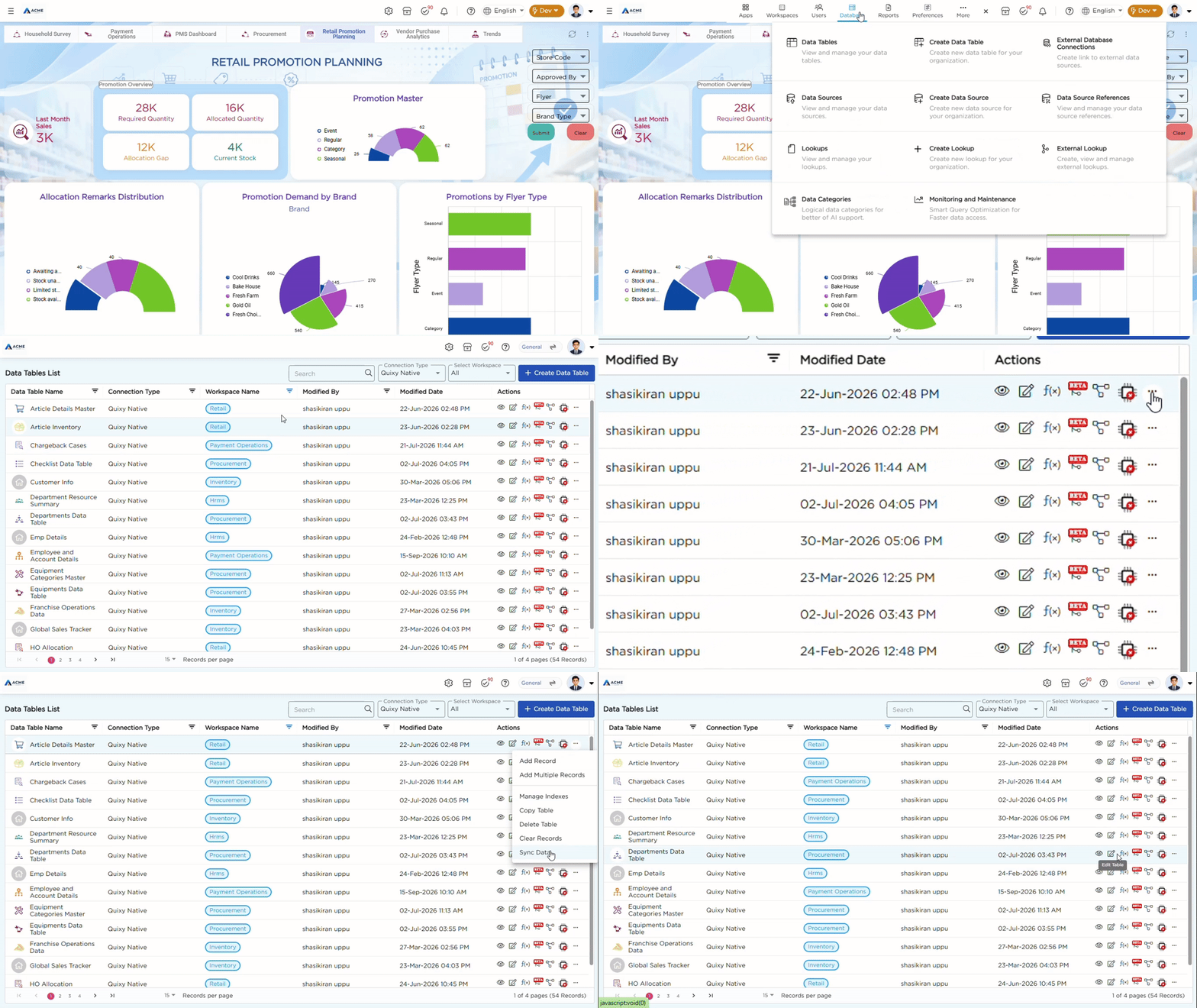
- Go to Admin Menu → Database → Data Tables.
- From the list of data tables, select the required data table to create a sync.
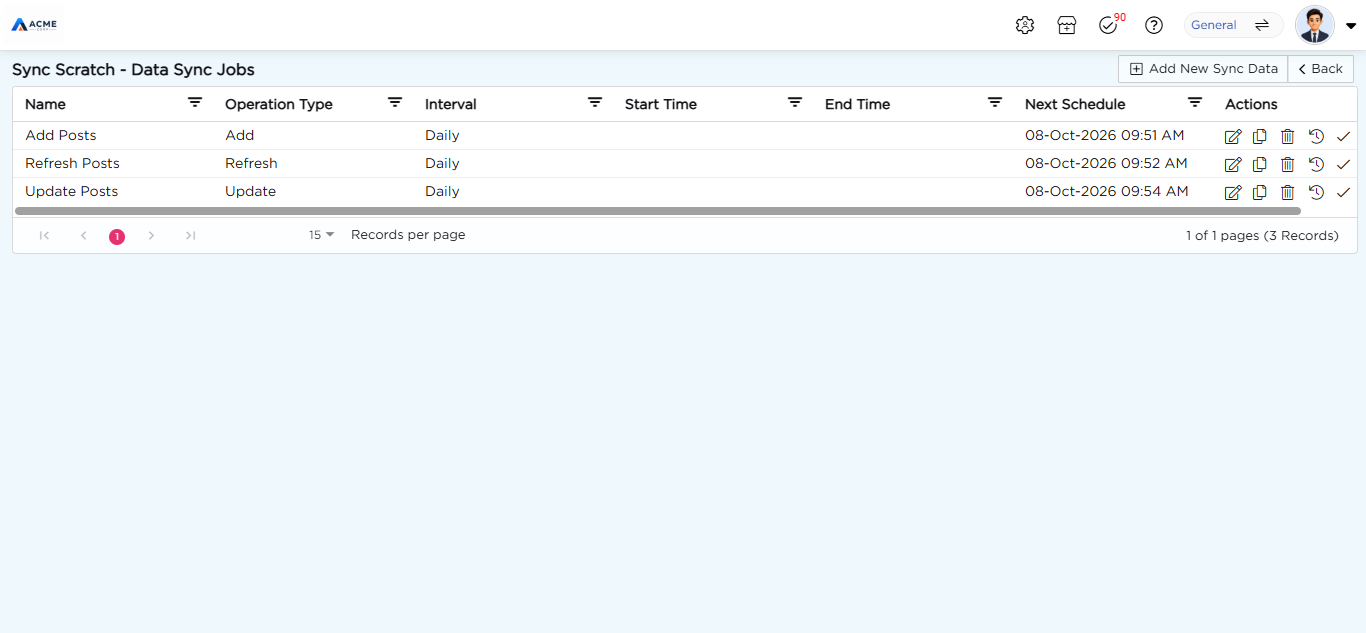
- Open the three-dot menu for the selected data table and click Sync Data. The Data Sync Jobs page opens and lists the table’s jobs by Name, Operation Type, Interval, Start Time, End Time, and Next Schedule.
- Click Add New Sync Data.
¶ 3. Fill in the job details
Fields marked with * are required.
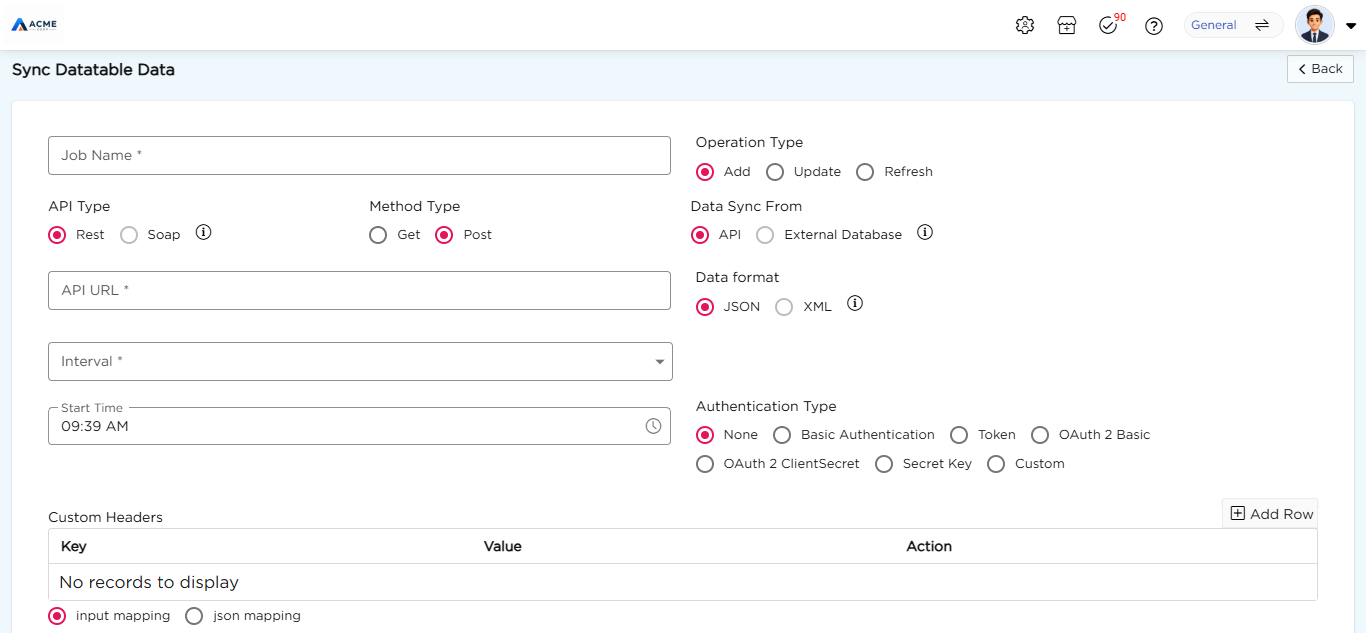
The following example shows a completed form for a daily import.
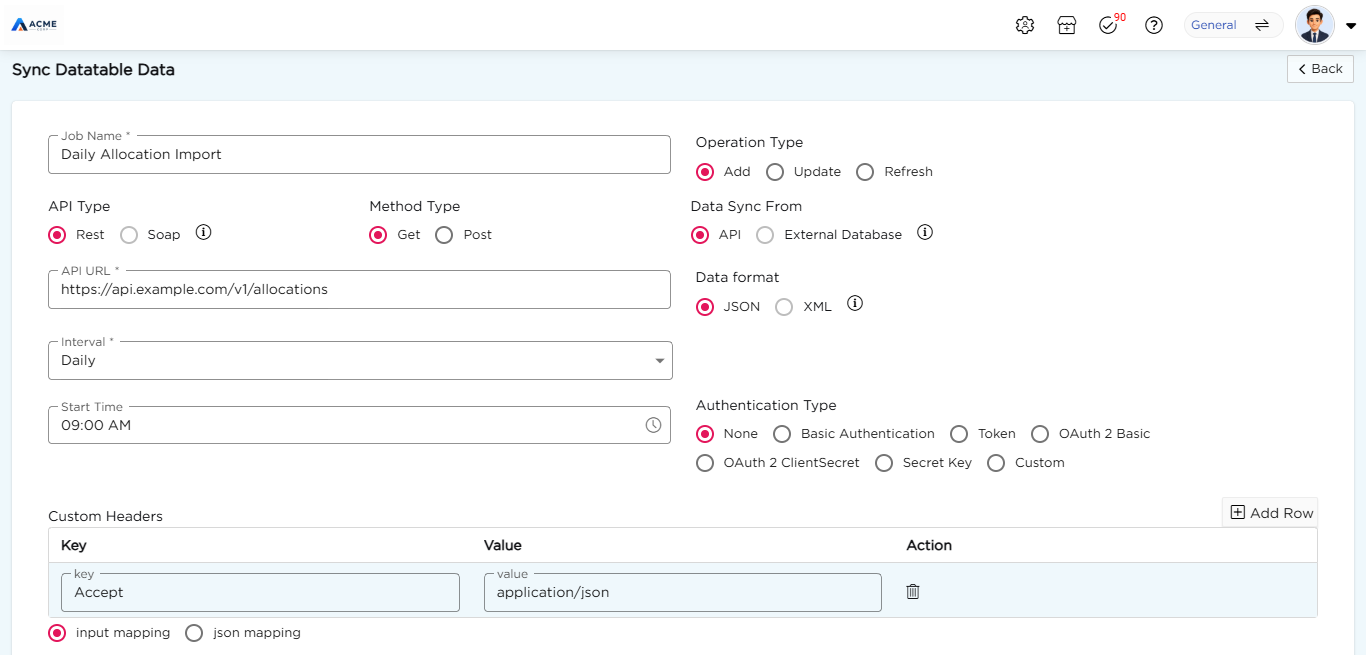
| Field Name | Description |
|---|---|
| Job Name * | Enter a unique name for the job. |
| Operation Type |
Choose how the fetched records are written to the table:
|
| API Type | Choose Rest. Support for Soap is coming soon. |
| Method Type | Choose Get or Post, to match what the API expects. |
| Data Sync From | Choose API. Support for External Database is coming soon. |
| API URL * | Enter the API URL from the external system. |
| Data format | Choose JSON. Support for XML is coming soon. |
| Interval * | Choose how often the job runs: Daily, Weekly, or Monthly. |
| Start Time | Select the time at which the job starts running. |
| Authentication Type | Choose how the API verifies requests. Each type asks for its own details. See “Authentication types” below. |
| Custom Headers | Click Add Row and enter a Key and Value for each header the API needs. |
| Input Mapping | Click Add Row to define request properties. Each row has a Property Name, Property Type, and Property Value. |
| Json Object * | Paste a sample of the API response in JSON. Quixy reads its keys and offers them as options when you map the data. |
| Type | Choose List when the response is an array of records. |
When the details are complete, click Create Mapping.
¶ 4. Authentication types
Choose None if the API does not require authentication. For the other types, enter the details listed below.
| Authentication type | Details to enter |
|---|---|
| None | No details required. |
| Basic Authentication | UserName, Password |
| Token | Token |
| OAuth 2 Basic | Token Endpoint URL, UserName, Password |
| OAuth 2 ClientSecret | Token Endpoint URL, Client Id, Client Secret, Scope |
| Secret Key | Token Endpoint URL, Client Secret |
| Custom | Token Endpoint URL, Authentication Parameters/Headers |
¶ 5. Create the data mapping
After you click Create Mapping, the mapping tables appear on the same page. They depend on the operation you chose.
¶ Add and Refresh
The Element Mapping table lists every field in the data table with its type. For each field you want to import, select the matching External Element. The options come from the keys in your Json Object.
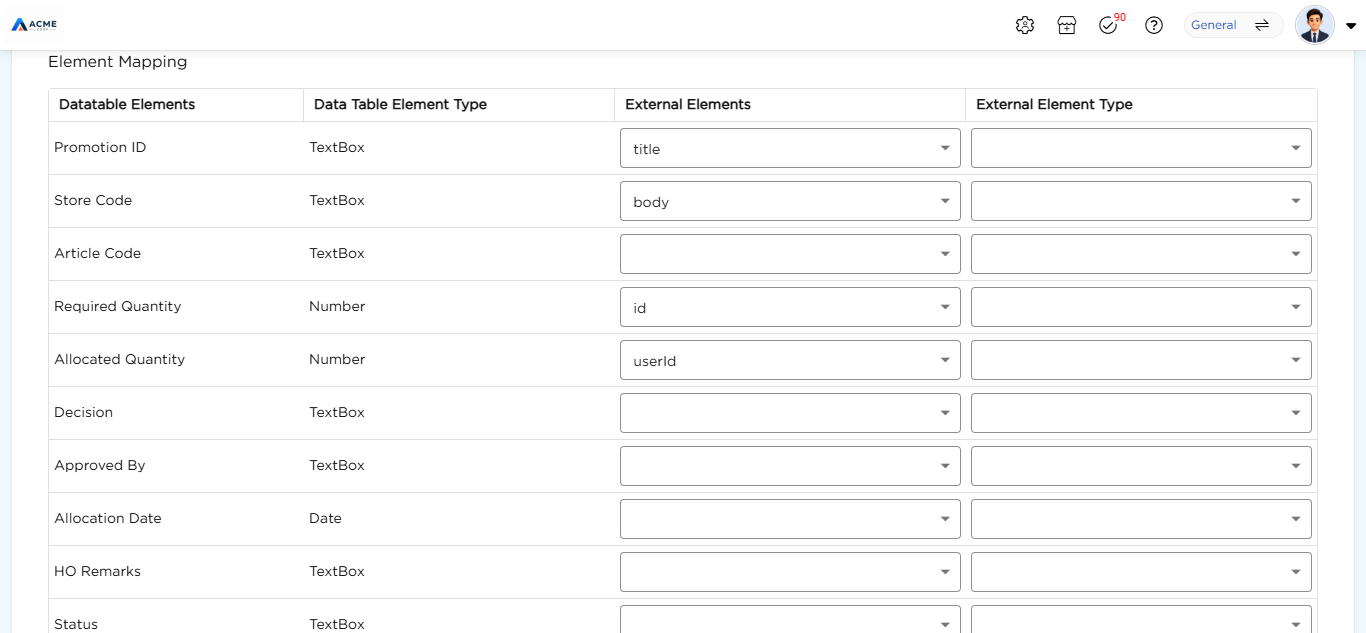
Tip: Map every field you want to import. Mapping each field to the right key keeps values from landing in the wrong column.
¶ Update
Update uses two tables instead of one:
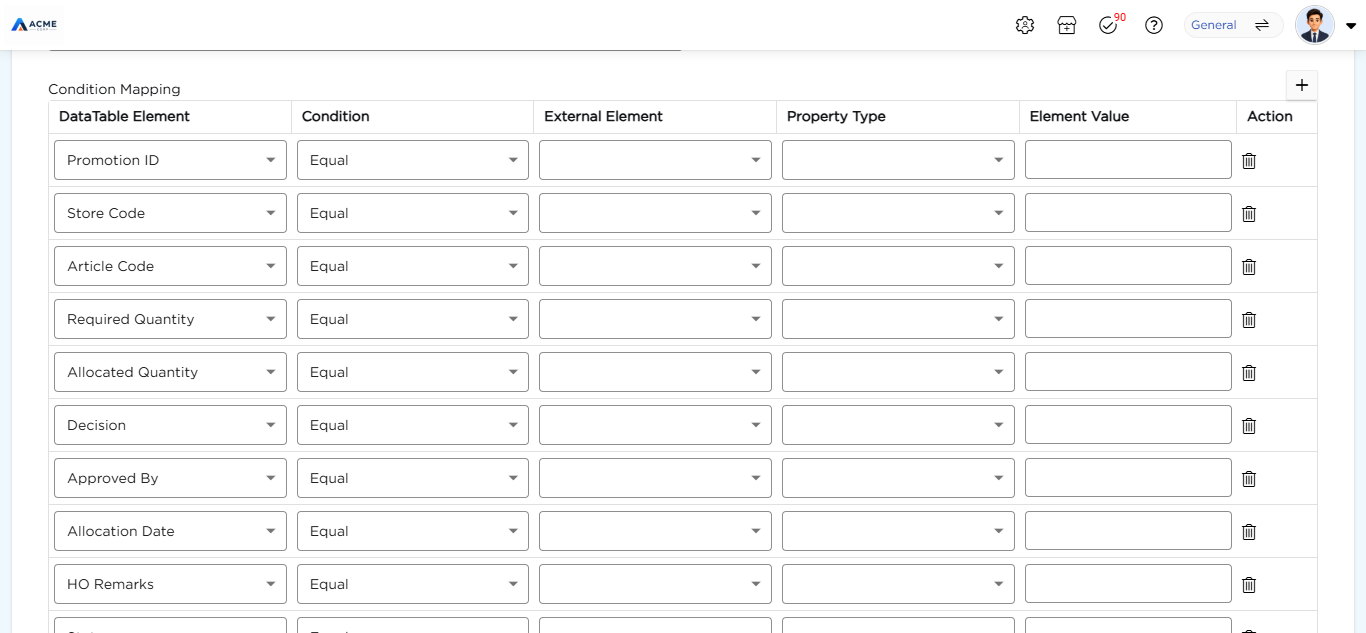
- Condition Mapping: Defines which existing rows to change. For each row, choose the DataTable Element, a Condition (Contains, Equal, Not Contains, or Not Equal), and the value to compare with, from an External Element or an Element Value. Set the Property Type to match the value’s data type.
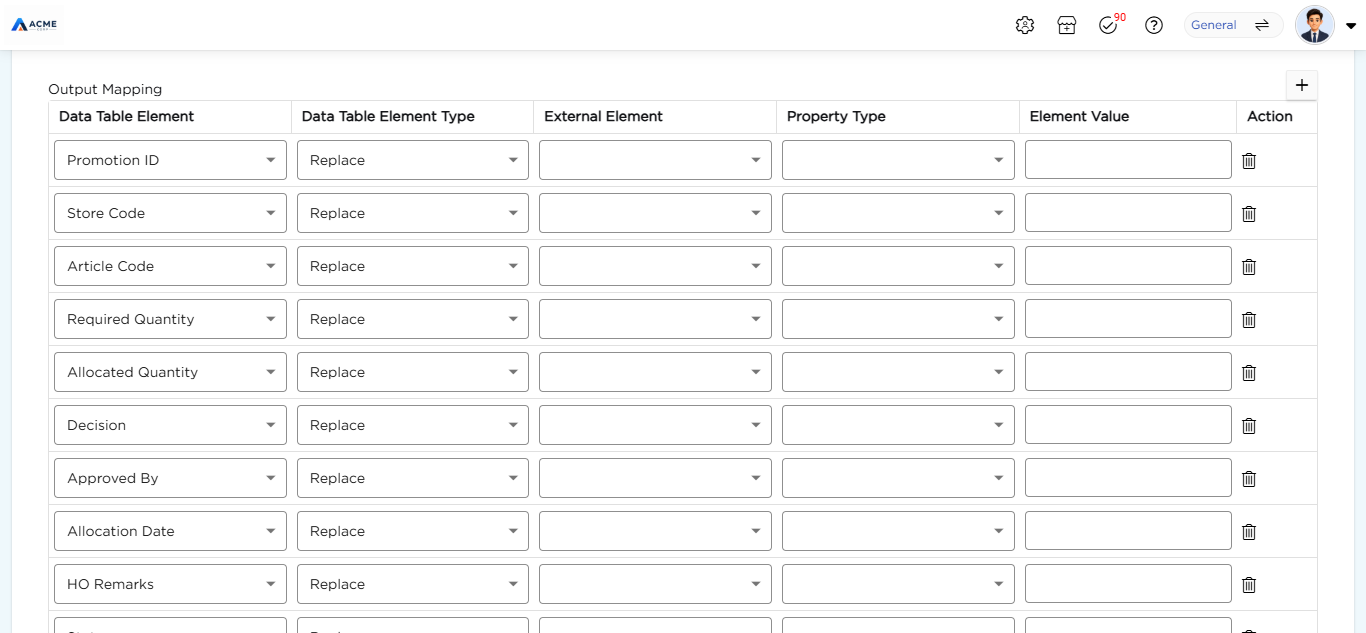
- Output Mapping: Defines what to write into the matching rows. For each row, choose the Data Table Element, the operation (Replace), and the value to write, from an External Element or an Element Value.
¶ 6. Save and run the job
- Click Save. The job appears in the Data Sync Jobs list and runs on the schedule you set.
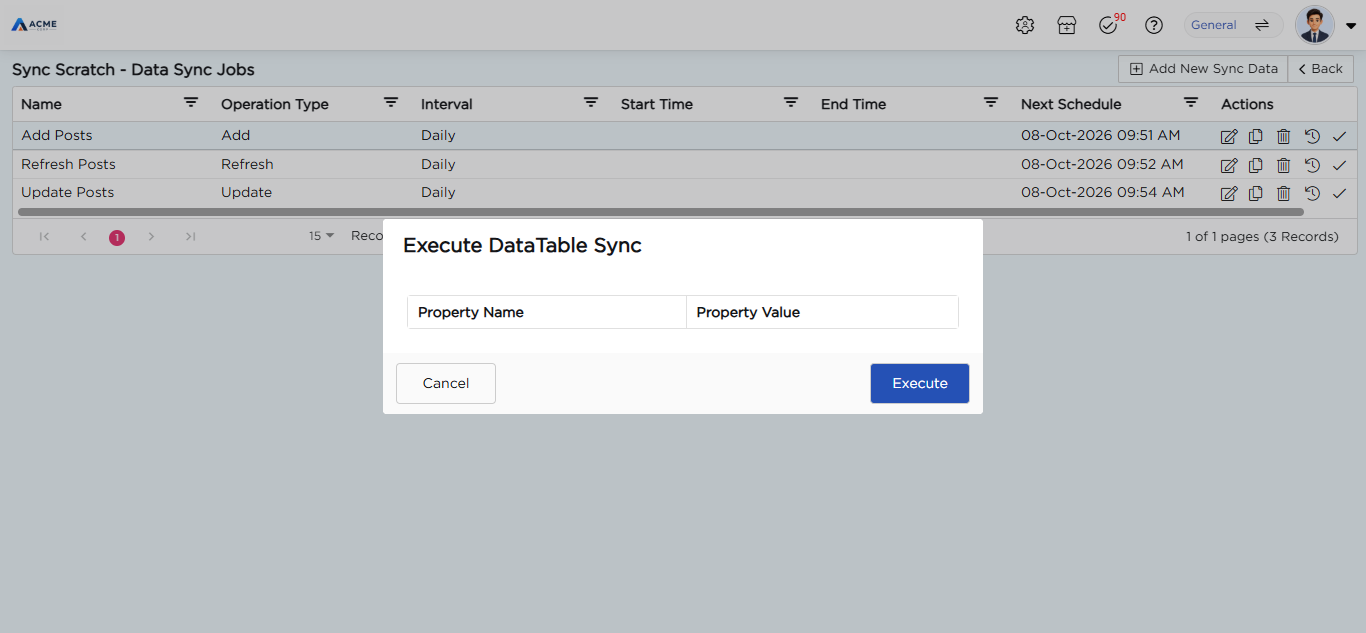
- To run the job immediately, click the Execute Sync (check mark) icon in the Actions column, then click Execute in the dialog. A message confirms that the sync ran.
¶ 7. Check the history
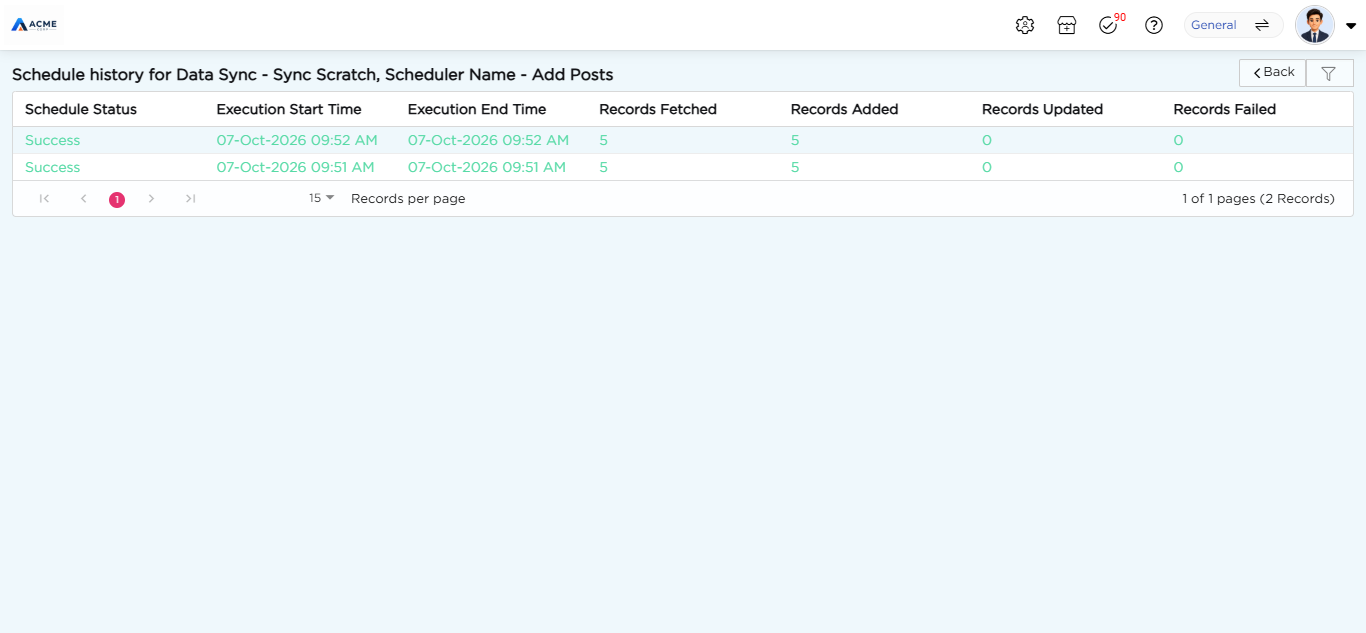
Click the History icon in the Actions column to see every run of the job. Each run shows its Schedule Status, Execution Start Time, Execution End Time, and the number of Records Fetched, Records Added, Records Updated, and Records Failed.
¶ 8. Edit, copy, or delete a job
Use the Edit, Copy, and Delete icons in the Actions column to change, duplicate, or remove a job.
