¶ User Interface Improvements
In this enhancement, we've made significant improvements to the user interface across most of the Quixy platform to give all our users a better and easy experience when using the platform.
¶ 1. Enhanced user notifications for comments
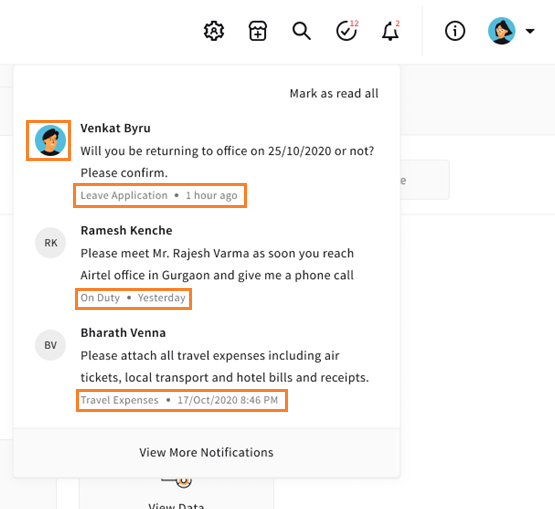
From now on, in User Notifications section, users will be able see a profile picture of the person who mentions them in a comment, name of the person who comments, the timeline of the comment, in which app they commented on, and what is the comment.
¶ 2. Enhanced Registration and Login Screens
¶ 2.1. Login Screen
BEFORE
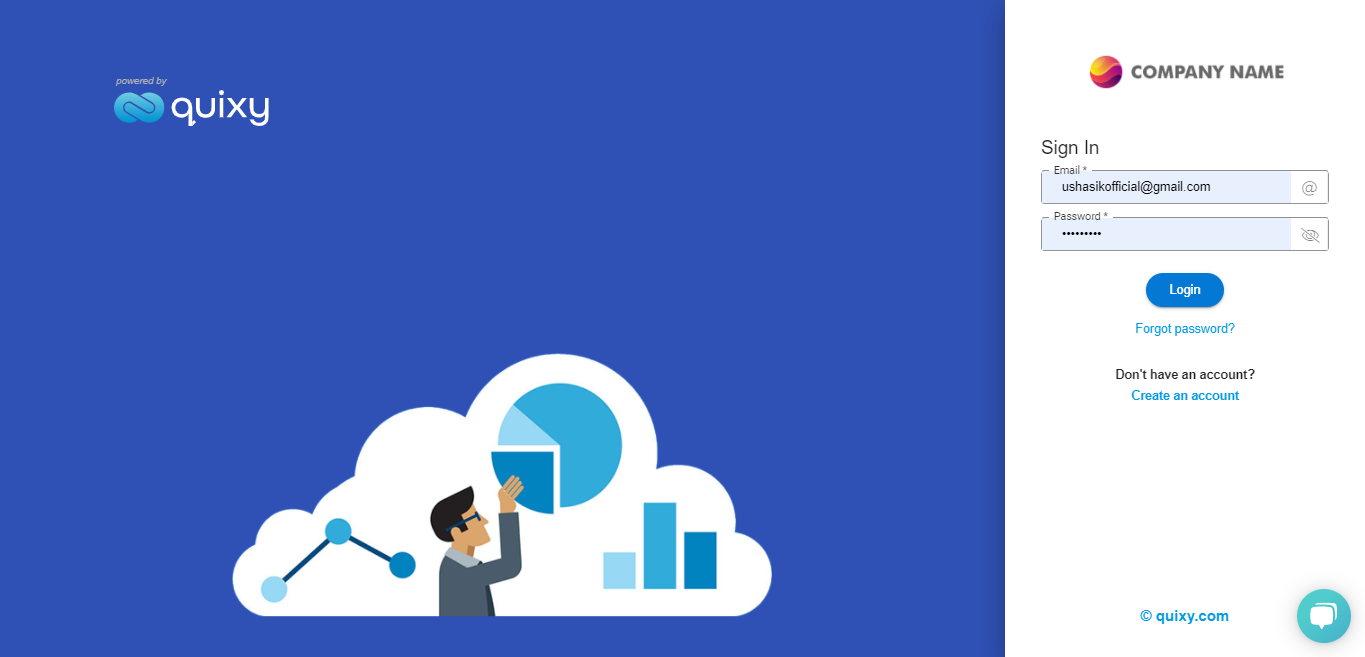
AFTER
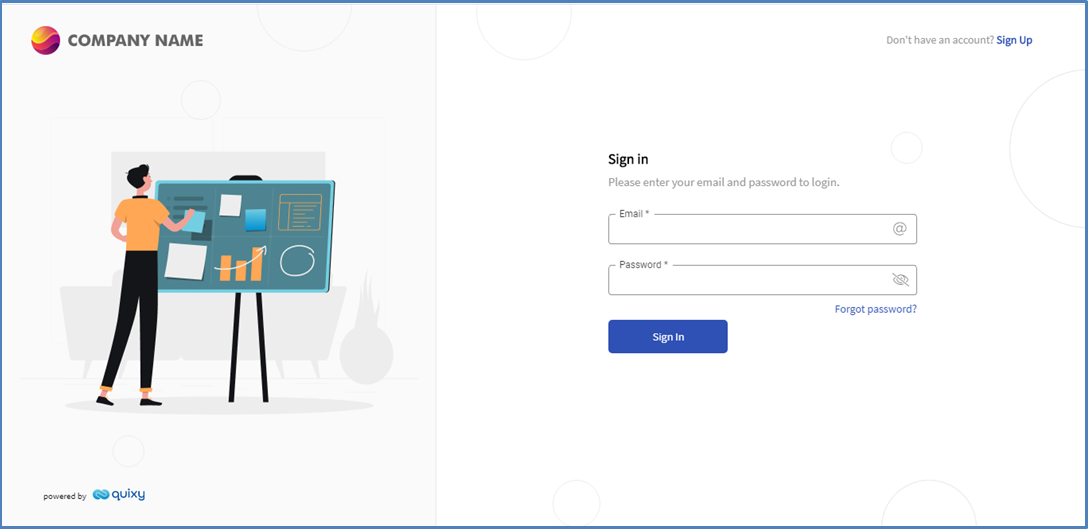
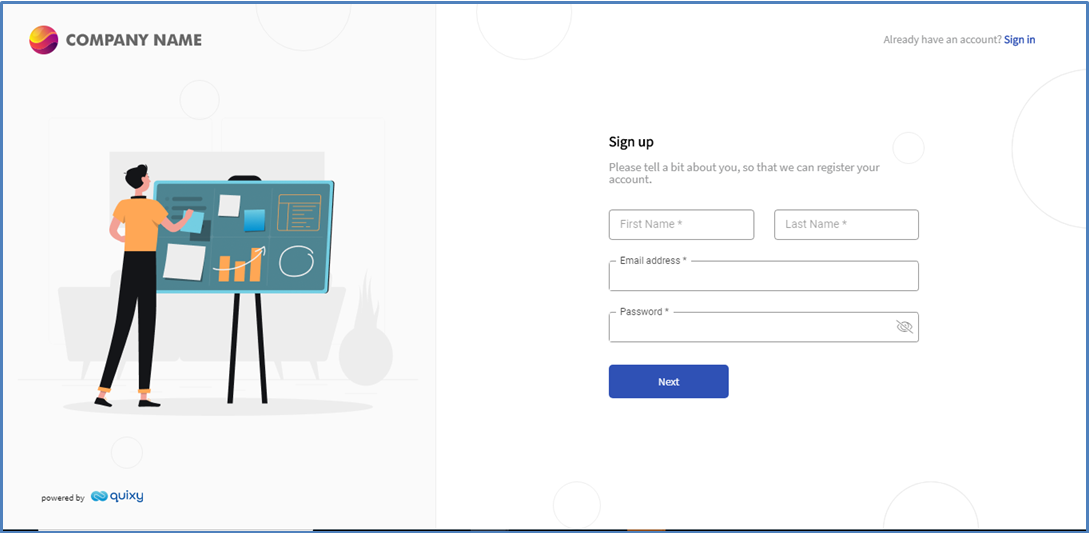
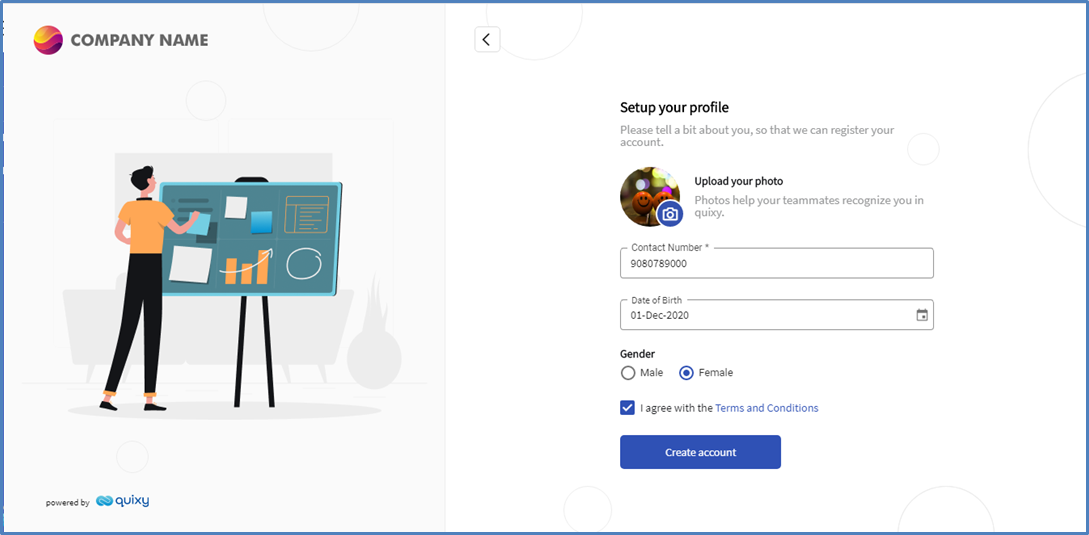
¶ 2.2. User Registration Screen
BEFORE
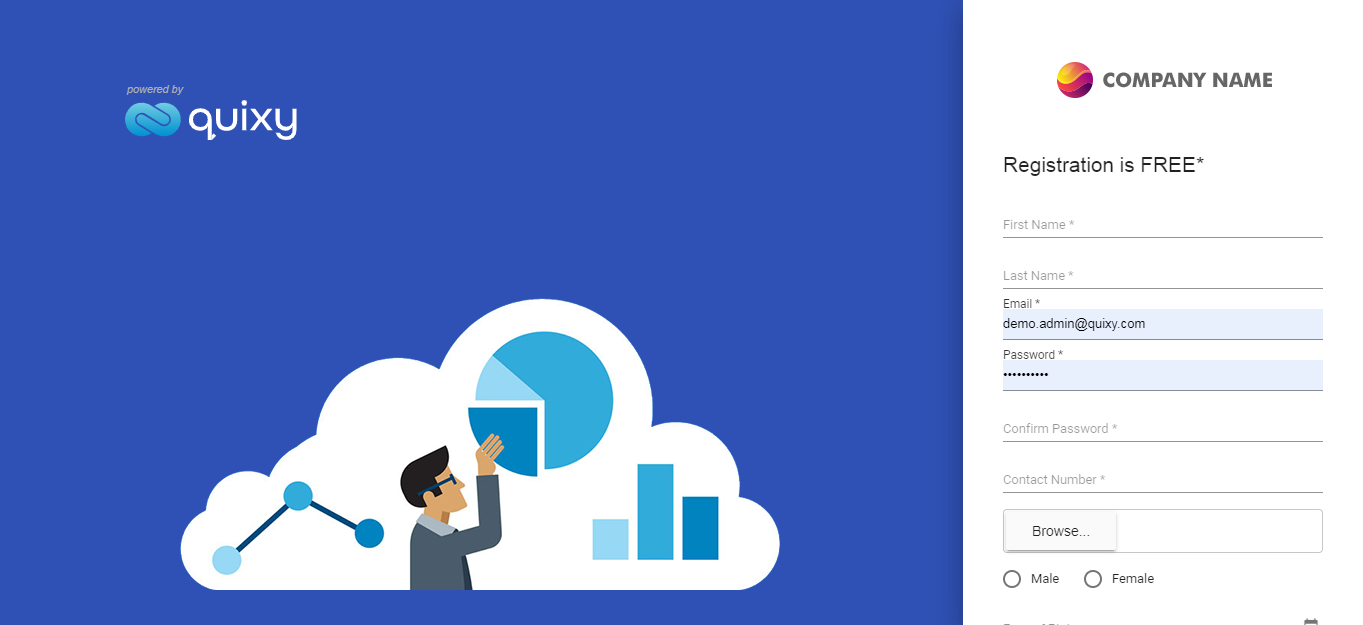
AFTER
¶ 3. Enhancement in Header Menu Icons
BEFORE

AFTER

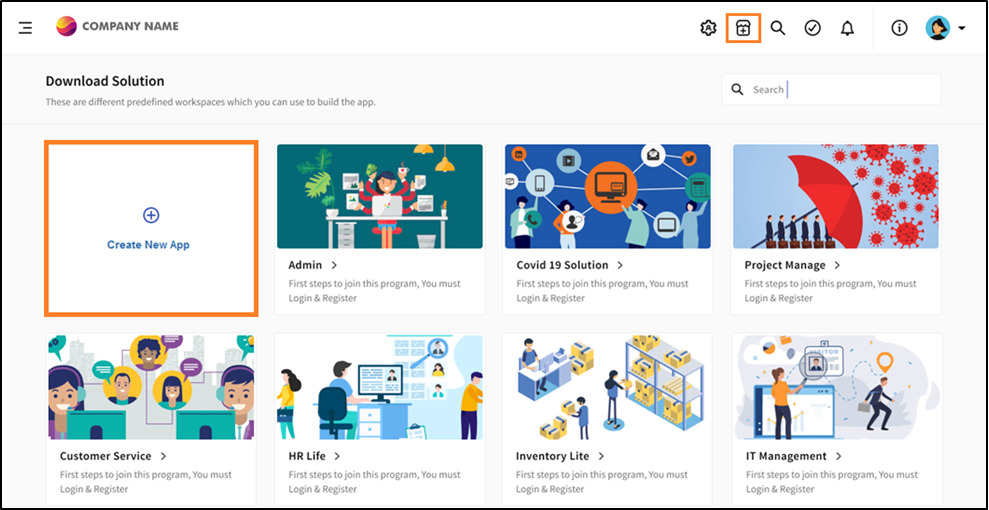
¶ 4. Enhanced experience for Create App and App Store
From now on, under App Store menu icon, users will see the Create New App option along with the Download Solution. With this now users either can download solution or create new app from scratch.
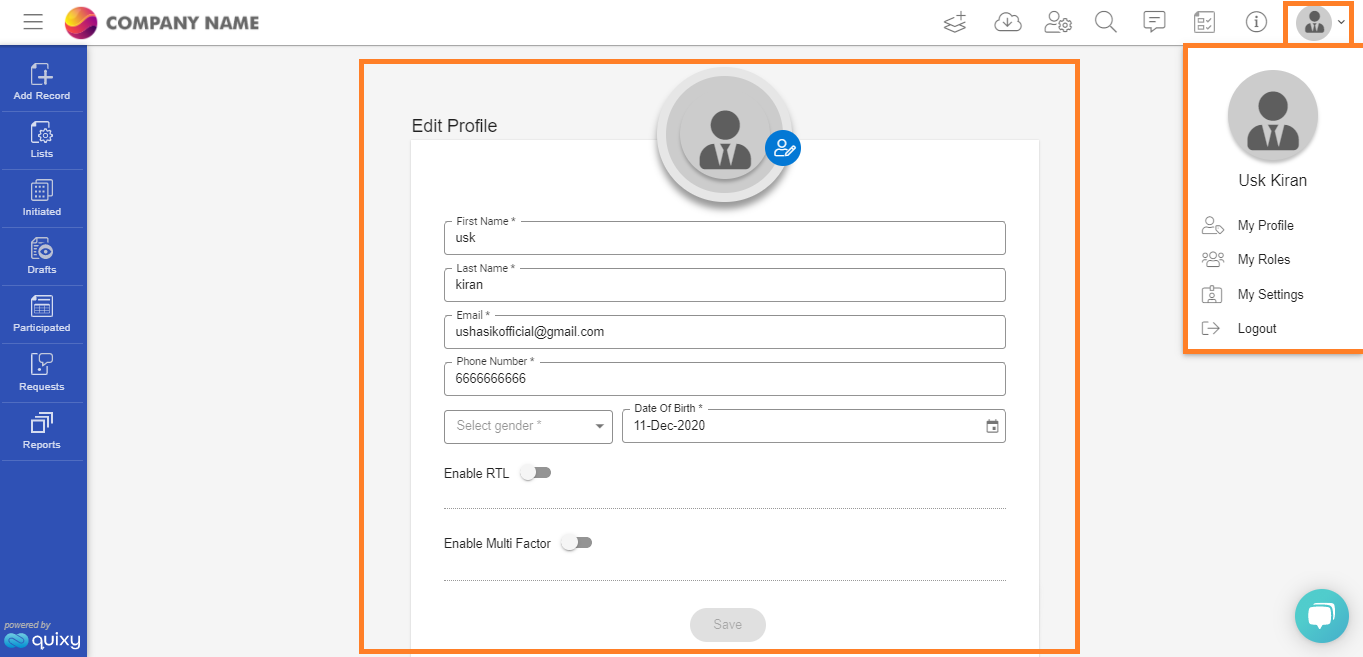
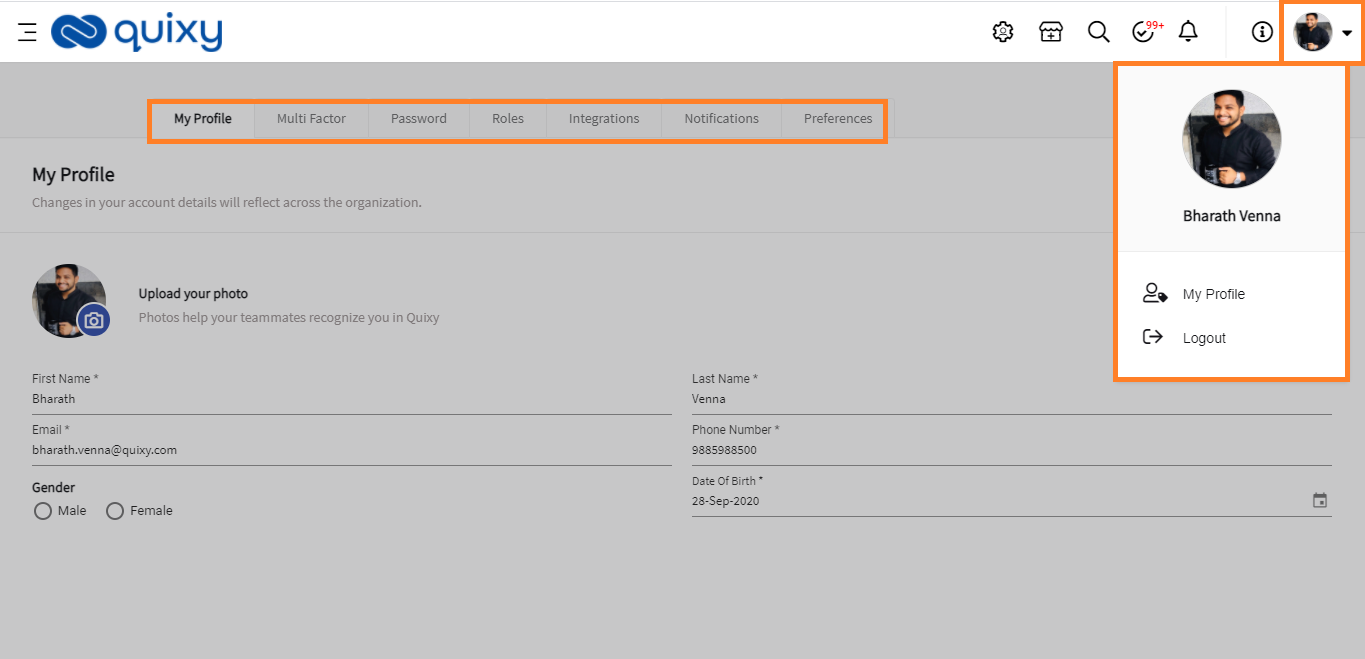
¶ 5. Enhancement in User Profile
BEFORE
AFTER
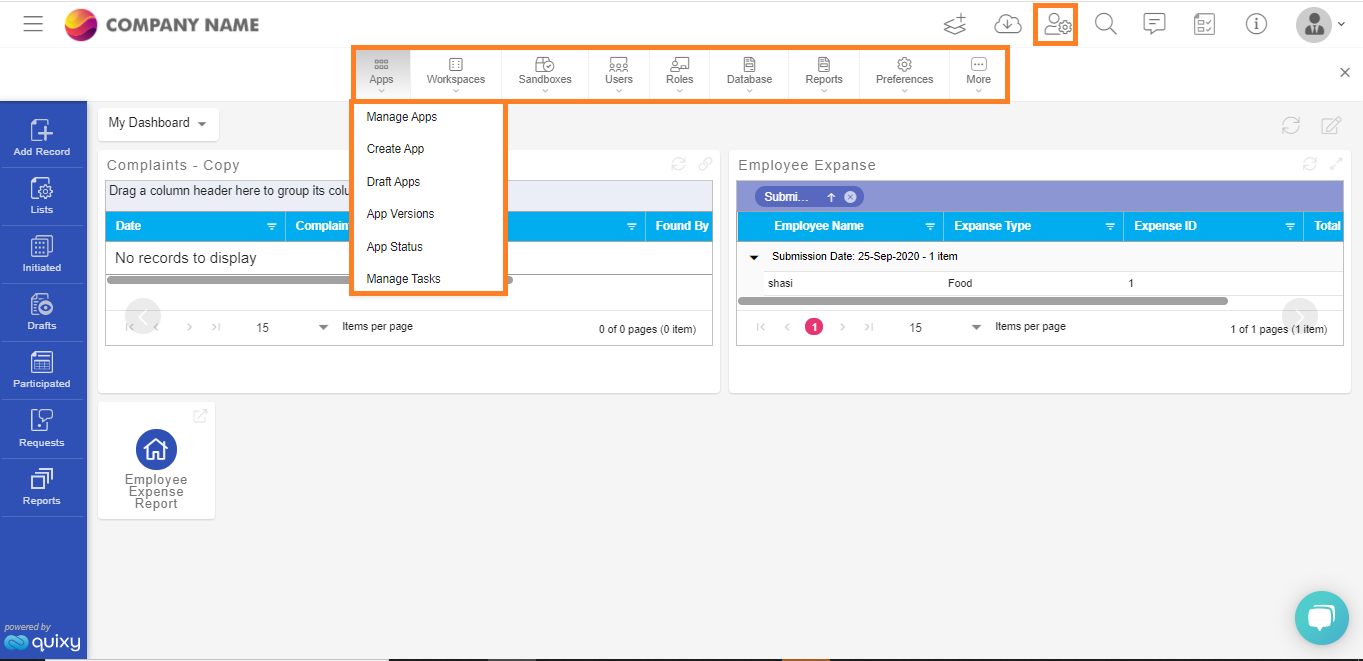
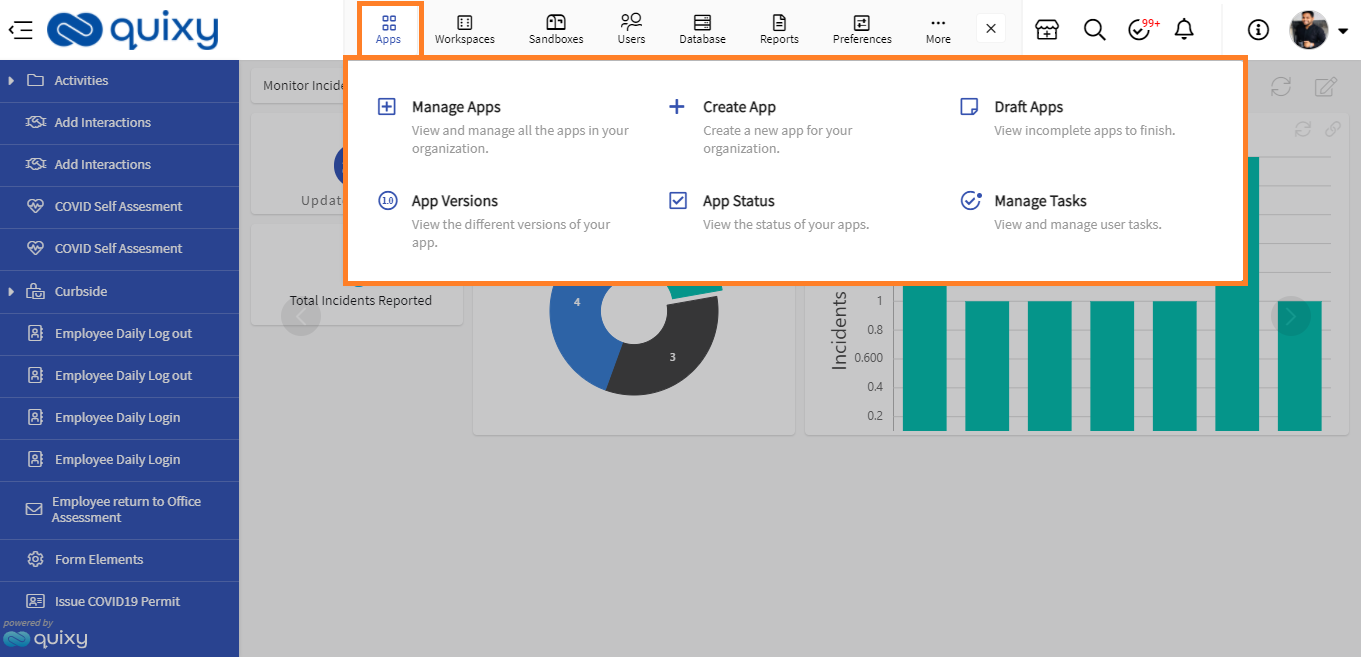
¶ 6. Enhancement in Admin Menu
BEFORE
AFTER
¶ 7. Improvements in Web Application
¶ 7.1. Enhancement in Text Wrapping
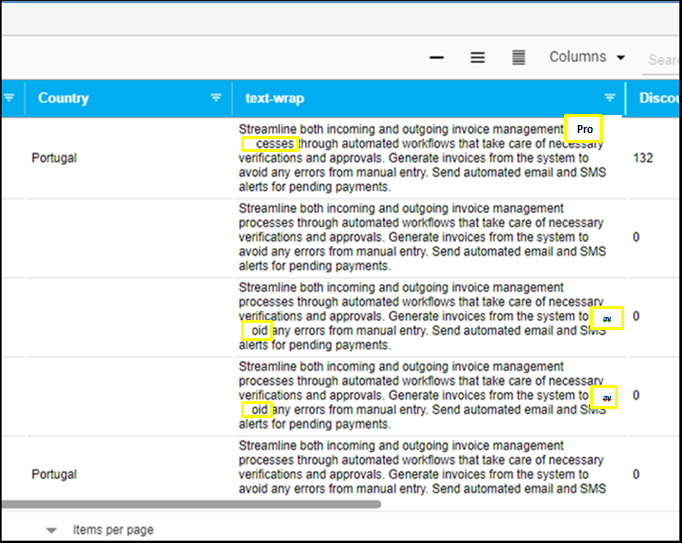
BEFORE
Text wrapping used to break the words.
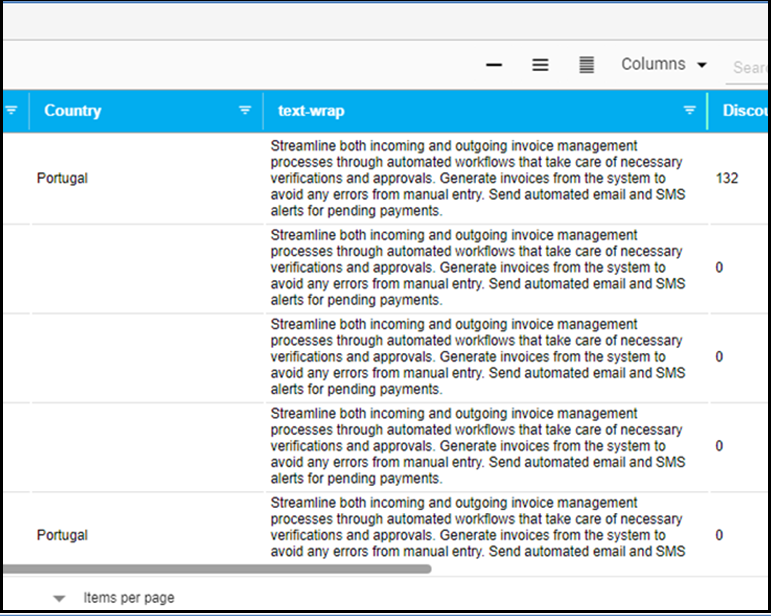
AFTER
Text wrapping will wrap the whole word.
¶ 7.2. Performance Improvements
Application deployment (publish app) process time is reduced to half. With this improvement now app-builder can publish apps in less time.
Redesigned Email Notifications
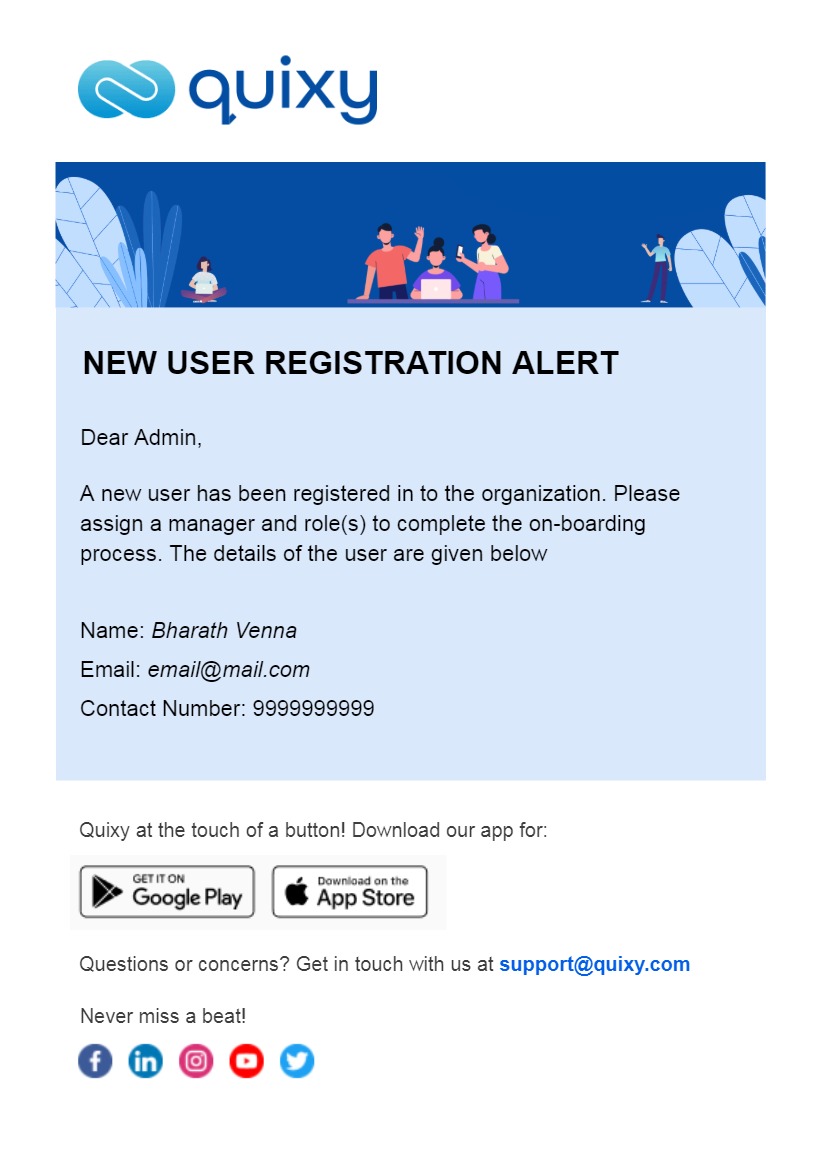
The notification shown below is for an organization admin when a new user is registered.
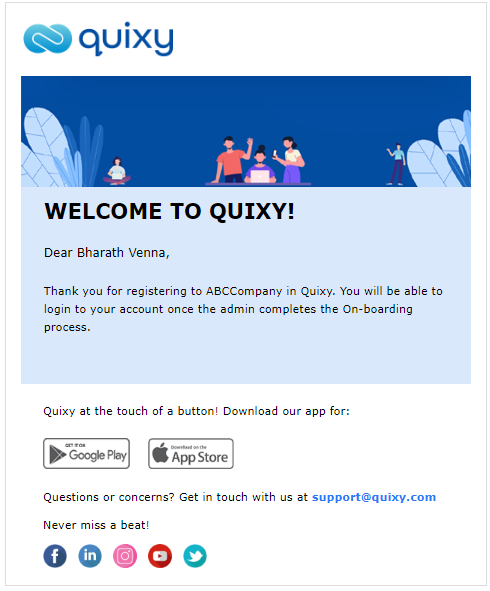
The notification shown below is for a user when registered in Quixy.
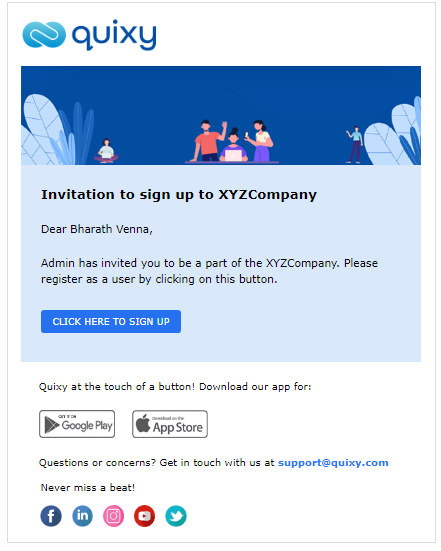
The notification shown below is for a user when invited by an organization admin to get registered in Quixy.
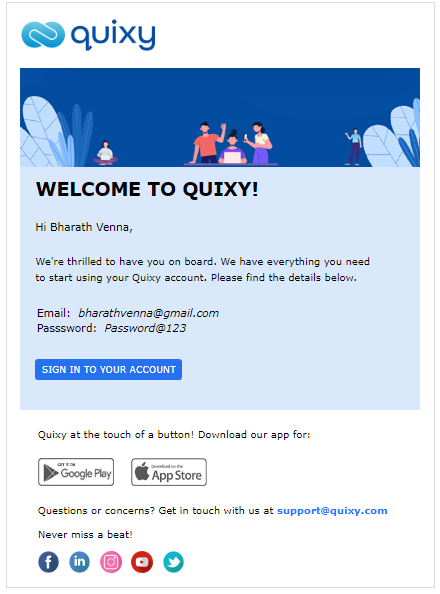
When a new free trial account is activated, the below shown notification is sent to the user along with the login credentials.
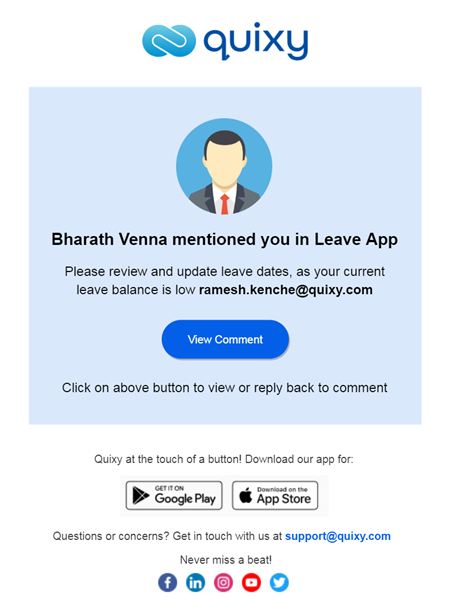
The notification shown below is for a user when any user in an organization mentions them in any comment in an app.
¶ 8. Standard Menu as Custom Menu
BEFORE
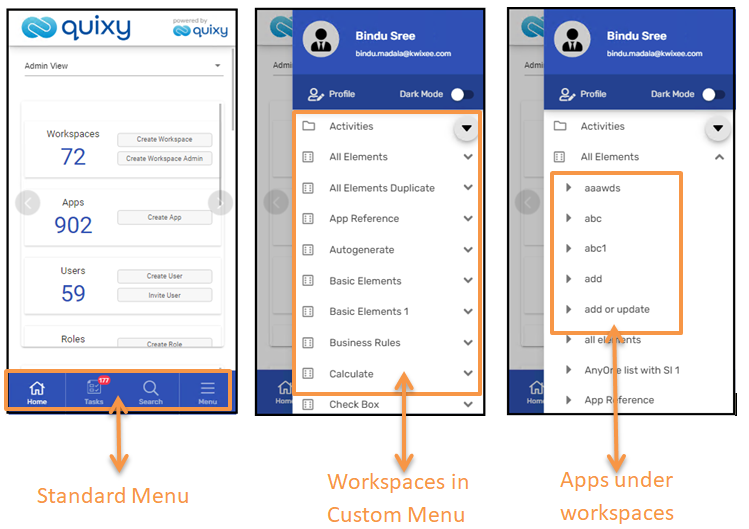
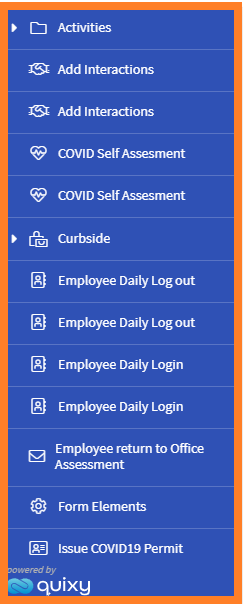
Newly registered account users used to find default menu on to the left of their dashboard as shown below. This existing default menu is not intuitive to use.

AFTER
From now on, Quixy platform displays left-side menu in tree structure as shown below, according to the workspaces, Apps, Reports, List screens etc., that they create after logging in to the Quixy platform.
¶ 9. Record count per page added to list screen my view
BEFORE
In list screen, Quixy platform used to override the number of records per page defined by a user to system default (i.e., 15/page) whenever the list screen is refreshed.
AFTER
The number of records per page defined by the user can be saved in his/her defined view and will remain the same after the list screen refreshes. User can define any number of records per page up to 100 records per page and save the view.
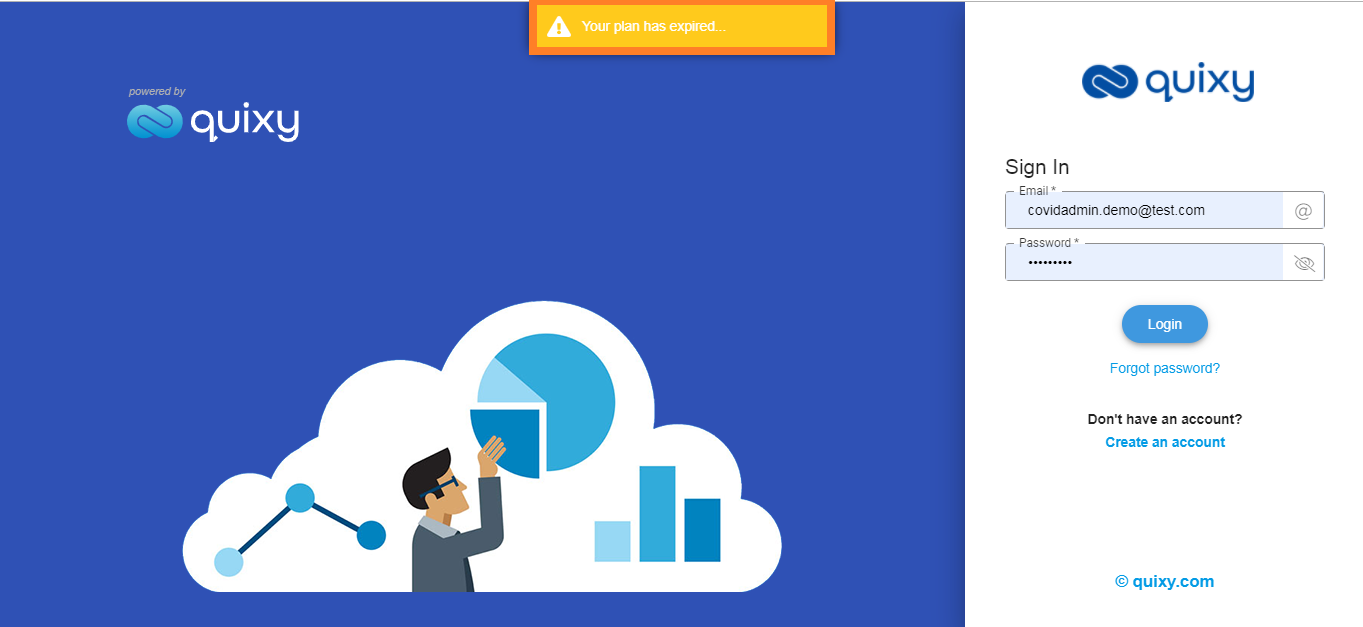
¶ 10. Better user experience for expired accounts
BEFORE
Quixy platform used to show ‘Your plan has expired’ as shown below
AFTER
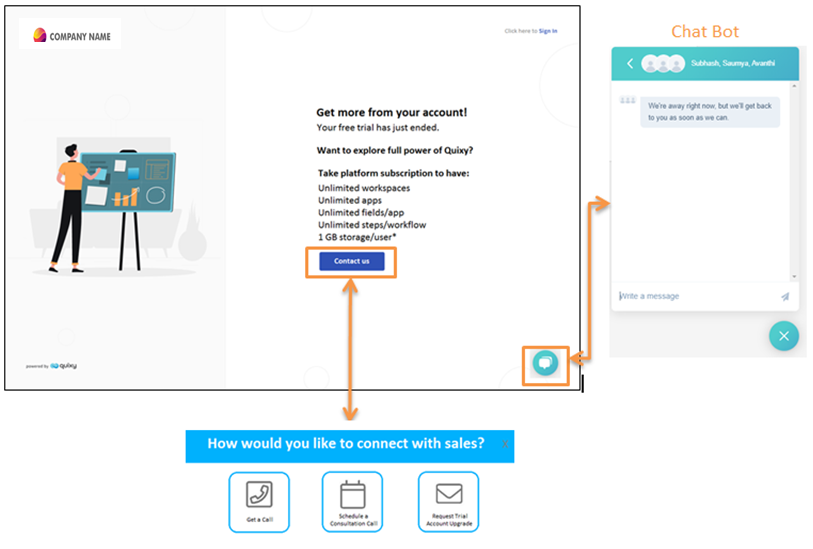
Trial Account
When free trial account is expired, and users try to login then the below message is shown. Users will have two options to contact the Quixy team to re-activate their accounts.
- Contact Us option
- Chatbot option
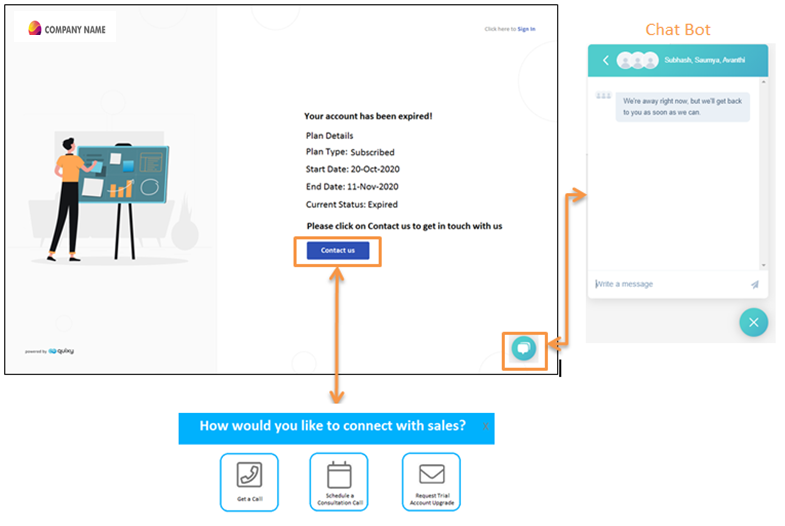
Subscribed Account
When subscribed account is expired, and users try to login then a below message is shown. Users will have two options to contact the Quixy team to re-activate their accounts.
- Contact Us option
- Chatbot option
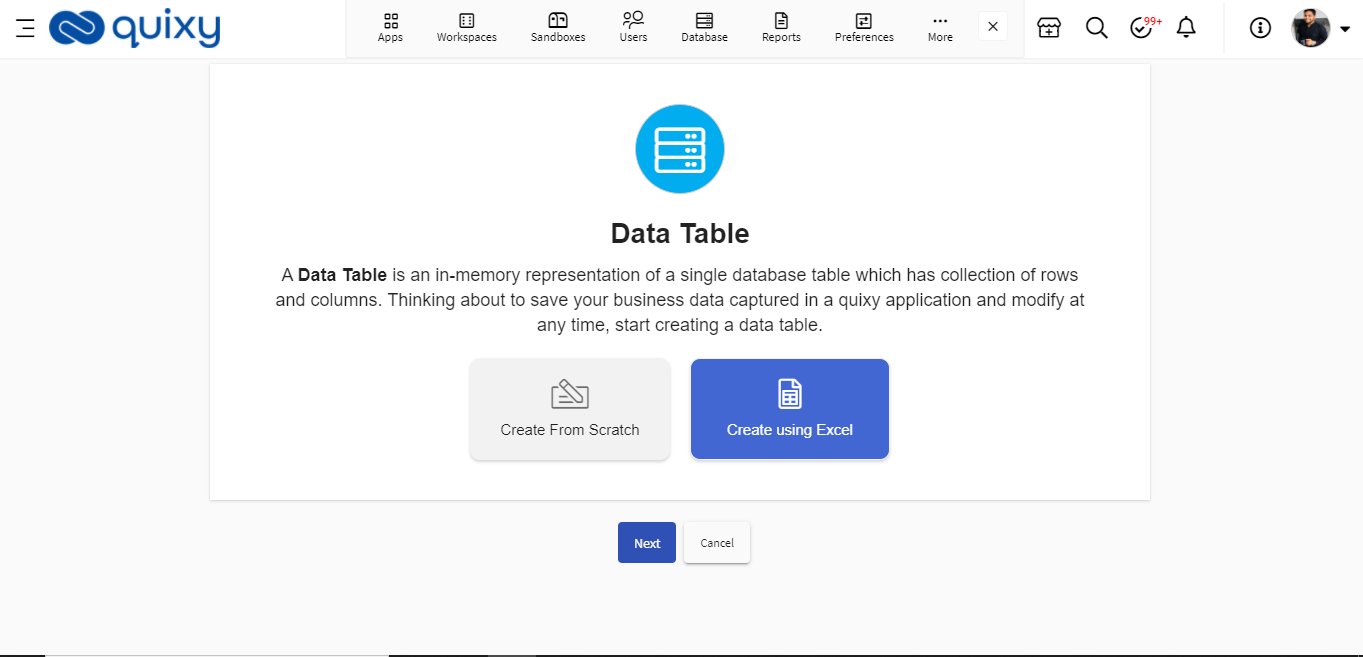
¶ 11. Create a Data table from Excel
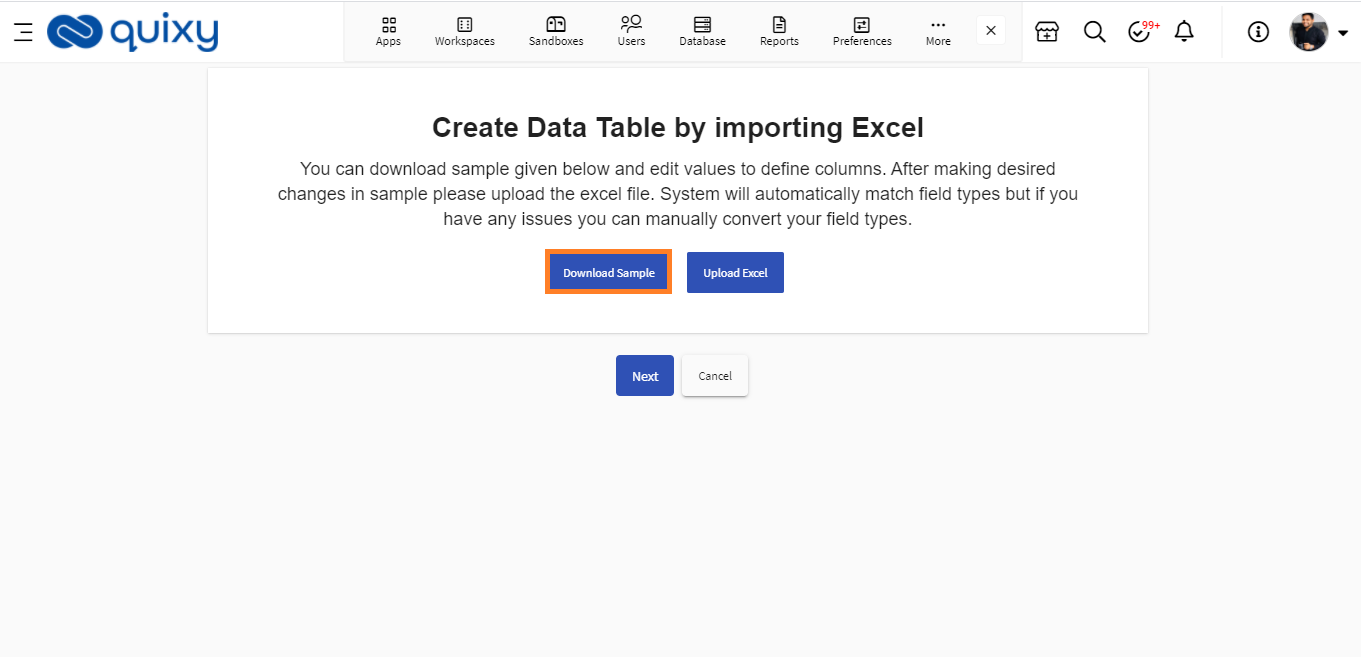
Previously, users had only one option to drag and drop the elements on to a data table builder and create a data table from scratch.
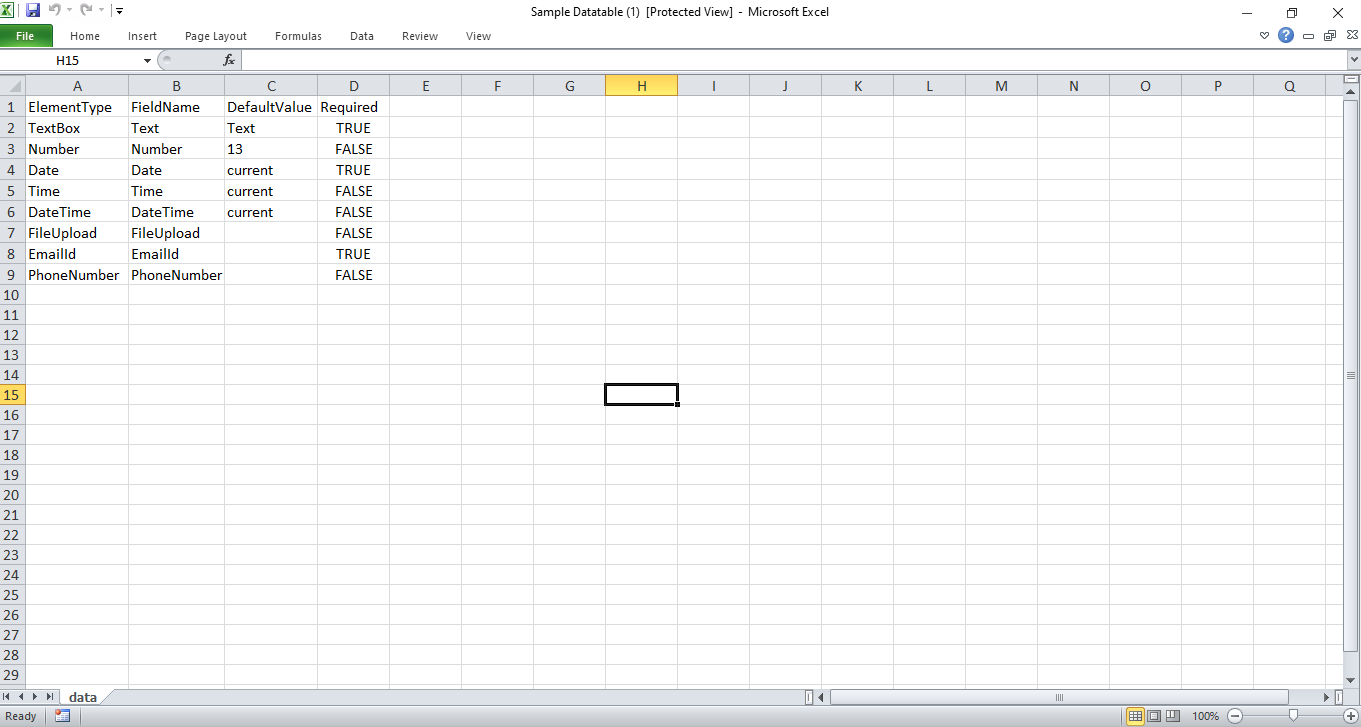
With this enhancement, users will now have another option to download an excel sheet when creating a data table, and within a given excel sheet, users can edit label names, default values, element types, etc., and upload the excel sheet to create a data table automatically.
¶ 12. Create an application from Excel
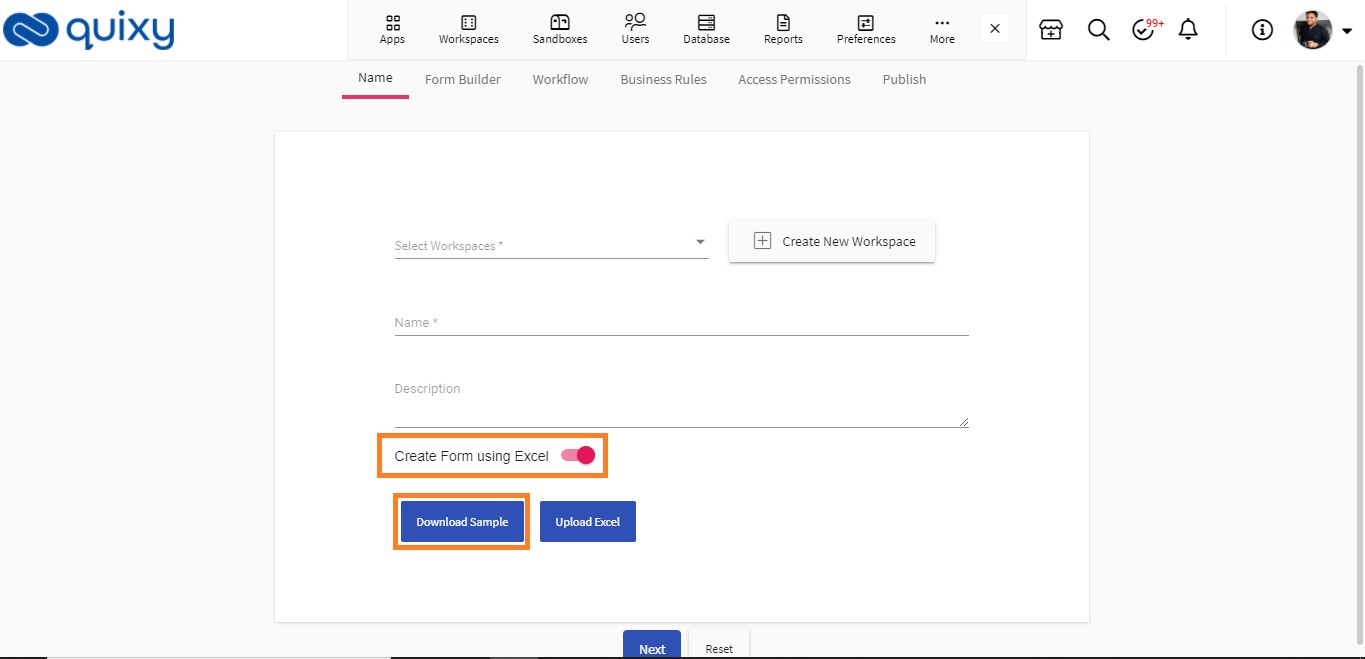
Previously, users had only one option to drag and drop the form elements on to an application form builder to create an application from scratch.
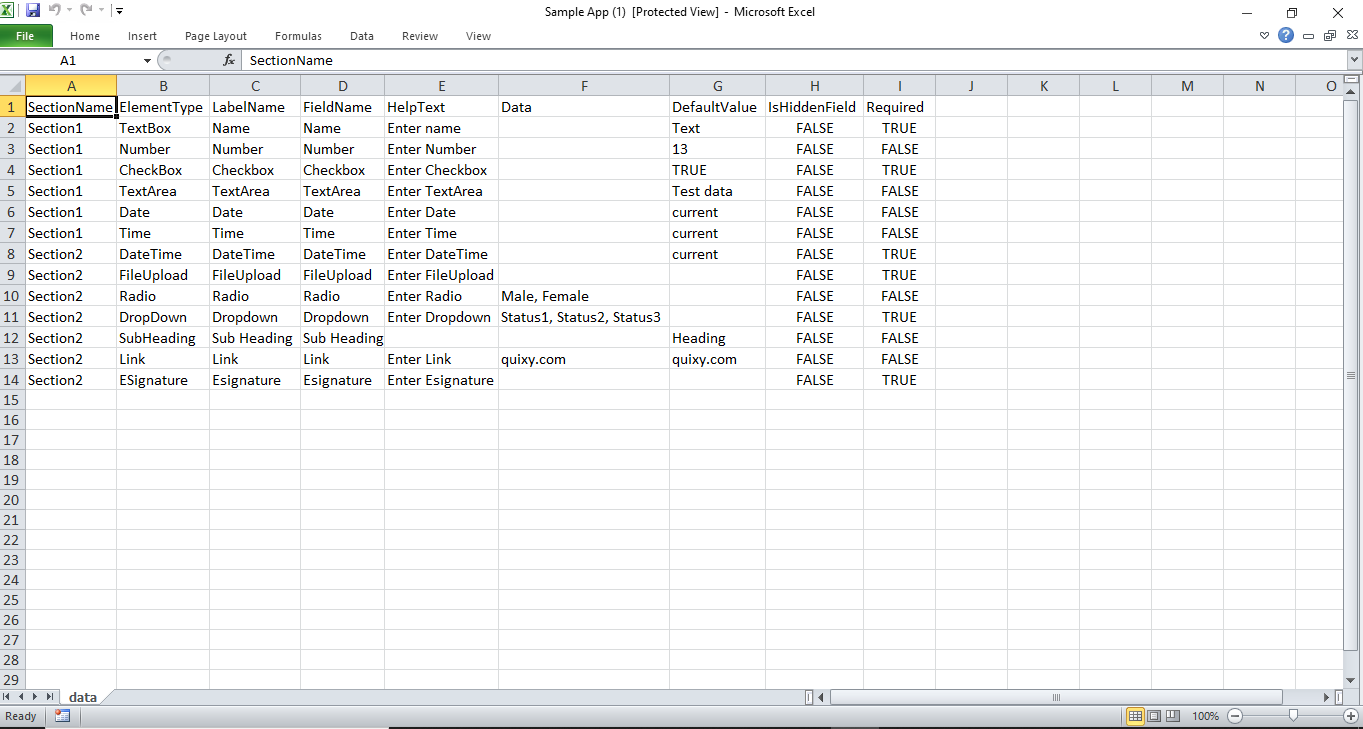
With this enhancement, users will now have another option to download an excel sheet in the Name Step of application creation process. Within the given excel sheet, users can edit label names, default values, form element types, etc., and upload the excel sheet to create an application automatically.
¶ 13. Enhanced behavior of QR/Bar Code Scanner in Add record
BEFORE
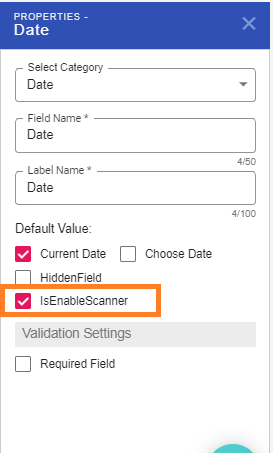
When a user enables Enable Scanner option in the properties of a specific Form Element Field when creating an application, and opens the app in add record mode, the camera scanner used to open automatically.
AFTER
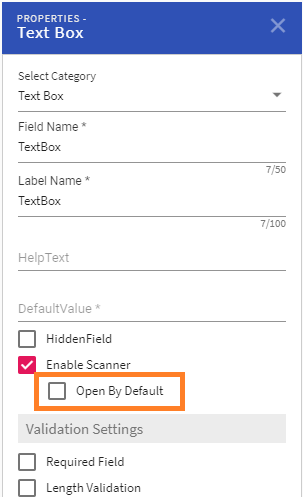
From now on, users can check the Open by Default option to open the camera scanner automatically or un-check the Open by Default option to open the camera scanner manually while opening the app in Add Record mode.
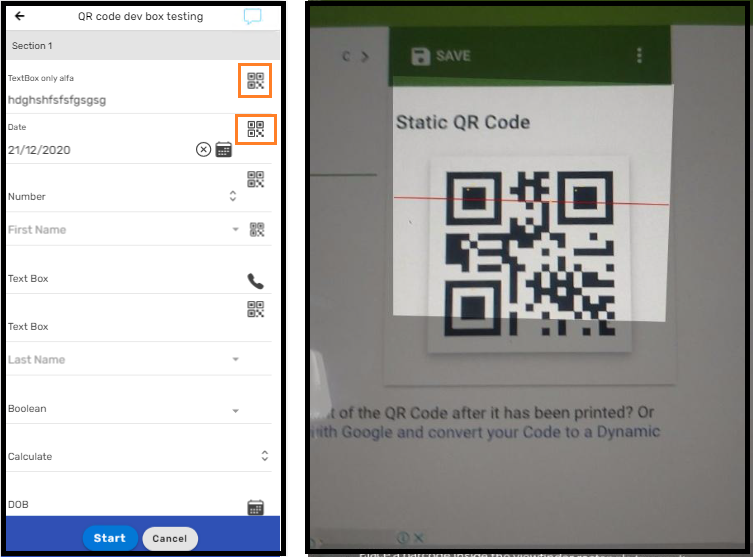
Now in App Add Record mode, users can click on the QR Code icon to open the QR Code camera scanner manually as shown below.
¶ 14. SMS Setting Configuration (Organization Level)
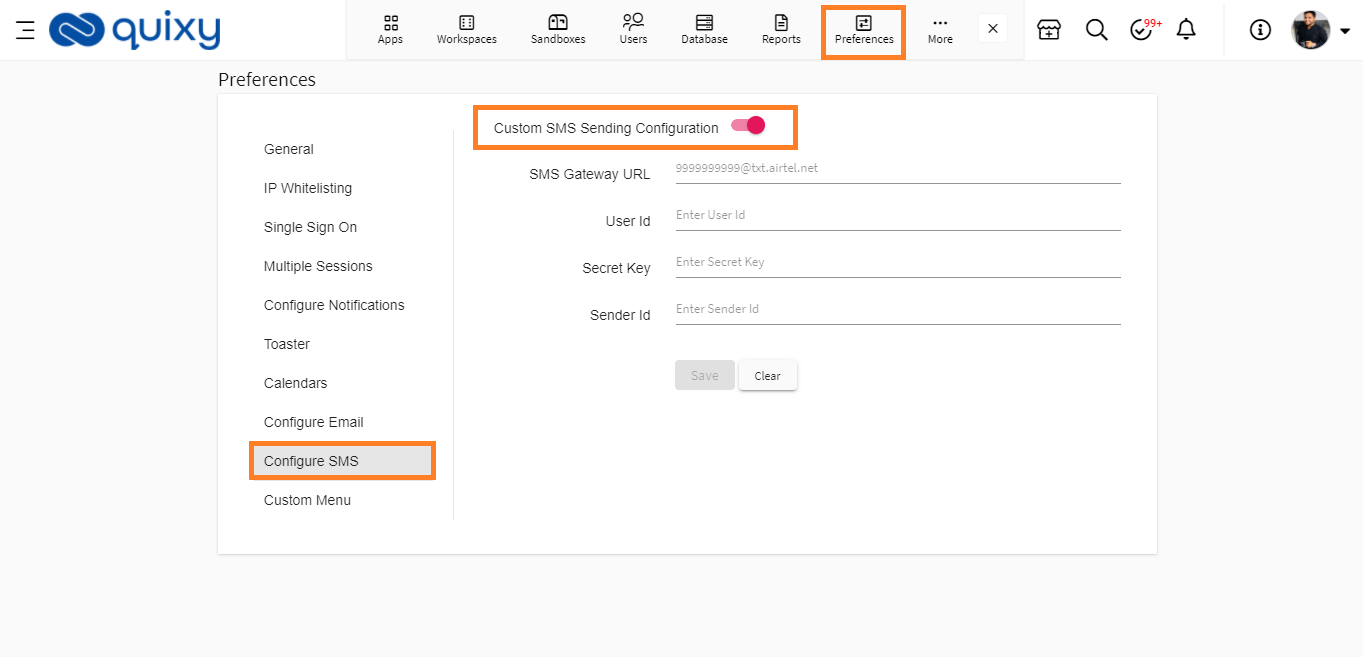
With this enhancement, users will now have a new option under preferences to configure SMS service provider details at organization level. SMS notifications will be sent out using these credentials.
¶ 15. Enhanced user experience to make public dashboards
BEFORE
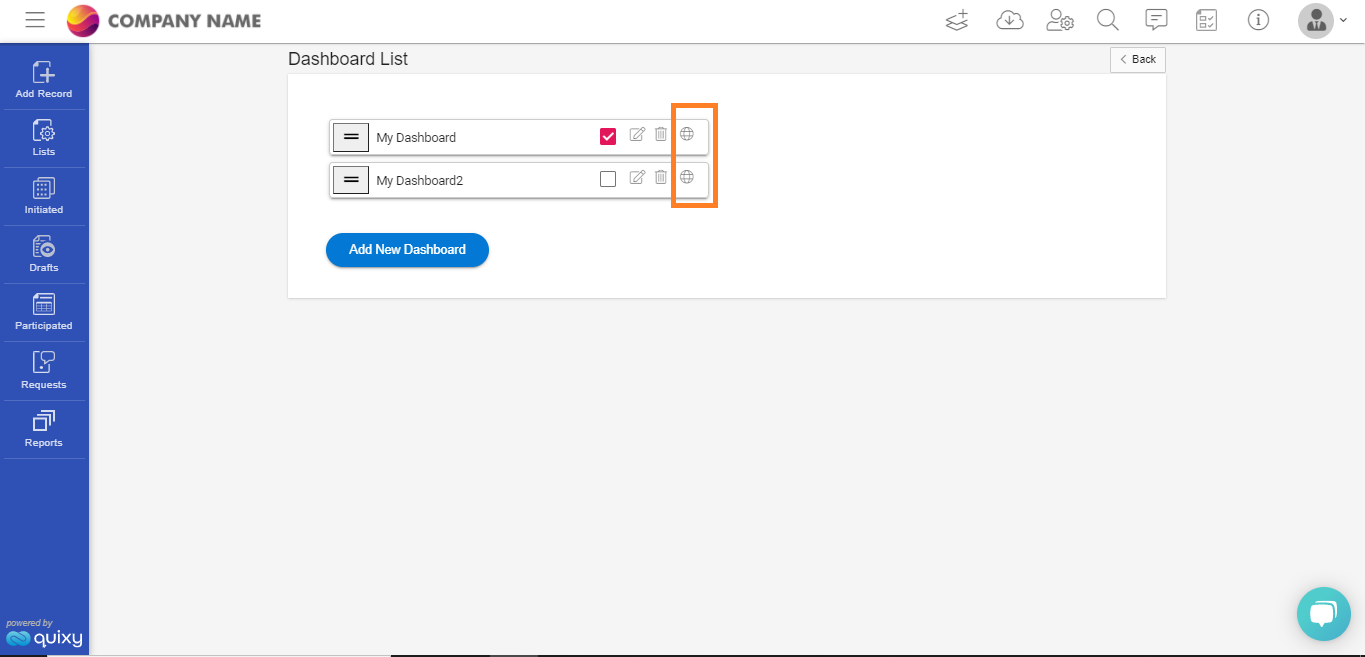
‘Admin User’ used to click on the globe icon corresponding to each dashboard to make a dashboard as a public dashboard.
AFTER
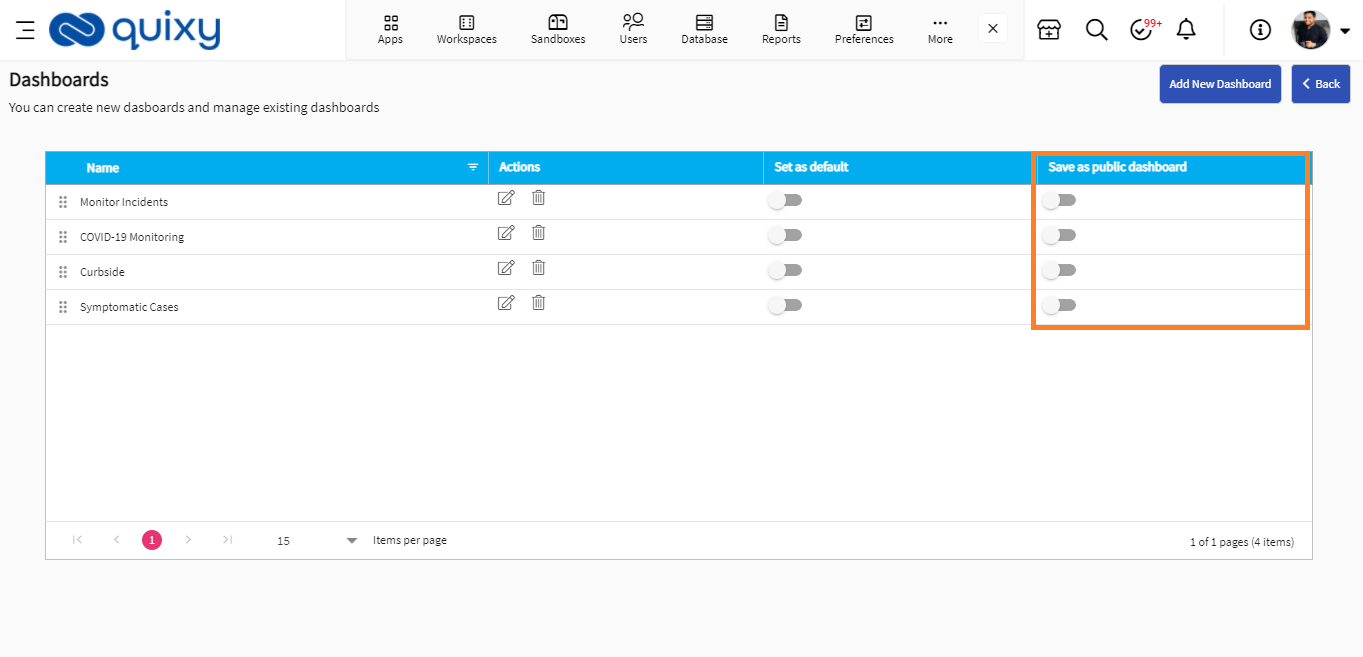
Now, ‘Admin User’ will have a switch corresponding to each dashboard to make a dashboard as a public dashboard.
¶ 16. Improvements in Mobile Application
¶ 16.1. Enhancement in Grid Usage while adding records
In this enhancement, we have enhanced multiple features inside grid which are segregated below.
BEFORE
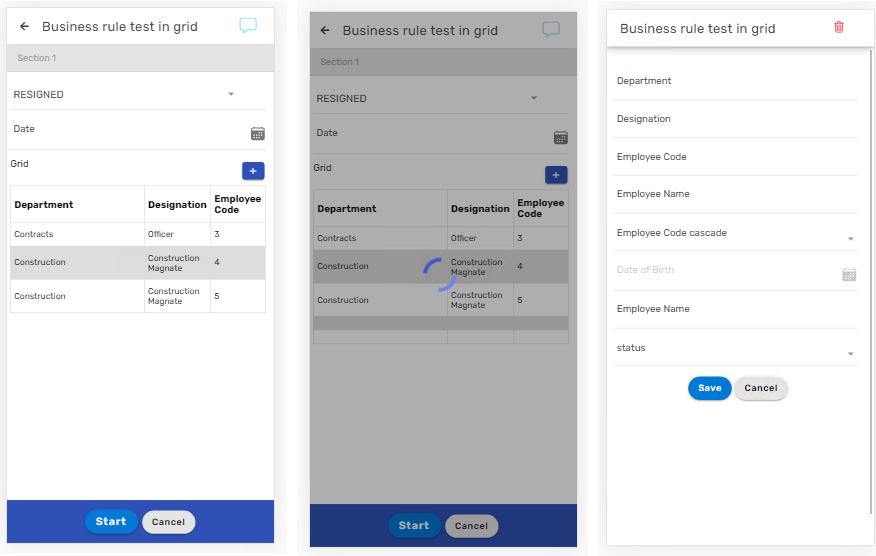
- Users had to click on the grid row to edit the row data after adding a row by clicking on the + button.
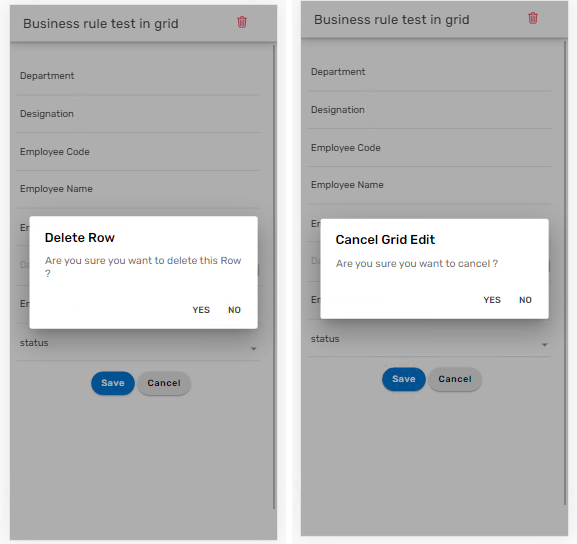
- No confirmation/warning message when clicked on the back icon or delete icon when inside the grid add record page.
- After adding a grid row focus of the user was shifted to the bottom of the page.
AFTER
- Users can now click on the + button present at the top right corner of the grid to add a row and open the grid row in edit mode automatically.
- Back icon is changed to cancel icon. A confirmation/warning message will display when clicked on the delete icon or on the cancel icon when inside the grid add record page.
- Now, after adding a grid row the focus is present on the grid row rather than shifting to bottom of the page.
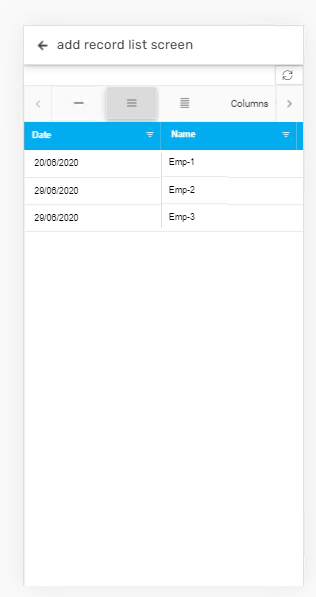
¶ 16.2. List screen custom view to reflect in mobile app
With this enhancement, when list screen custom view is configured in web application the same will reflect in mobile application for the user.
Users cannot configure list screen custom view directly in mobile application.
¶ 17. Date and Time Format (Organization Level)
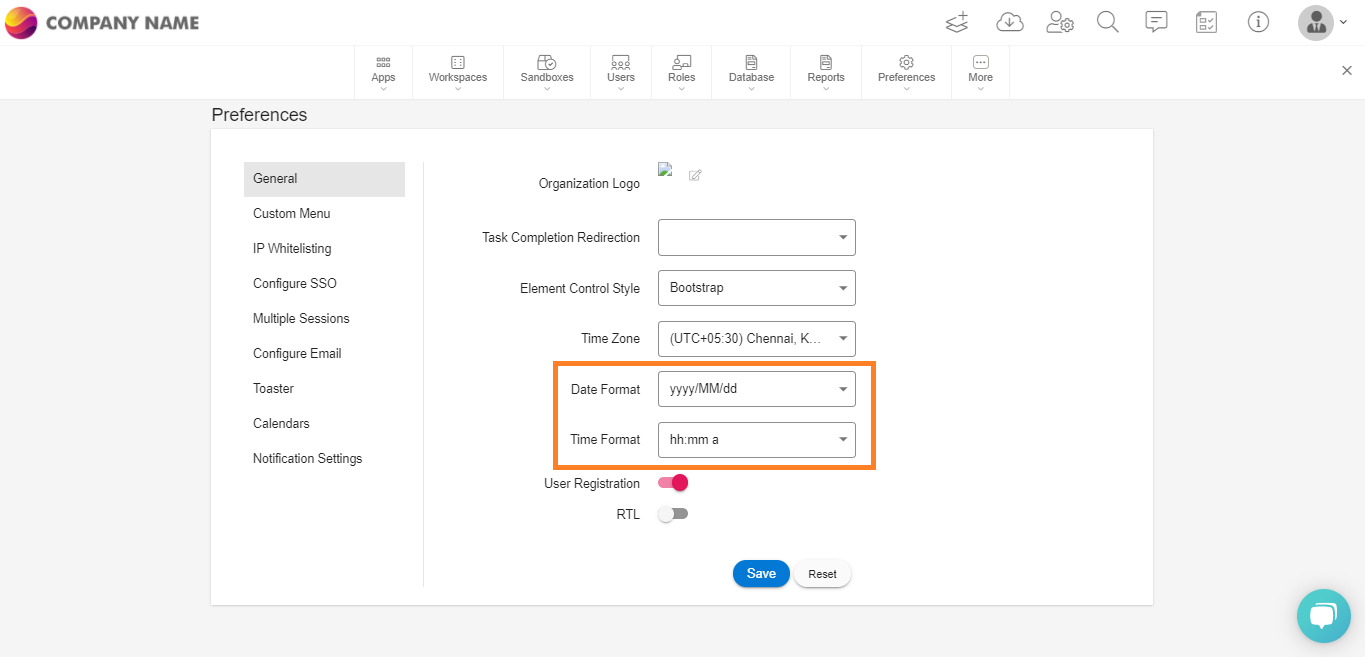
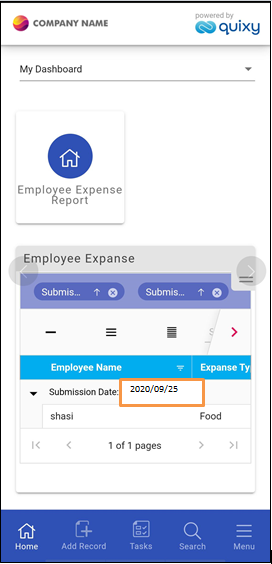
From now on, users will be able to see the date and time formats in the mobile application which is configured in the web application at organization level.
Date and time formats configured in web application as shown below.
Date and Time formats reflect in mobile application as configured in web application as shown below.
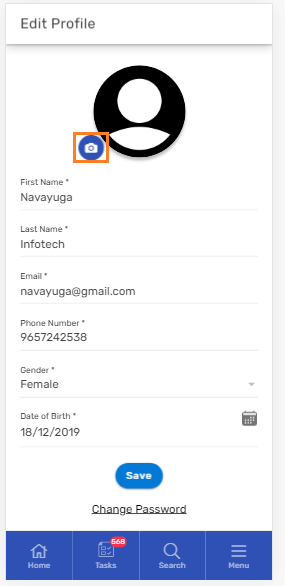
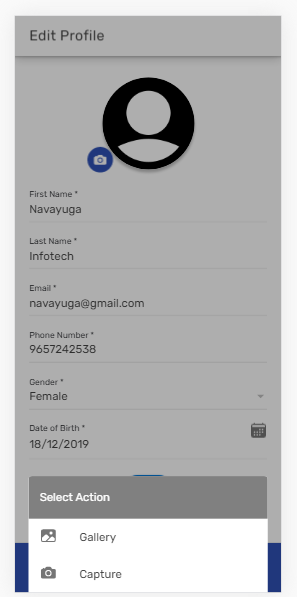
¶ 18. Option to change the profile picture in mobile app
From now on, users will have an option to change their respective profile picture through mobile application.
¶ 19. Add Record option collaborated in custom menu
BEFORE
Add Record option was present in the standard menu as shown below.
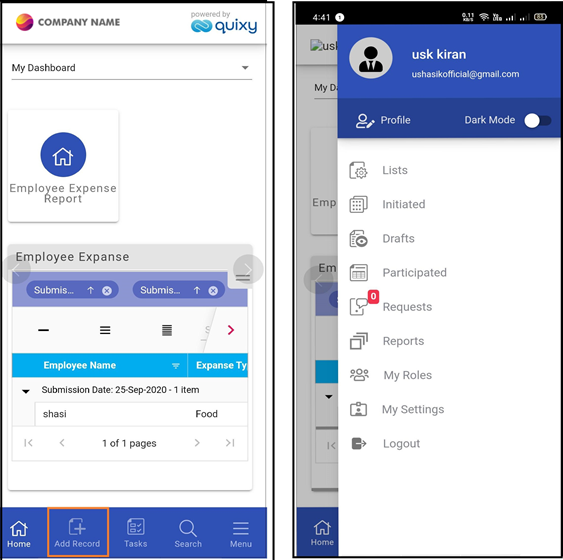
AFTER
Add Record option is collaborated is the custom menu. Now, users can go to the custom menu, click on any workspace to get the apps present in it and click on the app to open it in Add Record mode.