¶ Feature Enhancements
¶ Complex Report - Advanced Filters
Feature Description: To apply advanced filters to filter the data and charts present in the complex report.
Benefits and Usage:
- System Dashboard display complex report in view mode.
- If user selects/fills advanced filter options, then the complex report in dashboard should get filtered and updated.
Usage:
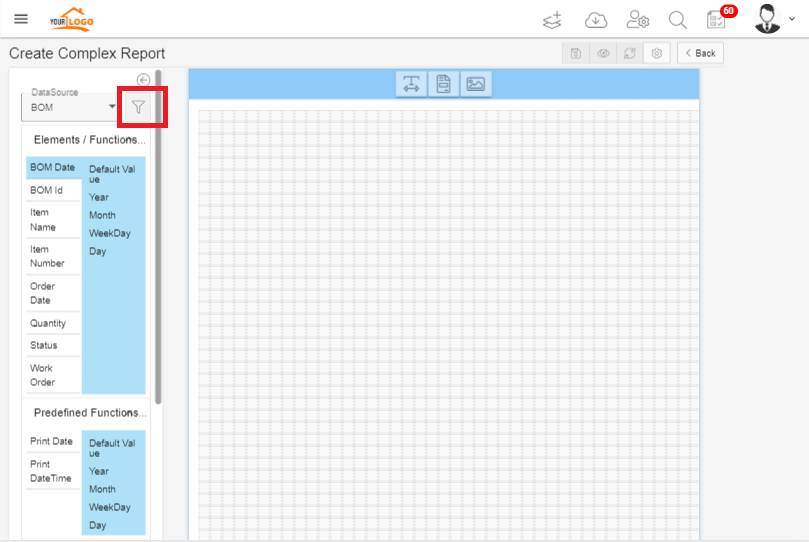
1. Open Create Complex report page. You can see that there is a filter icon displayed.
2. Click on Filter icon.
3. Filters pop-up is displayed. Here you can define conditions to filer. You can add as many conditions as you want.
4. Filters pop-up displays the following.
- Field dropdown displays list of elements in the Data Source.
- Condition dropdown displays the following conditions.
- Equal
- Not Equal
- Empty
- Not Empty
- Greater Than
- Less Than
- Greater Than or Equal To
- Less Than Or Equal To
- Equal Date/Equal Number/Equal Text field is displayed based on the Filed selection and which is used to set the value for the condition.
5. After Adding conditions based on requirements click on Save button.
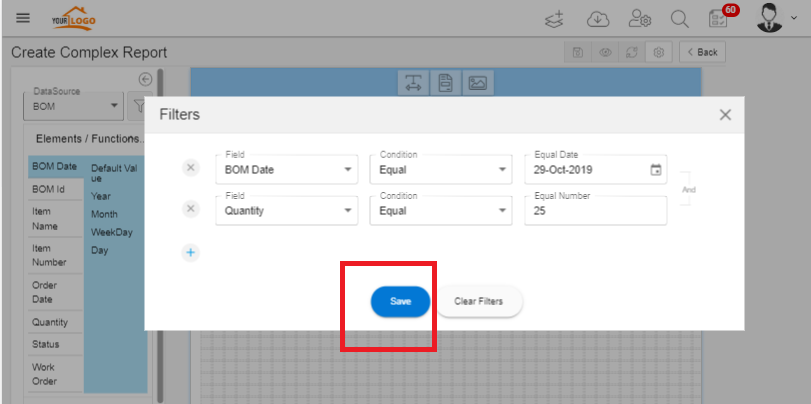
6. Advanced Filters are saved.
¶ Complex Report -Dashboard
Feature Description: To add Complex Report to the Dashboard
Benefits and Usage: User can be able to add complex report to the dashboard.
Usage:
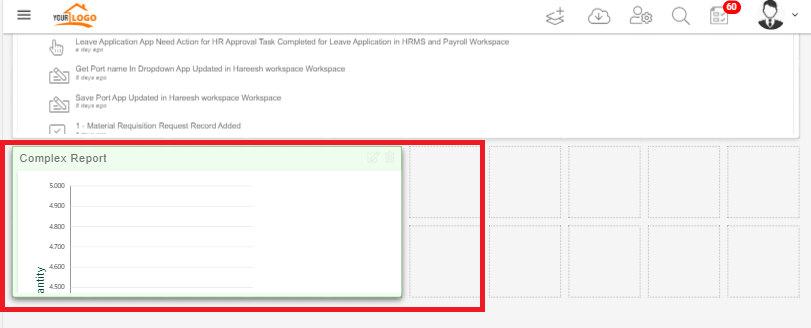
- Click on Edit icon of the dashboard and click on Add Panel.
- Click on Select Dashlet Category.
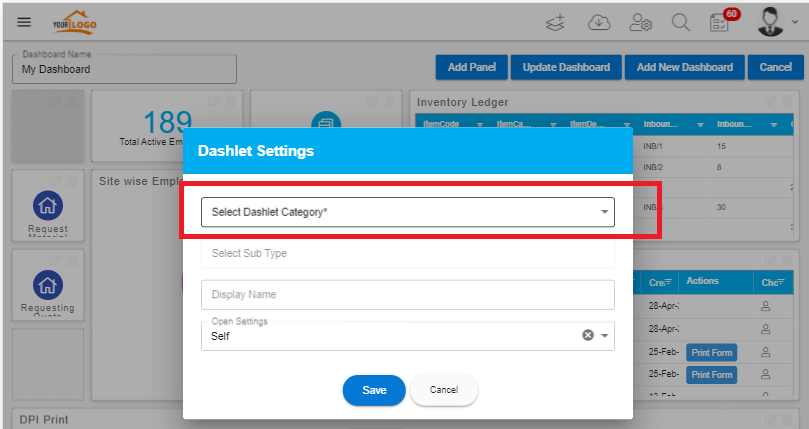
3. Select Report from Select Dashlet Category drop down.
4. Select Sub type as the report you selected.
5. click on Save button.
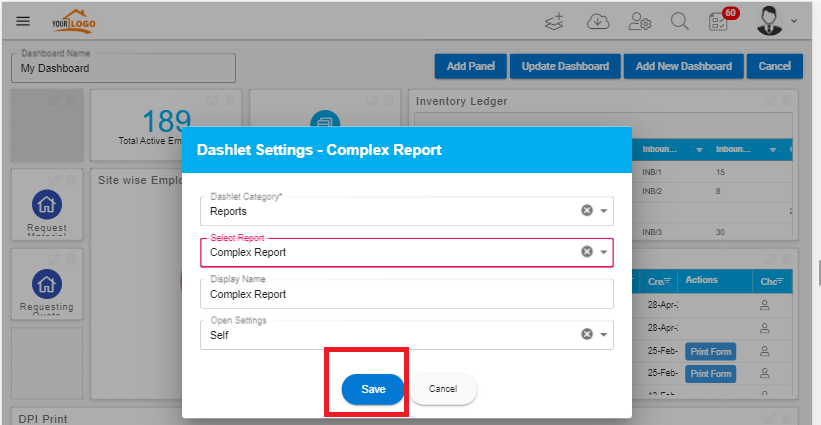
6. Dashlet category is saved and click on Update Dashboard to update with the added dashlet.
7. Complex report is viewed in the dashboard.
¶ QR Code Base Version – Generate, View and Scan
Feature Description:
- Generate QR code for Data Table Reference Element.
- Add QR code element in Advanced elements.
Benefits and Usage: User can have enabled scanner for data table reference element.
1. Create an app with Data Table Reference to the form in Form Builder section.
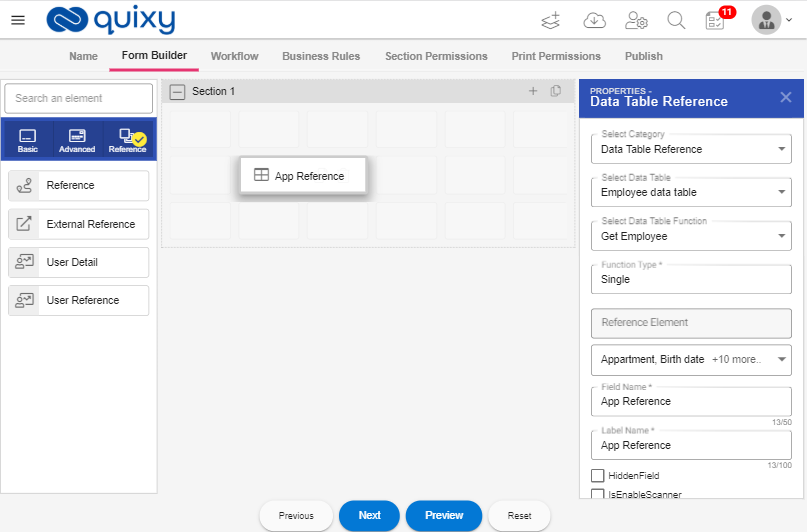
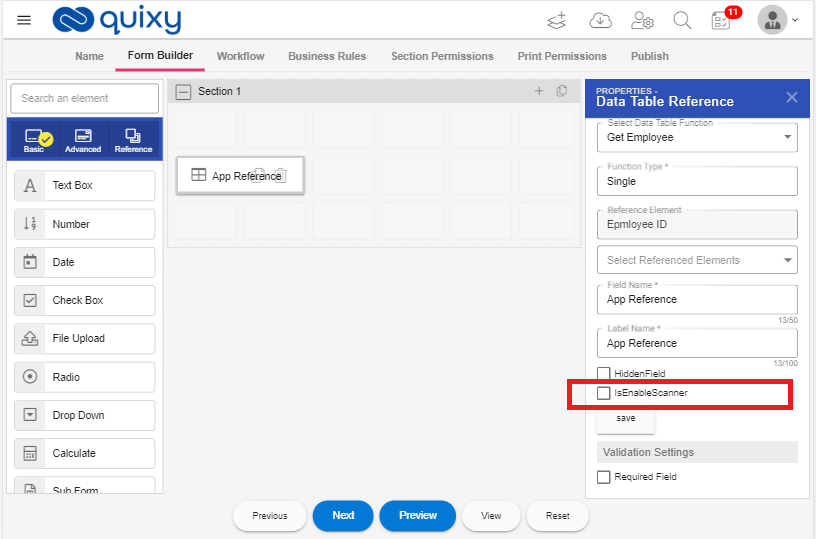
2. In Data Table Reference Element Properties window, you can find that there is a check box Is Enable Scanner.
3. Check the is Enabled Scanner Check box.
4. Publish the App.
5. Login to the Mobile App.
6. Click on Add Record. Select the App Name.
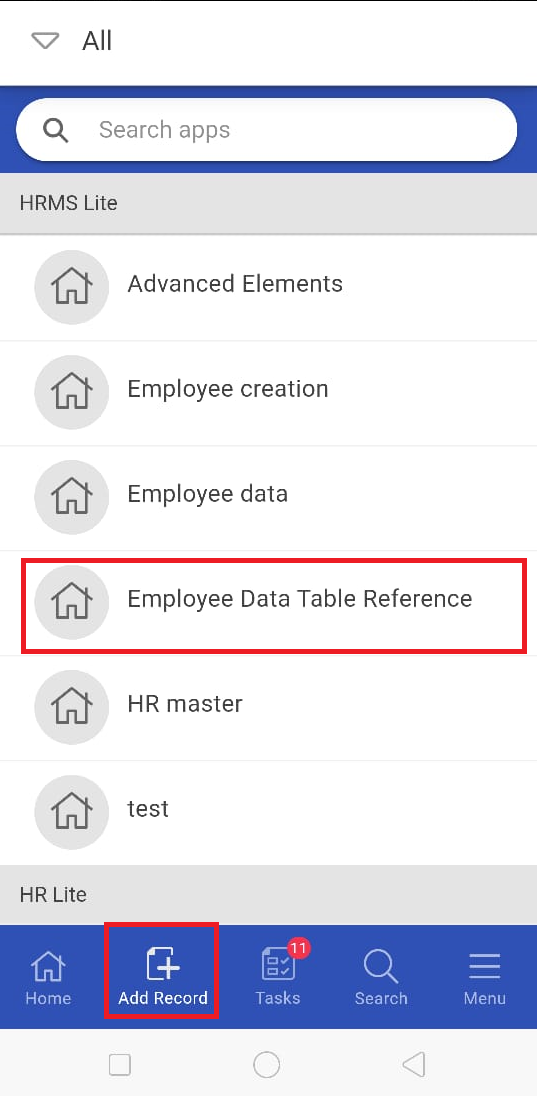
7. QR Code scanner is opened to scan QR code.
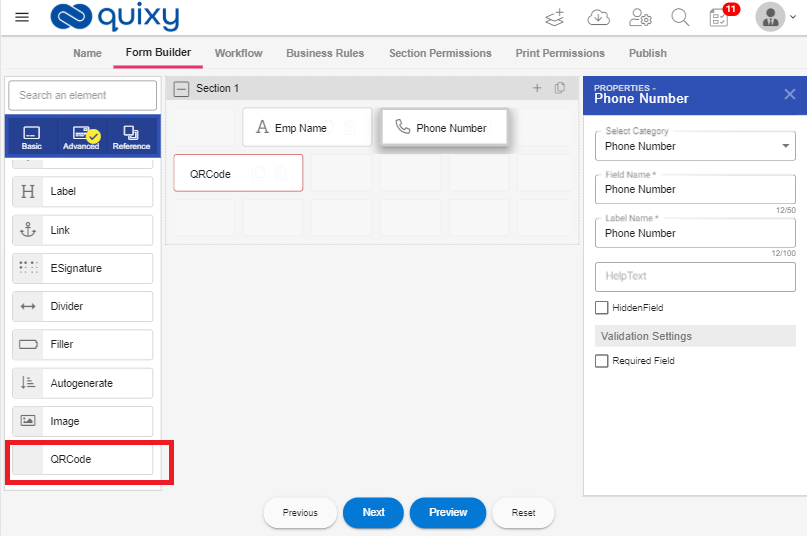
- In creating app you can add QR code form element to the form and you can set the QR code refer to some other element in the same app.
- Open Form Builder Section.
- Add the elements you want to the form.
- Click on Advanced Elements.
- You can see that QR Code Element is displayed in the Advanced Elements.
- Drag and Drop the QR Code element to the form.
8. Open the properties window for QR code by click on the element.
9. You can see that Select Element drop down field is displayed in the Properties of QR code.
10. Select Element drop down displays all the elements in the Form.
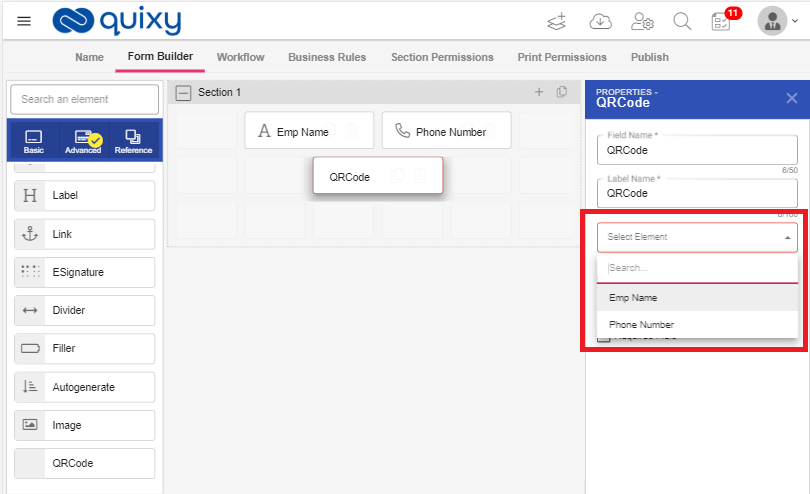
11. Select element.
12. Publish the app.
13. Open Add Record from the menu and select the app.
14. Add Record page for the app is displayed.
15. Here, for this app we add phone number element for QR code.
16. So, whenever you enter the value for the Phone Number QR code is automatically generated.

17. You can edit QR code, by editing the value of the element.
18. When adding record to the app, if you add the reference element value then QR code is automatically generated.
19. If you edit the value QR code is also changed.
¶ Internal API – Submit first step automatically
1. Feature Description: Submit Internal API first step automatically when adding record to the app.
2. Benefits and Usage: When adding record to the app, instead of task creation the record is automatically submitted.
- Open Create Internal API page.
- Enter all the data to Internal API.
- Choose Workflow step
- Choose Workflow Action
- Choose To Workspace
- Choose To App
- Choose User Reference
3. Click on Select Submit Type drop-down.
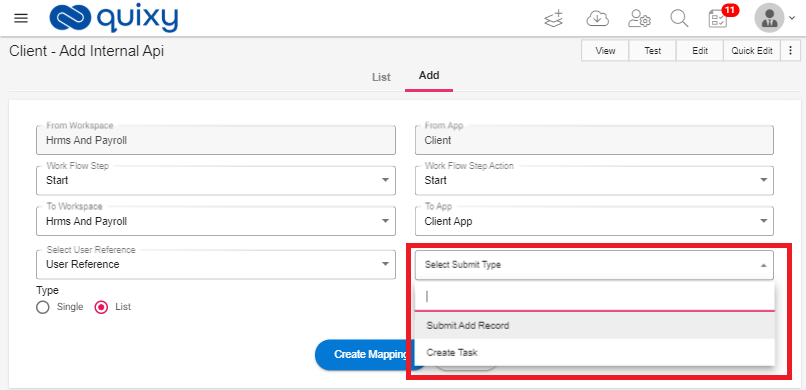
4. Choose Submit Add Record.
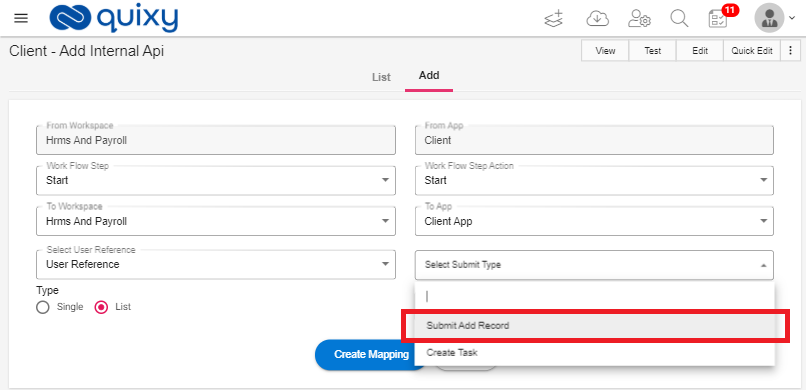
5. Create mapping to the elements.
6. Click on Save button.
7. Internal API is created.
8. When you add Records to the app, the first step is automatically submitted instead of creating task to the user.
¶ List Screen Action buttons need to be disabled / hidden based on some condition of the record
Feature Description: You can disable/hidden the List Screen action buttons based on the condition in business rule
Benefits and Usage: There is an option to hide or disable actions of list screen based on business rules.
- Create Data Source of List Screen Type.
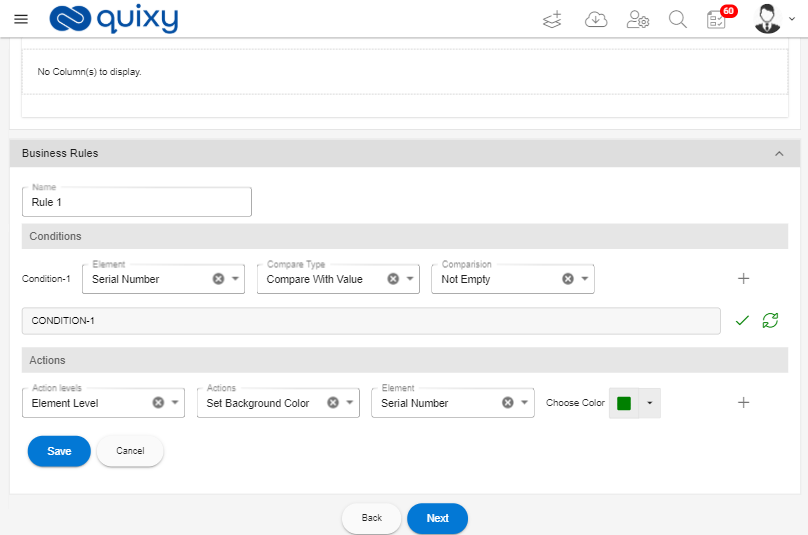
- Add Business Rules and actions based on your requirements.
- Here in Actions, Action Level drop down displays the following options.
- Element Level
If you select Element Level, Actions drop down displays the following options.
- Set Value
- Set Field Value
- Show element
- Hide Element
- Enable Element
- Disable Element
- Set Back Ground color
- Set Text Color
- Grid Level
If you select Grid Level, Actions drop down displays the following options.
- Select Background Color
- Select Text Color
10. After adding business rules and actions click on save button.
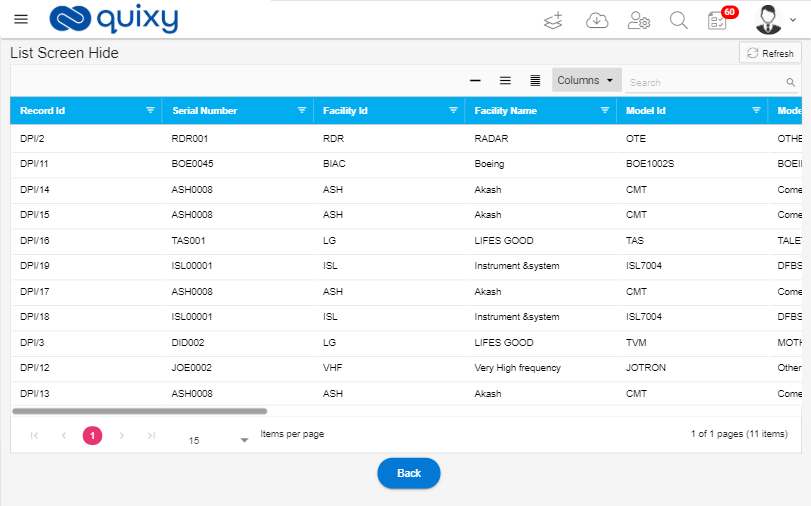
10. Click on List option in Menu.
11. Click on your List Data Source.
12. List Screen is displayed.
¶ Data Table Data Functions - Show list of apps using each function
Feature Description: The Data Table function displays list of apps using the function
Benefits and Usage: Displays list of apps which are using data table function you selected.
- Open App – Data table Function page.
- You can see that There is a new function icon is added in the Actions field of the grid.
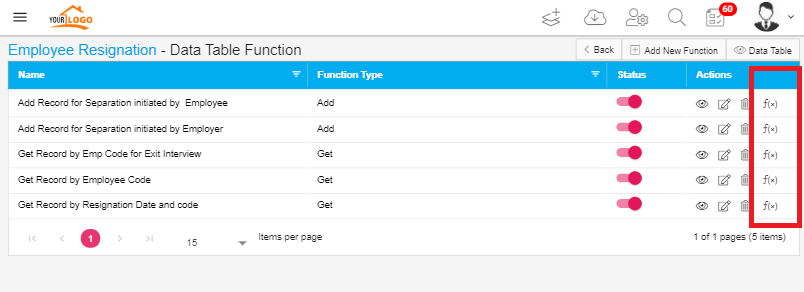
3. Click on the function icon corresponding to the Data Table Function Name.
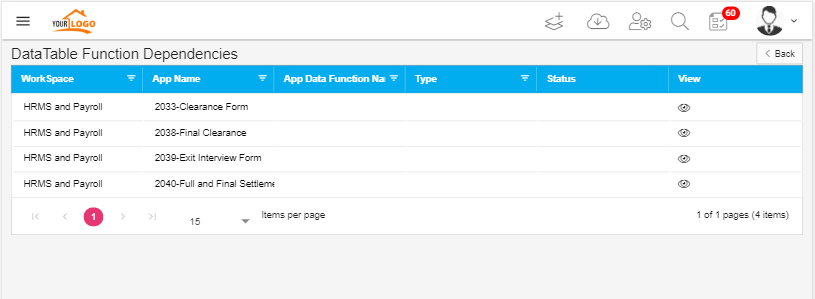
4. Data Table Function Dependencies page is displayed.
5. You can see that the Apps are displayed in the Grid which are using the data table function you selected.
¶ CHANGE REQUESTS
While publish an app ask for comments to capture and record for each publish
- User Can able to add comments when publishing the app
Form Builder - Field Delete - Confirmation Alert (Yes / No)
- When deleting form element from the form builder confirmation popup is displayed.
- Which is used to confirmation to delete element
Lookup Screen – Changes
In Look Ups Screen
- When adding Lookup values, if you click on add button to add a new row then cursor automatically points to the newly added row to input the value.
App Builder - Dropdown with Lookup, option to refresh lookup list
- When you creating an app with drop down element with lookup values, there is an option to refresh the lookup values to add newly added values
Ability to view PDFs in the application itself rather than downloading
- In List Screen if the list screen contains file upload element and the files of pdf type then when click on the Pdf file name , the pdf is opened in the application itself instead of downloading the file.
App Builder - Confirmation Alert when user navigates to Home Page or any other page after few changes in app
- When you are in app builder page, if you wish to move to home page or some other page while creating app or editing the app then a confirmation popup is displayed if you are going to that page without publish the app.
Data-Table – Reset
- When you click on Reset button while creating/editing the data table it displays a confirmation pop up to confirm the reset action.
Data Table - Rename 'Text Box' as 'Text'
- In the Data Table elements Text box is changed as Text.
Data Table - Get function(), order by is not required when type = 'Single'
- If user Creating a get function with single type for the data table then order by is not displayed.
- If the Type is list while creating Get Data Table function, then only Order By section is displayed.
Dashboard - dashlet - count. Provide option to show 'data-table' record count
- In count Dashlet Category Data Table Record count is added as subcategory to add the records count of the data tables to the dashboard
Dashboard - Grid Report - should show grouping details as per grouping defined at report
- In Dash board, Grid report displays the grouping details of the report.
Add record-Data source reference-file upload-Not showing files in file upload reference element
- In Data Source Reference, the file upload element displays the files list based on the reference element you selected.
Data Source - Type: Reference - Show list of apps using this data-source
- In Data Sources List Page for Reference Data Source type in action field Apps List icon is added
- When you click on the List of Apps icon you can view the list of apps using the data source.