¶ B. My Activities
The My Activities section provides a detailed overview of all the actions and tasks associated with your account. It allows you to track, manage, and interact with records, tasks, and requests efficiently. This section is organized into the following sub-sections, each designed to help you navigate and manage your activities seamlessly
¶ 1.Initiated
The Initiated subsection provides an overview of all records created by you within the application. It allows you to easily access, view, and manage these records. Follow this guide to ensure smooth navigation and effective use of this feature.
¶ 1.1. Accessing Your Records
- To locate and manage the records in the Initiated subsection:
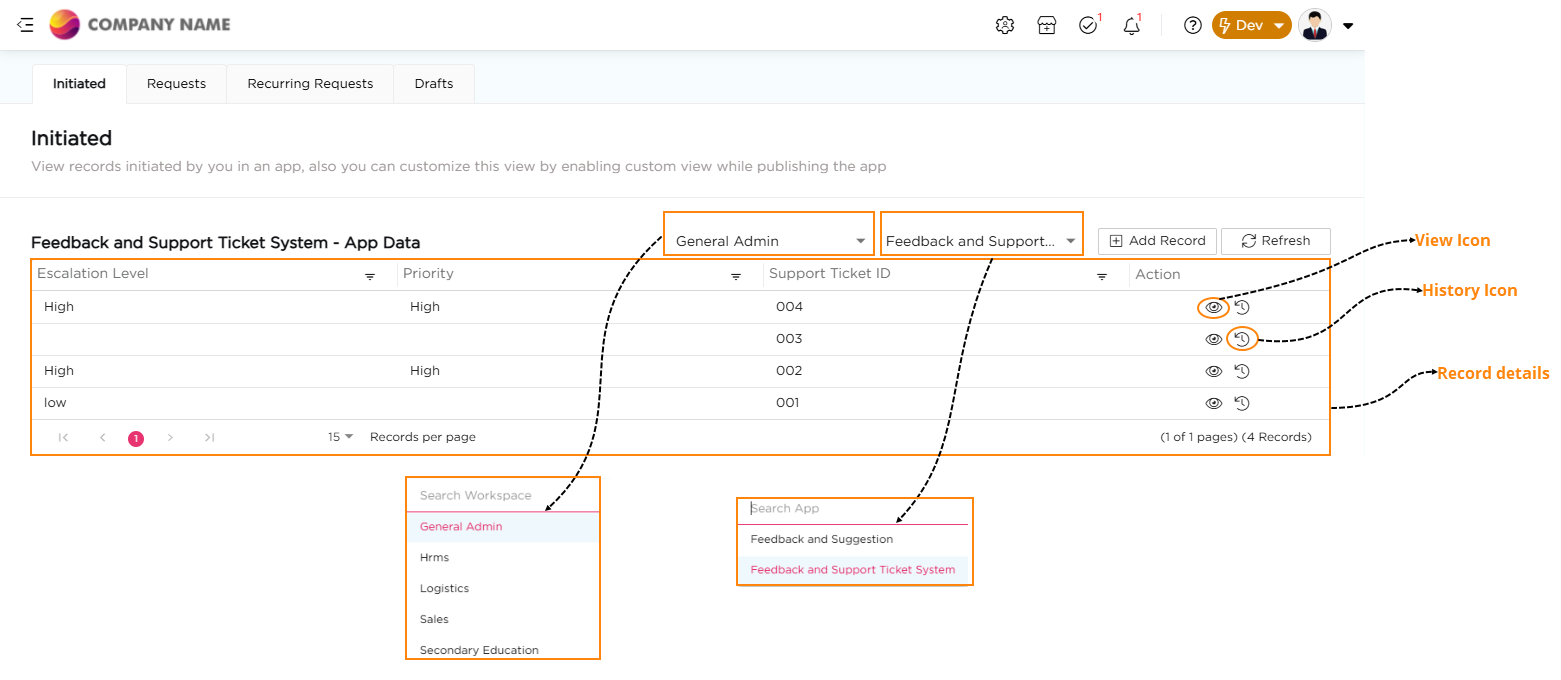
- Use the Workspace dropdown to select the relevant workspace where your app is located.
- Use the Select App dropdown to select the app whose records you want to view.
- Click the Add Record button to create a new record within the app.
- Use the Refresh button to ensure you see the most up-to-date records.
¶ 1.2. Interacting with Records
All the records you have created will appear in a table under the Initiated subsection. If there are no records, the table will display the message: No records to display.
¶ 1.3. Viewing Record Details
The Action column provides options to view the records and history of records in the table. To view the records:
- Click the View icon in the Actions column to open the record.
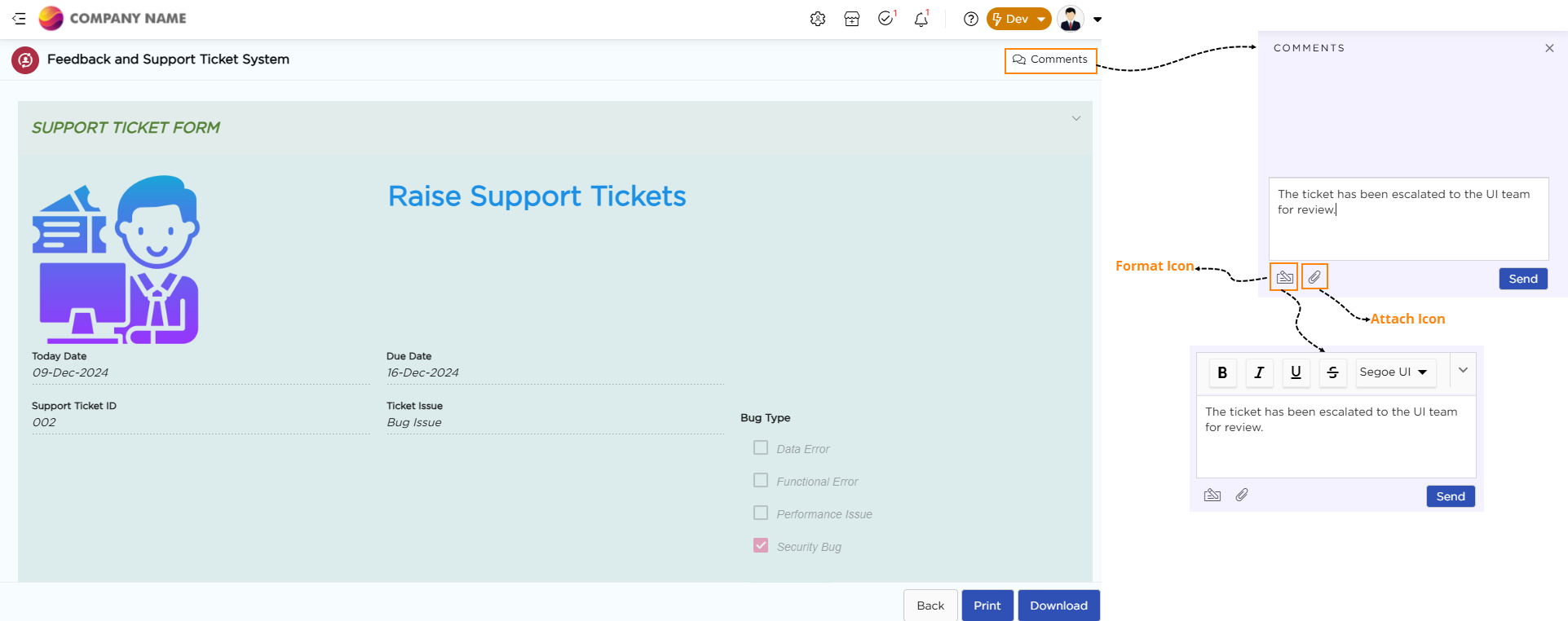
- Once the record opens, you can:
- Print or Download: Use the Print or Download options to save the record for offline reference.
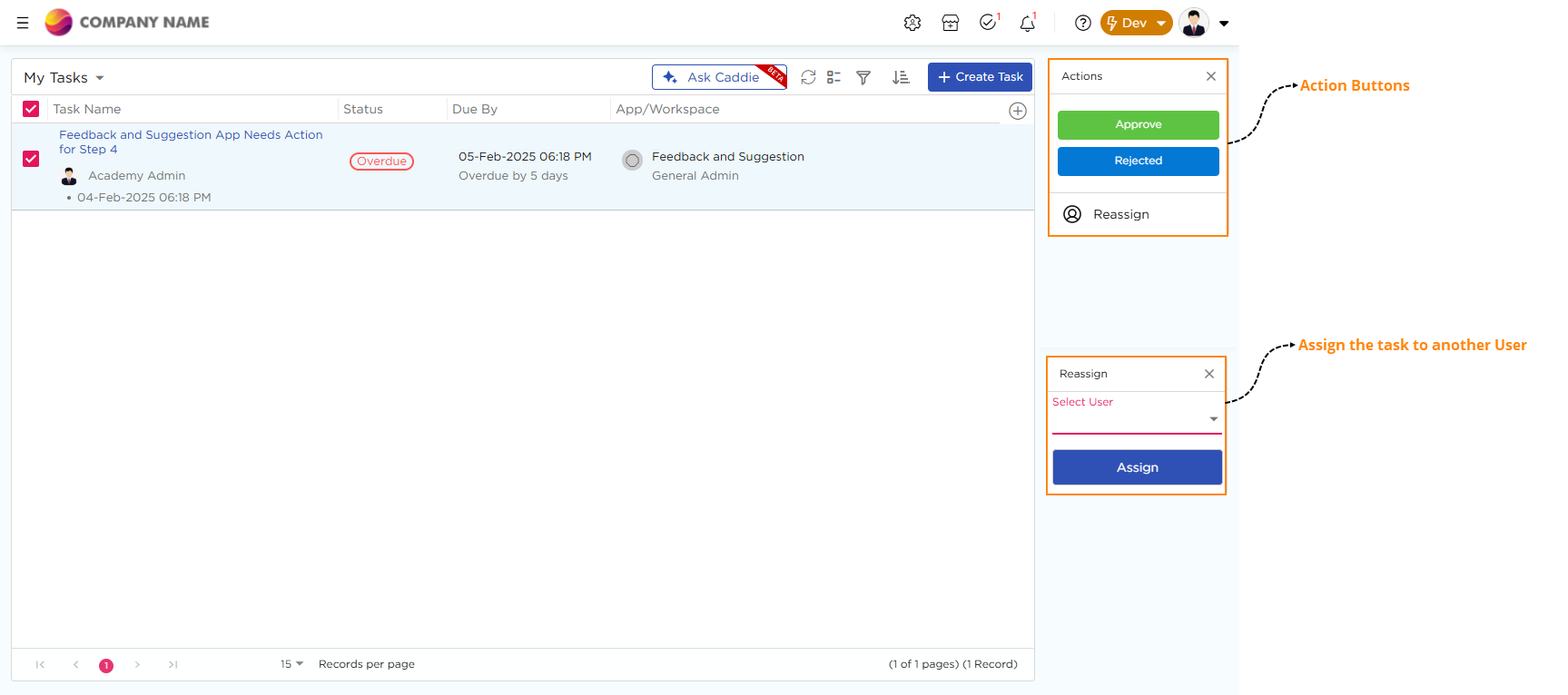
- Add Comments: Locate the Comments section in the top-right corner, type your message, and click Send. These comments will appear in the My Tasks section of the assigned user to address the task.
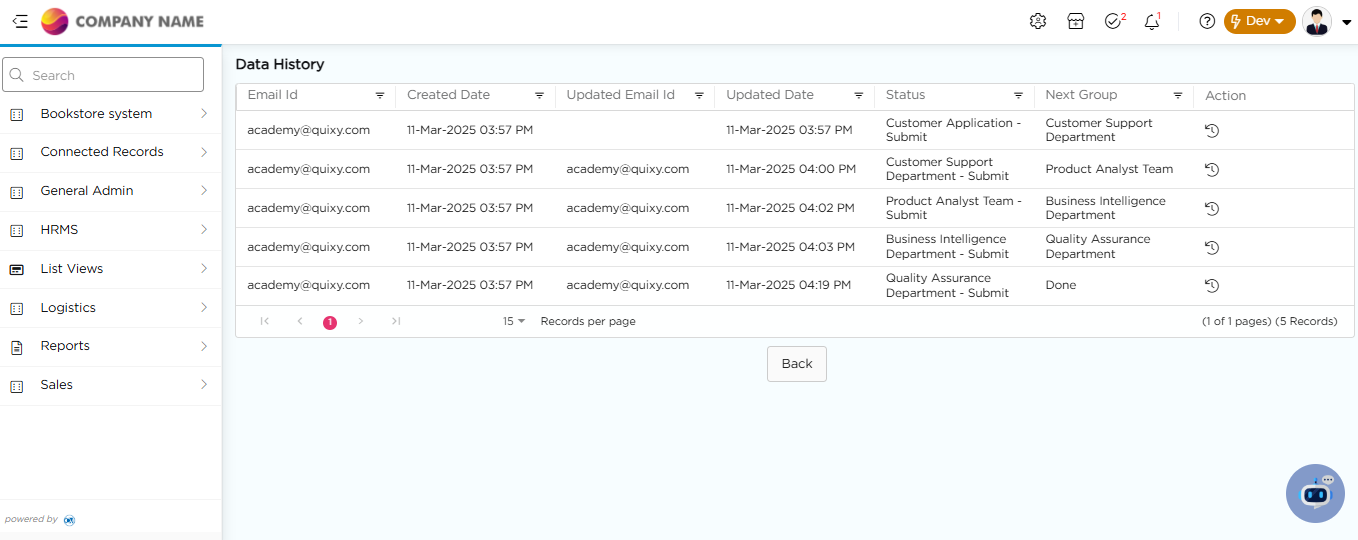
To View Record History: Click the History icon in the Action column to view the detailed history of changes and updates made to the record.
¶ 2. Requests
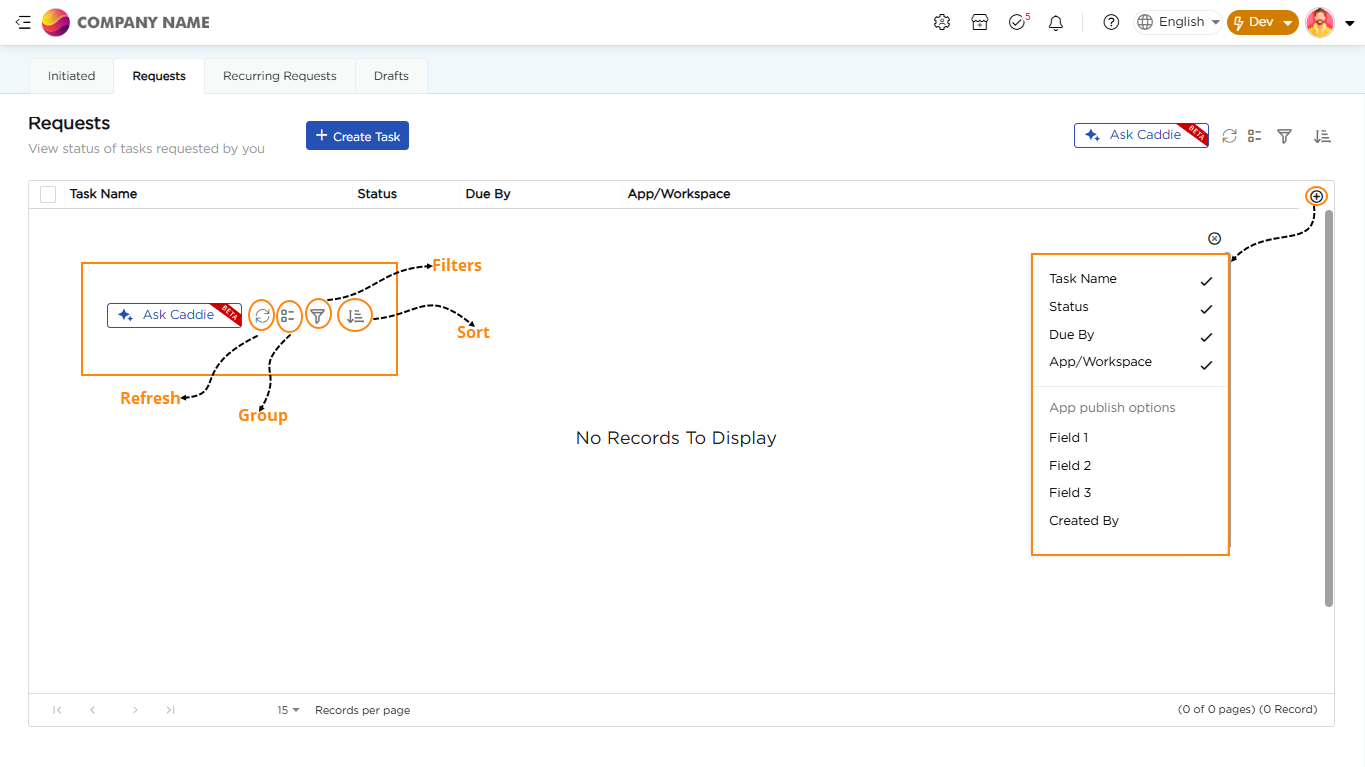
The Requests subsection shows all tasks you have created, along with their current status. It provides a clear overview of your tasks and allows you to easily create new task requests.
¶ 2.1. Viewing and Managing Tasks
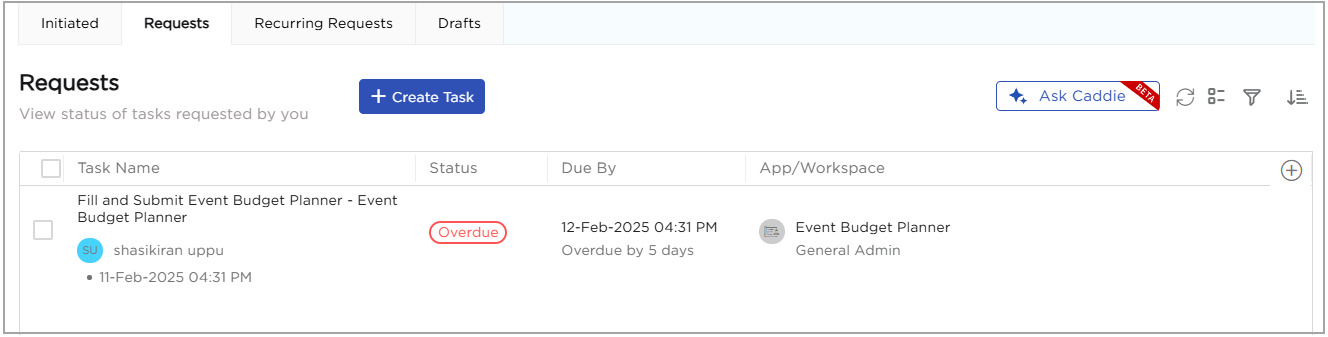
The table in the Requests subsection includes the following columns:
- Task Name: Displays the name of the task.
- Status: Shows the current status of the task, such as Open, Overdue or Completed.
- Due By: Displays the deadline for task completion.
- App/Workspace: Indicates the app or workspace linked to the task.
You can also customize the table to include additional columns based on your preferences.
¶ 2.2. To add more columns:
- Click the Plus (+) icon located at the end of the table.
- A dropdown menu will appear with additional column options.
- Select the desired columns to include them in the table.
- You can use the icons on the right side of the screen to manage your tasks effectively:
- Refresh Tasks: Updates the table to show the latest task statuses.
- Group Tasks: Group tasks based on selected criteria.
- Filter Tasks: Filters the tasks that match specific conditions, such as workspace or due date.
- Sort Tasks: Arrange tasks in ascending or descending order based on criteria like due date or status.
- Click the Ask Caddie button to use the AI feature (Beta) for any task-related queries or support.
¶ 2.3. Creating a New Task
- To create a new task, follow these steps:
- Click the + Create Task button to open the task creation form.
- Select the workspace where you want to create the task.
- Select the app to link the task.
- Decide whether to assign the task to specific roles or users.
- Choose One Time for tasks with a specific deadline or recurring for ongoing tasks.
- Use the calendar to select the task’s start date.
- Enter the number of hours for task completion from the start date.
- Provide a clear, descriptive name for the task.
- Include extra details about the task if necessary.
- Click Save to create the task or cancel to discard the task creation process.
¶ 3. Recurring Requests
Use the Recurring Requests subsection to manage tasks that repeat regularly, such as weekly reports or monthly reviews. This feature simplifies handling repetitive tasks and lets you create and configure recurring tasks quickly.
¶ 3.1. Recurring Task Details
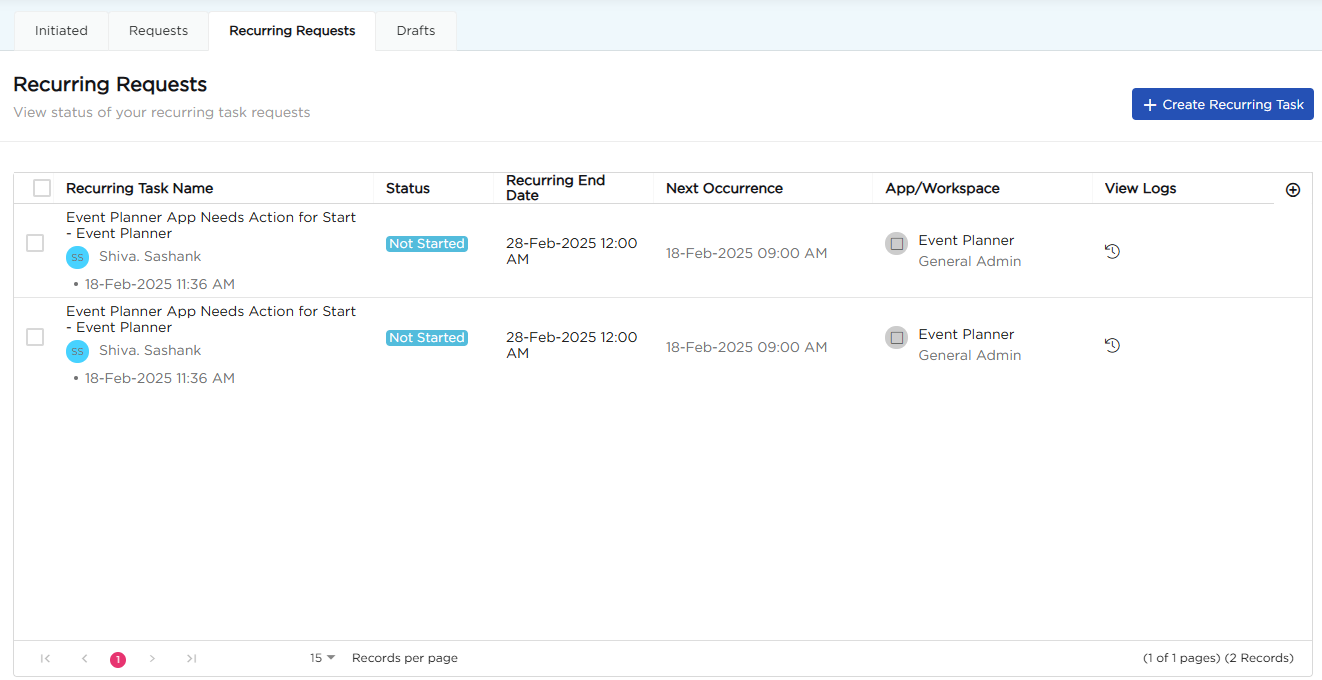
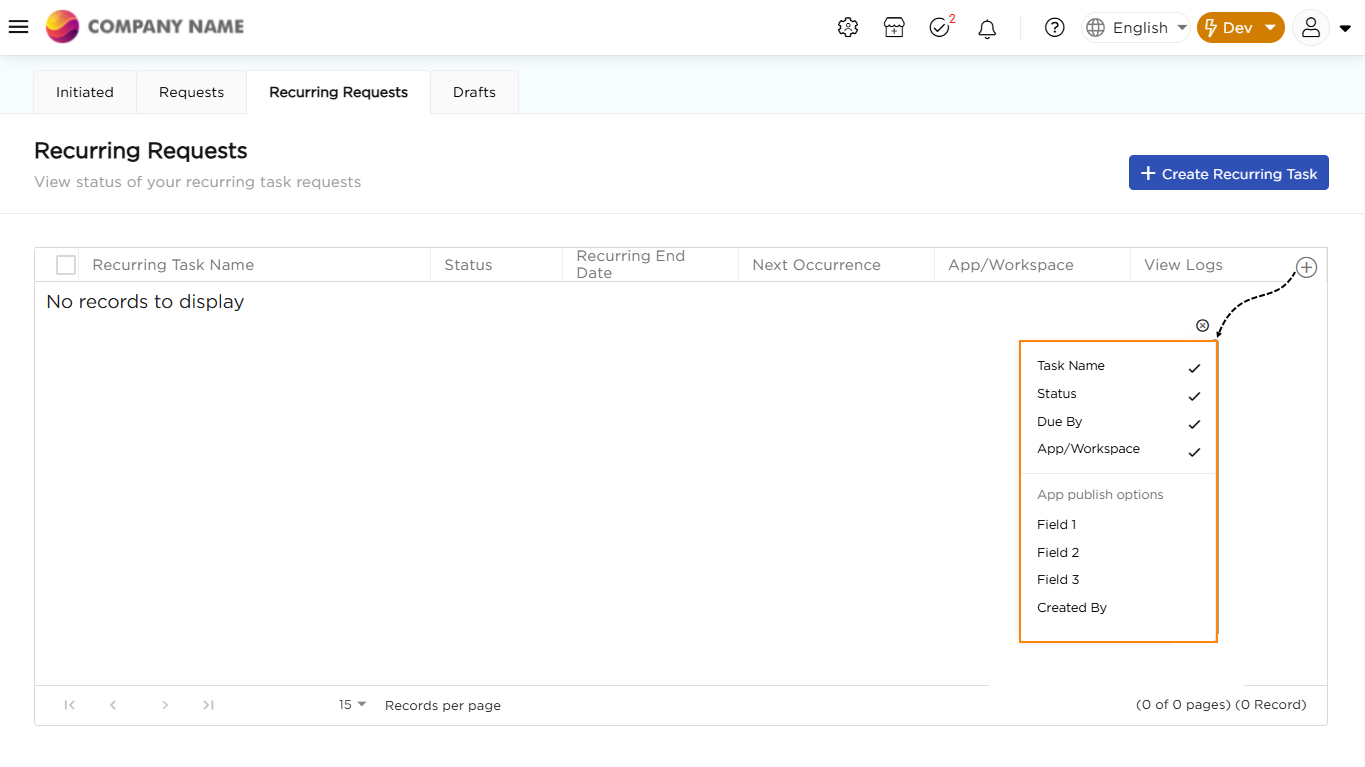
The table includes the following columns:
- Recurring Task Name: Shows the name of the recurring task.
- Status: Displays the current task status (e.g., Active or Completed).
- Recurring End Date: Indicates when the task will stop recurring.
- Next Occurrence: Displays the next scheduled date for the task.
- App/Workspace: Shows the app or workspace linked to the task.
- View Logs: Provides access to task history and related details.
¶ 3.2. Creating a Recurring Task
- To create a recurring task, follow these steps:
- Click the + Create Recurring Task button to open the task creation form.
- Choose a Workspace: Select the workspace where the task belongs.
- Choose an App: Pick the app associated with the task.
- Assign the Task: Decide if the task is assigned to specific roles or individual users.
- Select Task Type: Choose Recurring as the task type.
- Set Schedule: Select the recurrence frequency (Daily, Weekly, Monthly, or Yearly).
- Set Recurrence Dates:
- Recurrence Start Date: Specify the start date.
- Recurrence End Date: Define the end date.
- Set Task Deadline: Enter the deadline in hours from the start date.
- Enter a Task Name: Provide a descriptive name.
- Add Details: Include additional instructions or notes.
- Click Save to create the task or Cancel to discard the task creation process.
¶ 4. Drafts
The Drafts allows users to save their progress on incomplete records or tasks and return later to complete them. This ensures a smooth and uninterrupted workflow, preventing data loss or the need to restart work from scratch.
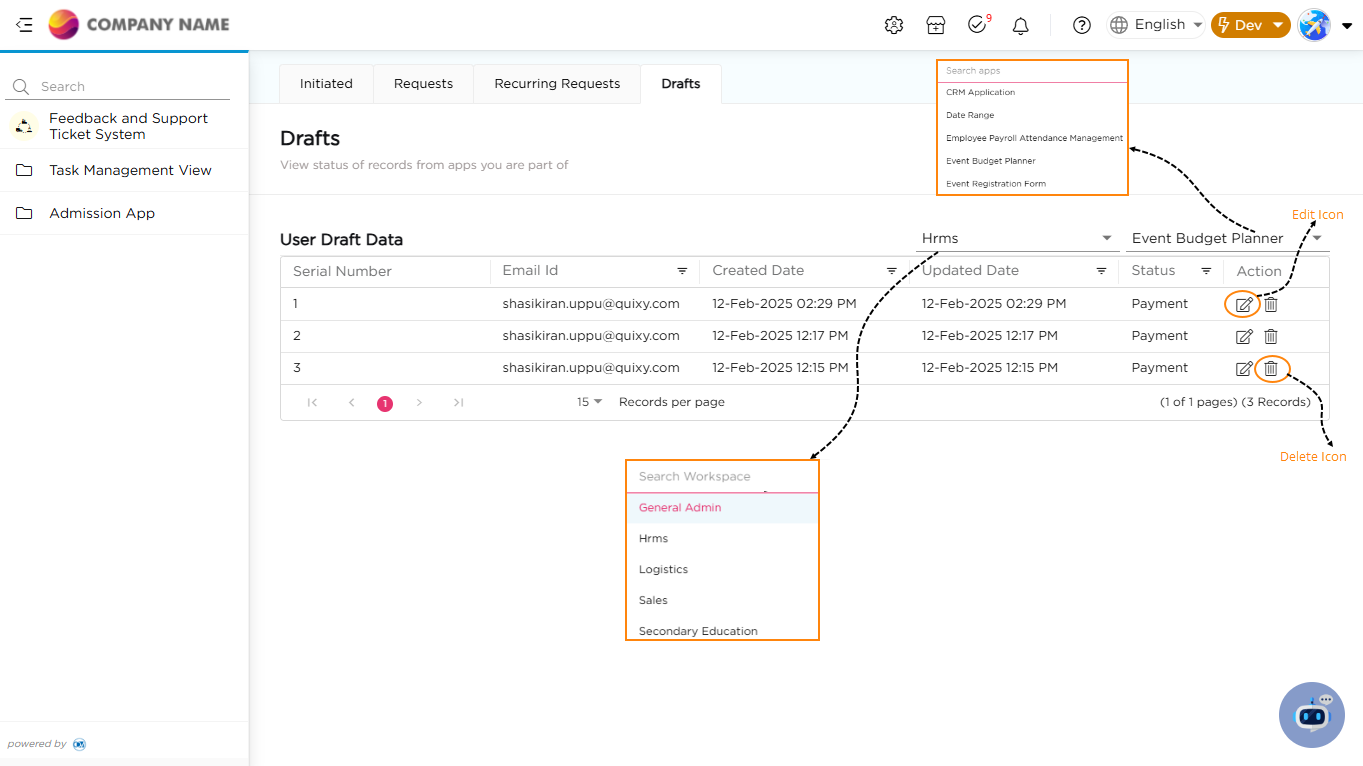
¶ 4.1. How to Access and Manage Drafts
- To locate and manage drafts within your application, follow these steps:
- Navigate to the Workspace
- Select the Relevant App
- Understanding the Drafts Table
- Drafts are displayed in a structured table with the following details:
- Email ID: Identifies the user who saved the draft.
- Updated Date: Shows when the draft was last modified.
- Actions: Provides quick options to manage each draft:
- Edit (Pencil Icon): Allows the user to reopen and continue editing the draft.
- Delete (Trash Icon): Removes the draft if it's no longer needed.
¶ 4.2. Enabling Drafts in Your Workflow
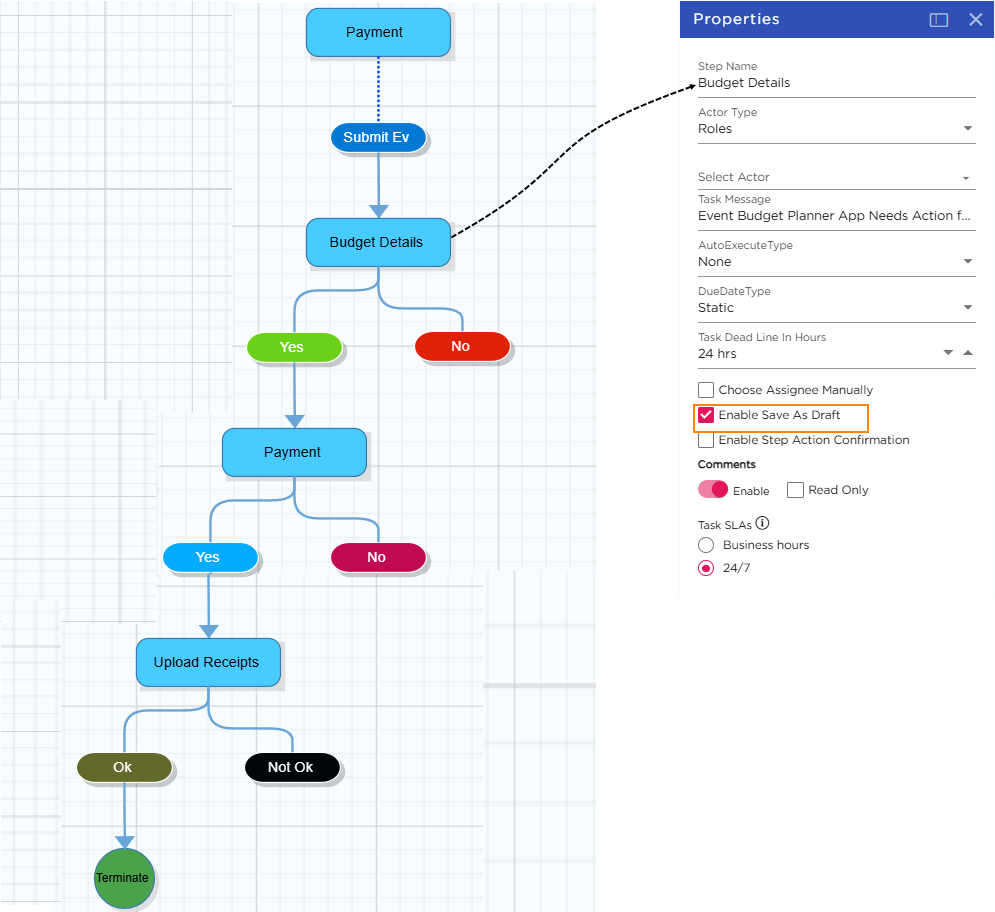
- To allow users to save tasks or records as drafts, follow these steps:
- Navigate to the Workflow tab in the application.
- Identify the workflow step where you want to enable the draft-saving feature.
- In the Properties panel, select Enable Save As Draft to activate.
- Once the draft option is enabled, publish the application to apply the changes.
¶ 4.3. How Drafts Work in Real-Time
- After enabling the Save As Draft feature, here’s how it works in practice:
- Open the application and start adding the records.
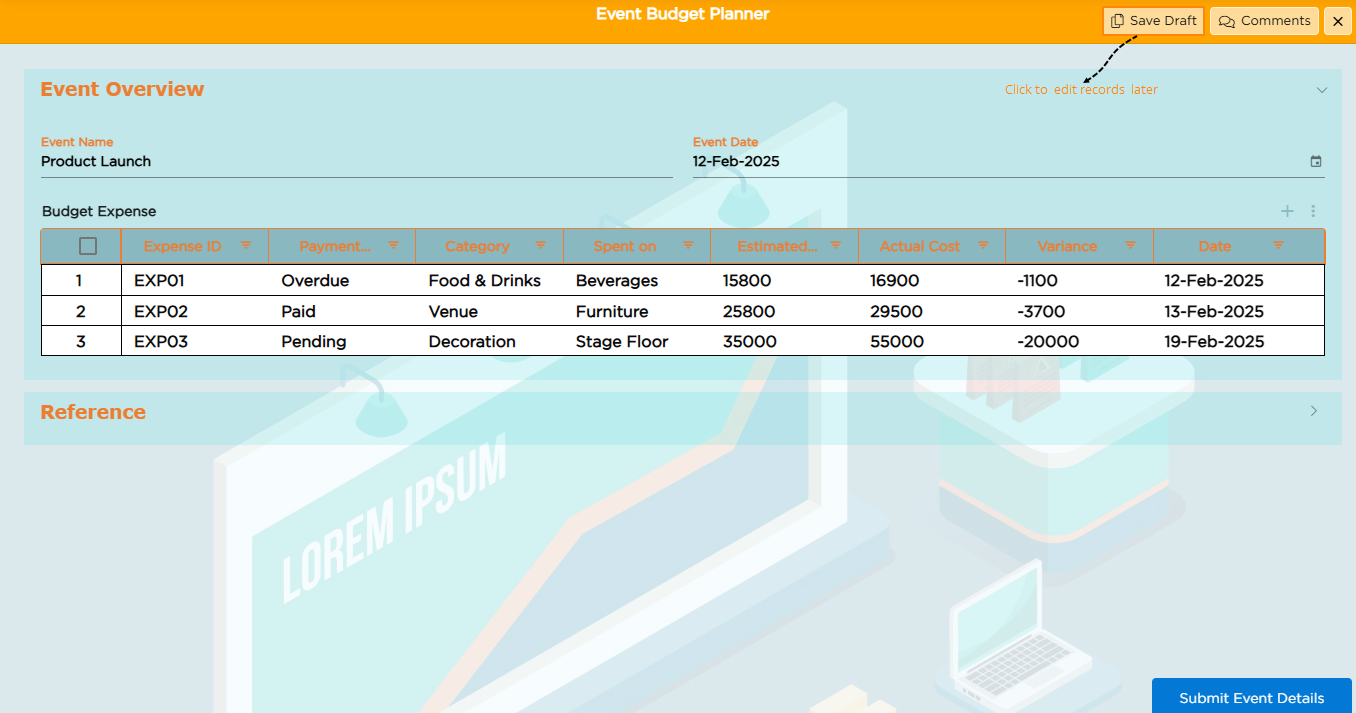
- Instead of submitting the record immediately, click on the Save Draft button.
- Navigate back to the Drafts Section by selecting the relevant Workspace and App.
- The saved draft will be listed there, allowing you to resume editing at any time.