This article shows how to create a Custom Script event. The example counts the working days between two dates on a leave request and writes the result into a text field.
¶ 1. Before You Begin
The app needs a form with these fields:
- From Date (Date)
- To Date (Date)
- Leave Summary (Text)
¶ 2. Configure a Custom Script
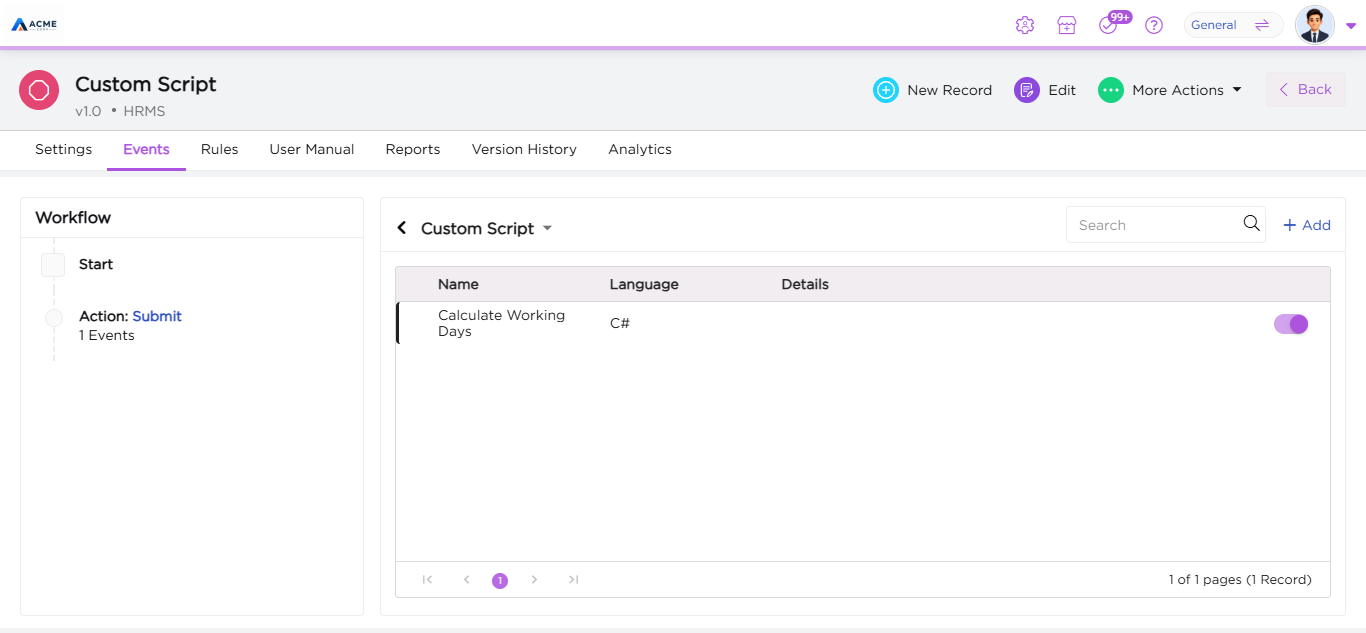
- Open the app and click the Events tab.
- In the list of event types, click Custom Script, then click Add.
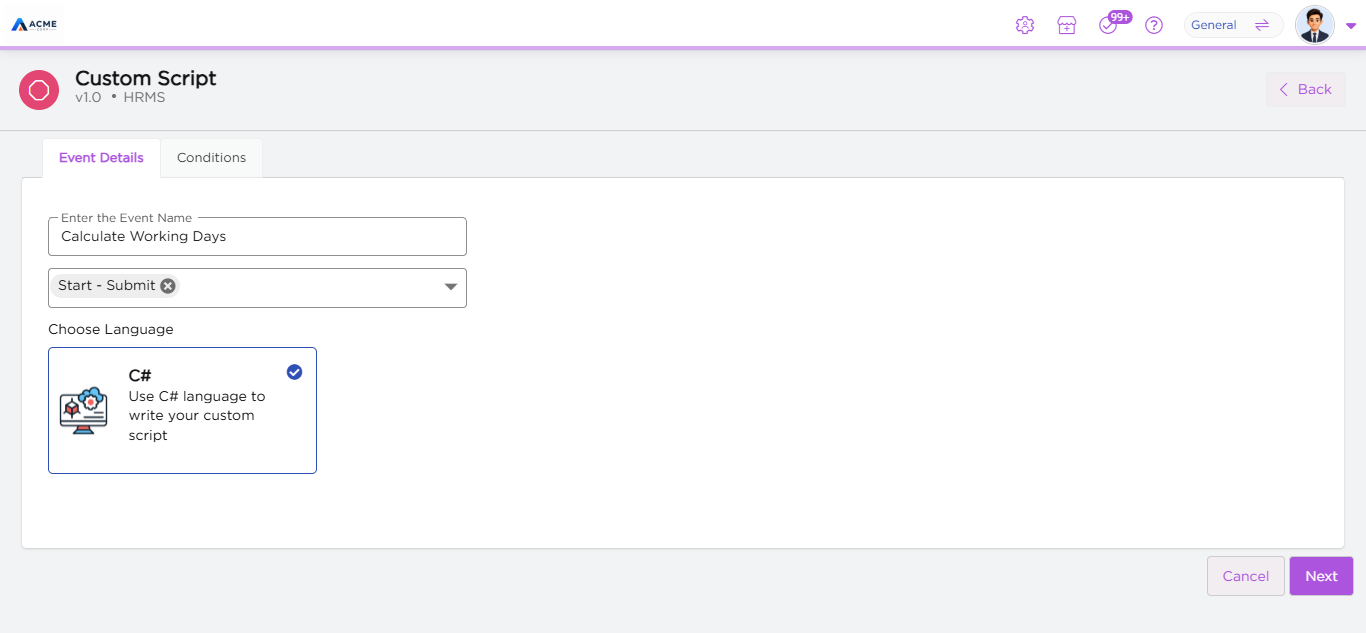
- On the Event Details tab, enter the Event Name, for example Calculate Working Days.
- Meaning: The name that identifies the script in the list of events.
- In Select Workflow Step and Action, select the step action that starts the script, for example Start - Submit.
- Meaning: The script runs when a user performs this action. You can select more than one step action.
- Under Choose Language, keep C# selected.
- Meaning: C# is the only language available for Custom Script.
- Click Next to open the Conditions tab.
- Meaning: By default, the script runs unconditionally, every time the selected action is performed. To run it only in certain cases, click Add Conditions and set the conditions.
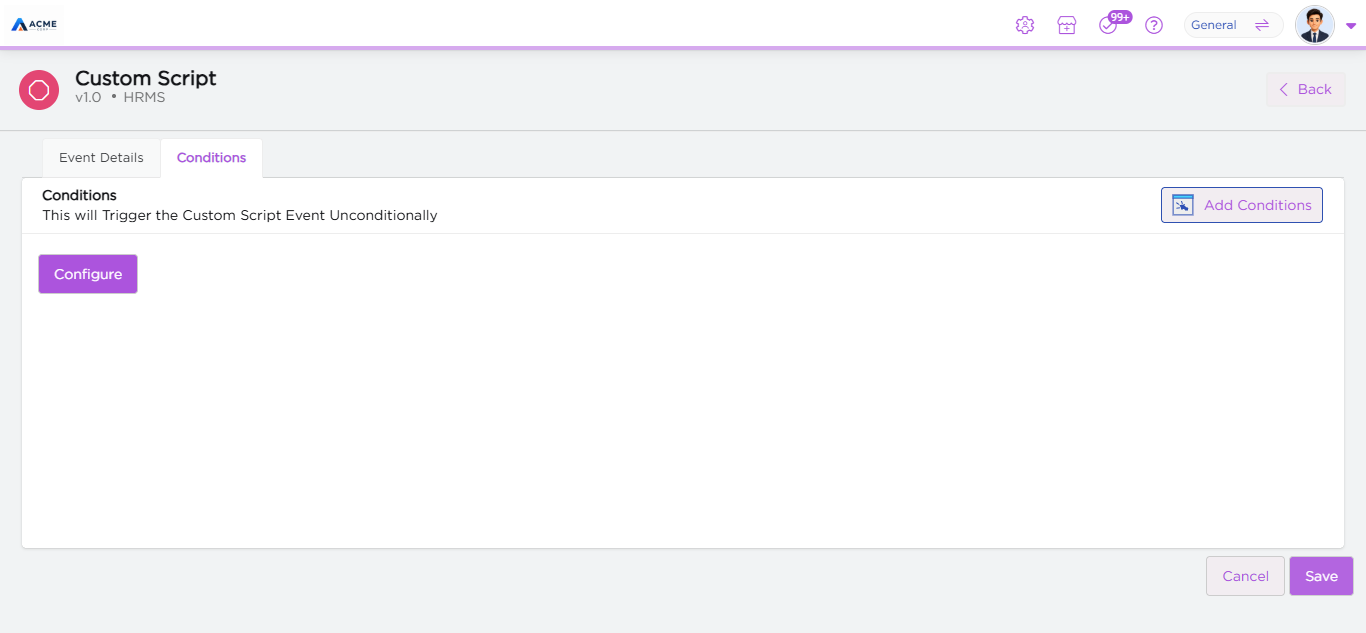
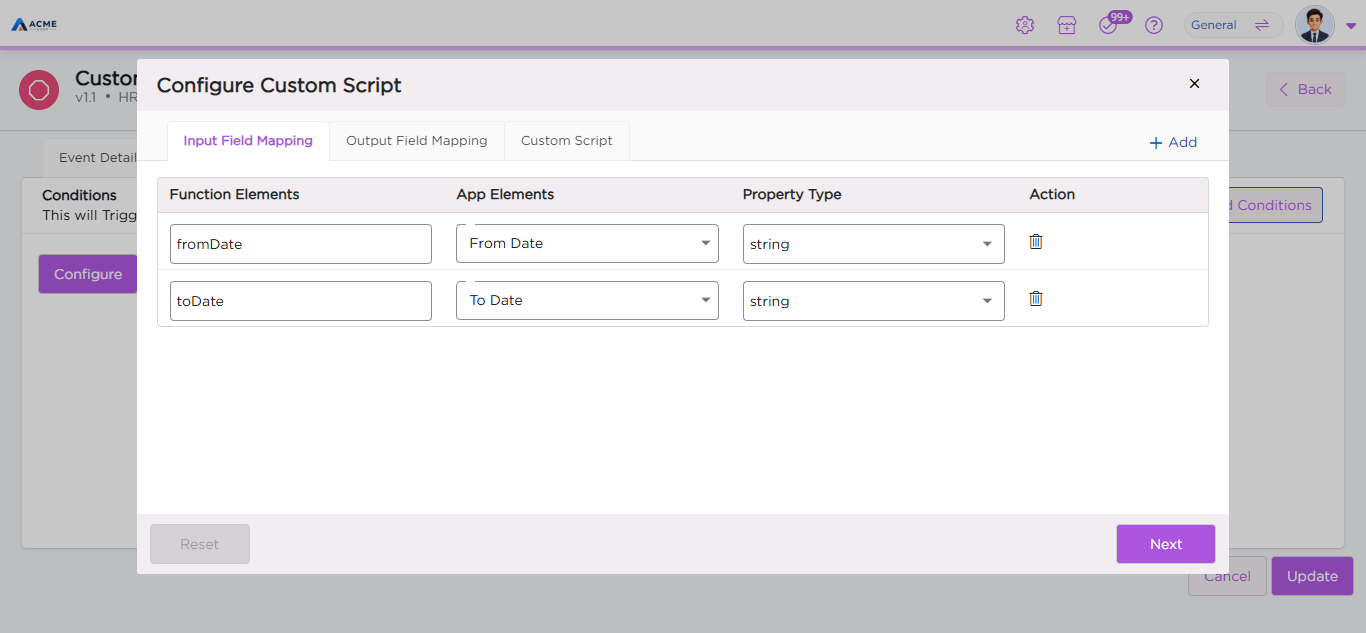
7. Click Configure. The Configure Custom Script dialog opens with three tabs:
- Input Field Mapping,
- Output Field Mapping and
- Custom Script.
8. On the Input Field Mapping tab, click Add and create one row for each field the script reads:
- Function Elements: the variable name you use in the code
- App Elements: the form field that supplies the value
- Property Type: bool, char, DateTime, decimal, double, float, int, int[], List<JObject>, long, string or string[]
Example:
| Function Elements | App Elements | Property Type |
|---|---|---|
| fromDate | From Date | string |
| toDate | To Date | string |
- Meaning: The script reads the From Date and To Date fields as the variables
fromDateandtoDate.
Note: Map Date fields as
string. A Date field mapped asDateTimeruns without an error, but the script writes nothing to its output fields.A Date field reaches the script as UTC text, such as
2026-11-01T18:30:00.000Z. In this example the platform uses India time (UTC+5:30), so 2 November arrives as 1 November at 18:30. The shift does not change with the time zone of the browser. The example script adds 12 hours before it takes the date, which returns the calendar day the user picked.
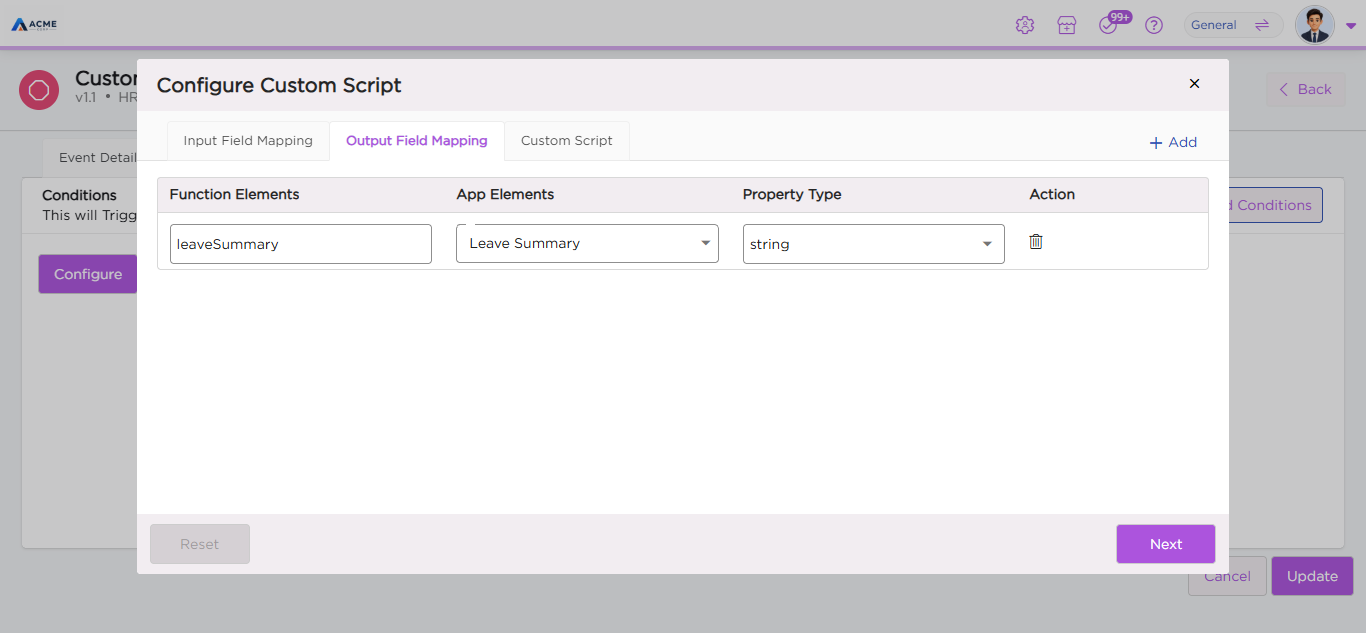
9. On the Output Field Mapping tab, click Add and create one row for each field the script writes to:
| Function Elements | App Elements | Property Type |
|---|---|---|
| leaveSummary | Leave Summary | string |
- Meaning: Whatever the code stores in
leaveSummaryis written to the Leave Summary field when the record is saved.
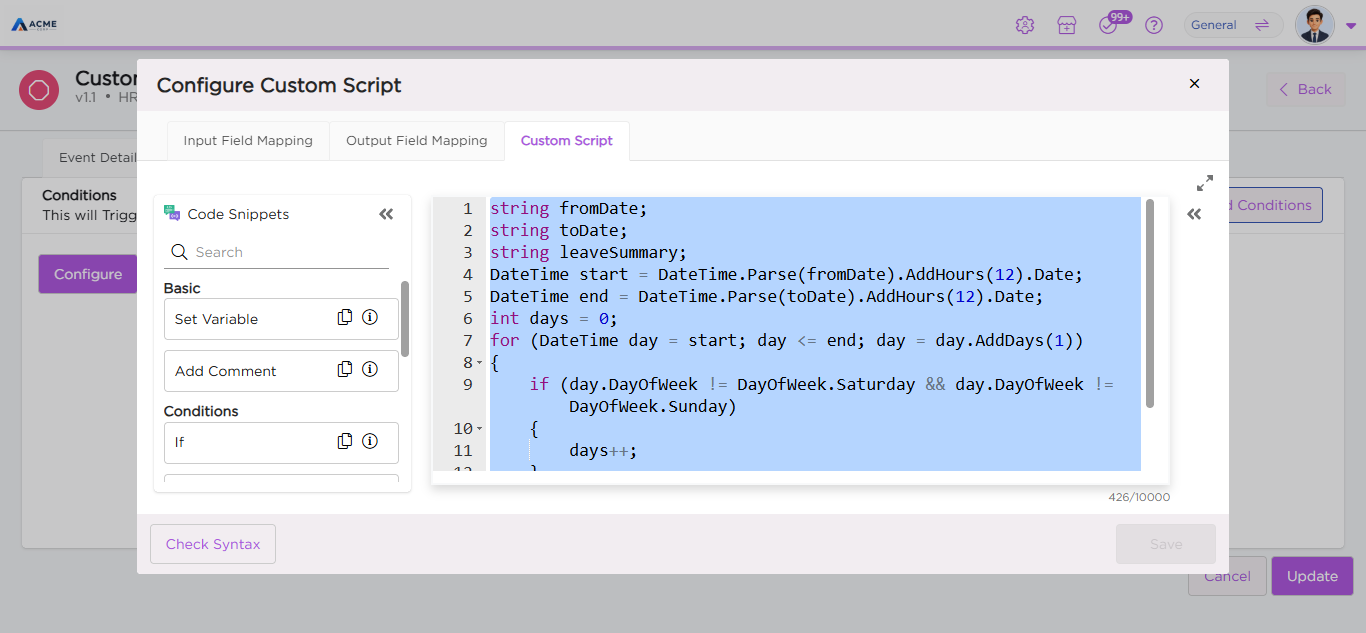
10. On the Custom Script tab, write the C# code. The editor adds the input variables at the top. Declare the output variable in the code.
string leaveSummary;
DateTime start = DateTime.Parse(fromDate).AddHours(12).Date;
DateTime end = DateTime.Parse(toDate).AddHours(12).Date;
int days = 0;
for (DateTime day = start; day <= end; day = day.AddDays(1))
{
    if (day.DayOfWeek != DayOfWeek.Saturday && day.DayOfWeek != DayOfWeek.Sunday)
    {
        days++;
    }
}
leaveSummary = days + " working days";
- Meaning: The script adds 1 to
daysfor every date from the start date to the end date that is not a Saturday or a Sunday. The last line stores the count inleaveSummary. Use Code Snippets on the left of the editor to insert common code. The script can hold up to 10,000 characters.
11. Click Check Syntax. When the editor shows No errors found., click Save.
- Meaning: The dialog cannot be saved until the script passes the check.
12. On the Conditions tab, click Save. The message Custom Script Calculate Working Days Created Successfully confirms the event.
¶ 3. Test the Script
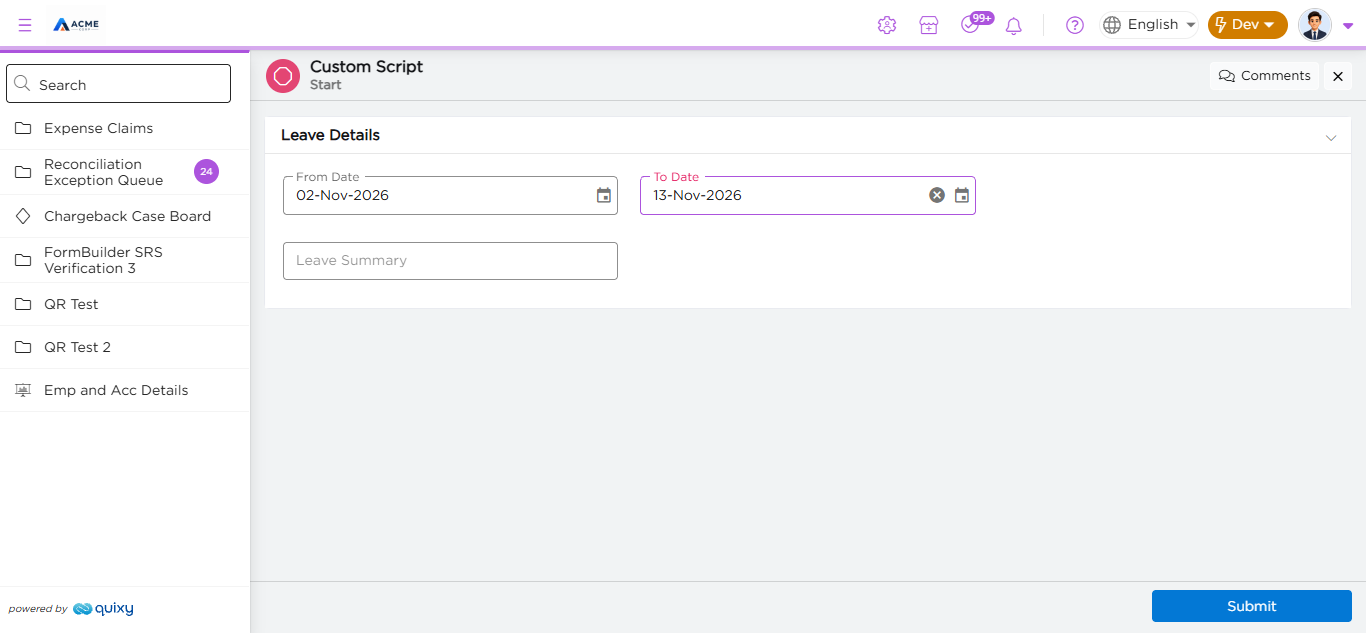
1. Open a new record of the app and enter a From Date of 02-Nov-2026 and a To Date of 13-Nov-2026.
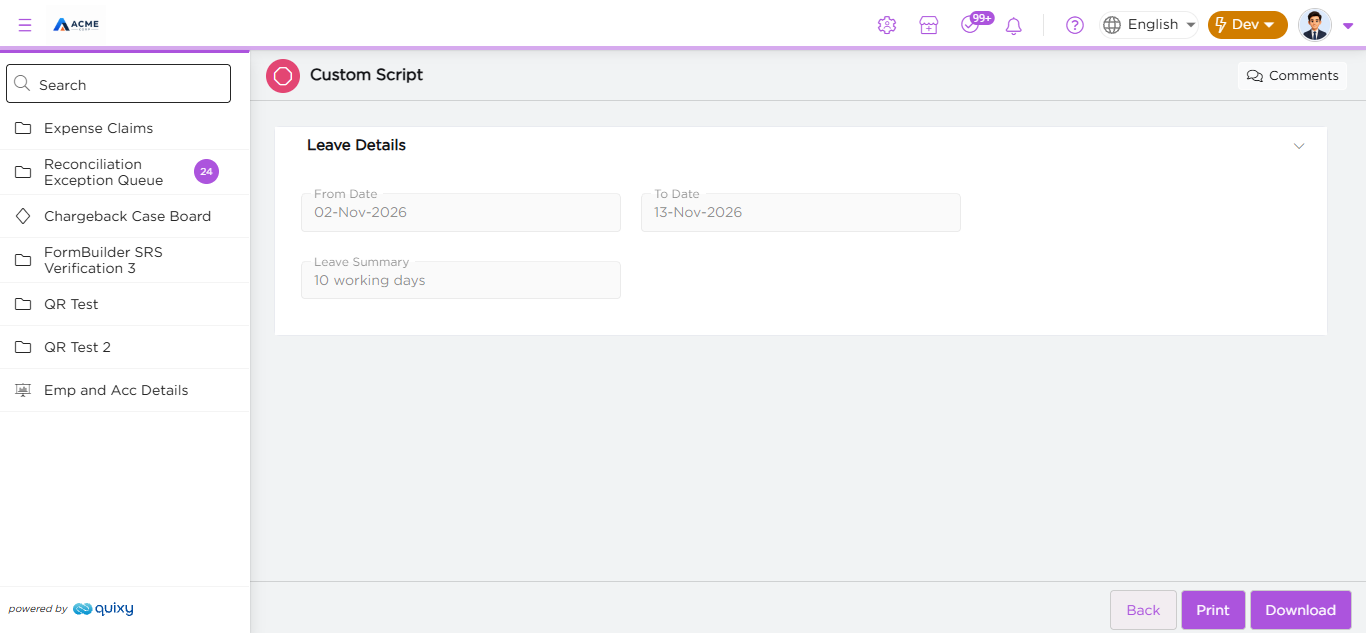
2. Click Submit, then open the saved record. The Leave Summary field now shows 10 working days.
¶ 4. Edit or Turn Off a Custom Script
Each row in the list of Custom Script events has these actions: Edit, Copy, History, Delete and an on/off toggle. Turn the toggle off to stop the script from running without deleting it.
¶ 5. If an Error Occurs
Check Syntax shows errors. The editor lists each error as (line,column): error code: message, and the Save button stays disabled until the check shows no errors. For example, a name that the script has not declared gives:
(7,35): error CS0103: The name 'end' does not exist in the current context
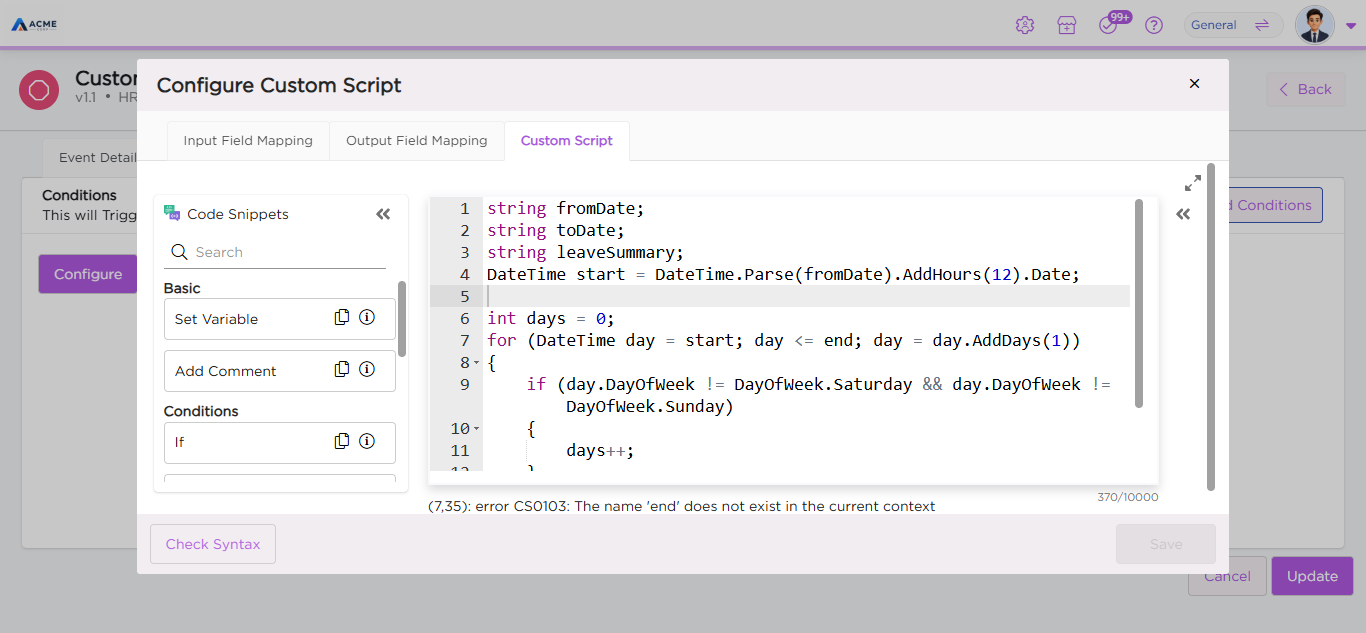
- Meaning: Line 7, column 35 of the script uses the name
end, which is not declared. Declare it or correct the spelling, then run Check Syntax again.
A field stays empty after the record is saved. Check these three points:
- The output variable is declared in the code and set to a value.
- The Output Field Mapping row uses the same variable name as the code.
- Date fields are mapped as
string, notDateTime.