A Date Range Calendar, also known as a Date Range Picker, allows users to select a range of dates, such as July 1–July 10, 2022. The functionality of a Date Range Calendar is very different from that of a standard calendar, and it provides organizations all over the world with a multitude of options.
In Quixy, there are two ways to configure the Date Range Picker for your applications:
You can rely on Data Sources, which involved storing relevant date information separately and connecting it to the Picker.
There’s a simpler alternative with Quixy’s Personalized and Universal Calendars.
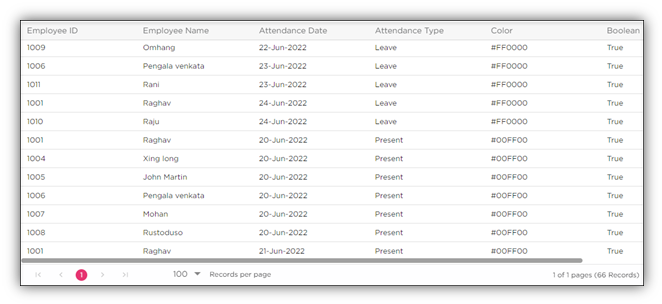
The Date Range calendar does not have its own intelligence to automatically adjust to the needs of the organization to show what dates are weekends or weekdays or holidays. So, the calendar relies on the data sources to obtain wisdom (attendance type for a date and its color code) from its data pool and mimics the same when the calendar is accessed every time.
Let's look at a real-world scenario to configure and use the Date Range Picker in Quixy.
Use Case
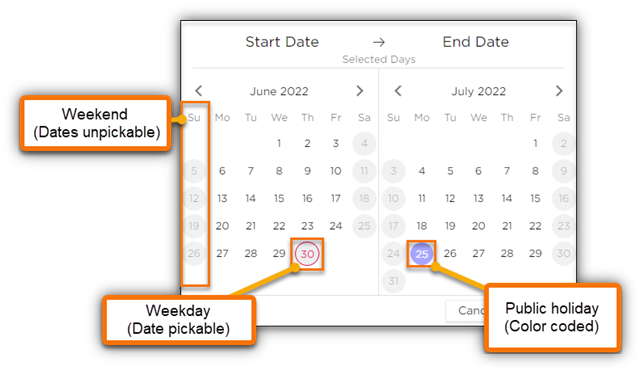
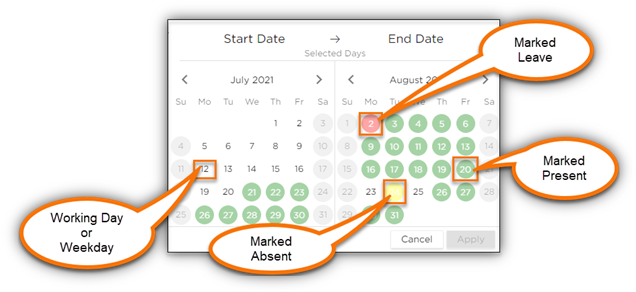
Assume that a company tracks employee attendance and absences using the Date Range Calendar. When recording attendance or requesting leave, this calendar may use color coding to indicate the number of days an employee was present, on leave, or not present. Even the working days, weekends, and holidays (including public holidays) are displayed, allowing the staff to plan their actions appropriately.
A Date Range calendar can be configured in such a way that it can communicate the information below as soon as the Date Range picker is opened by the users:
The Tag Calendar is an additional layer in the Date Range Picker that controls how weekends, holidays, and other special days are tagged and whether they’re selectable. Based on the selected mode, the Tag Calendar offers different ways to determine how non-working days are treated.
When using Data Source mode, Tag Calendar lets you:
Overlay weekend and holiday rules from a predefined or user-based calendar
Combine those rules with attendance data (e.g., present/absent)
Decide if certain dates should be selectable or disabled
You can choose from three Tag Calendar options:
None – Only your data source is used for tagging and coloring. Weekend/holiday logic must be handled entirely by your data.
Predefined Calendar – Pulls holiday/weekend rules from an admin-defined calendar, while your data source still handles attendance tagging.
Calendar of Logged-in User – Automatically uses the calendar assigned to the current user. This is ideal for distributed teams with different schedules. (Example: A user in the UAE (Sunday–Thursday workweek) and another in India (Monday–Friday workweek) will each see weekends and holidays based on their assigned calendars.)
Regardless of which option is selected, the name, color, and Boolean fields still come from your data source to support date tagging and packability.
¶ How to configure a Date Range Picker using Data Source?
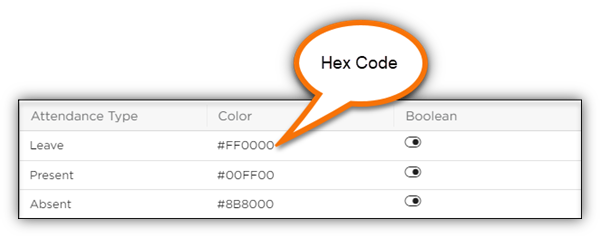
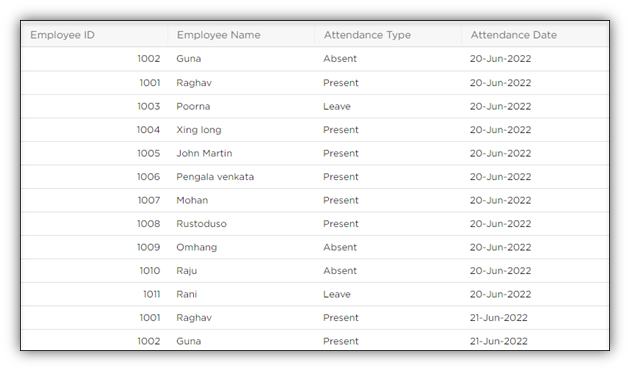
Placing a Date Range calendar in an app is simple, but before that, a data source must be created to feed data to the Date Range calendar so that it can display its colors (Present or Absent or Leave) while in action.
Note
Moving forward, the article will show you the detailed steps on how an application, data tables, and data sources work hand-in-hand to keep the Date Range calendar working as expected.
As universally known, Boolean accepts True or False values. In the case of Date Range, the Boolean values make the dates on the calendar to be either pickable (selectable) or unpickable (unselectable).
¶ Data Source (DT1*Attendance Type {Inner Join} DT2*Attendance Type)
Data Source Reference
Data Source Reference: Create a Reference on top of the data source, which is then used in the Date Range.
¶ Relation of Date Range Picker with Personalized and Universal Calendars
Besides using data sources, the Date Range Picker can be configured with Personalized and Universal Calendars, offering a simpler way to manage working days, weekends, and holidays based on pre-defined organizational or user-specific schedules.
Personalized Calendars apply individual work hours and holidays tailored to each user’s shifts or region, while Universal Calendars define a consistent schedule for the entire organization.
In this calendar-based setup, the Tag Calendar feature provides two options:
Predefined Calendar — uses an admin-created calendar for weekends and holidays.
Calendar of the Logged-in User — dynamically applies the calendar assigned to the current user, making it ideal for organizations with diverse regional or shift schedules.
These calendars handle date tagging, coloring, and selection rules automatically, eliminating the need for separate attendance or Boolean data fields.
Calendars are best suited when your organization has fixed workdays, shifts, and holidays that don’t change frequently. They provide a centralized, hassle-free way to manage business hours and holidays, ensuring consistency across users and applications without maintaining complex attendance data.
For teams with multiple regions or shifts, calendars simplify handling diverse schedules by automatically applying relevant rules.
On the other hand, Data Sources work better when date tagging depends on dynamic or frequently changing data like real-time attendance or leave information.