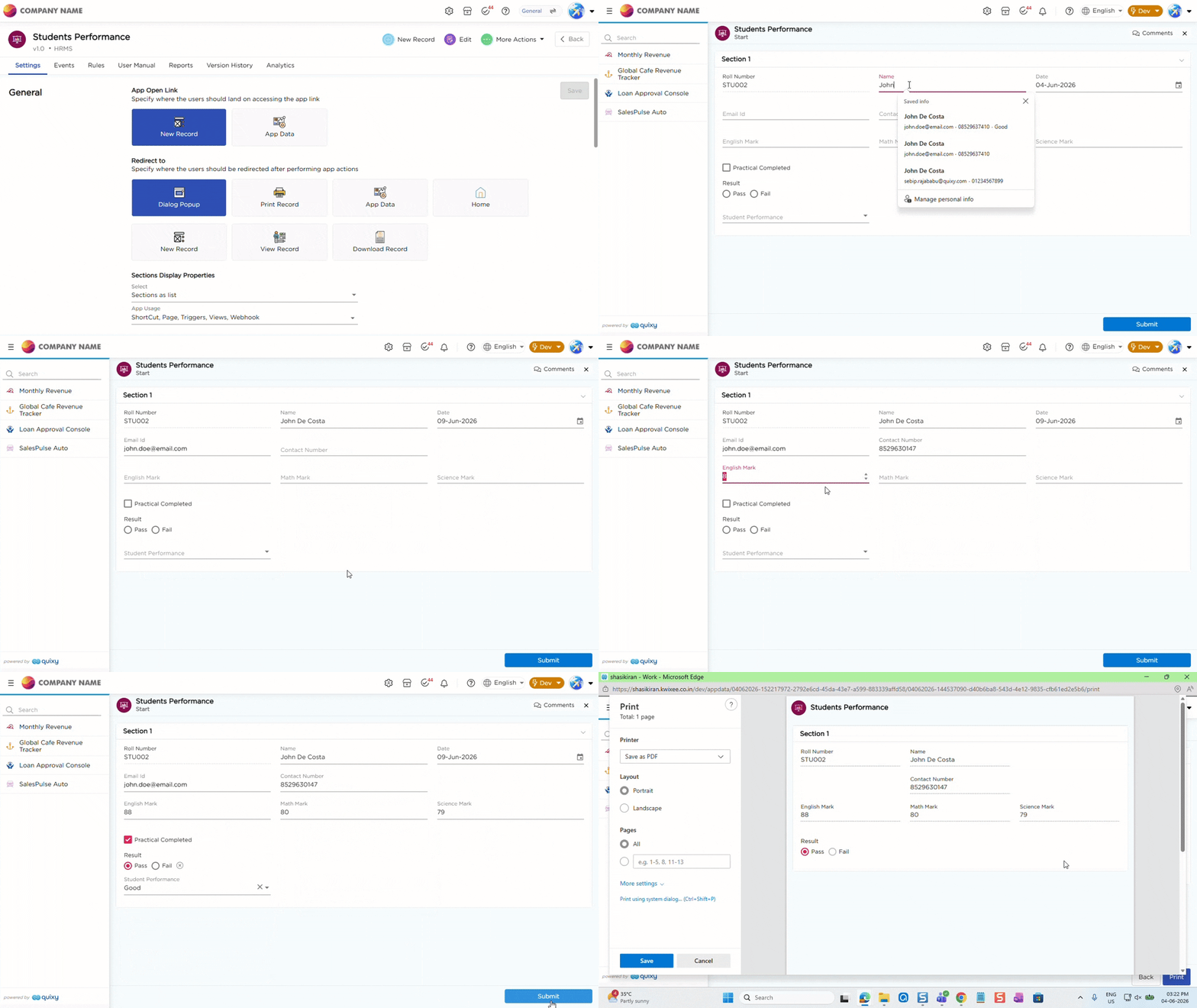
Use the Print App Report Quick Flow to automatically generate and print an app report when a record is submitted. You can control which sections of the app are included in the printed report by configuring print permissions.
For example, after submitting an employee record, a printable version of the Employee Payslip app can be generated automatically.
¶ 1. Configure Print App Report
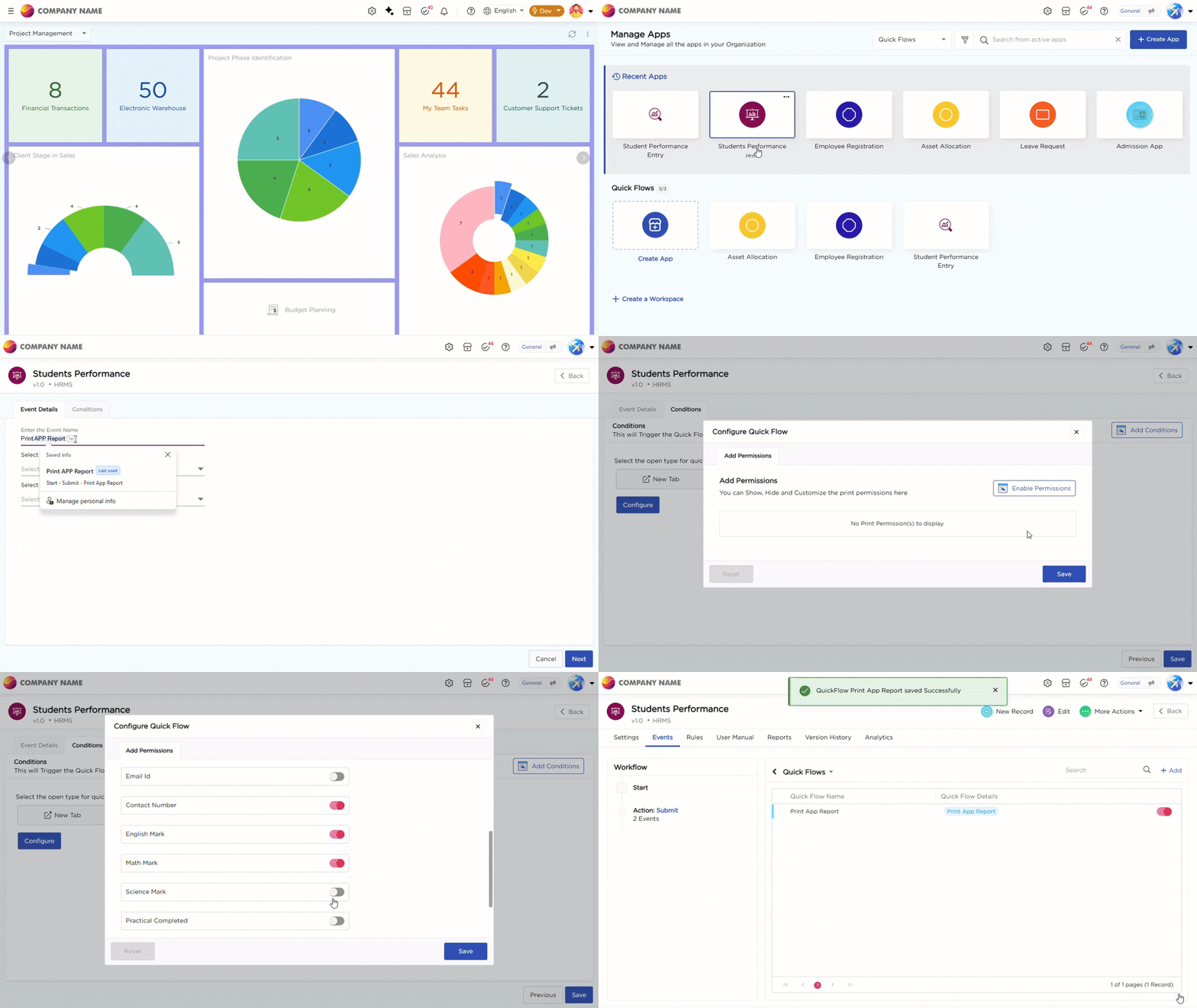
Follow these steps to configure the Print App Report Quick Flow:
- In the Conditions tab, click Add Conditions and define the conditions under which the Quick Flow should be triggered. By default, the Quick Flow runs unconditionally.
- Select how the app report should open:
- New Tab opens the report in a new browser tab.
- New Window opens the report in a separate browser window.
- Self opens the report in the current browser window.
- Click Configure to open the Configure Quick Flow window.
- In the Add Permissions tab, click Enable Permissions to configure print permissions.
- For each section of the app, select one of the following options:
- Show to include the section in the printed report.
- Hide to exclude the section from the printed report.
- Custom to configure visibility for individual fields within the section.
- If Custom is selected, enable or disable the required fields that should appear in the printed report.
- Click Save to apply the permission settings.
- Click Save to complete the Quick Flow configuration.
After a record is submitted, the app report is generated and printed based on the configured section and field permissions.