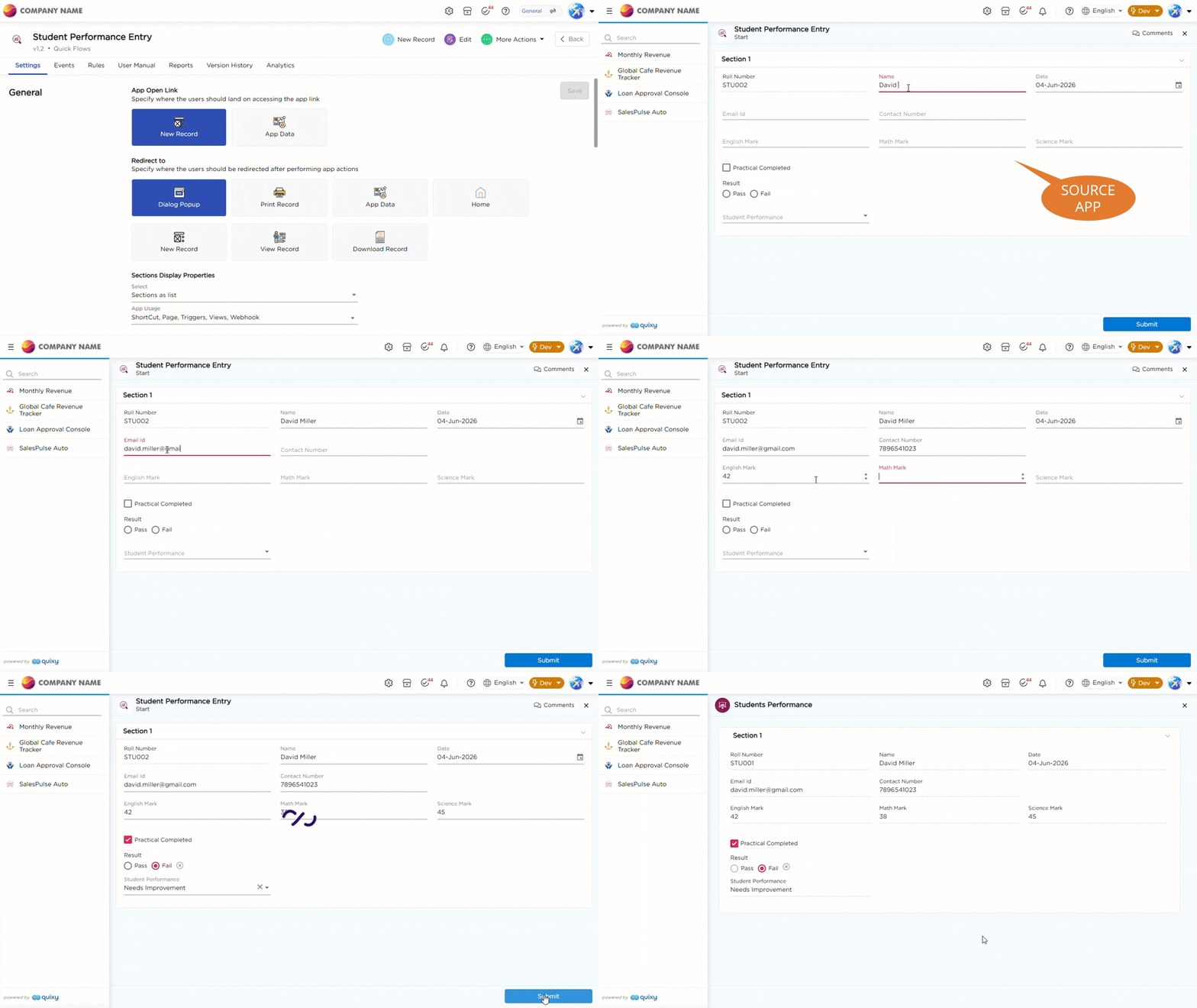
Use the Open App as Report Quick Flow to automatically open another app in report mode after a record is submitted in the source app. This allows users to view related information in a read-only report format without manually navigating to the target app.
For example, after submitting an employee record, an Employee Summary app can automatically open as a report to display the submitted employee information.
¶ 1. Configure Open App as Report
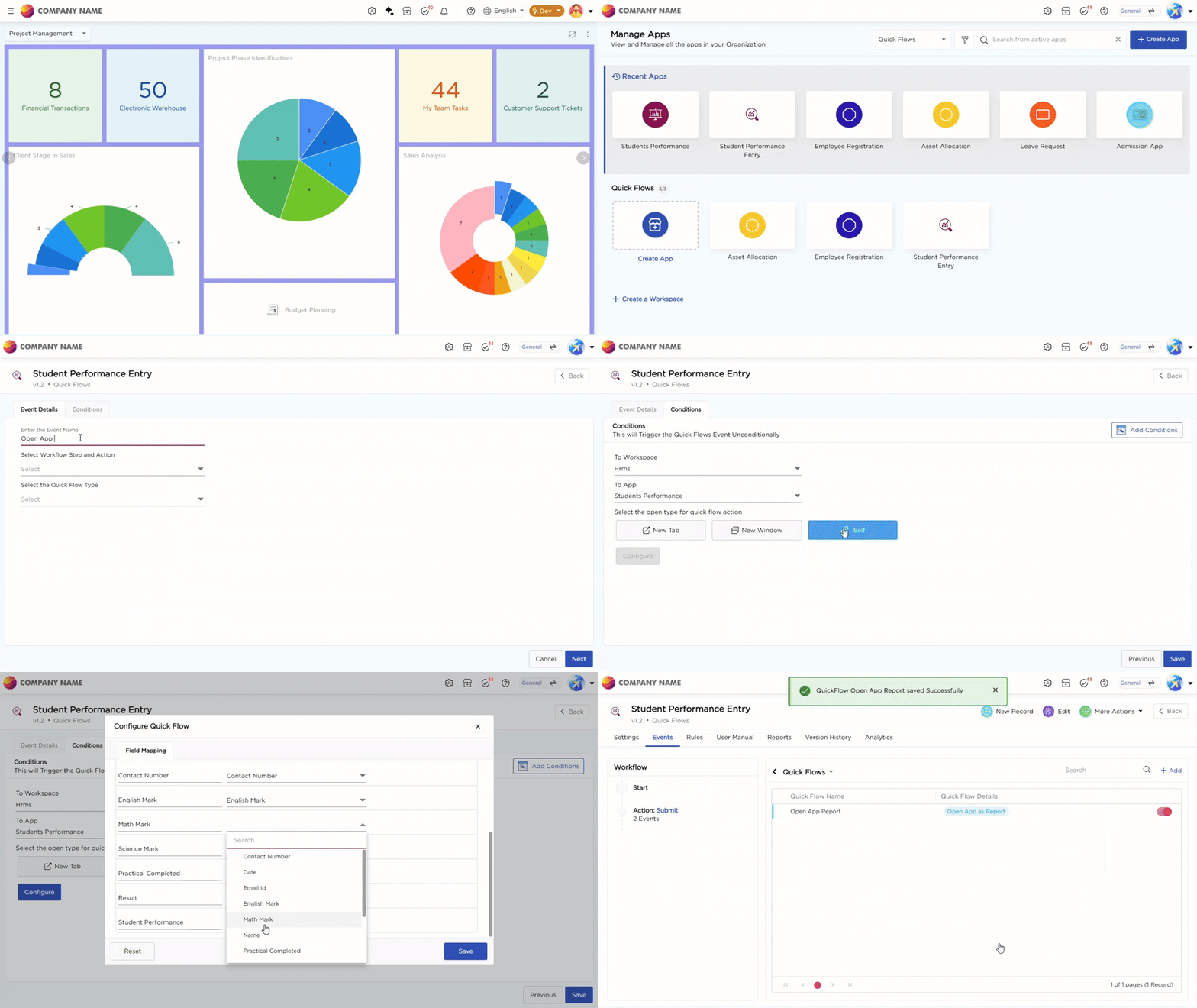
Follow these steps to configure the Open App as Report Quick Flow:
- In the Conditions tab, click Add Conditions and define the conditions under which the Quick Flow should be triggered. By default, the Quick Flow runs unconditionally.
- Select the target Workspace and App that should open as a report.
- Select how the report should open:
- New Tab opens the report in a new browser tab.
- New Window opens the report in a separate browser window.
- Self opens the report in the current browser window.
- Click Configure to open the Configure Quick Flow window, where you can map fields between the source and target applications.
- In the Field Mapping tab, select a mapping method:
- Map 1 at a Time allows you to map individual fields manually.
- Show All and Map displays all available fields for bulk mapping.
- Map the required fields between the source and target applications.
- Click Save to apply the field mappings.
- Click Save to complete the Quick Flow configuration.
After a record is submitted in the source app, the configured app opens as a report and displays the mapped data.