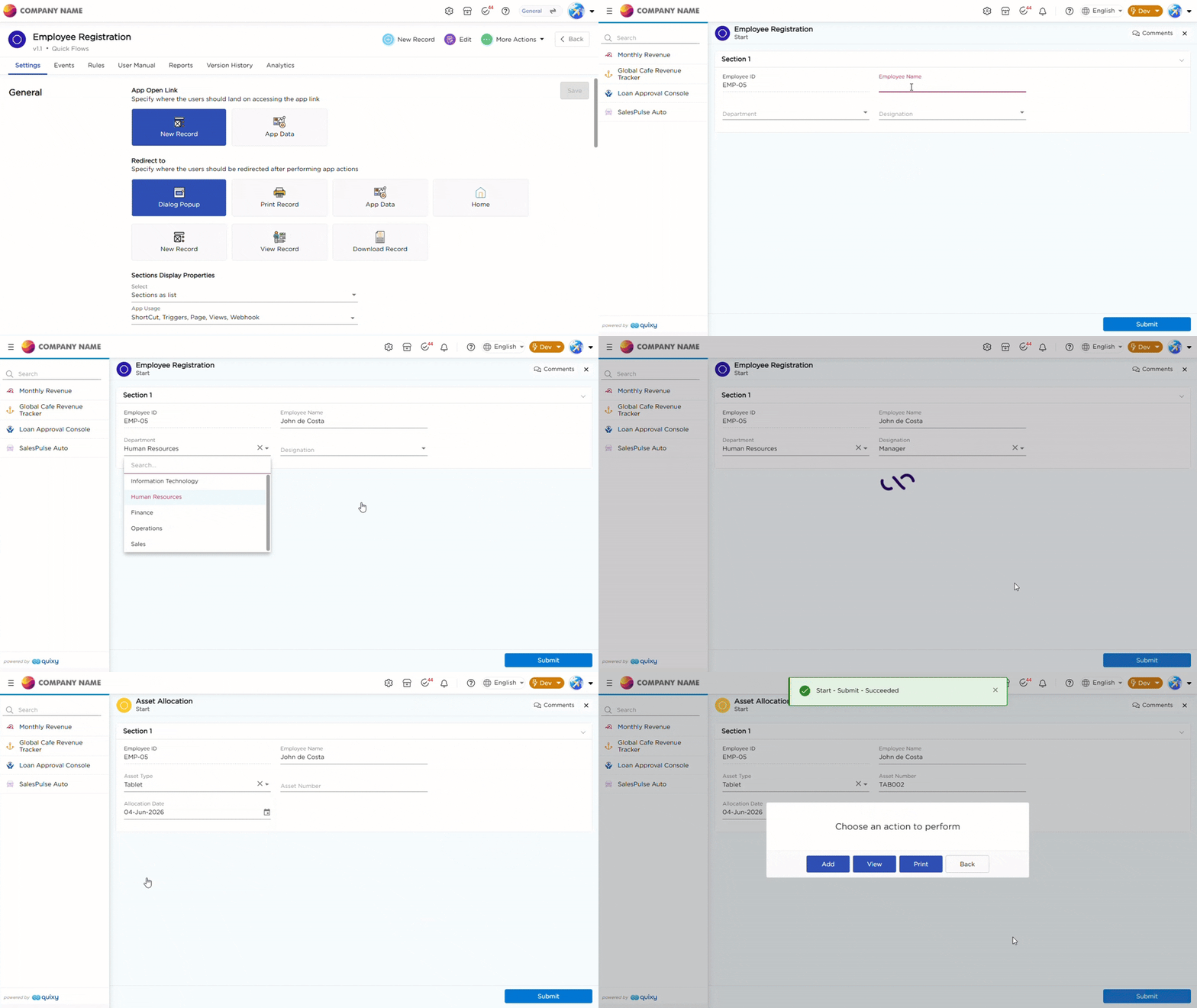
Use the Add Record in a New App Quick Flow to automatically open another app in Add Record mode after a record is submitted in the source app. This allows users to continue entering related information without manually navigating to the target app.
For example, after submitting an employee record, the Asset Allocation app can automatically open to capture asset assignment details.
¶ 1. Configure Add Record in a New App
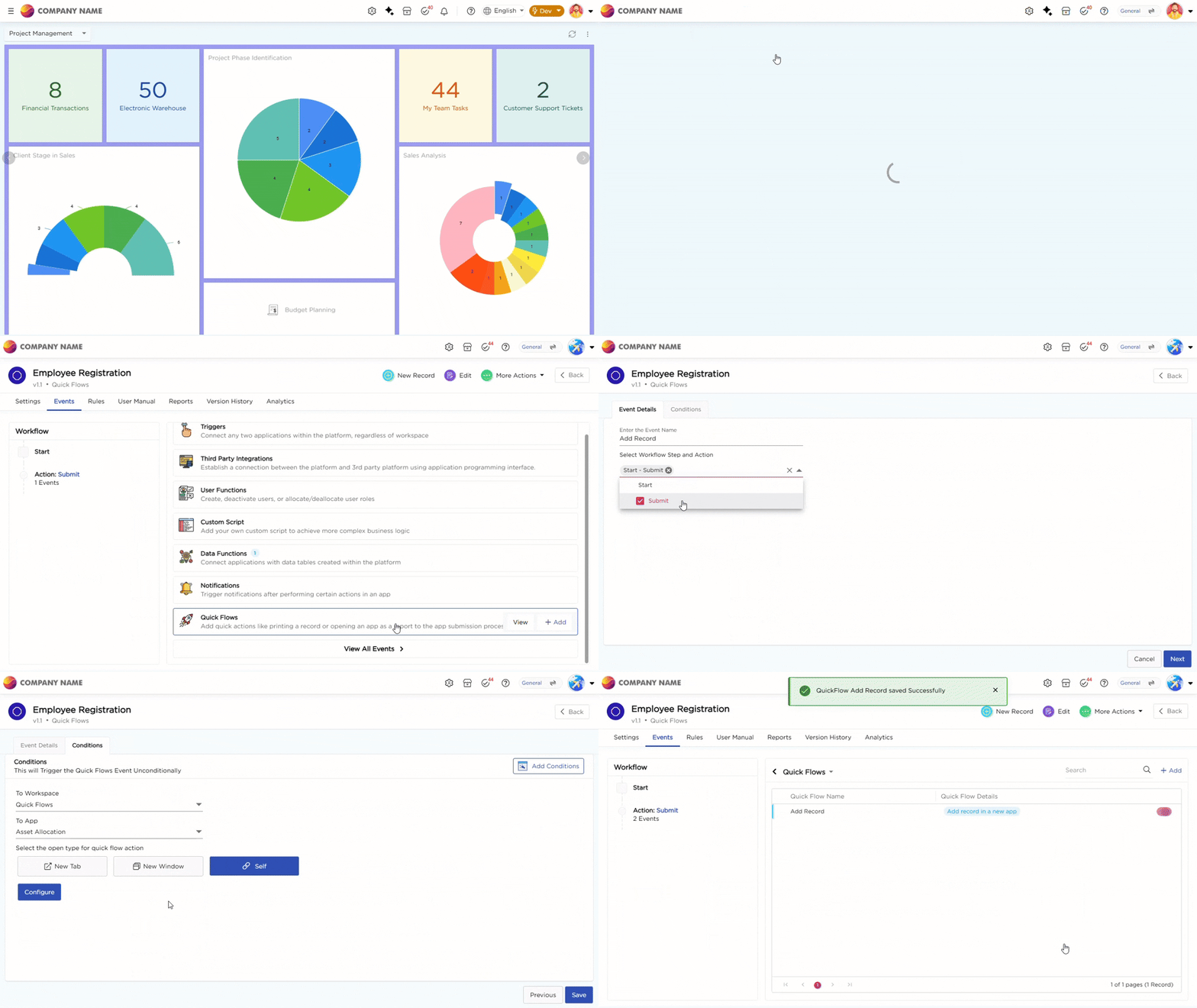
Follow these steps to configure the Add Record in a New App Quick Flow:
- In the Conditions tab, click Add Conditions and define the conditions under which the Quick Flow should be triggered. By default, the Quick Flow runs unconditionally.
- Select the target Workspace and App.
- Select how the target application should open:
- New Tab opens the application in a new browser tab.
- New Window opens the application in a separate browser window.
- Self opens the application in the current browser window.
- Click Configure to open the Configure Quick Flow window, where you can map fields between the source and target applications.
- In the Field Mapping tab, select a mapping method:
- Map 1 at a Time allows you to map individual fields manually.
- Show All and Map displays all available fields for bulk mapping.
- Map the required fields between the source and target applications.
- Click Save to apply the field mappings.
- Click Save to complete the Quick Flow configuration.
After a record is submitted in the source app, the target app opens in Add Record mode with the mapped field values populated automatically.