The General Preferences section lets administrators configure organization-wide UI, workflow, and user experience settings. These settings control task behavior, dashboard layout, menu placement, and date and time formats. They are applied across the platform.
To access Preferences, go to Admin Menu → Preferences → General.
The following settings are available under General Preferences.
¶ 1. Task Completion Redirection
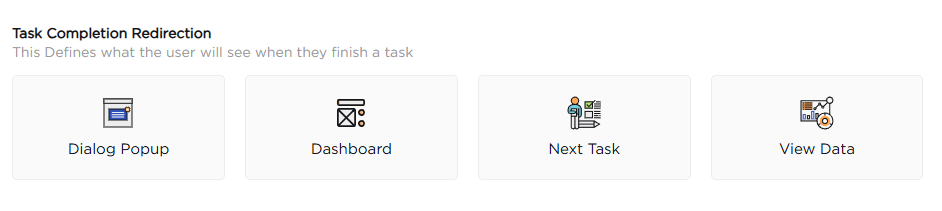
This setting determines where users are redirected after completing a task. The available options are listed below:
- Dialog Popup: Shows a confirmation dialog after task completion.
- Dashboard: Redirects the user to the dashboard.
- Next Task: Automatically opens the next available task.
- View Data: Opens the record that was submitted or updated.
¶ 2. Toast Notification for Task
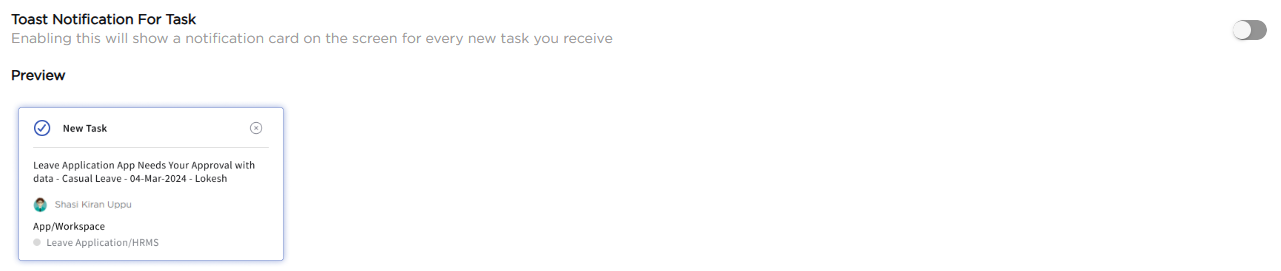
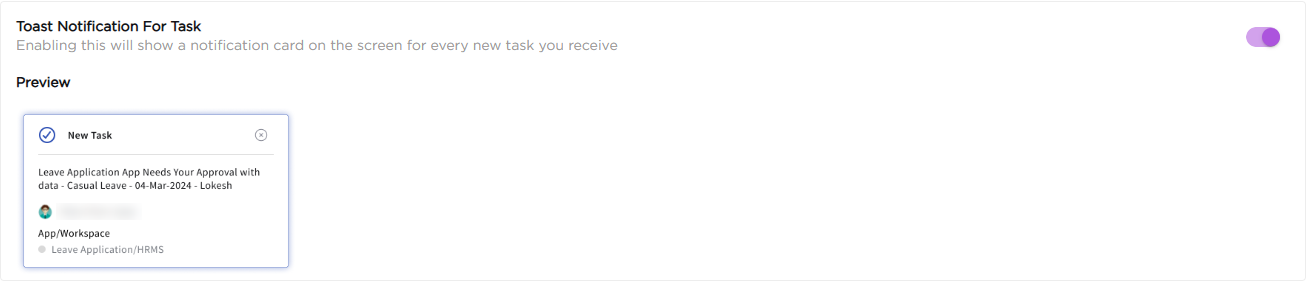
This setting, when enabled, shows a notification card when a new task is assigned. The notification details are listed below:
- Task title: Displays the title of the assigned task.
- Sender details: Shows who assigned the task.
- Workspace reference: Indicates the workspace where the task was created.
- Notification preview: Displays a brief preview of the task card.
The preview card is always displayed on this page, whether the setting is turned on or off. It only shows how the notification will look. The image below shows the setting turned off.
The following image shows the same preview with the setting turned on.
¶ 3. Dashboard Preview
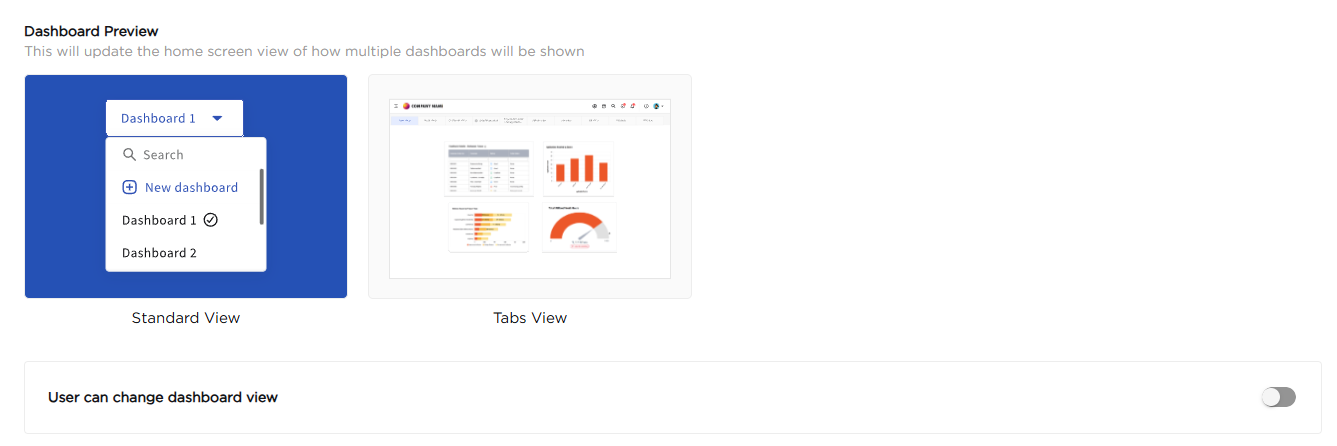
This setting determines how dashboards are displayed on the home screen. Users can view multiple dashboards instead of a single default dashboard. Available views are listed below:
- Standard View
- Tabs View
¶ 3.1. Allow User Control
This setting allows users to switch between Standard View and Tabs View on the home screen.
¶ 4. Layout and Appearance
These settings control the visual style of UI elements and the position of the user navigation menu across the platform.
¶ 4.1. Element Control Style
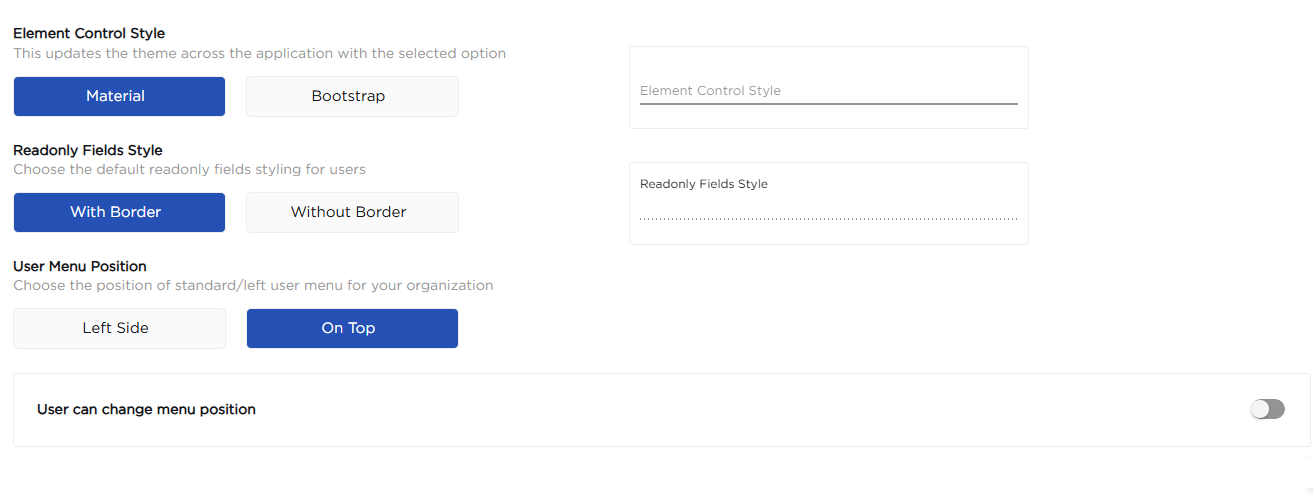
This setting determines the visual style applied to data entry fields. Available options are:
- Material: Applies Material design styling to form fields.
- Bootstrap: Applies Bootstrap-based styling to form fields.
¶ 4.2. Read-only Fields Style
This setting controls how read-only fields are displayed. Available options are:
- With Border: Displays read-only fields with a visible border.
- Without Border: Displays read-only fields without a border.
¶ 4.3. User Menu Position
This setting determines where the main user navigation menu appears. Available options are:
- Left Side: Displays the menu on the left side of the screen.
- On Top: Displays the menu at the top of the screen.
¶ 4.4. Allow User Control
This setting allows users to change the menu position.
¶ 5. Mobile Menu Style
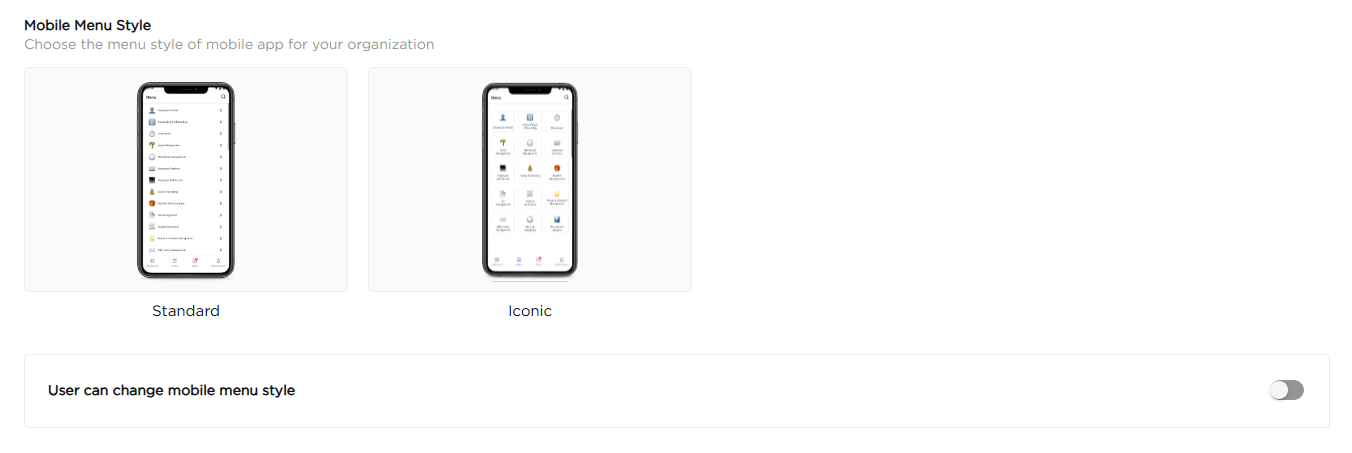
This setting determines how the menu is displayed in the mobile app. The available menu styles are listed below:
- Standard: Displays the menu as a list.
- Iconic: Displays the menu as a grid of icons.
¶ 5.1. Allow User Control
This setting allows users to switch between Standard and Iconic menu styles in the mobile app.
¶ 6. Date and Time Settings
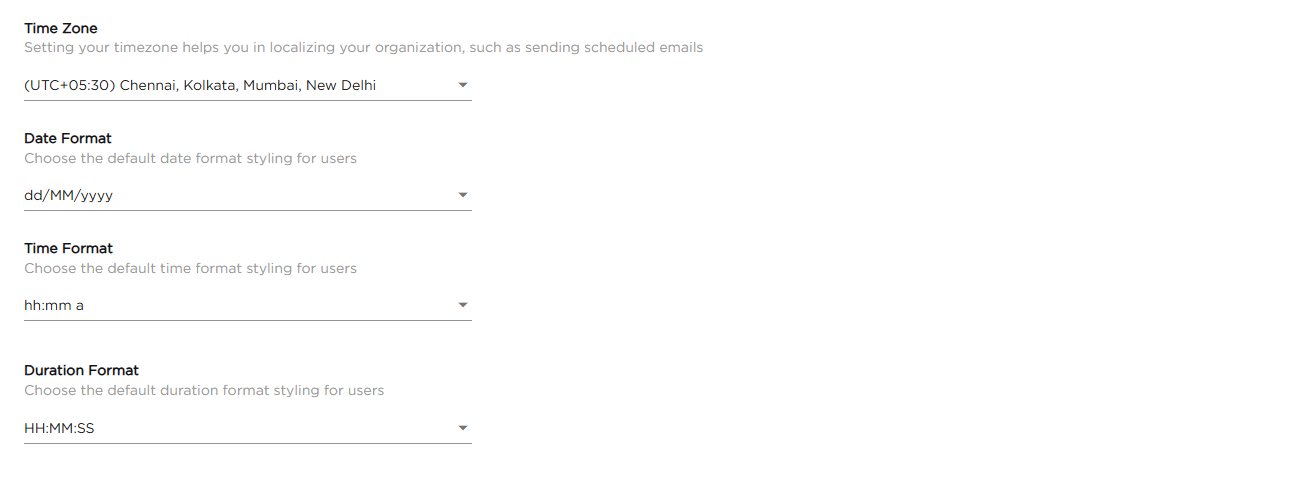
These settings determine how date and time values are displayed across the platform. The available options are listed below:
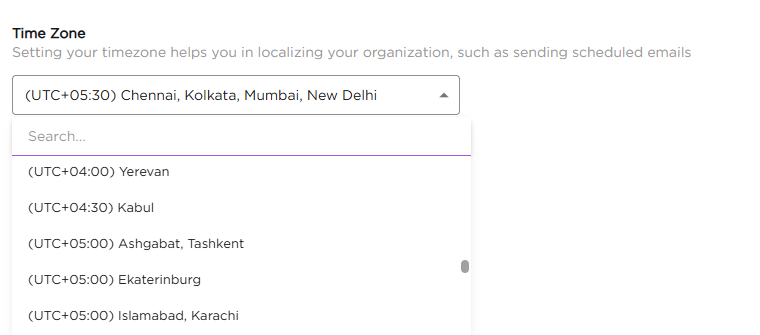
- Time Zone: Applies to all date and time fields, scheduled emails, and SMS notifications. Select a time zone from the list of 138 available time zones. You can search the list by typing in the search box.
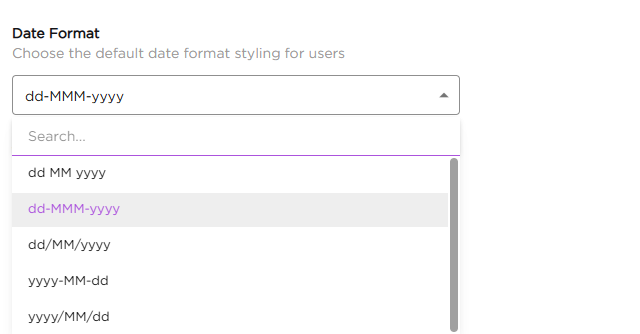
- Date Format: Determines the default date format displayed to users. Available date formats:
dd MM yyyy(for example, 22 10 2026)dd-MMM-yyyy(for example, 22-Oct-2026)dd/MM/yyyy(for example, 22/10/2026)yyyy-MM-dd(for example, 2026-10-22)yyyy/MM/dd(for example, 2026/10/22)
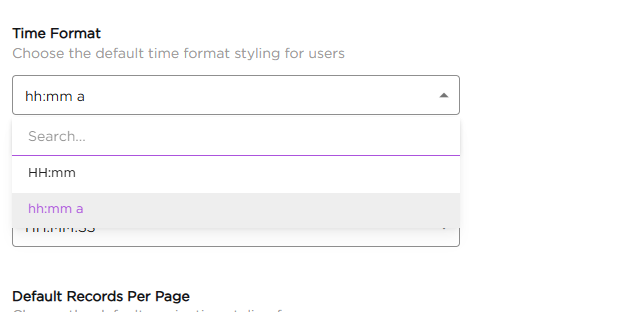
- Time Format: Determines whether time is displayed in a 12-hour or 24-hour format. Available time formats:
HH:mm(24-hour format, for example, 14:30)hh:mm a(12-hour format, for example, 02:30 PM)
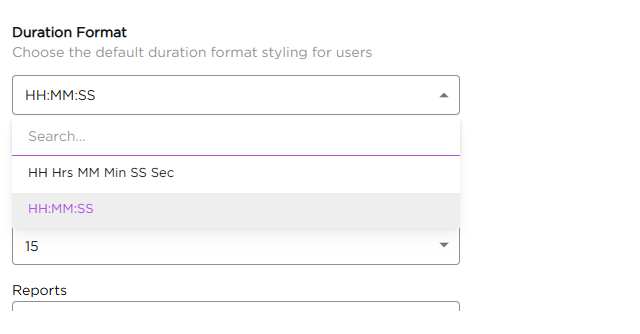
- Duration Format: Determines how duration values are displayed. Available duration formats:
HH:MM:SSHH Hrs MM Min SS Sec
The following image shows the available time zones.
The following image shows the available date formats.
The following image shows the available time formats.
The following image shows the available duration formats.
¶ 7. Default Records Per Page
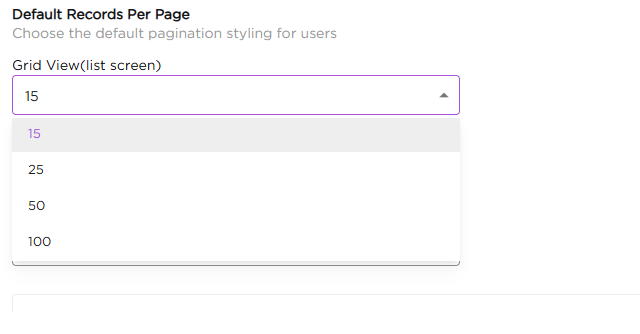
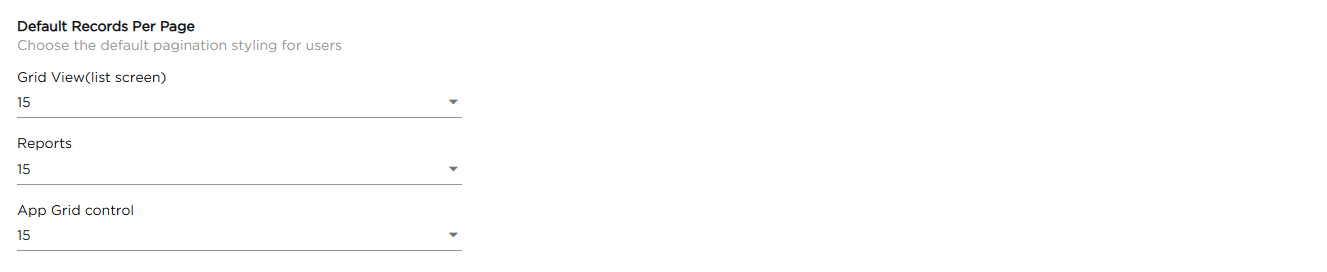
This setting determines how many records are displayed per page. The available options are listed below:
- Grid View (list screen): Sets the number of records shown on list screens.
- Reports: Sets the number of records shown in reports.
- App Grid control: Sets the number of records shown in app grids.
For each of these, you can select 15, 25, 50, or 100 records per page. The default is 15.
The following image shows the available options.
¶ 8. Drop Down Behaviour
This setting determines how selected values are displayed in dropdown fields. The available display options are listed below:
- Chip: Displays selected values as individual labeled chips.
- Option separated by comma: Displays selected values in a single line, separated by commas.

¶ 9. User Registration
This setting determines whether users can sign up from the organization login page. When enabled, a Sign-Up option appears on the login screen.

¶ 10. Auto Verify User Contact Details
This setting determines whether user contact details are automatically verified. When enabled, user mobile numbers are verified for the following:
- System notifications.
- Workflow-related SMS alerts.
- App-specific communication.

¶ 11. Enable Offline Apps Sync
This setting determines whether offline access is applied to all apps in the organization. When enabled, offline apps sync is activated automatically for all mobile users, so you do not need to enable offline access for each app individually, and users do not need to activate it manually in their profile settings in the Quixy mobile app.
To enable offline access for a single app instead, use the Offline Access switch in the app's Settings tab under Accessibility. For more information, see Offline Mobile App.

¶ 12. Restrict User Profile Edit
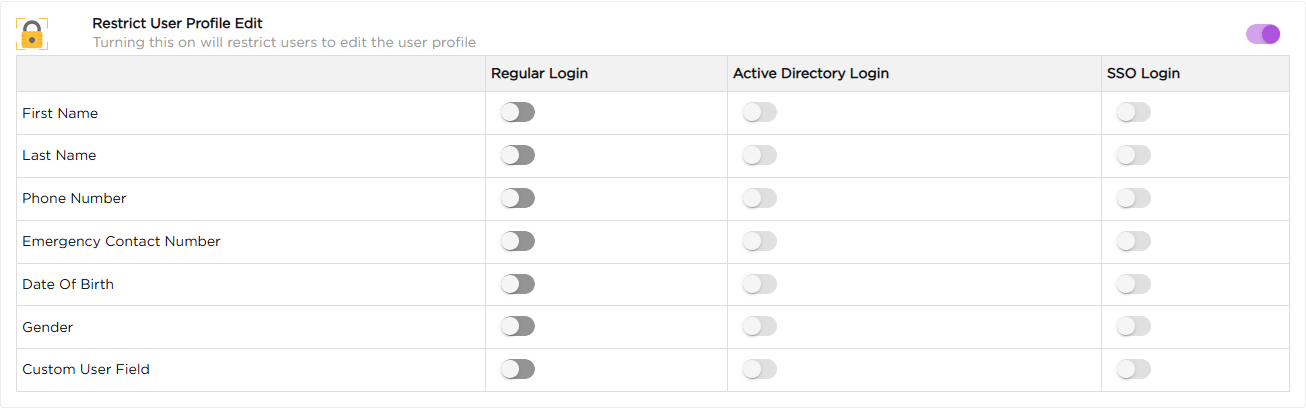
This setting determines whether users can edit their own profile information. When enabled, a table appears where you choose which profile fields users cannot edit, for each login type.
The table lists the following login types as columns:
- Regular Login
- Active Directory Login
- SSO Login
The following profile fields are listed as rows:
- First Name
- Last Name
- Phone Number
- Emergency Contact Number
- Date Of Birth
- Gender
- Custom User Field
Turn on the switch for a field under a login type to restrict users of that login type from editing that field. All switches are off by default, so turning on Restrict User Profile Edit does not lock any field until you turn on the switches you need.

The following image shows the field table that appears when the setting is turned on.
¶ 13. View Custom User Field(s)
This setting determines whether custom fields are visible on the user profile page. When enabled, users can view the selected custom profile fields.
When you turn on this setting, the custom user fields created for your organization are listed below it, each with its own switch. Turn on the switch for each custom field that users should see on their profile page.

¶ 14. Enable RTL (Right-to-Left)

This setting determines whether the interface is displayed in Right-to-Left (RTL) alignment for new users. When enabled, newly created users see the interface in RTL layout. Commonly used for languages such as Arabic or Hebrew.
Note
By default, all users see the standard Left-to-Right (LTR) layout unless RTL is manually activated.
¶ 15. Enable Captcha
This setting determines whether captcha verification is enabled on the login page. When enabled, captcha is applied during login to prevent the following:
- Automated login attempts.
- Bot-triggered attacks.
- Unauthorized access attempts.

¶ 16. Enable Comments
This setting determines whether comments are enabled in apps. When enabled, comments can be configured at one of the following levels:
- Organization: Enables comments across all apps in the organization.
- Workspace: Enables comments only within the selected workspace.

¶ 17. Show/Hide Others in Gender
This setting determines whether the Others option is available in gender selection fields. When enabled, the Others option is visible and selectable in gender fields.

¶ 18. Currency Management
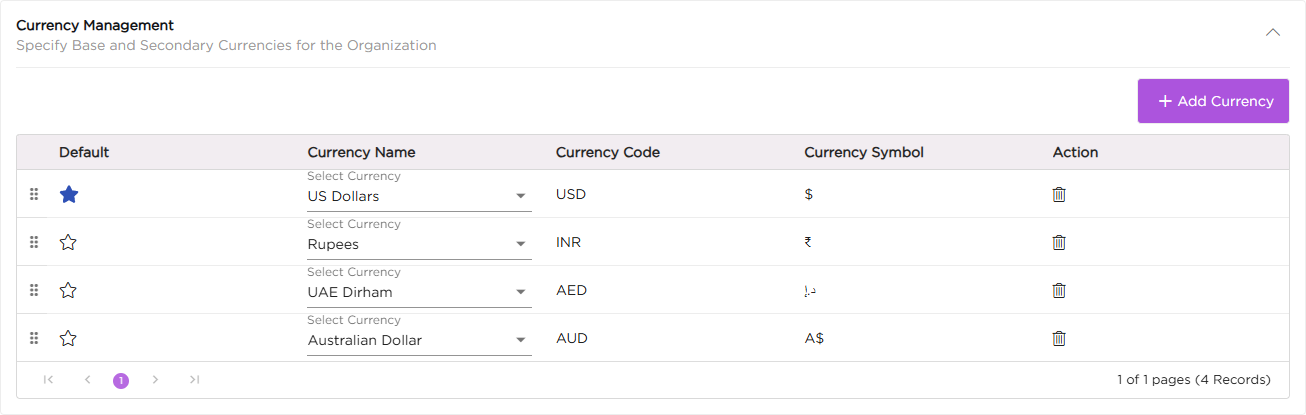
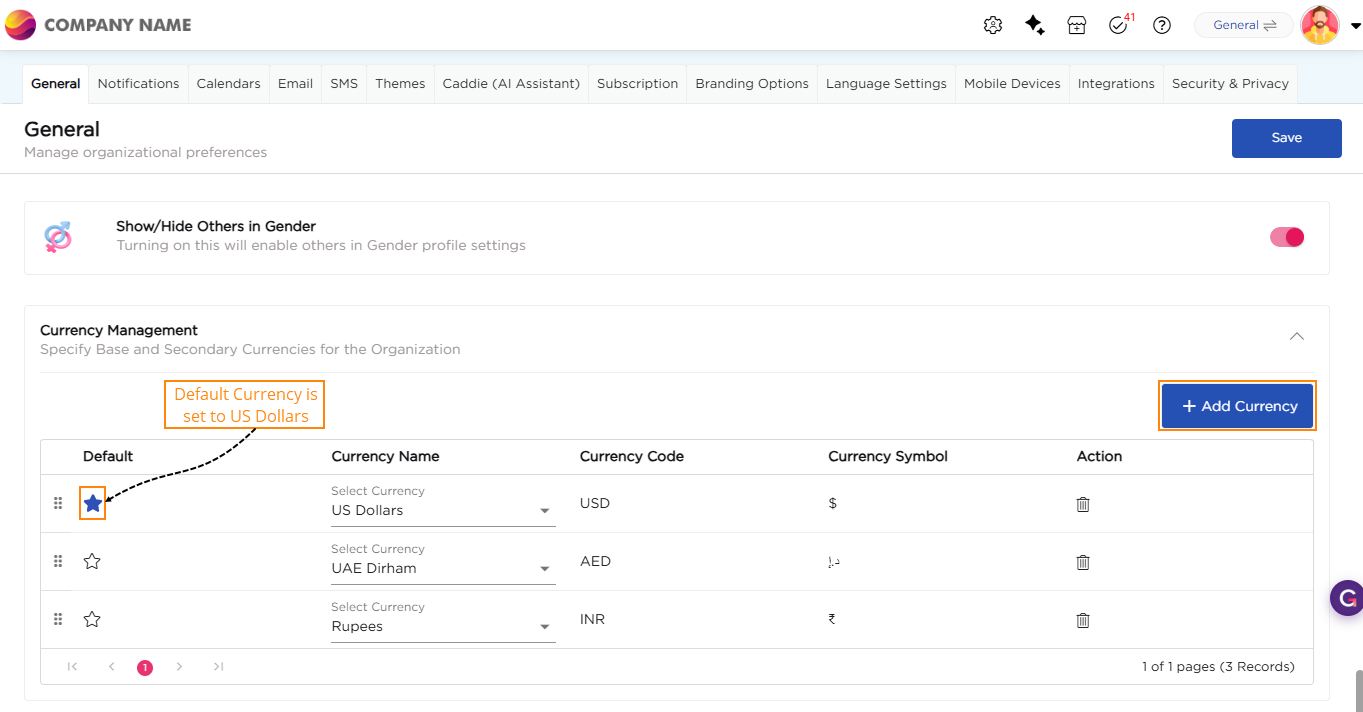
This setting allows you to configure base and secondary currencies for the organization. These currencies are used across applications and reports for consistent financial data representation. You can add multiple currencies and define one as the default currency. To add a currency:
- Click Add Currency
- Select the Currency Name
- The Currency Code and Symbol are auto populated
- Mark a currency as Default to set it as the primary currency
- Click Save at the top right of the page to apply the changes
The default currency is used as the primary currency across applications and reports.
The currency table also provides the following controls:
- Default (star): Click the star next to a currency to make it the default. A confirmation dialog asks you to confirm the change from the current default currency. The filled star marks the current default.
- Drag handle: Drag a row by the handle at the start of the row to change the order of currencies in the table.
- Delete (trash icon): Click the trash icon in the Action column to remove a currency. A confirmation dialog asks you to confirm before the currency is deleted.